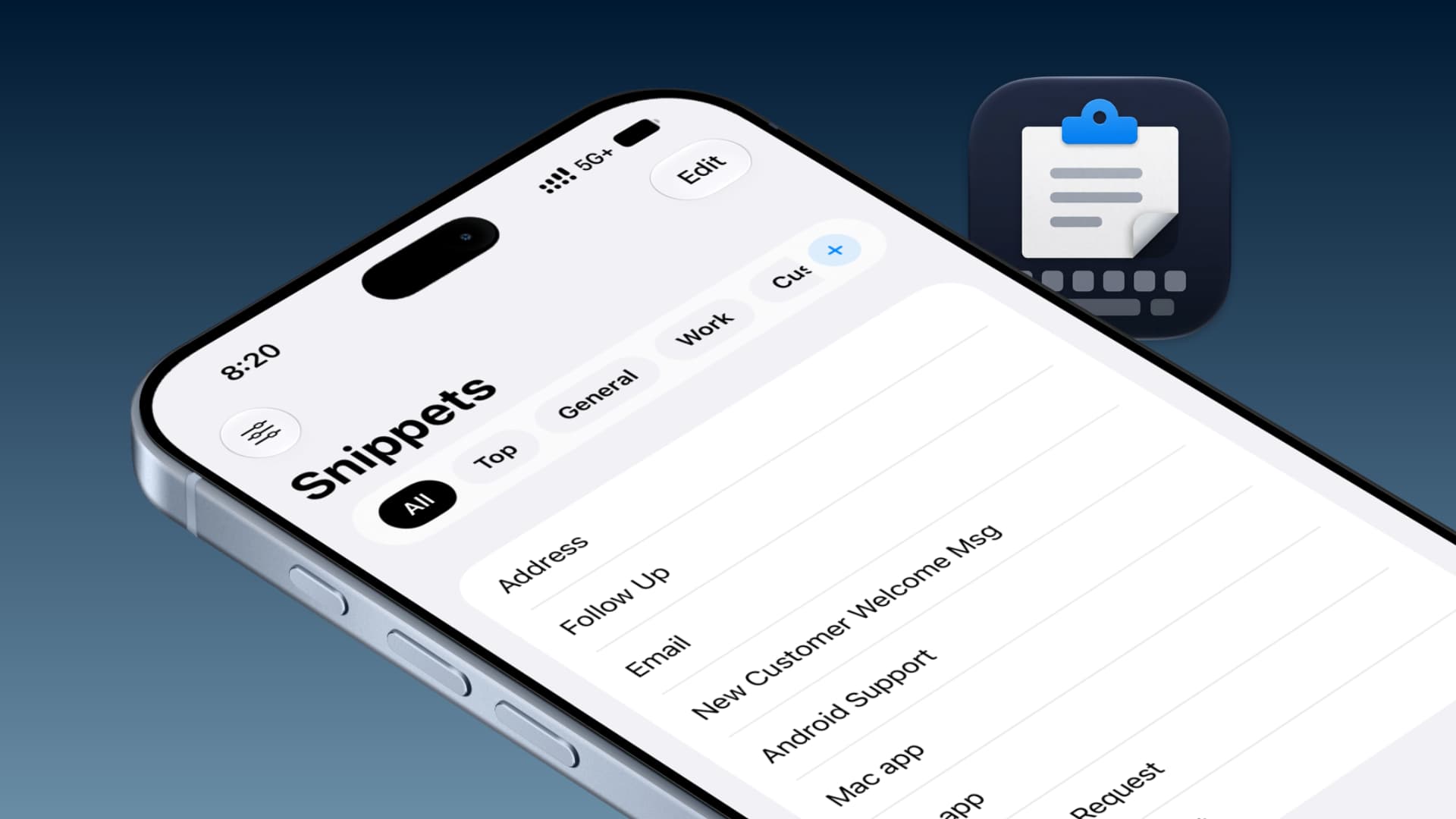
We may be a bit partial, but Paste Snippets, a privacy-focused app we developed in-house, is the best clipboard app that sits beneath your iPhone or iPad keyboard and lets you quickly insert frequently used text snippets. It’s also available on Mac, and you can use it effortlessly from the menu bar.
Prior versions of our app worked flawlessly and already let you manually export your added snippets and import them on another device, like your iPad, second iPhone, or Mac. This meant you didn’t have to set up your most-used text snippets and replies individually on every device.
We’ve improved on that and added seamless iCloud sync support. With a flick of a switch, all your added text snippets will sync across your other Apple devices for a uniform experience. Of course, you’ll need to turn it on first, and I will show you how.
As it is with iCloud, your snippets data is encrypted, so you don’t have to worry about saving personal information as quick replies.
Turn on iCloud sync for Paste Snippets on iPhone, iPad, and Mac
1) Head to the iOS, iPadOS, and macOS App Store and update the Paste Snippets app to the latest version on all your devices when you want to enable iCloud sync.
2) Open the app on your iPhone (which is where I assume you have set up most snippets), tap the settings icon in the top left corner, and then turn on Sync with iCloud. Since text takes up very little space, your snippets should be uploaded to iCloud in less than a minute.
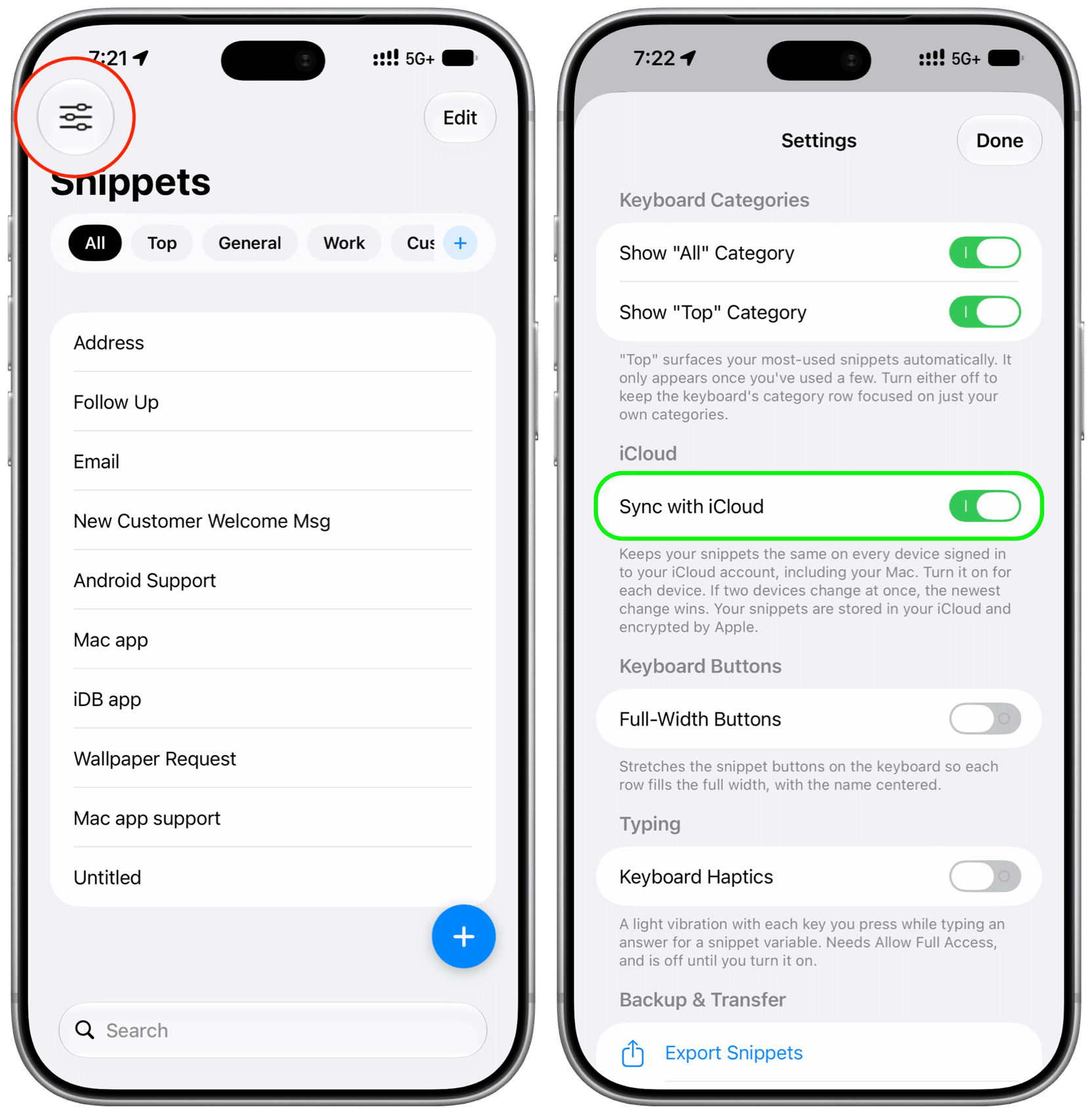
3) Open the Paste Snippets app on your iPad and Mac, hit the settings icon, and turn on Sync with iCloud. All your iPhone snippets will automatically appear here. Any snippets unique to these devices will also sync to other devices, like your iPhone.
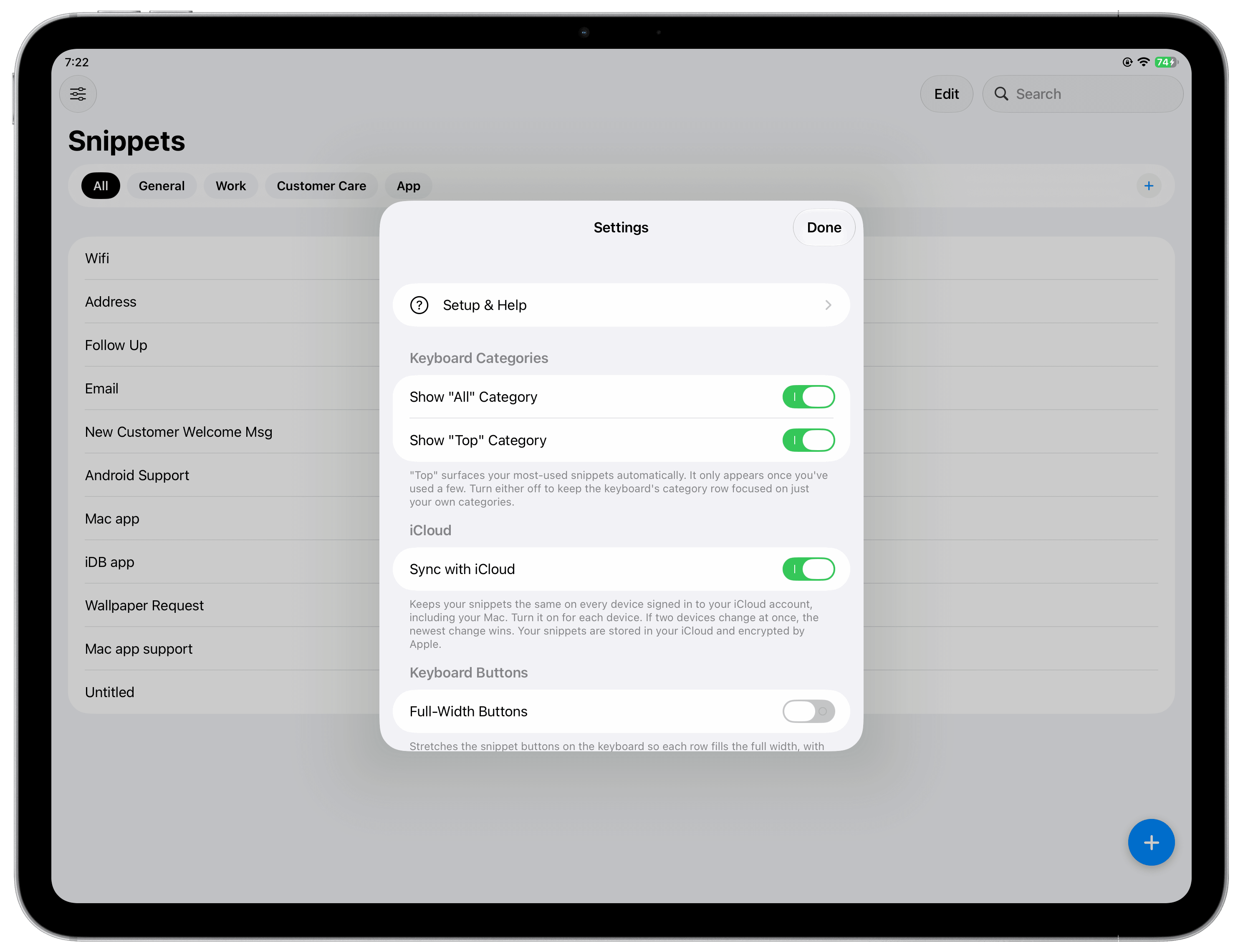
Here’s how it looks on Mac:
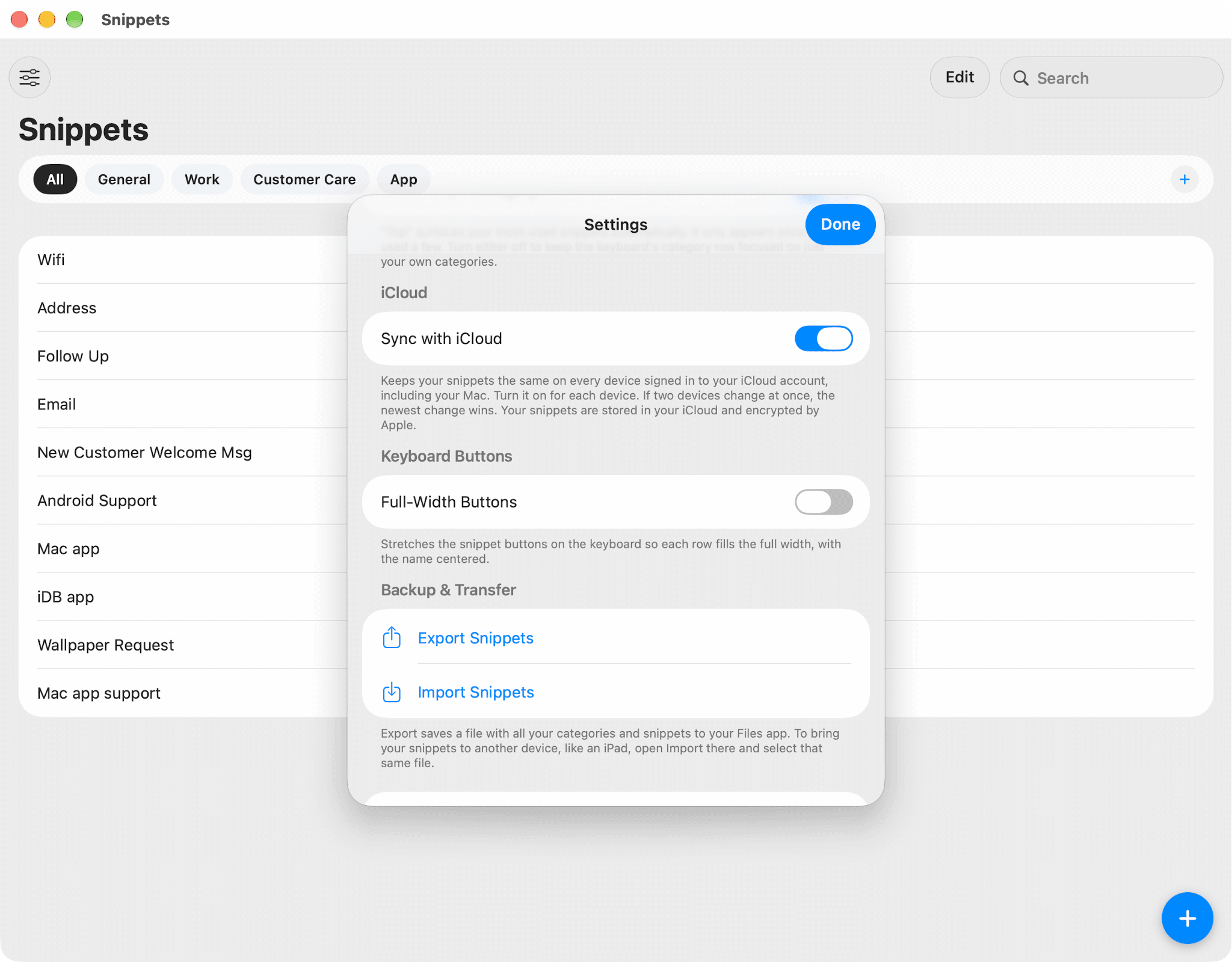
The feature description says:
Keeps your snippets the same on every device signed in to your iCloud account, including your Mac. Turn it on for each device. If two devices change at once, the newest change wins. Your snippets are stored in your iCloud and encrypted by Apple.
As with all syncing services, if you edit or delete a snippet on one device, the change will automatically reflect on all your other devices.
Don’t sideline the manual export & import feature yet…
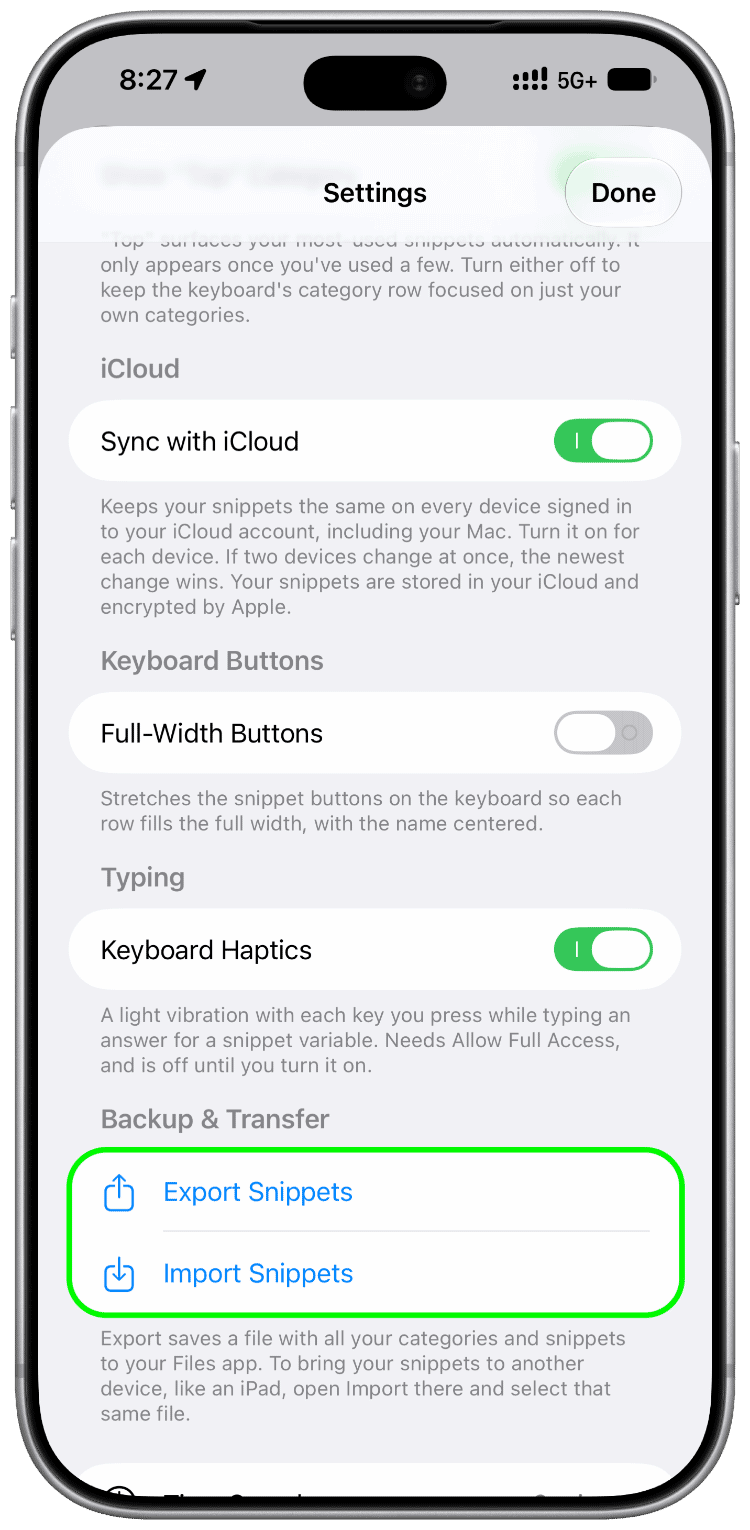
Even though iCloud sync is effortless, automatic, and runs quietly in the background, manual export & import still has some important uses.
First, if you have set up, say, customer care replies as snippets and want the same text across different devices used by multiple employees, iCloud sync won’t work unless they all use the same Apple Account. In this case, you can use the manual export and import tool to ensure the same snippets on all devices.
Secondly, if you’d like to keep an offline copy of your saved text snippets, use the manual export option to get a JSON file and save it to the Files app or elsewhere.
Beyond iCloud sync, the latest version of Paste Snippets also supports hiding the auto-created All and Top categories, full-width buttons that stretch across the entire screen, and subtle keyboard haptics.
Try Paste Snippets and share your feedback or feature suggestions with us.