Learn how to view calendar events as a list in the Calendars app, as well as on the Home Screen and Lock Screen of your iPhone, iPad, and Apple Watch.
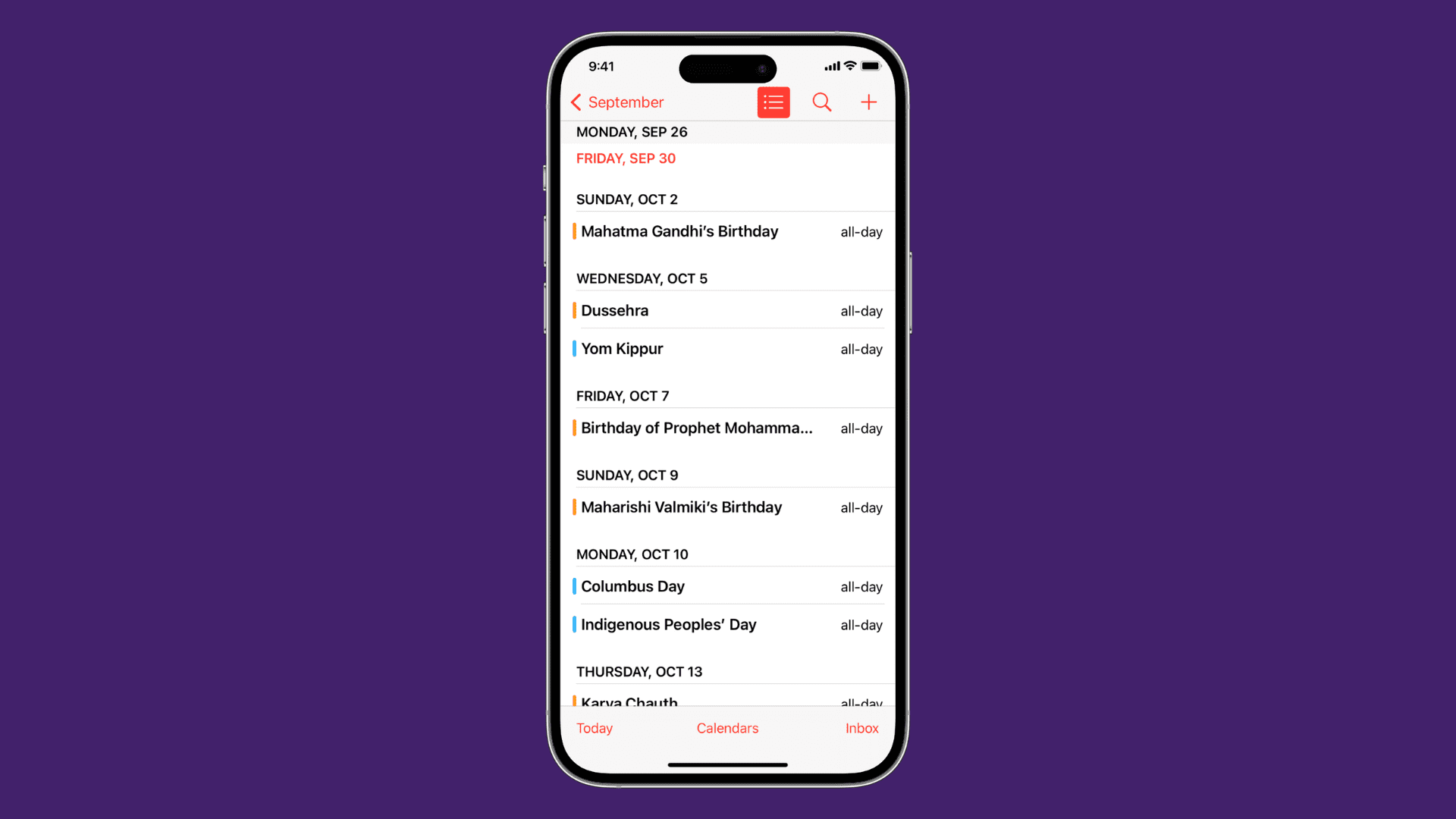
List view shows your calendar events in a compact form, allowing you to see several upcoming events at a glance.
On iPhone
- Open the stock Calendar app on your iPhone.
- In your month view, tap the Today button at the bottom left corner of the screen until you get to the view where you see all your events for the day, per time slot.
- Tap Today again if needed, and you’ll see all events and reminders in a list view. If you don’t, tap the icon on the left of the search button and select List.

On iPad
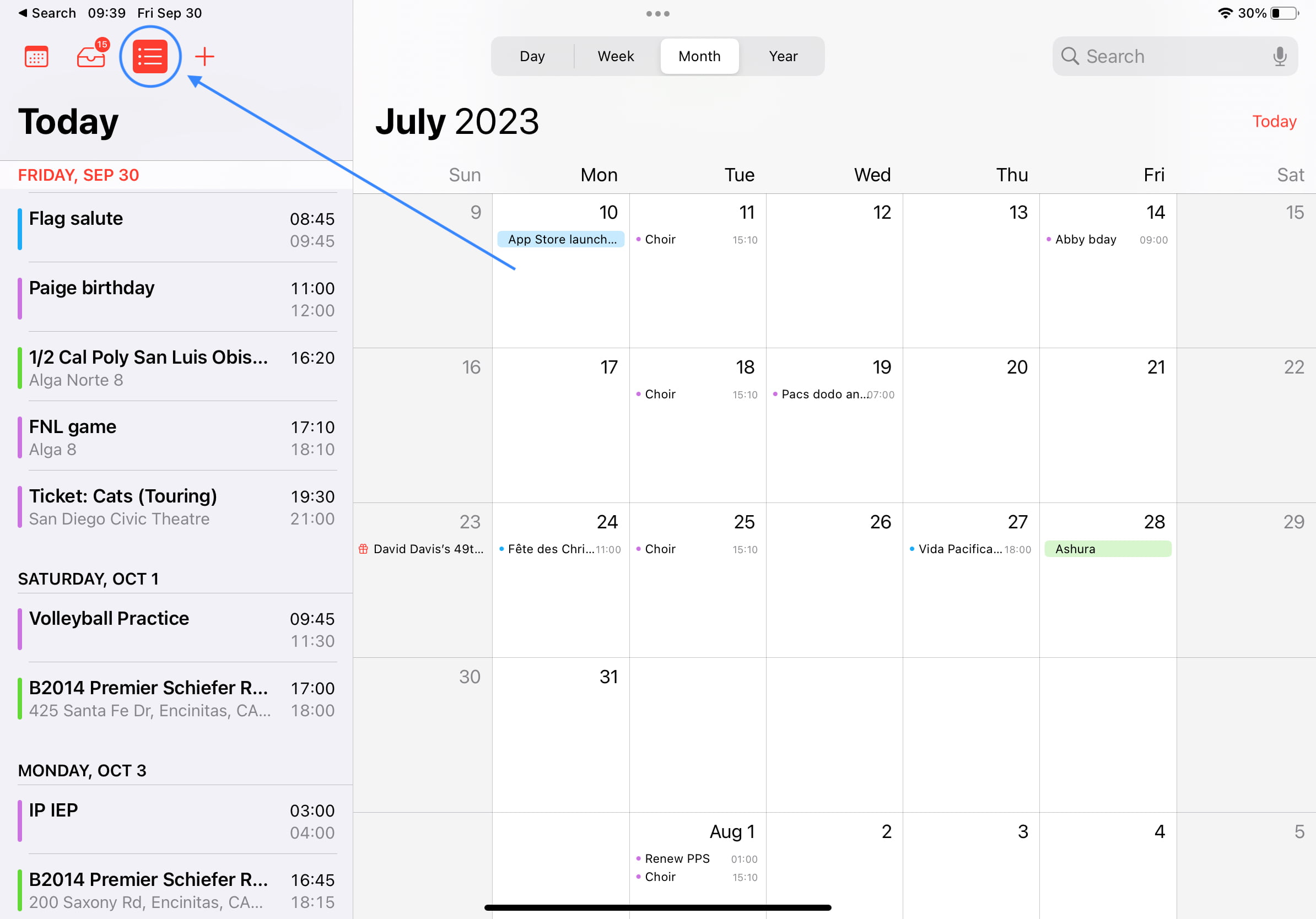
Things are a little more straightforward on the iPad. Simply open the app and tap the List icon in the upper left-hand corner. This will display a list of your upcoming events in the side column.
On Apple Watch
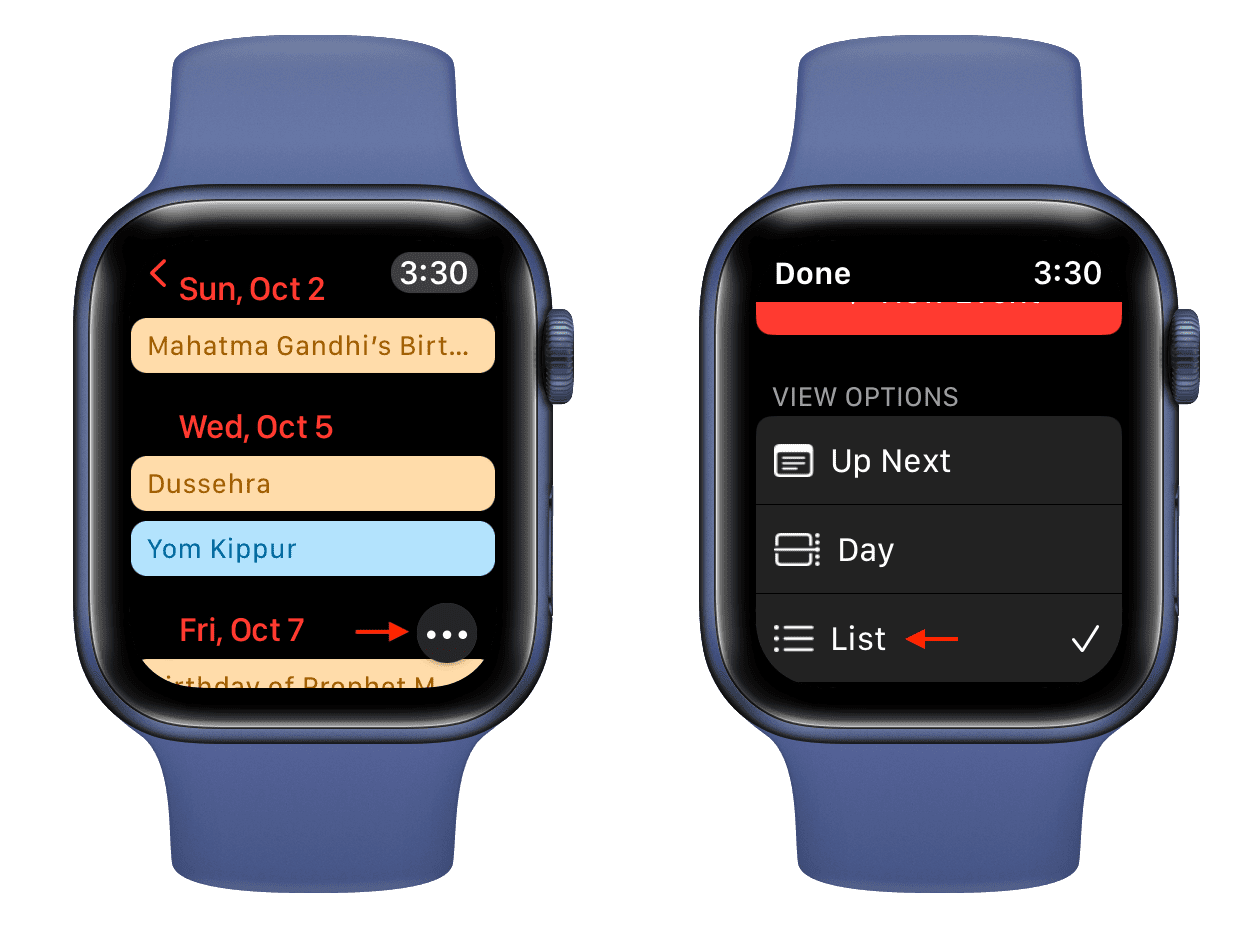
- Open the Calendar app on your watch.
- Tap the three dots icon and select List.
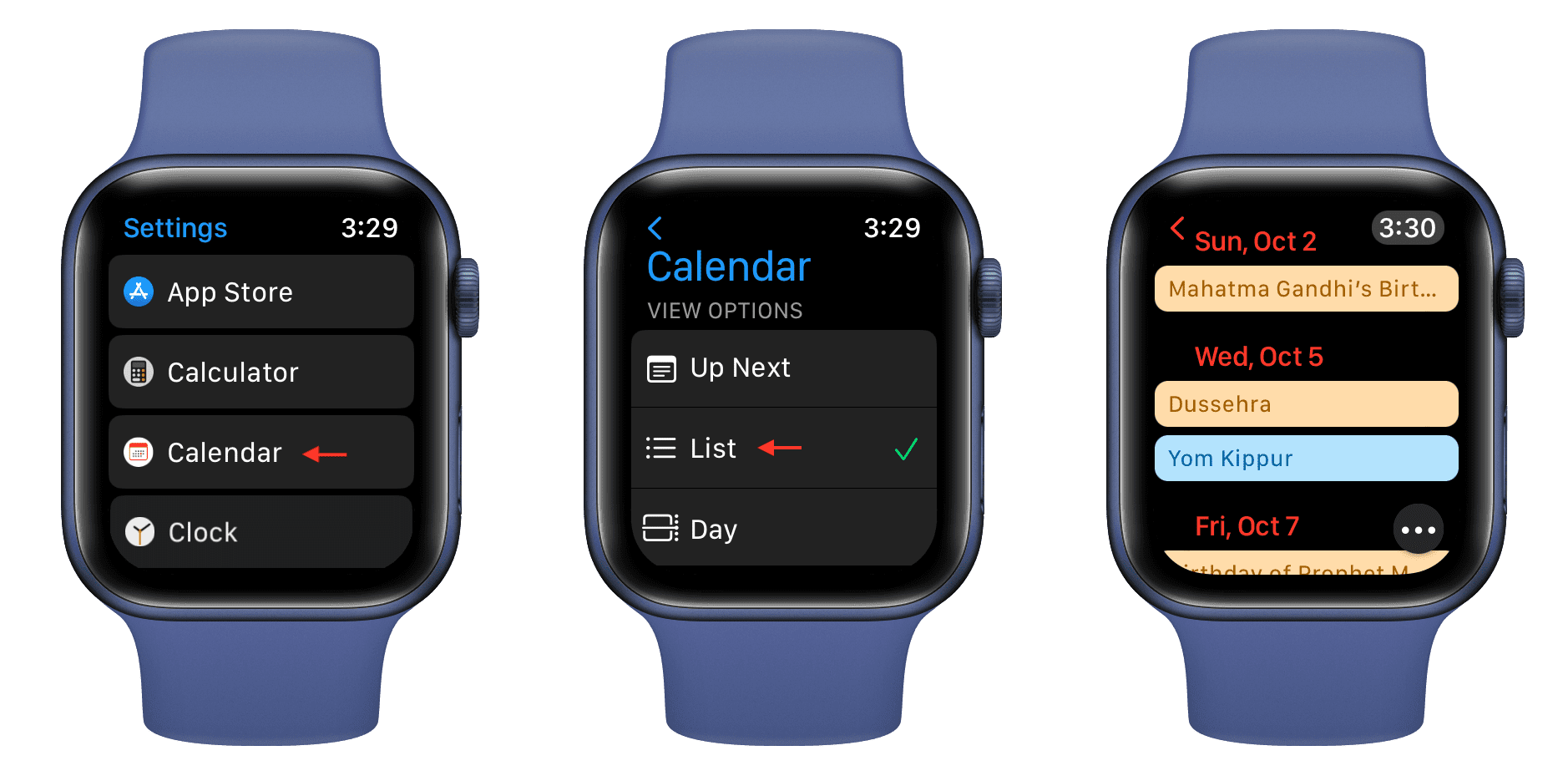
If your Apple Watch is on an older version of watchOS, you can also go to the Settings app, select Calendar, and tap List.
Add the List view Calendar widget to the Home Screen or Today View
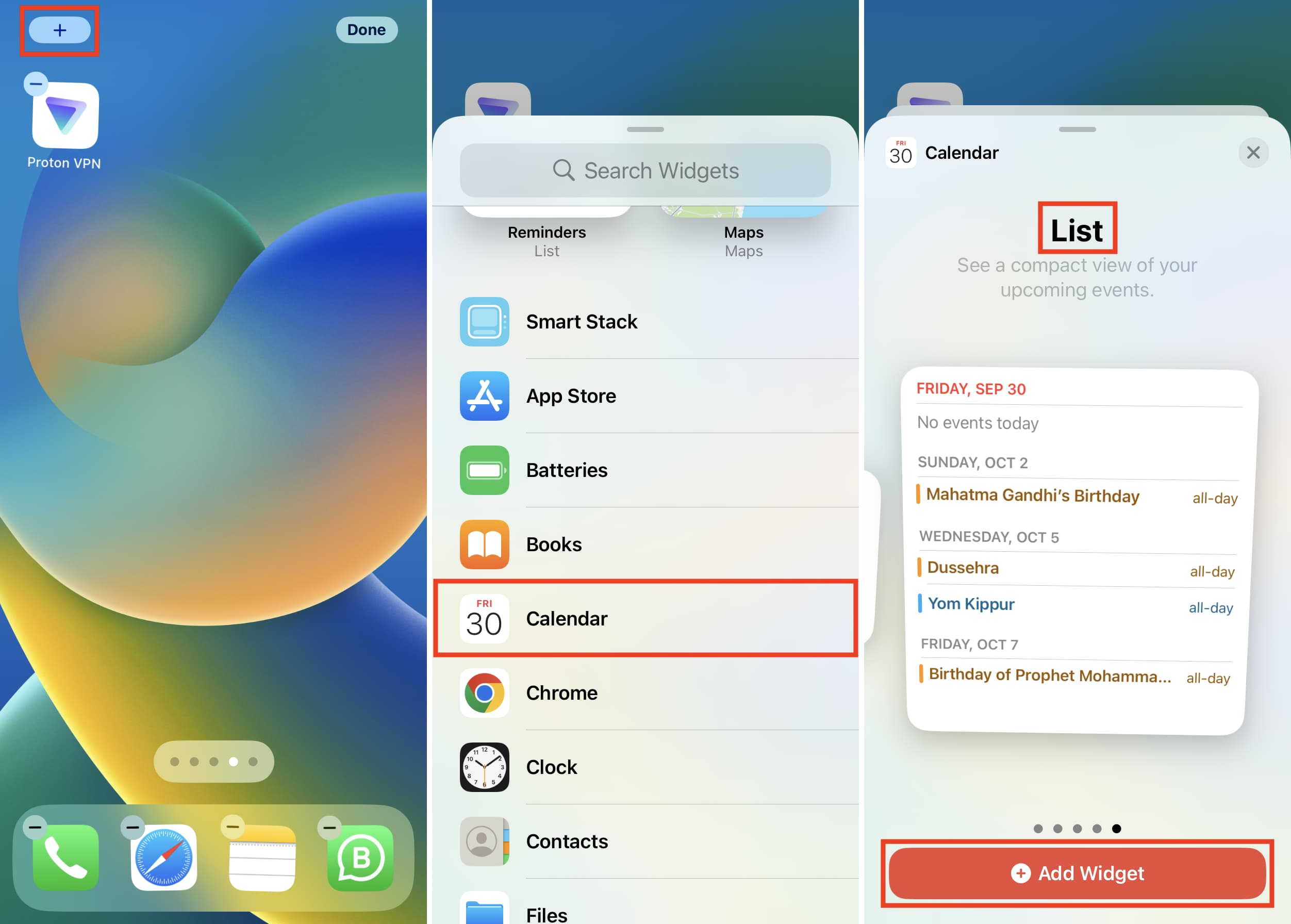
This is the best way to see a list of your upcoming events on either your Home Screen or Lock Screen.
Simply add the List view calendar widget to your iPhone or iPad Home Screen or Today View, and you’ll see recent upcoming calendar events in a compact list view.
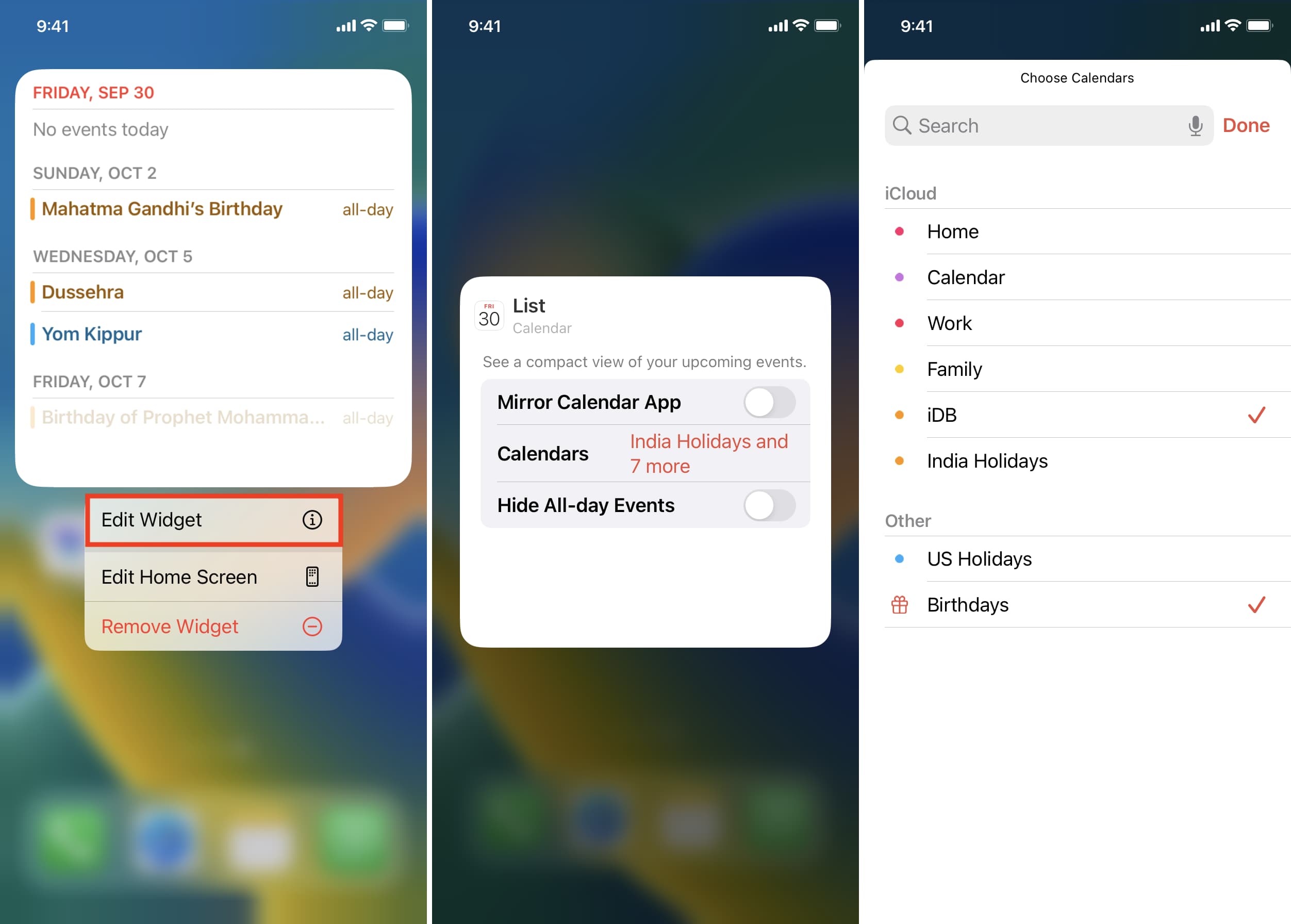
To edit this widget, touch and hold it and choose Edit Widget. From here, you can turn off the Mirror Calendar App and then tap Calendars to pick only the desired calendars.
More tips for the Calendar app: