Learn how to send a standard SMS text message instead of an iMessage from your iPhone to friends and family who also use an iPhone.
SMS vs. iMessage
SMS is a carrier-based messaging service supported on all phones, including iOS, Android, and basic feature phones. It works without an internet connection and functions across platforms and phone numbers.
In contrast, iMessage is an Apple-exclusive service available on iPhone, iPad, Mac, and Vision Pro. It requires Wi-Fi or cellular data and can only be sent or received by people using Apple devices. This means you can’t send an iMessage to friends or family with an Android phone or a basic feature phone.
iOS Messages app
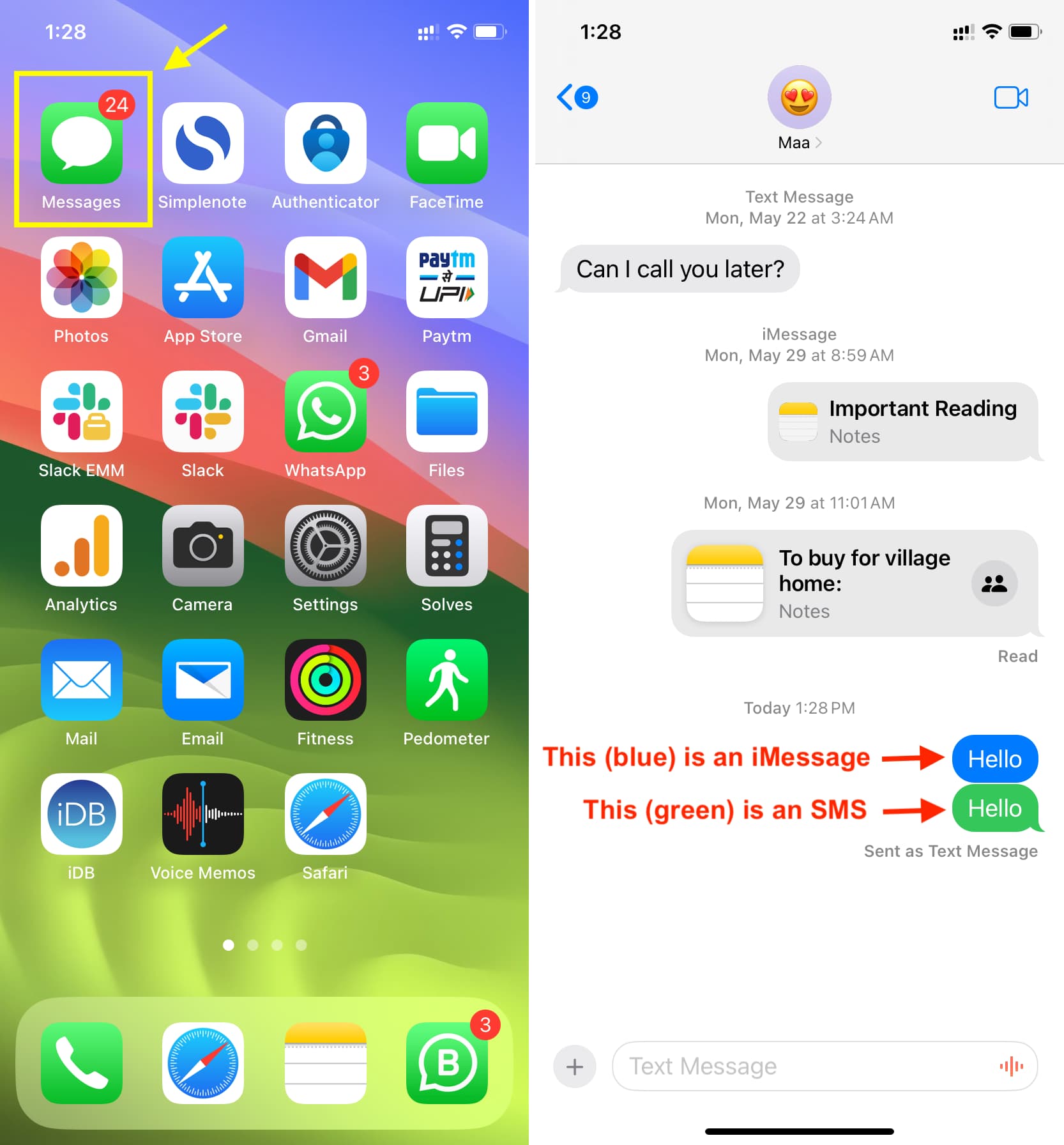
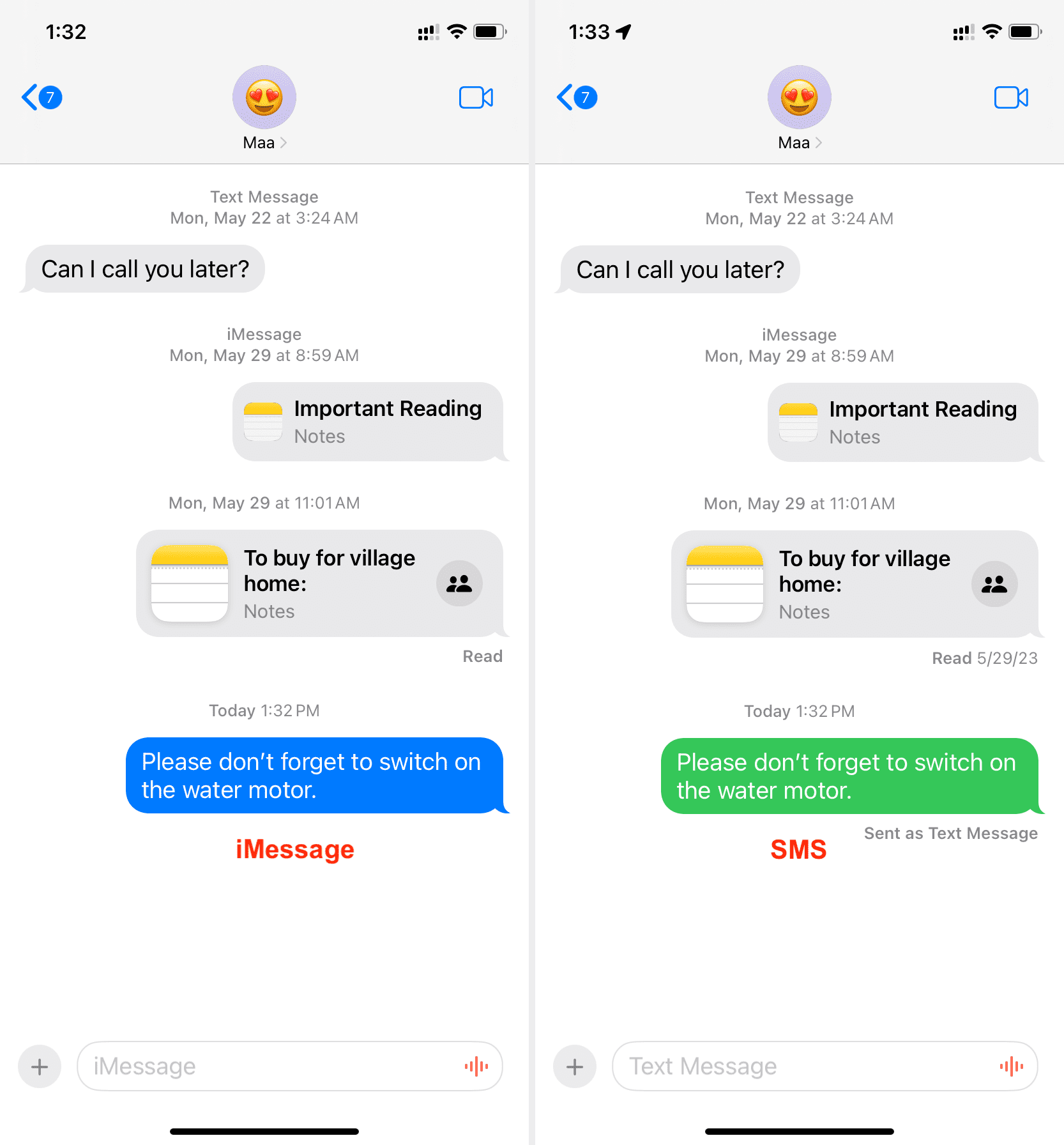
Both SMS and iMessage work inside your iPhone’s built-in Apple Messages app (left image below).
On the conversation screen, SMS messages are shown as green chat bubbles, and iMessages are shown as blue chat bubbles (right image below).
Related: How to send an SMS from your iPad or Mac
What happens when you message an iPhone user from your iPhone?
When you open the Messages app and send a text to another person who has an iPhone (and has activated iMessage via mobile number or email address), then that text is automatically sent as an iMessage.
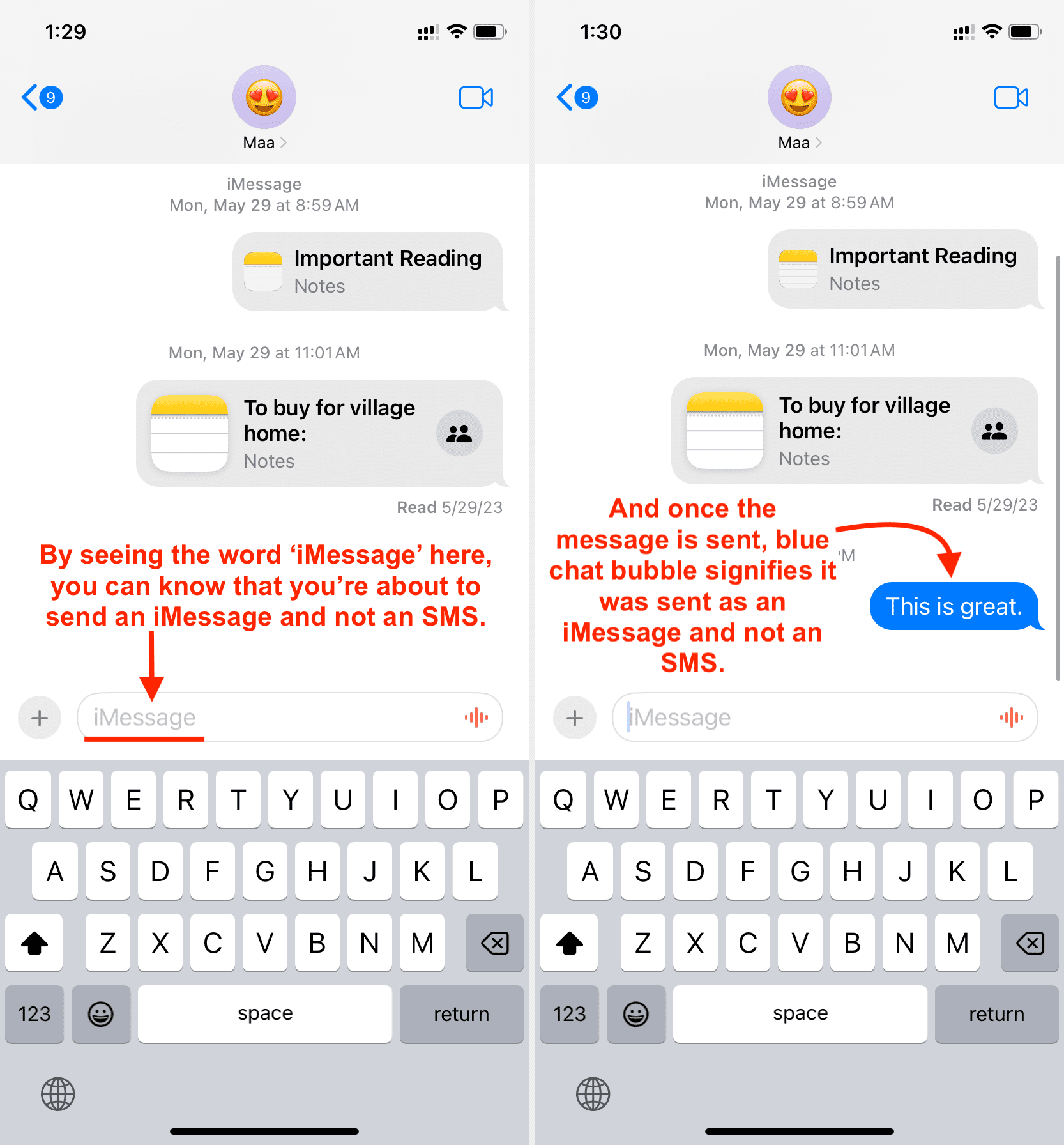
You know the text is an iMessage even before you send it if “iMessage” is visible in the typing box. And you can be sure of it after sending the message by seeing the blue text bubble.
Why send an iPhone user a text message instead of an iMessage?
While iMessage has its advantages, like being reliably delivered, read receipts, and the ability to send things like photos, videos, stickers, and PDFs, you may want to send a normal SMS in the following situations:
- You have a poor internet connection, and your iPhone is stuck trying to send an iMessage.
- iMessage has not been delivered as the user has turned off the internet on their iPhone, but you want to reach them anyway. So, instead of sending an iMessage and waiting for it to be delivered when they enable Wi-Fi/mobile data on their phone, you can send an SMS that’s delivered right away.
- You know the receiver currently does not have access to Wi-Fi or cellular data. For instance, when my mother visits our country home, I know she doesn’t have Wi-Fi, and cellular data can be finicky. So, instead of sending her an iMessage, I send her a standard SMS. Similarly, if someone is on the road, they may have a poor cellular signal that only works for SMS messages.
Send an SMS in place of iMessage from your iPhone
1) Open the Messages app on your iPhone and go to an existing iMessage conversation, or start a new one by tapping the compose button.
2) Type what you want to say and hit the blue arrow icon.

3) Now, touch & hold the sent iMessage and tap Send as Text Message.
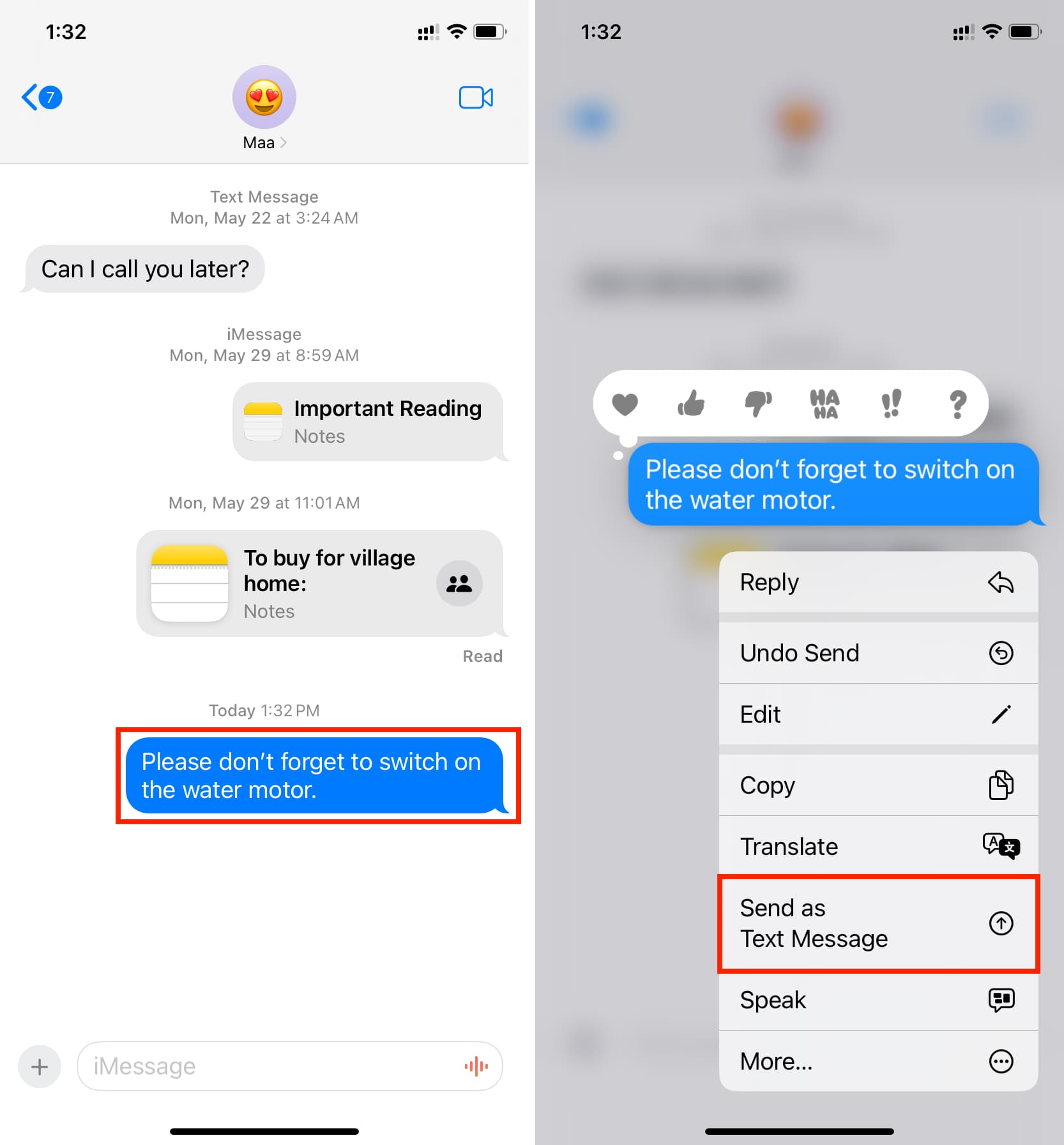
This iMessage (blue color) will now be sent as an SMS text message (green color).
Obviously, this doesn’t work, and you won’t see the “Send as Text Message” option if the iMessage is already delivered. And to be fair, in this situation, you don’t even need to send it as an SMS because if what you want to say has already reached the recipient, then what’s the point of resending it?
Note that you also won’t see the Send as Text Message option if the receiver has set up their iMessage using their email address. In this case, touching and holding the text says, “Send to Email Address.”

After you send an iMessage as SMS
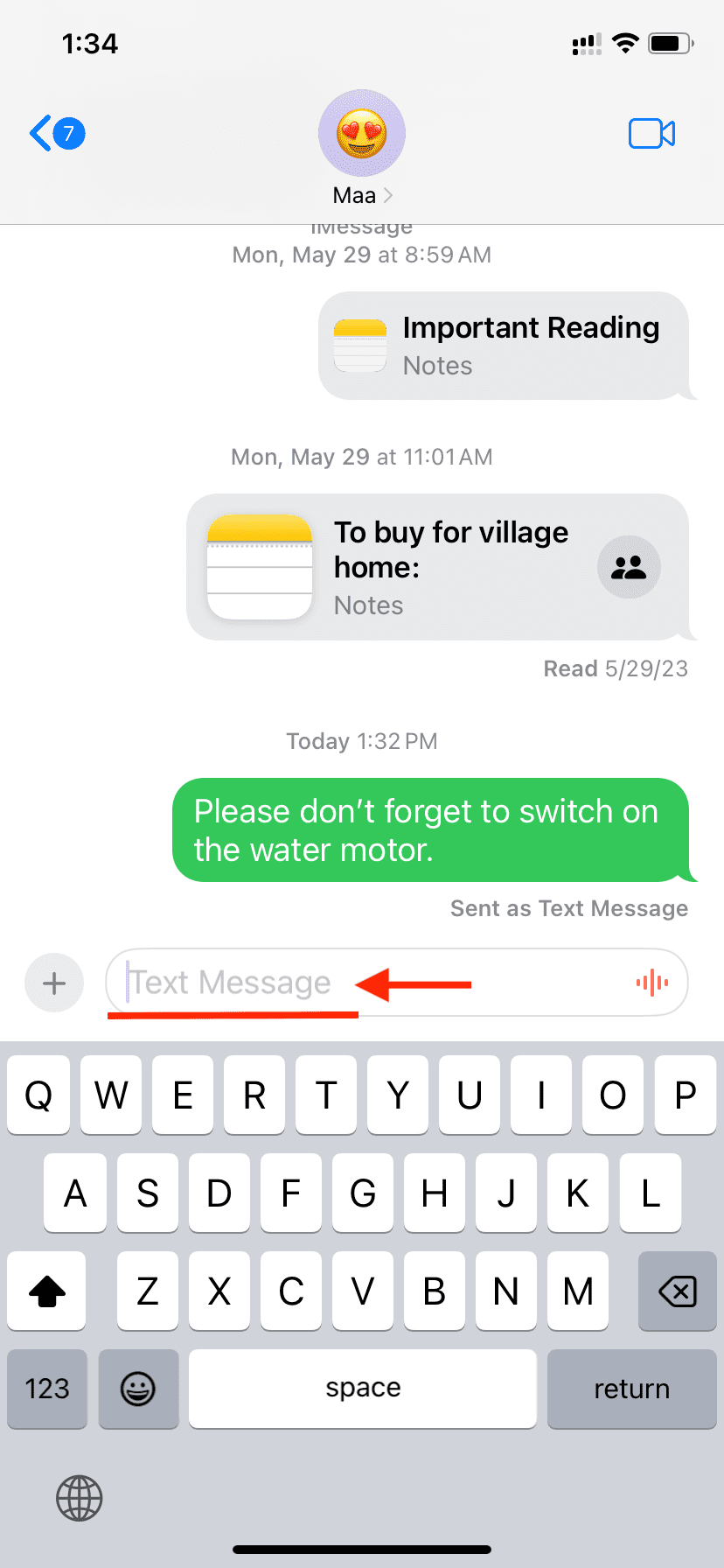
Once you have followed the above steps to send the iMessage as an SMS, your iPhone will understand that you want to send this person SMS instead of iMessage. Thus, it will switch to that and show “Text Message” in the message typing box. Now, all messages you send to this person will be sent automatically as an SMS and not iMessage, as evident by green bubbles.
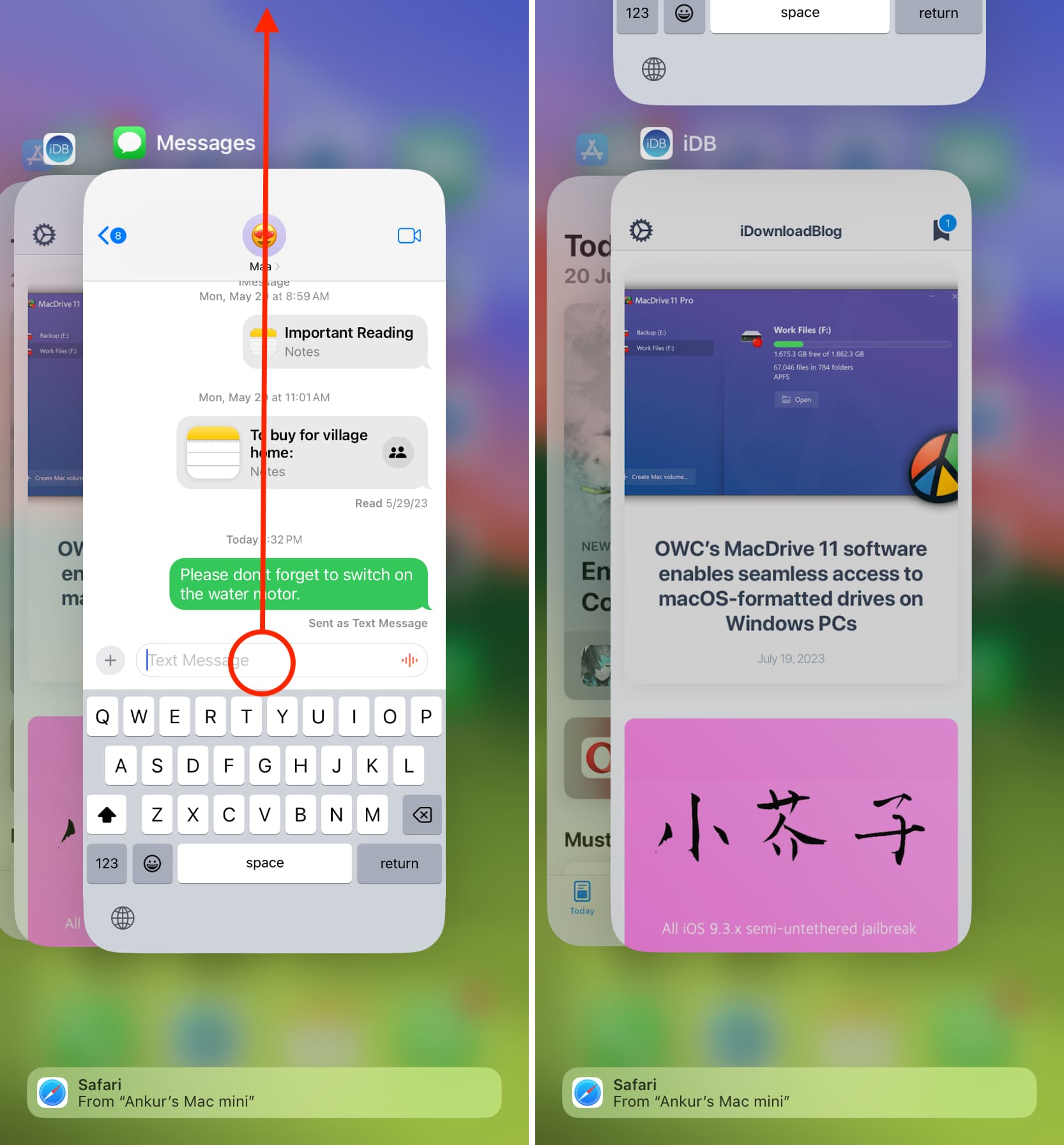
If you want to return to sending iMessage to this person, force quit the Messages app and reopen it. Now, go to that person’s chat, and it should say “iMessage” in the message typing box.
If it still says “Text Message” in the typing box:
- Try force-quitting and reopening the Messages app a few times.
- Switch off your iPhone and switch it back on.
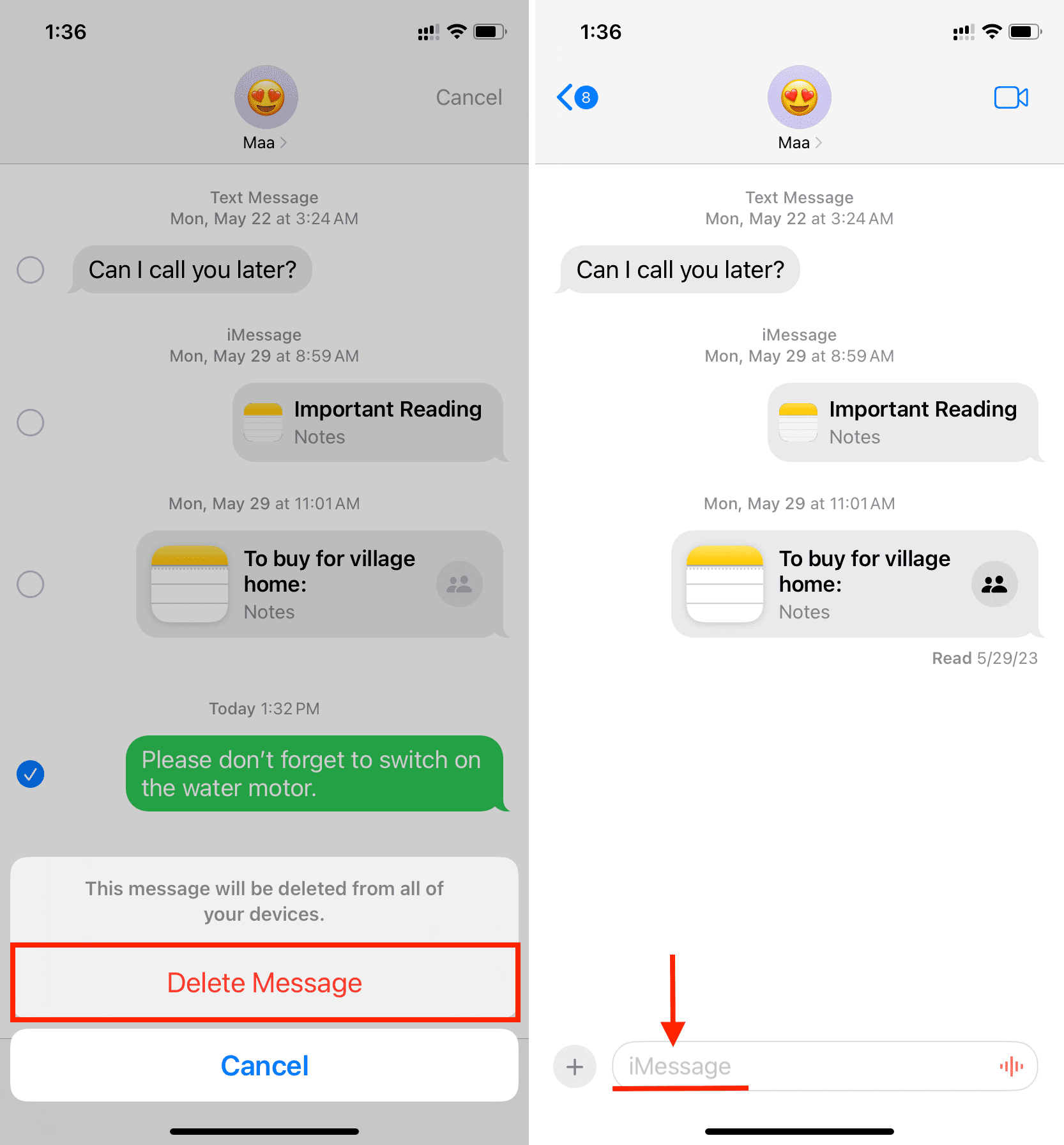
- And if nothing else works, delete the sent SMS message from that person’s conversation screen, then force quit the Messages app and reopen it. Now, it should switch back to iMessage.
Set your iPhone to automatically send the message as an SMS
Go to iOS Settings > Apps > Messages and turn on Retry as Text Message (formerly Send as SMS or Send as Text Message). After this, your iPhone will automatically send the message as an SMS when iMessage is unavailable.

Also, check out: 65+ tips and tricks for the Messages app on iPhone and iPad