Learn how to make incoming calls on your iPhone take over the entire interface instead of being relegated to a small notification banner at the top of the screen.
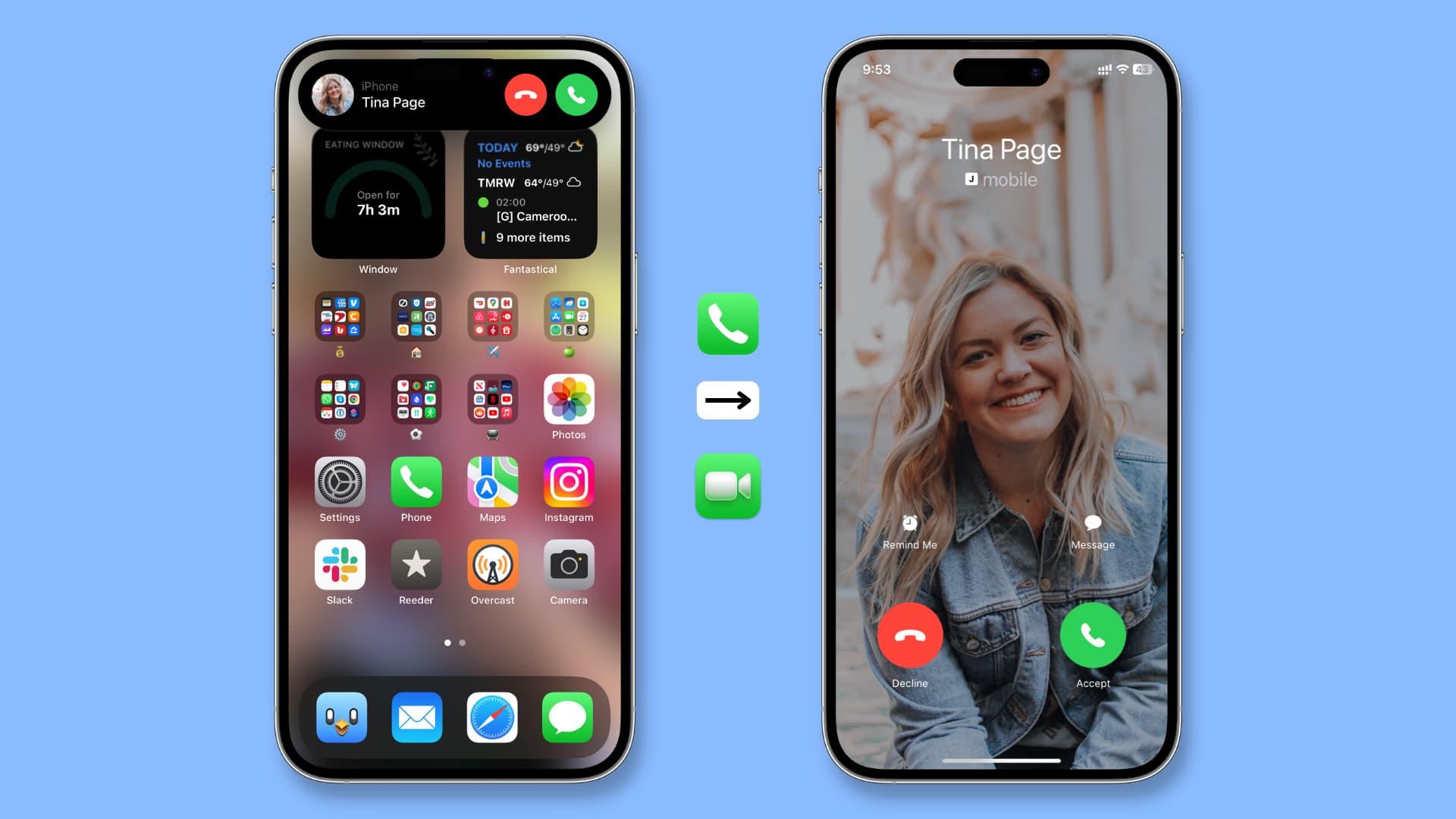
When you receive a call while your iPhone is unlocked, a small pill-shaped notification banner appears at the top of the screen, displaying the caller’s name, their image, and buttons to answer or decline the call.
The compact UI doesn’t abruptly take over the display, but you may miss some calls due to its small size. This is also helpful for older people and those with small hands, who may prefer to receive incoming calls on the full screen rather than reaching their finger to the top of the screen.
Receive incoming iPhone phone calls in full screen
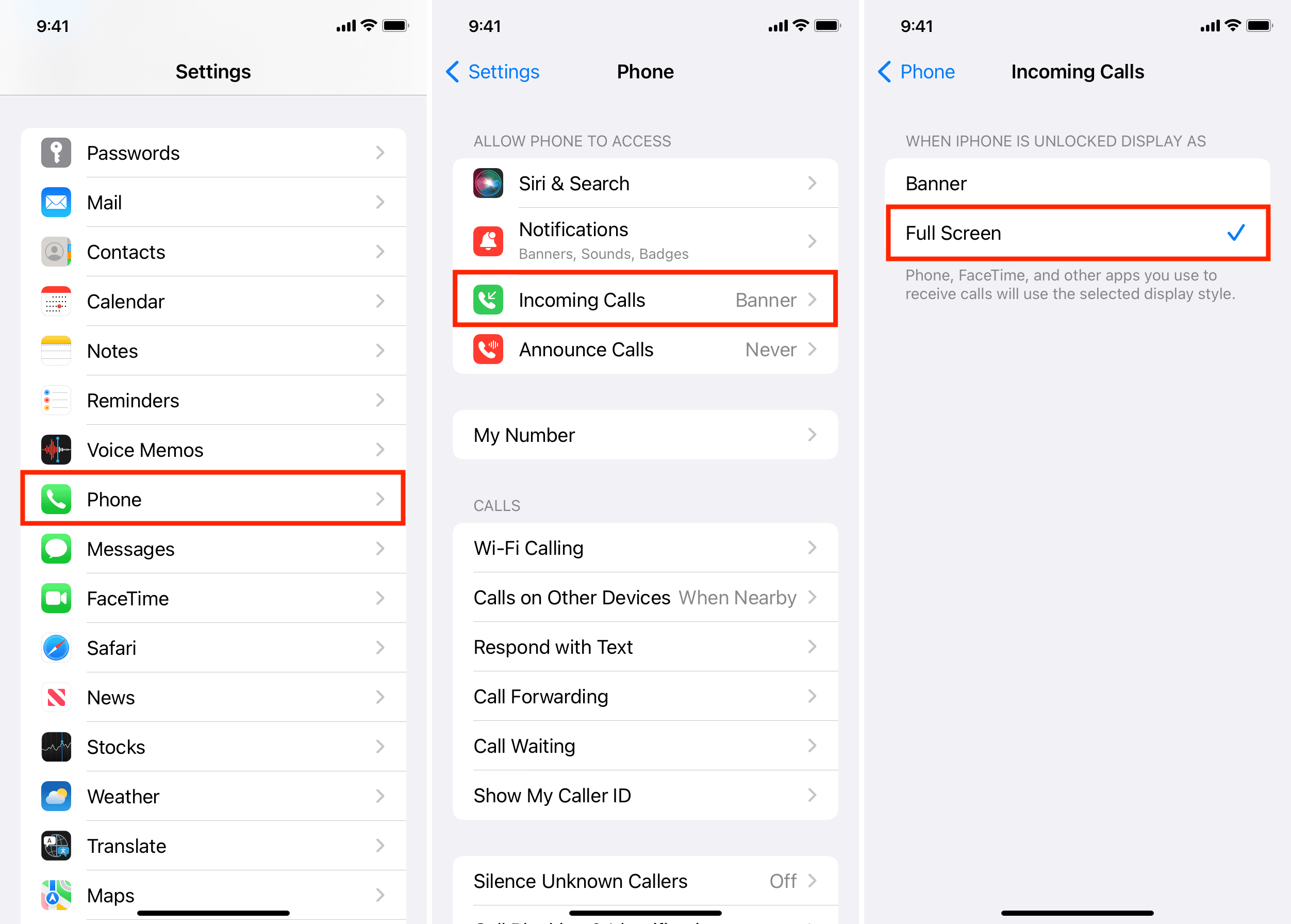
- Open the Settings app on your iPhone.
- Scroll down to the bottom and tap Apps.
- Select Phone from the list of apps.
- Tap Incoming Calls and select Full Screen instead of Banner.
All incoming calls while your iPhone is unlocked will now take up the entire interface, with the big Accept and Decline buttons, the caller’s profile photo or contact poster (if any), a Remind Me Later button, and the option to respond to the call with a quick message.
Important: You can always expand the compact calling interface to full screen by pulling down the notification banner. Nevertheless, there are legitimate reasons to set your iPhone to always display incoming calls in full-screen mode.
Reasons to receive iPhone calls in full-screen mode
1) The incoming call banner appears at the top of the screen. People with small fingers may find it difficult to reach the banner in one-handed mode.
2) Folks with vision problems may struggle to discern the caller’s name in small type or hit the miniature accept/decline buttons. When configuring an iPhone for your parents or grandparents, setting the full-screen calling interface will allow them to comfortably pick up or decline incoming calls without squinting.
3) Some people could be challenged to distinguish the small Accept and Decline buttons because the banner appears on top of whatever app they’re currently using and is surrounded by unrelated user interface elements. Switching to the fullscreen interface removes any confusion.
4) The incoming call banner shows the caller’s profile picture as a tiny thumbnail. Switching to the full-screen interface will fill up the whole screen with their photo or contact poster to a great effect.
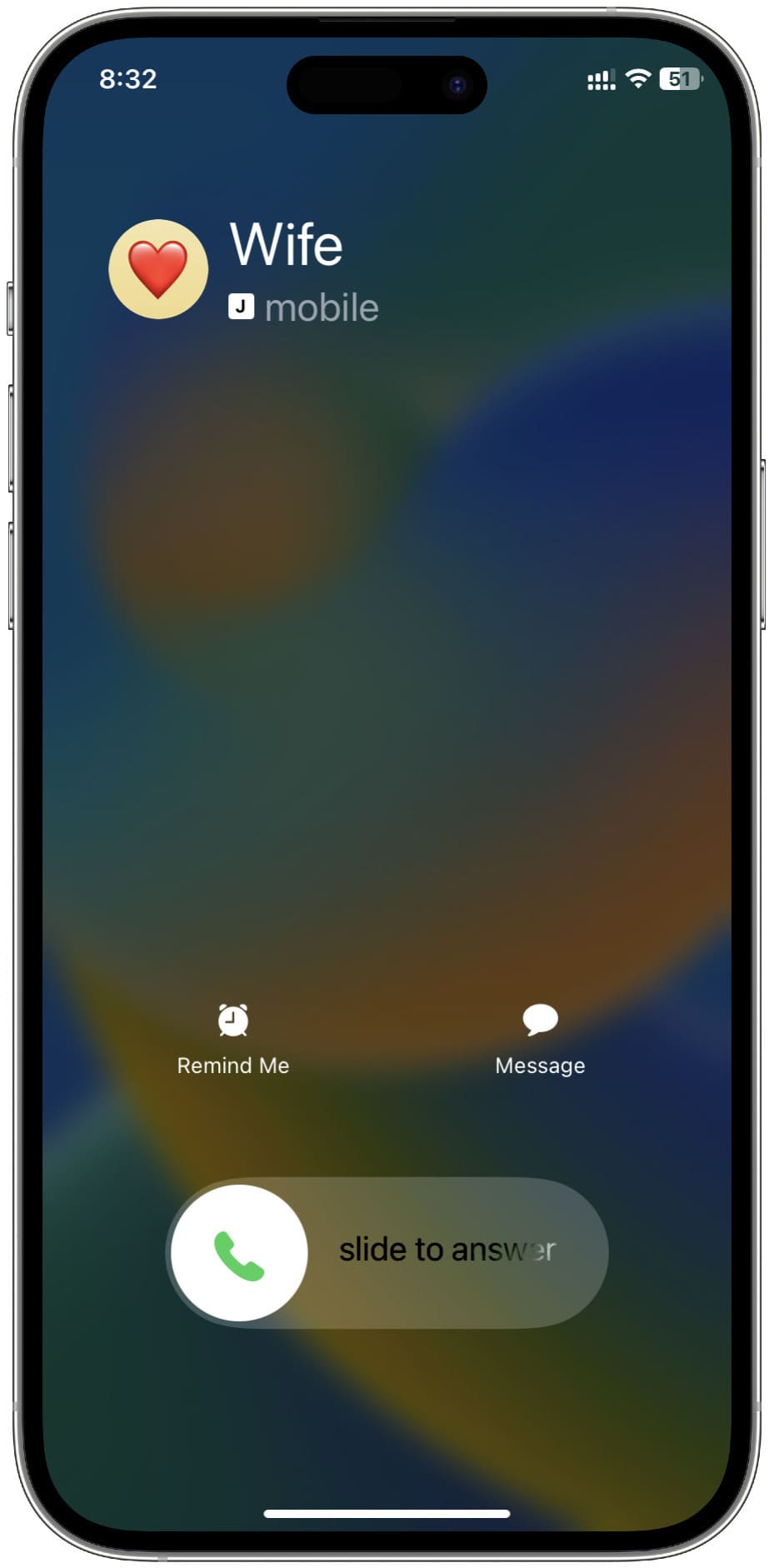
Does this affect the Lock Screen call interface?
No, it doesn’t. The Lock Screen always shows the “slide to answer” interface for incoming calls, regardless of your settings.
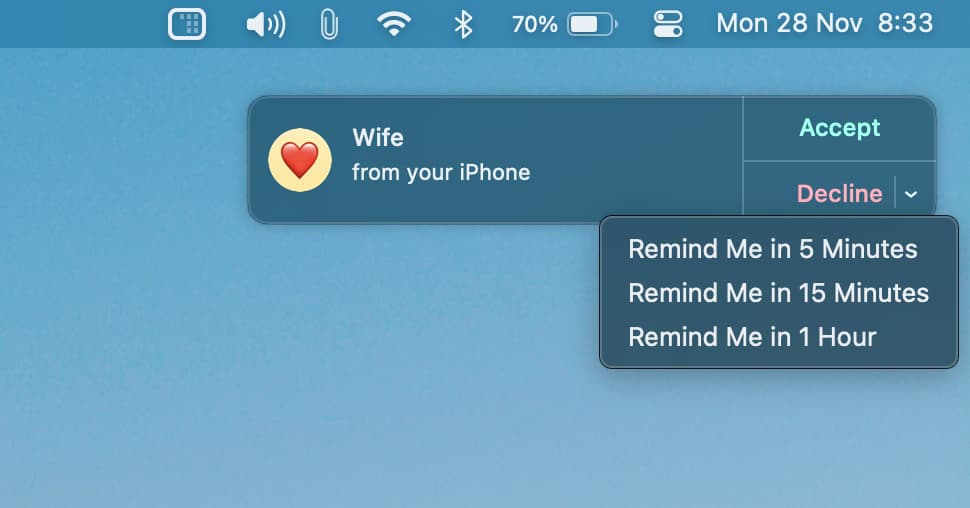
Does this affect iPhone call notifications on a Mac?
No. Although you can configure iPhone calls to ring on your Mac or set up the new macOS Phone app, an incoming call from your iPhone appears as a small banner in the top-right corner and cannot be forced to take up the whole screen.
Also, be sure to check out:
- 9 ways to speed dial on iPhone
- How to add a contact to your iPhone Home Screen and call them in one tap
- How to assign specific ringtones, text tones, and vibrations to your iPhone contacts
1st image: Courtney Cook for Unsplash.