Learn how to prevent unsolicited access to Telegram chats and channels on your phone or computer by securing the app behind a lock.
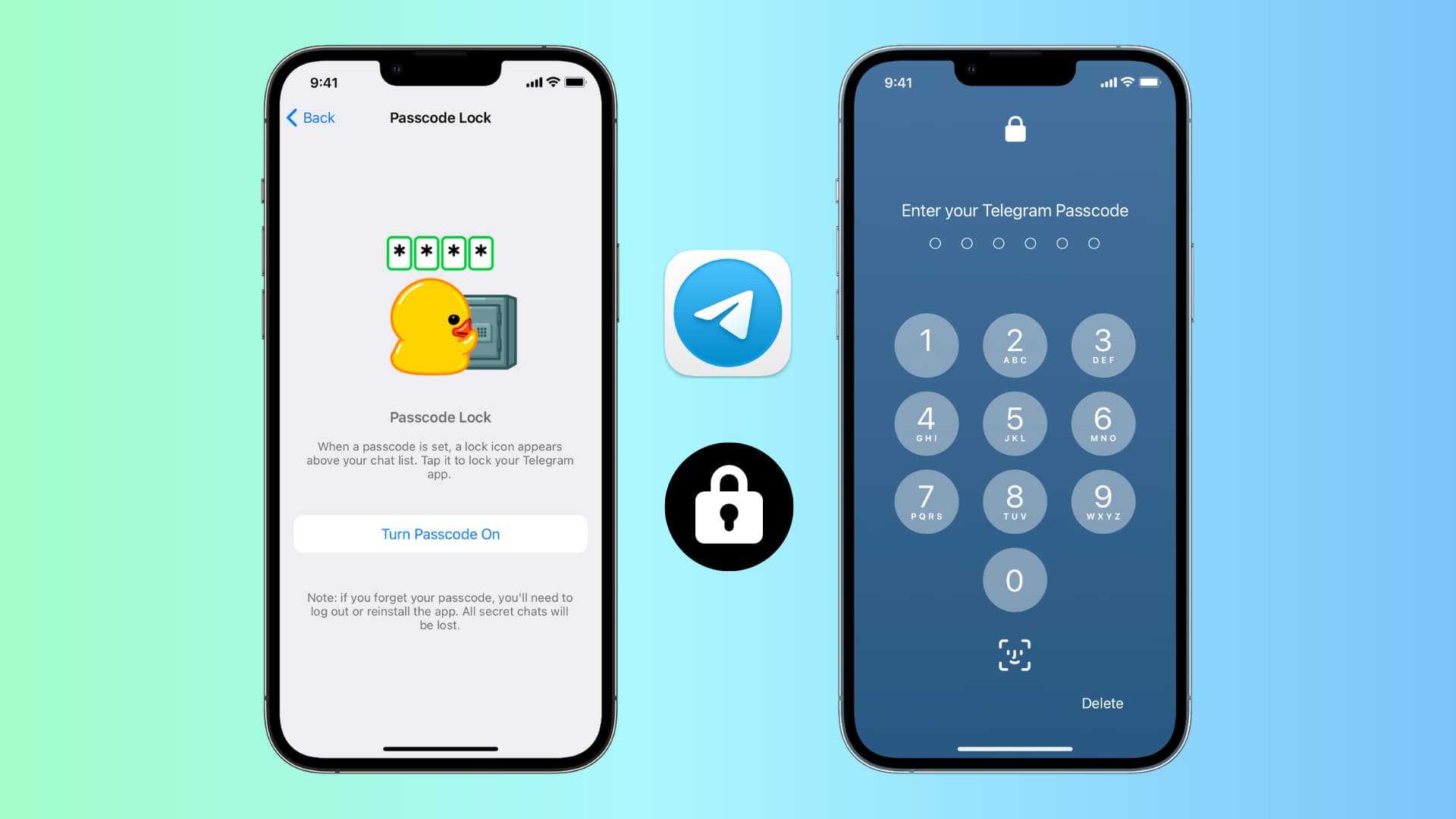
With nearly a billion active monthly users, Telegram is one of the most popular instant messaging services. If your friends and family use Telegram, you might have private conversations that you don’t want others to see. This is especially true if your acquaintances frequently borrow your iPhone to watch YouTube, see photos, etc.
Lock the whole app
Simply touch and hold the Telegram app icon on the Home Screen, App Library, or Spotlight Search, and tap Require Face ID to lock the app. Alternatively, you can tap Hide and Require Face ID to lock the app as well as hide it away.

Turn on password protection for the Telegram app
You can use the built-in lock to secure the app in these two situations:
- Your devices are on an older version of iOS or iPadOS, and thus, you don’t have the above-mentioned lock feature.
- You want to lock your Telegram chats using a password that’s different from your device passcode. This is useful if you want to secure your chats from people whose Face ID or Touch ID are added to your iPhone or who know your device passcode. Remember to keep “Unlock with Face ID/Touch ID” turned off for this to work (explained below).
Note that Telegram’s lock is device-specific and not account-specific. Therefore, if you use the same Telegram account across multiple devices, you’ll need to set the lock on each device individually.
iPhone or iPad
- Open Telegram and tap Settings.
- Select Privacy and Security.
- Choose Passcode & Face ID or Passcode Lock.
- Tap Turn Passcode On, enter the desired passcode, and confirm it.
- Finally, for maximum privacy, select Auto-Lock and set it to If away for 1 min. And for comfort, you can also choose to enable Unlock with Face ID or Touch ID.
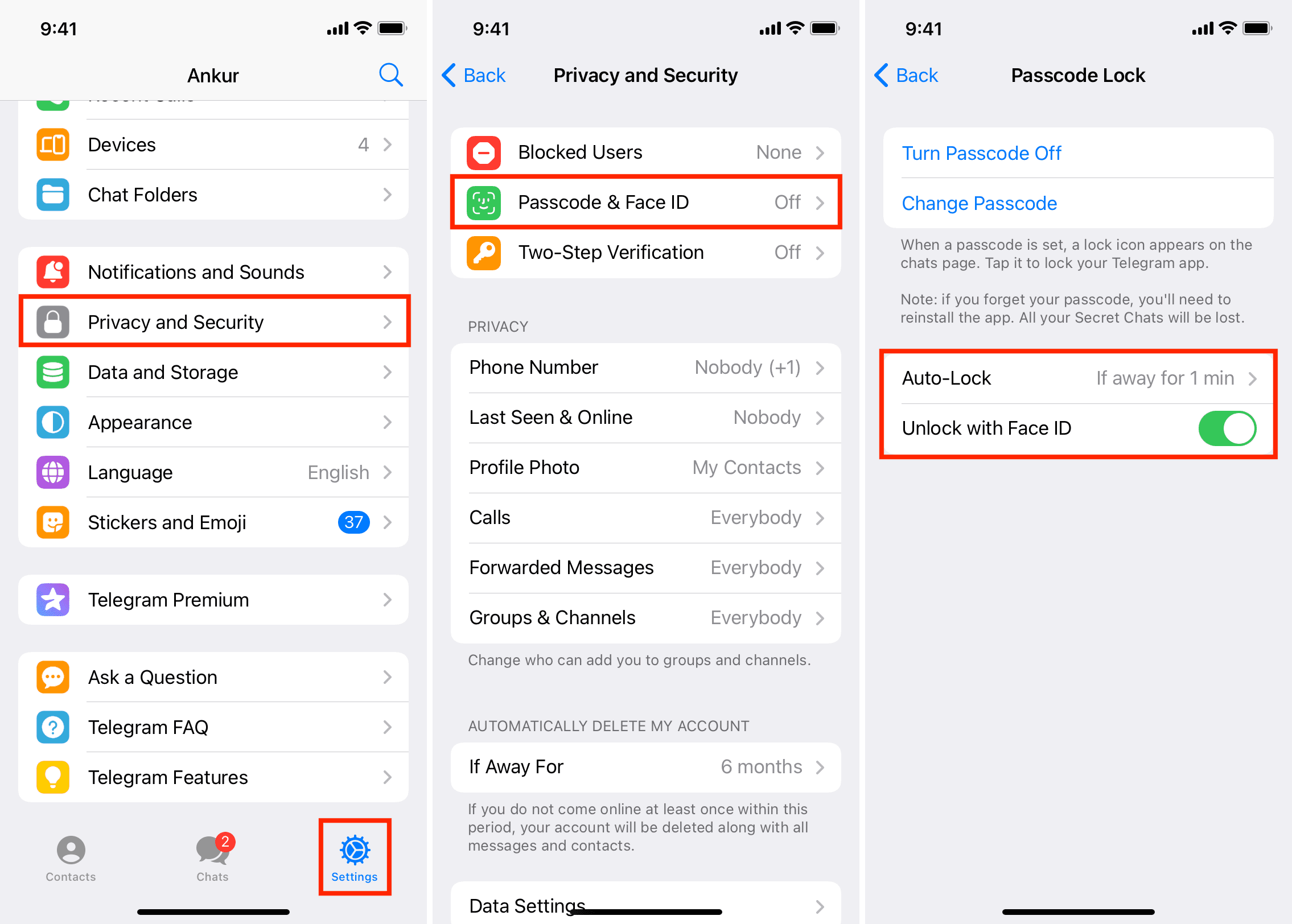
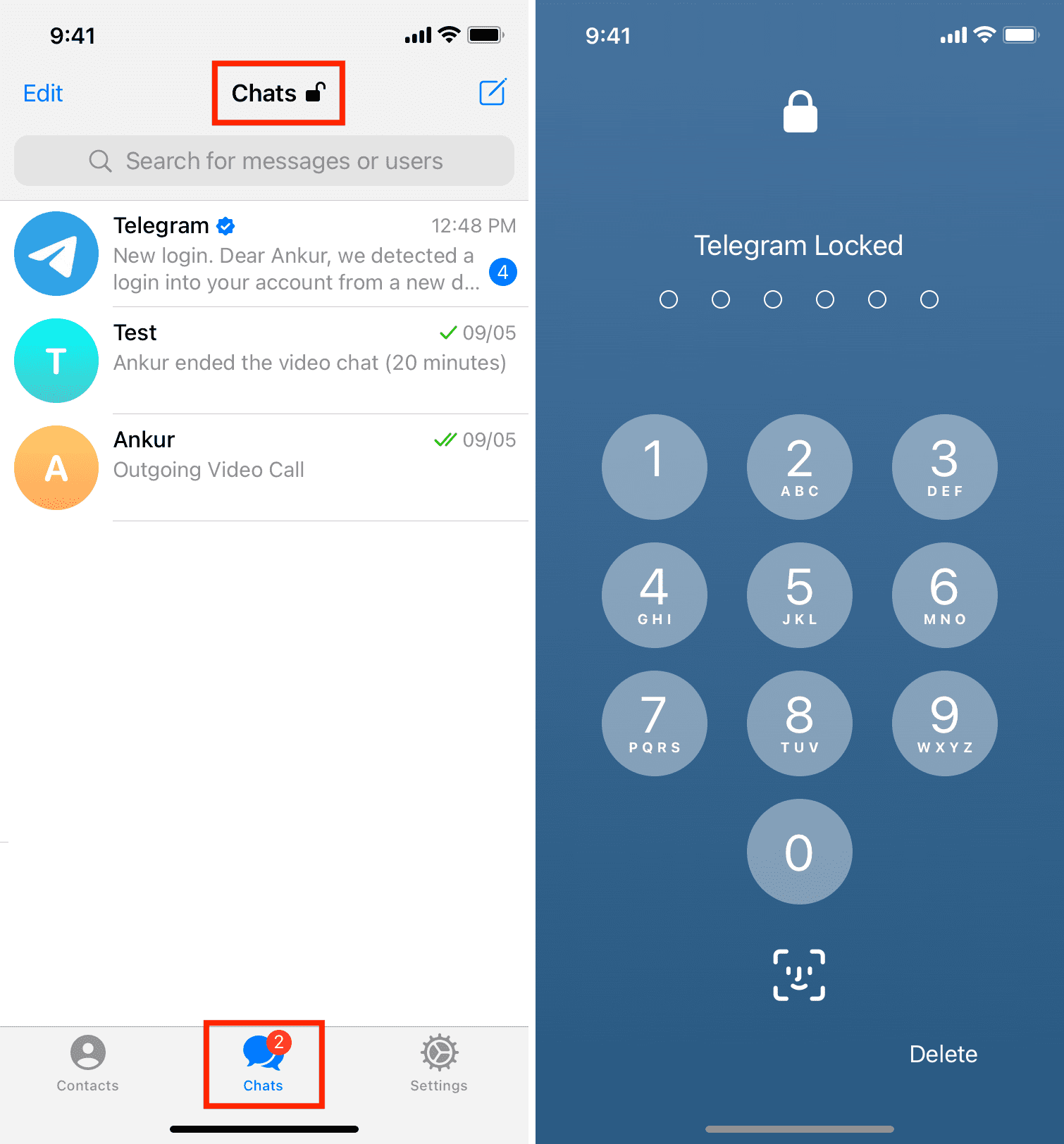
From now on, whenever you leave the Telegram app for more than a minute, it will lock automatically. You or anyone with access to your iPhone will need to enter the passcode to enter the app.
If you don’t want to wait one minute for the app to lock automatically, worry not, as Telegram has you covered. Whenever you tap the lock icon at the top of the Chats screen, the app locks instantly.
Mac
- Open the macOS Telegram app and click the settings icon at the bottom.
- Click Privacy and Security, followed by Passcode Lock.
- Click Turn Passcode On.
- Enter the password you want to set and hit Done.
- Lastly, click Auto-Lock and choose an appropriate duration. For maximum privacy, go with “If away for 1 minute.” Additionally, you can also choose to use your Mac’s Touch ID to unlock the app.

Change the PIN or turn off the lock from your Telegram app
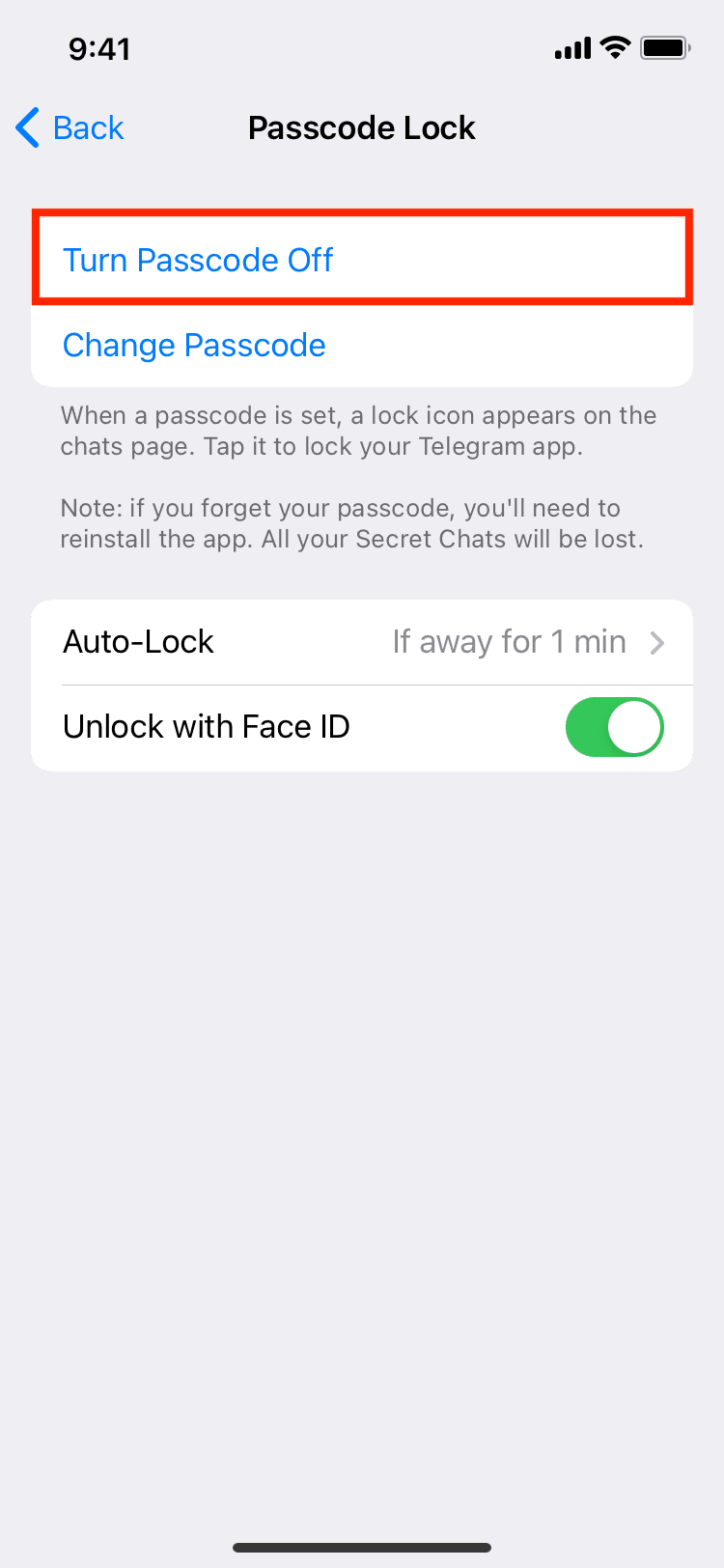
The steps to change the Telegram passcode or turn it off are almost the same. Just go ahead with the initial steps you followed when enabling the passcode. On the final screen:
- Tap Turn Passcode Off.
- To use a different passcode, tap Change Passcode and update it.
Also, check out: