In this troubleshooting guide, we cover all possible reasons and solutions for an iPhone screen that isn’t working or responding to your touch.
Your iPhone touchscreen can stop working because of hardware issues or temporary software glitches. If your iPhone screen is not responding to touch, doesn’t light up, is partially unresponsive, or has suddenly frozen, this tutorial will help fix the problem.
It applies to all iPhone models, including iPhone 17, 16, 15, 14, 13, 12, 11, XR, XS, SE, and older.
The symptoms
These are some of the most common problems and symptoms related to your iPhone touchscreen:
- The iPhone screen is not responding to touch
- The screen is unresponsive, and nothing happens even if you press a physical button
- iPhone screen stopped working suddenly, even though it was fine a few minutes ago
- The bottom of the screen is not working
- The top half of the iPhone screen is not working
- Screen responds intermittently (irregularly)
- iPhone screen responds even when you don’t touch it
- You touch somewhere, but the screen registers the input somewhere else
Reasons why your touchscreen has stopped responding
These are the main reasons an iPhone touchscreen may not work.
Temporary software issues
Your iPhone screen may not respond to touch because of software glitches that it picked up during regular use. Thankfully, this isn’t a big issue and can be fixed easily by restarting your device.
iPhone is hanging
Apple’s A-series iPhone processors are excellent. But because of too many intensive apps or running several things at once, your iPhone may hang, which can make the screen unresponsive to touch.
iPhone is too hot or too cold
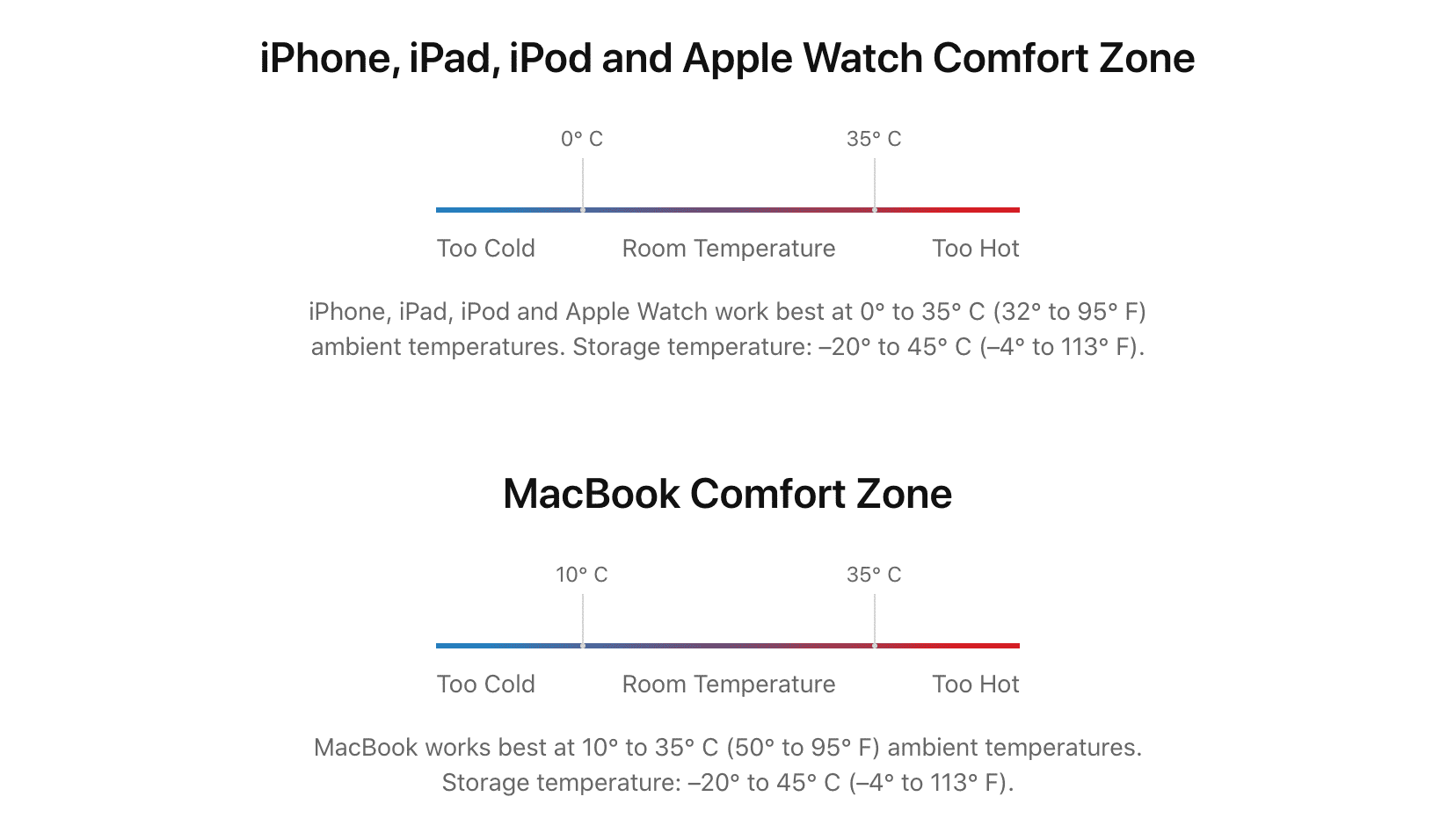
Your iPhone and its touchscreen can temporarily stop working in extreme temperatures (too hot or too cold). Turn off your iPhone and let it cool down (or warm up) to a normal temperature.
Problem with a specific app
On some occasions, your iPhone screen may work everywhere except one or a few particular apps. This is probably due to a faulty app, not your iPhone.
Water, sweat, and oil
When your iPhone’s screen is wet because of water, sweat, or body oils, it will not respond properly, take random inputs, and appear to touch at someplace else on the screen where you didn’t intend to.
Poor screen protector
A poor-quality glass protector can negatively affect your iPhone’s screen, causing it to stop responding to touch. Check out our roundup of the best screen protectors you can buy.
Bad iPhone case
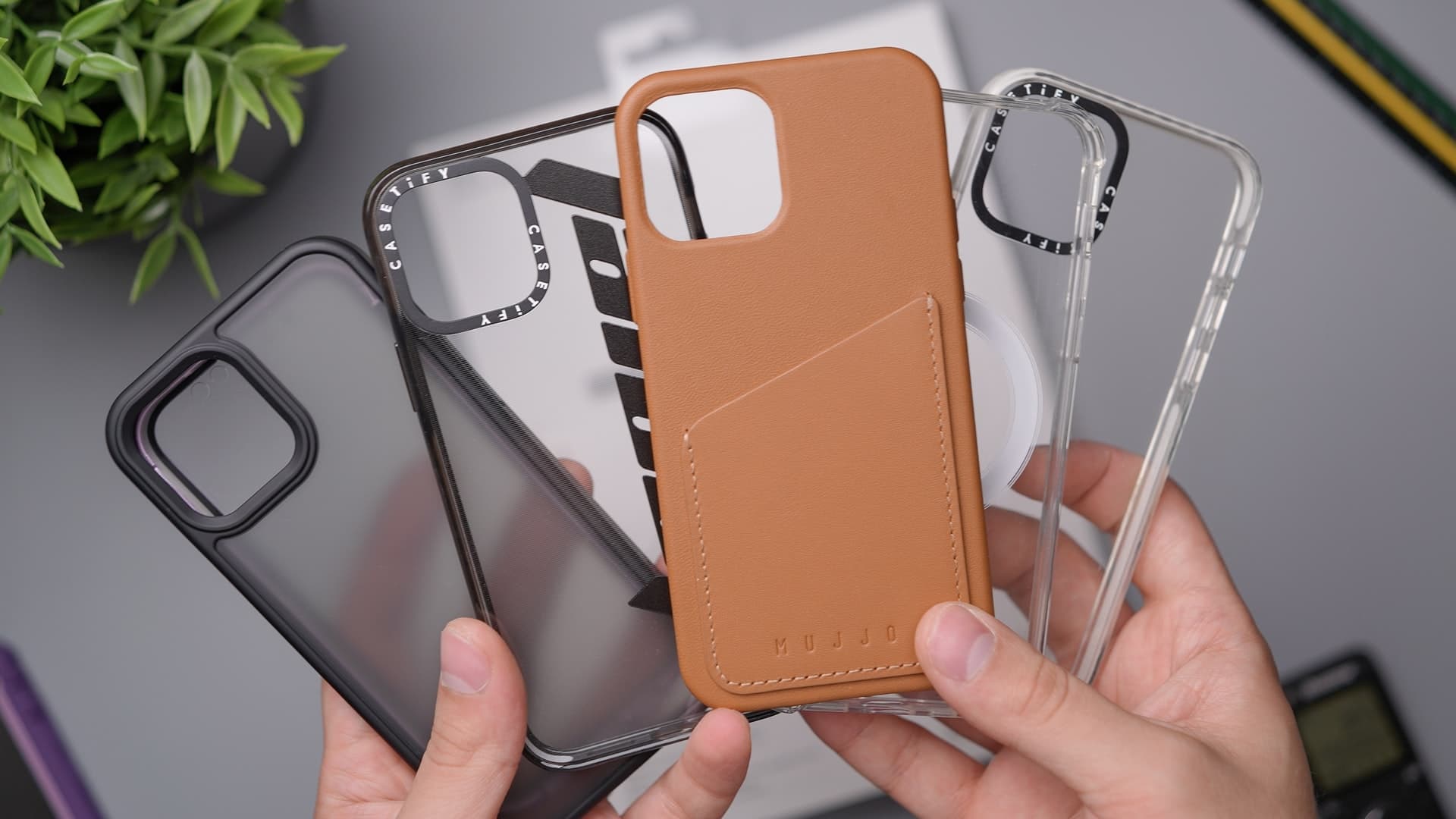
Some badly designed cases can cling tightly and press the four edges of the iPhone screen. As a result, the entire iPhone screen stops working. It’s also possible that just the bottom or the top half of the screen is not working.
Faulty power outlet
I have lived outside my home since I was six years old (boarding school, college, then job). As a result, I travel frequently. For several years, I have noticed that iPhone (and Android phone) touchscreens may not work correctly when plugged into charging outlets in some train compartments, public wall sockets, airplane seats, and similar locations. It can even happen with poor-quality power banks.
When you try to use the touchscreen, things on the iPhone screen will shake, flash, and appear erratic. If you touch to enter your iPhone passcode, it might open the Notification Center or bring up something else.
Unsupported connected accessories
A connected external storage device, mouse, or accessory can cause touchscreen problems on iPhone and iPad.
You dropped your iPhone
Finally, dropping your iPhone is one of the most common reasons it won’t respond to touch or completely go black.
Fix iPhone not responding to touch
You might have already figured out a few solutions while going through the reasons above. But to make it easier, here is a list of things you should do.
Force restart
If your iPhone’s touchscreen isn’t working because of software issues, simply force restart it, and it should fix the problem.
Note: You can also turn it off the normal way (by dragging the power off slider to the right) if the top part of your iPhone screen is working or if it works with some care (like after pressing the top right portion of the screen).
Clean your iPhone
Take a soft, dry cloth and gently clean your iPhone screen. Make sure water, sweat, oils, dirt, etc., are no longer on display. If you recently dropped your old iPhone in the water, turn it off immediately and leave it untouched for the next few hours.
Let your iPhone cool down
The best way to allow your iPhone to reach a comfortable operating temperature is to turn it off. In case you can’t do that, lock the device and don’t use it for a while. Once the screen becomes responsive again, close power-hungry apps like Maps and Camera (if they were open). Next, turn off your iPhone, then wait at least a minute before turning it back on.
Note: Your iPhone may heat up significantly when using wireless chargers or fast chargers.
Remove from charging and use a different charger, power outlet, or power bank
If the iPhone screen is not responding to touch with a particular third-party charging adapter, use a different one. Before that, you should also try another wall outlet with that same charger. In case you’re using a power bank, unplug your iPhone from it and use a charging adapter.
Remove extra accessories
Unplug external devices you have connected to your iPhone or iPad’s USB-C or Lightning port. After that, try using the touchscreen. If it works, that means the fault was caused by the external device.
Update the apps
When your iPhone touchscreen doesn’t respond in a particular app, it can be because of a bug in that app. To fix this, update it from the App Store. You can also contact the app developer to inform them of the issue.
Note: Some video apps have a lock button that prevents unnecessary touches on the screen. Did you enable and forget about it?
Update to the latest iOS version
Your iPhone touchscreen may behave erratically because of software bugs. The easy and reliable way to solve this is by updating your iPhone to the latest available version of iOS from Settings > General > Software Update.
Remove the case and screen protector
It can happen that your iPhone screen was working fine with the screen guard you are using, but suddenly, it has stopped being responsive. Remove the screen protector, and then try using the iPhone. Similarly, remove the case if it touches the edge of the iPhone display and exerts pressure on it.
Reset all settings to defaults
Is your iPhone screen partially working? If yes, before moving to factory reset (which is a big step), try resetting all iPhone settings and see if it fixes the issue or not.
Factory reset your iPhone
Finally, if nothing helps, your only option (before the physical device inspection at an Apple Store) is to erase the iPhone and set it up again.
Contact Apple Support
The above solutions should have fixed your iPhone’s unresponsive touchscreen if it was due to software or faulty accessories. But if you’re reading up to this point, it indicates the problem is significant and still unsolved.
In most severe drop cases, you’ll have to contact Apple Support or an authorized service center to get the issue resolved. No other solution can fix the hardware problem like a cracked or internally destroyed touchscreen.
Note: Your iPhone screen may not work after a drop, even if there are no visible cracks on the exterior part. A few years back, my iPhone 6s Plus dropped from my bed onto the hard floor. I picked it up in the morning and continued using it. Everything seemed normal. The same day, I went on to record a 10-minute video in the Camera app when the iPhone screen suddenly went blank in the middle of the recording. It refused to turn on. I immediately rushed to a nearby authorized service center. They concluded that the screen was damaged.
Replace your iPhone screen yourself
In November 2021, Apple announced its Self-Service Repair program. If your iPhone 12 or later touchscreen isn’t working, Apple will sell you genuine replacement parts and even offer free guides to repair your device. You can also find reliable tutorials on sites like iFixit or see YouTube videos from guys like Louis Rossmann and Hugh Jeffreys.
If you have expertise and experience in repairing devices, you can try self-repairing your iPhone touchscreen. For most people, though, I would recommend taking it to a service center.
Read next: