Learn how to hard reboot, hard reset, force restart, or force reboot (they all mean the same) your iPhone or iPad if it’s frozen, the screen is completely unresponsive, and you can’t turn it off like you normally do.

With so many iPhone and iPad models over the years, there is no single method to hard reboot them all.
To keep you up to date, here’s how to hard reboot every model, including the latest iPhone 17 series and the iPad Pro (M4).
These steps work for devices running iOS 26, iPadOS 26, and older.
Check below for your iPhone model and follow the right steps for it to perform a force restart.
iPhone 17 to iPhone 8
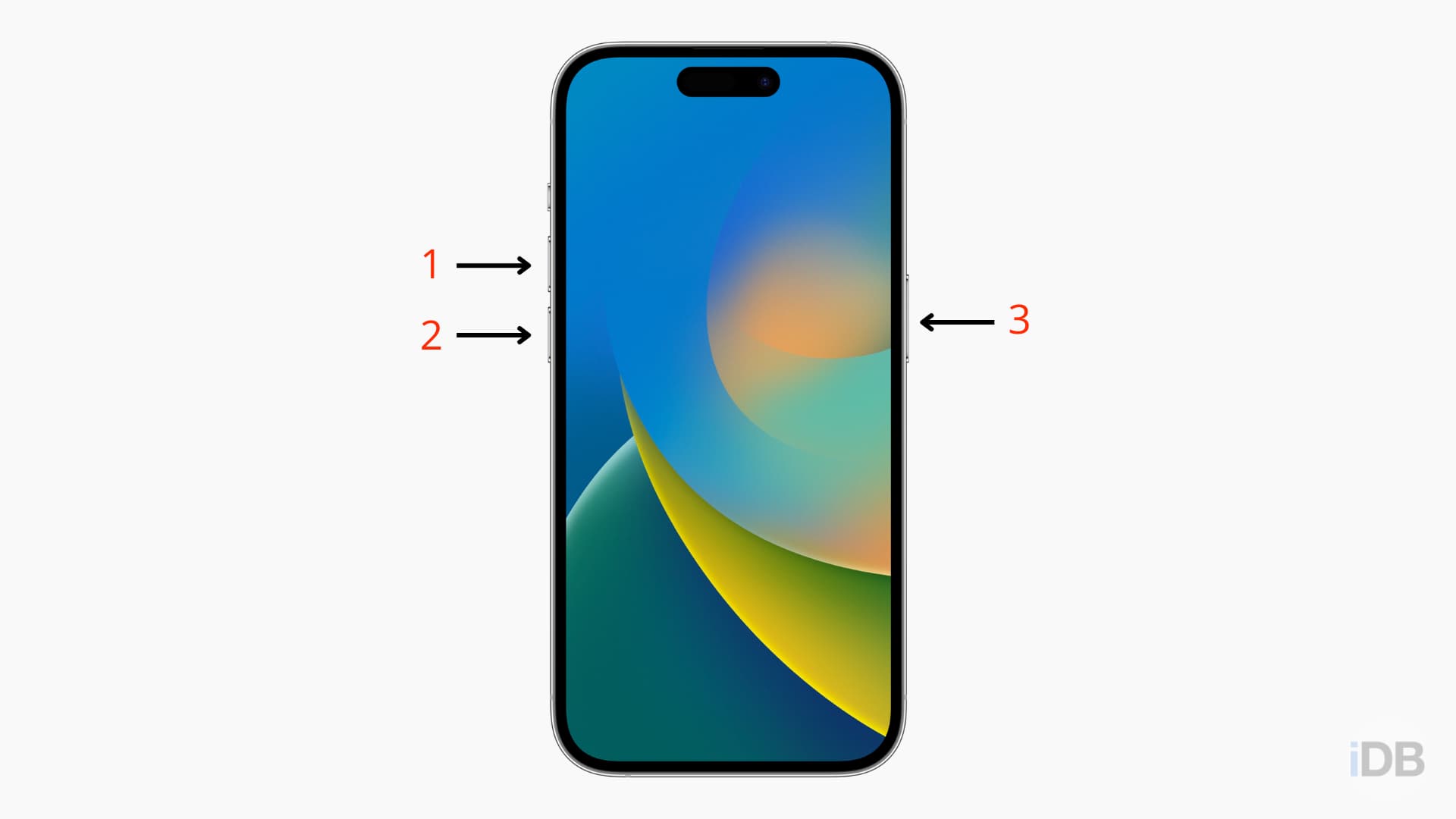
The steps below apply to iPhone 17, iPhone Air, 17 Pro, 17 Pro Max, iPhone 16, 16e, 16 Plus, 16 Pro, 16 Pro Max, iPhone 15, 15 Plus, 15 Pro, 15 Pro Max, iPhone 14, 14 Plus, 14 Pro, 14 Pro Max, iPhone SE (2022), iPhone 13, 13 mini, 13 Pro, 13 Pro Max, iPhone 12, 12 mini, 12 Pro, 12 Pro Max, iPhone SE (2020), iPhone 11, 11 Pro, 11 Pro Max, iPhone XS, XS Max, iPhone XR, iPhone X, iPhone 8 Plus, and iPhone 8:
- Press and immediately release the Volume Up button.
- Press and immediately release the Volume Down button.
- Press and hold the Sleep/Wake button until you see the Apple logo .
Important: You must follow steps 1 to 3 quickly, one after another.
iPhone 7 and 7 Plus
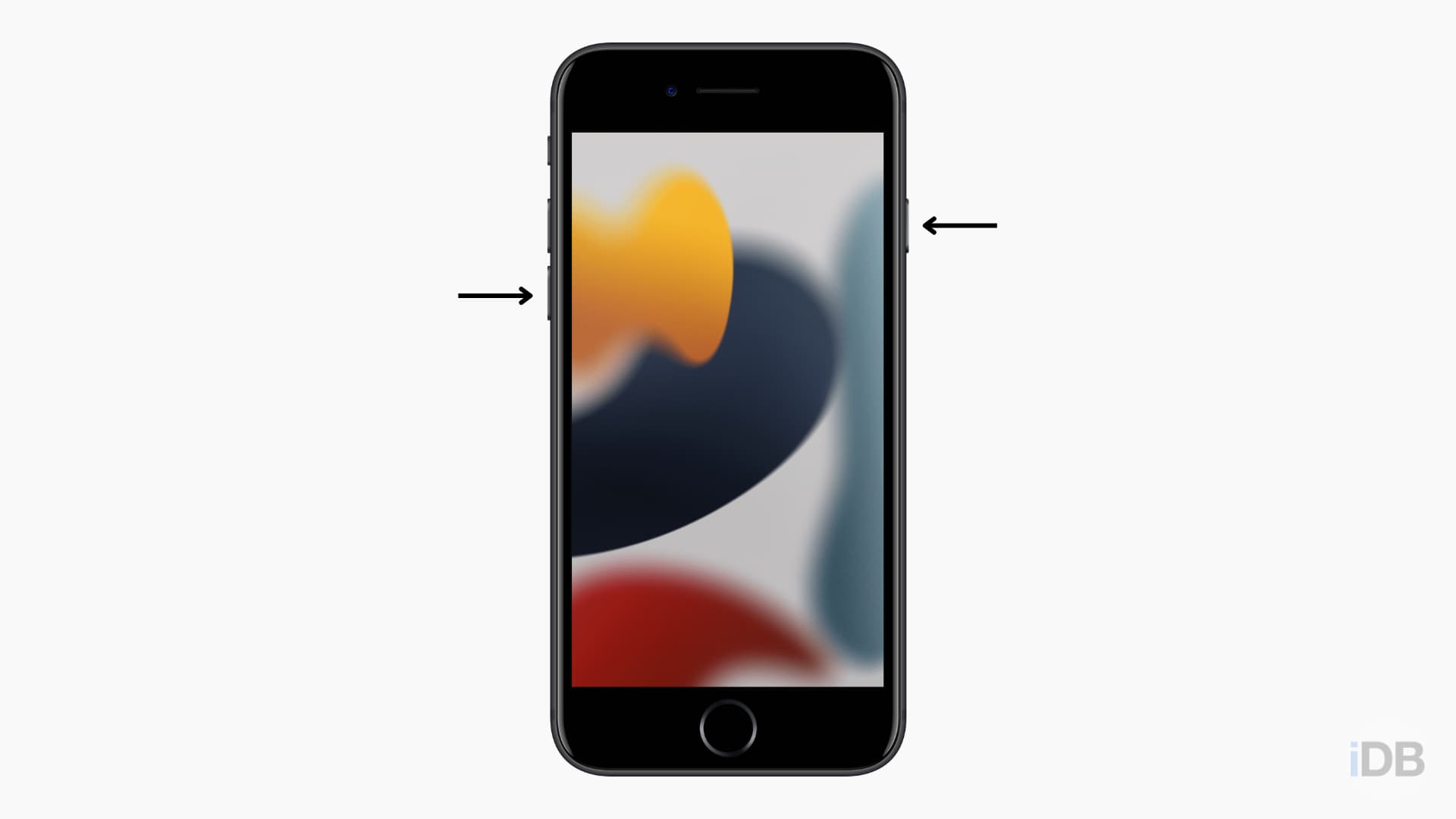
- Press and hold the Sleep/Wake button together with the Volume Down button until you see the Apple logo .
iPhone 6S and earlier iPhone models
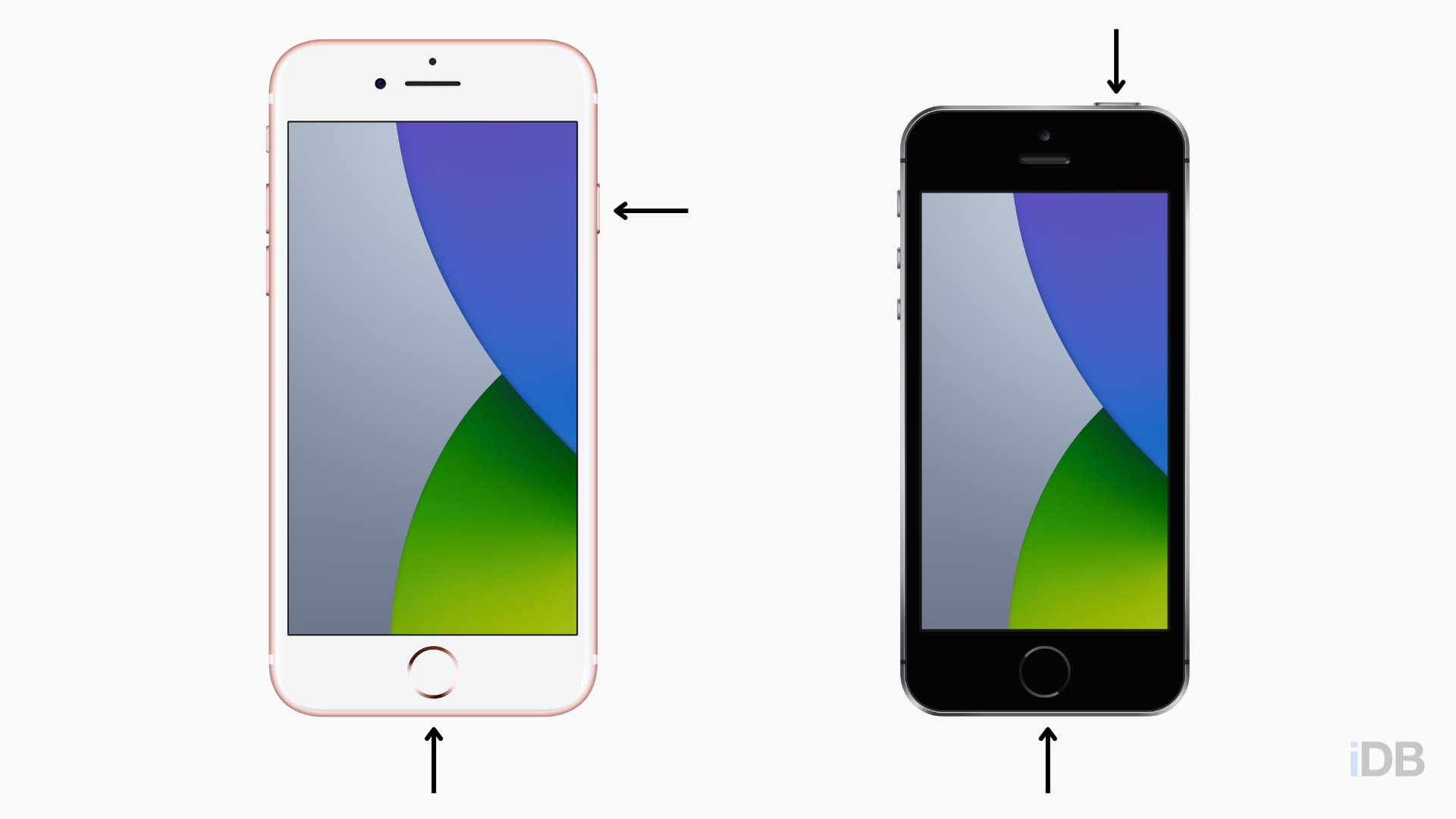
Follow these steps to force restart iPhone 6S, 6S Plus, 6, 6 Plus, SE (1st generation), 5S, and previous models:
- Press and hold the Home and Sleep/Wake buttons together until you see the Apple logo .
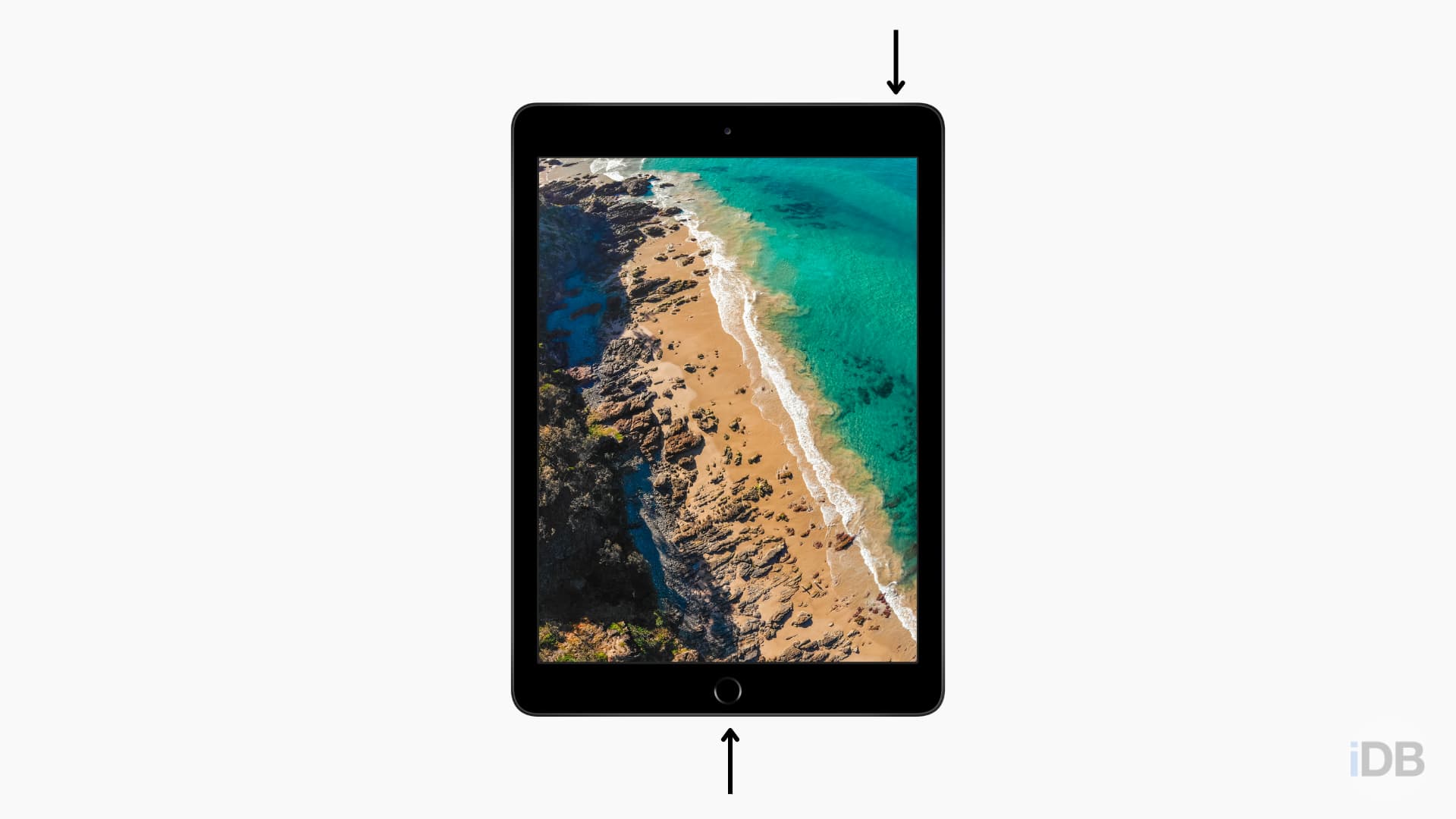
The steps for force restarting an iPad depend on whether or not your tablet has the front Home button.
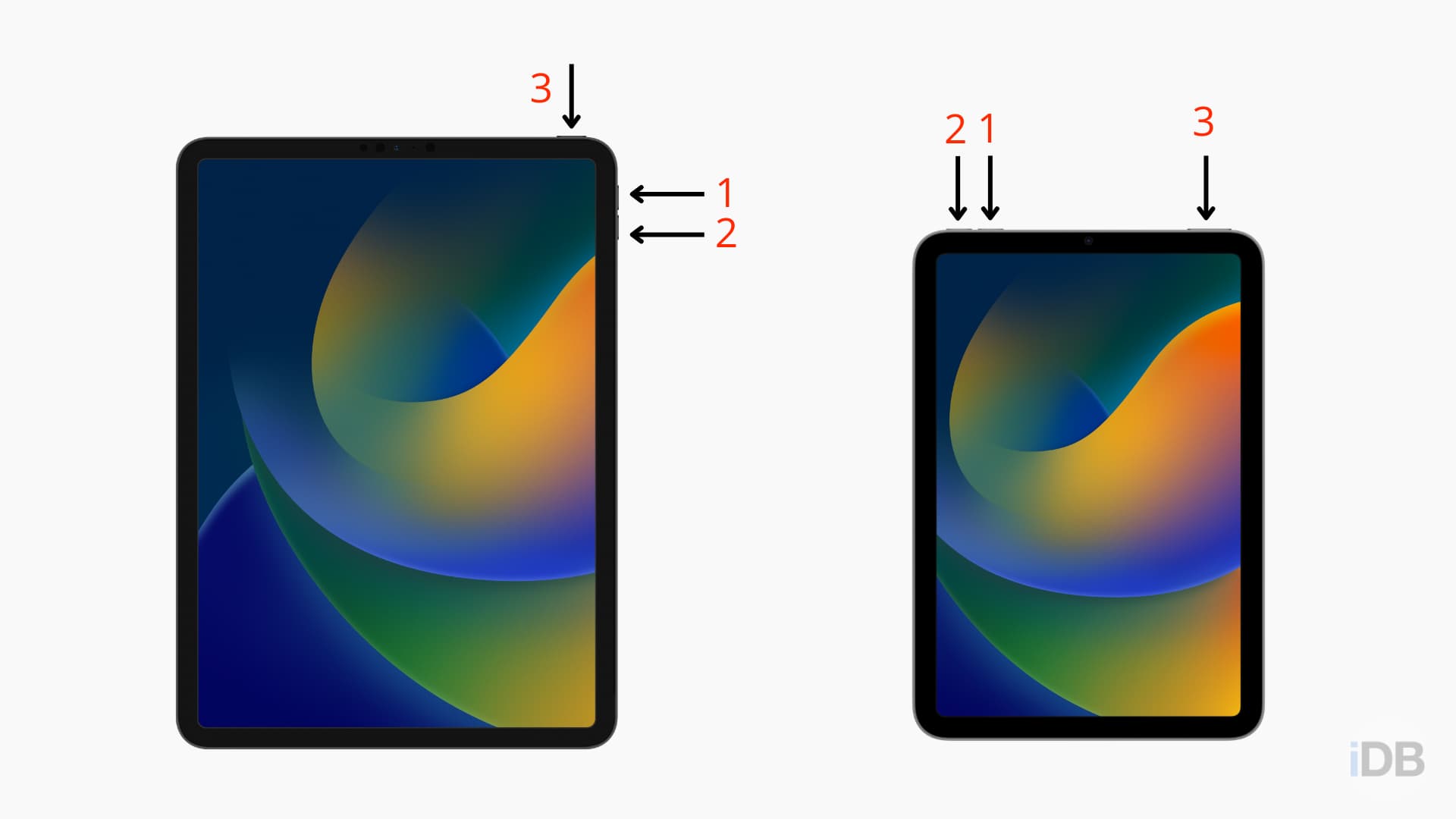
Follow these steps to force restart your iPad with Face ID or one with Touch ID at the top:
- Press and quickly release the Volume Up button. This is the one nearest to the top sleep/wake button.
- Press and quickly release the Volume Down button, which is further from the top sleep/wake button.
- Press and hold the top Sleep/Wake button until you see the Apple logo .
- Press and hold the Home and top Sleep/Wake buttons together until you see the Apple logo .
Force restarting your iPhone or iPad isn’t something you’ll do often, but it’s sure to be necessary at least once while you own the device.
Be sure to check back here if you purchase a new iPhone or iPad, so you know how to hard-reboot it when needed.
Also, check out: How to force restart an Apple Watch