Try these troubleshooting tips to fix Bluetooth issues on your iPhone or iPad running iOS 27 or iOS 26 and resolve connection problems with wireless accessories.
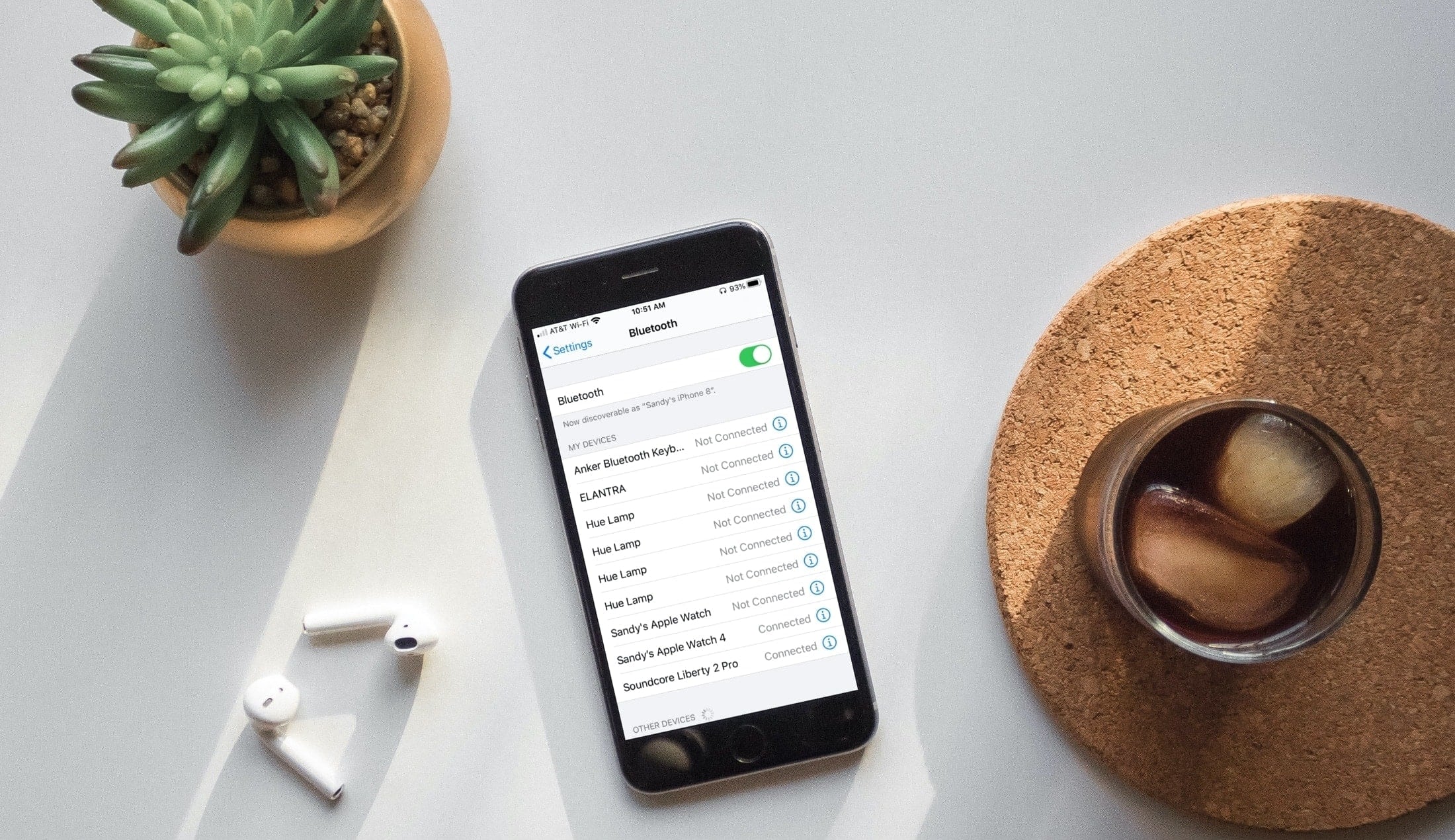
The steps below will help if your Bluetooth device disconnects randomly from your iPhone or iPad, sound breaks when using wireless audio devices, or you face other such issues.
Disconnect and reconnect Bluetooth devices
If your wireless device is still connected to your iPhone or iPad, disconnecting and reconnecting it may do the trick.
- Go to the iOS Settings app and tap Bluetooth.
- Tap the info icon ⓘ next to the device name, and hit Disconnect.
- Turn the Bluetooth accessory off and back on.
- Then reconnect it to your iPhone.

Turn off Bluetooth
Another simple thing to help fix your Bluetooth woes is to turn Bluetooth radios off and back on. To toggle Bluetooth, go to Settings > Bluetooth and turn off the Bluetooth switch. Don’t toggle the Bluetooth icon in Control Center, as doing so won’t turn off Bluetooth completely.

Hard restart your iPhone
With Bluetooth turned off, it’s time to force-restart your iPhone. The steps differ depending on the iPhone model, so follow the instructions in our tutorial explaining how to force restart every iPhone and iPad model. With that done, revisit Settings > Bluetooth and turn Bluetooth back on to see if your accessories now work.
Update to the latest iOS version
While it may be obvious to some, it’s not to everyone.
Your iPhone should always run the latest iOS version it supports.
iOS updates bring not only fancy new features but also fixes for known bugs that could affect Bluetooth performance. Therefore, go to Settings > General > Software Update to check if you’re on the latest version of iOS.
If there’s an update available, install it and check if you can now use your Bluetooth devices. Otherwise, proceed with the troubleshooting tips below.
Note that some bugs are expected if your iPhone is running beta software, such as iOS 27 beta.
Forget your Bluetooth devices
If disconnecting and reconnecting Bluetooth accessories didn’t work, try unpairing them from your iPhone and re-pairing them again.
- Head to iPhone or iPad Settings > Bluetooth, and tap the info icon ⓘ next to your device.
- Choose Forget This Device, then confirm by selecting Forget Device.
- Next, pair the device to your iPhone again.

Pair with another device
If other paired Bluetooth accessories are working fine, then the culprit could be that particular accessory. Try pairing it with another device, like an iPad or Mac.
If that doesn’t work, be sure to follow the pairing instructions in the user manual. If the accessory pairs with and works on another device, continue reading the remaining troubleshooting steps below. Otherwise, you might need to contact the manufacturer because of a possible hardware defect.
Reset the network settings on your iPhone
Resetting the network settings on your iPhone is among the last troubleshooting steps because that action removes not only your Bluetooth information but also any saved Wi-Fi and VPN settings. After resetting its network settings, your iPhone will restart. After that, try using Bluetooth again and see if there’s any change.

Restore your iPhone to factory settings
Some iPhone owners may still suffer from intermittent Bluetooth issues such as sudden disconnections and other problems, even after following the above solutions. If you’re among them, consider erasing your device and setting it up as new again (without restoring an old backup).
Get help from Apple
Contact Apple for help with iPhone issues, including Bluetooth. It’s best to start on Apple’s official support page. From there, search for terms like “Bluetooth” or select your iPhone from the list and start there. Apple’s knowledge base provides answers to many common questions that users face.
If nothing works, it’s time to bring your iPhone to your nearest Apple Store or authorized service center for inspection by trained technicians. If there is a hardware problem, they will provide solutions.
If you’re experiencing similar issues on your computer, we have a separate troubleshooter explaining how to fix Bluetooth problems on your Mac.