Learn how to quickly delete a single call record or reset your entire call history using the Phone and FaceTime apps on your iPhone or iPad.
Incoming, outgoing, and missed call records are listed in the Phone app. This includes calls made via other apps like FaceTime and WhatsApp. If you use two SIM cards on your iPhone, call logs for both lines are visible here, with icons to help you differentiate between them.
To tidy up your call list or keep certain conversations private, here’s how to delete a recent call from the iOS Phone app.
Delete an individual call log
- Open the Phone app on your iPhone.
- Go to the Calls or Recents tab at the bottom.
- Swipe left on a phone number, name, or email address and tap the red trash icon.

Delete several call logs
- Go to the Calls or Recents tab of the iPhone Phone app.
- Tap Edit in the top left corner, followed by Select.
- Mark the entries and then tap Delete.

Clear the entire phone call history
If you want to delete all records for a clean slate, you can do that in just a few taps.
- Open the Phone app on your iPhone and go to the Calls or Recents tab.
- Tap the Edit button, followed by Select.
- Tap Clear All in the top right corner to wipe all your phone records.

Delete recent FaceTime calls
You can also delete call logs from inside the FaceTime app by following these quick steps.
- Open the FaceTime app on your iPhone.
- Tap Edit at the top, followed by Select.
- Mark one or more calls. There isn’t a select all button, but you can quickly drag with one finger and hold it at the bottom of the screen to select them all in a few seconds.
- Tap the delete icon.

Delete call logs for WhatsApp and other apps
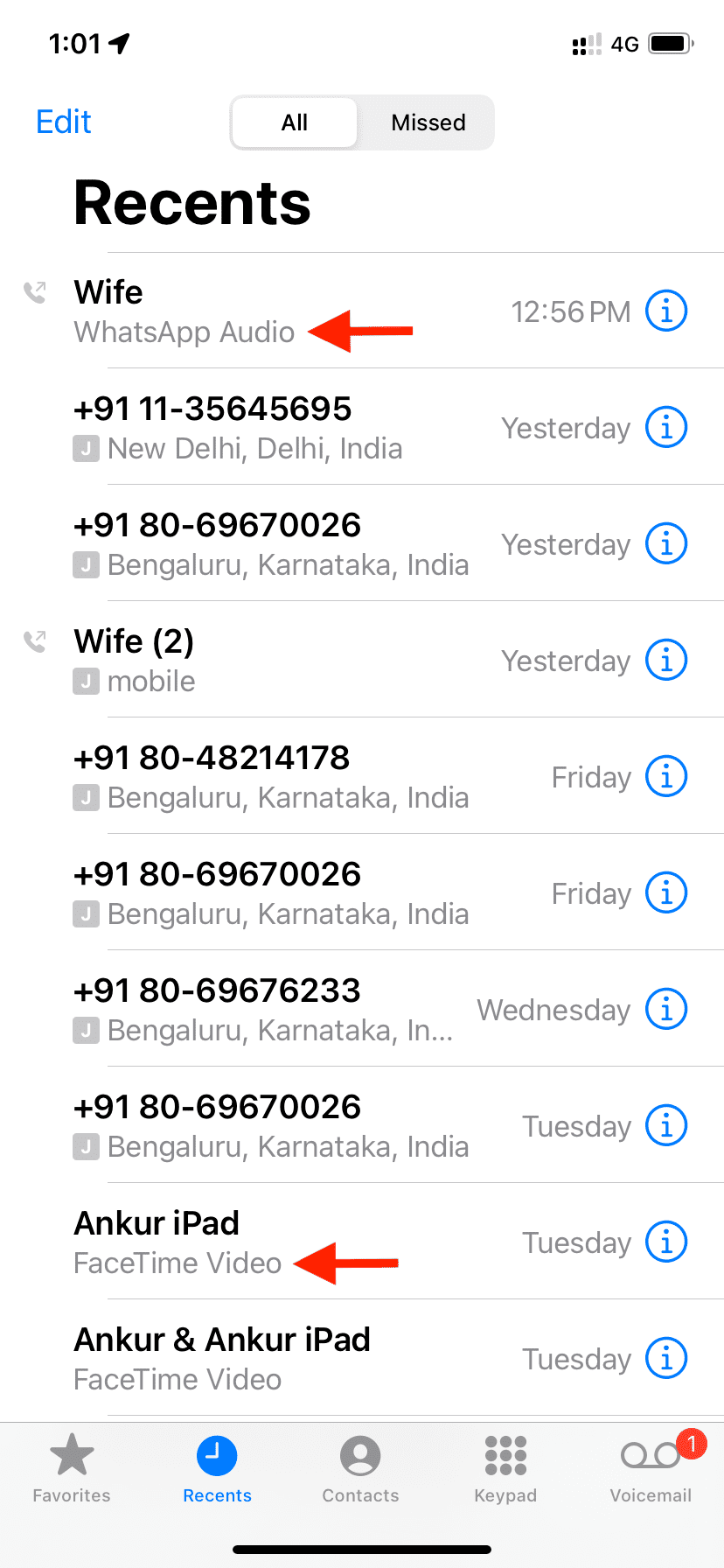
The Calls or Recents section of the iPhone Phone app also includes calls from FaceTime, WhatsApp, and other supported VoIP apps.
You can follow the above steps to delete recent call entries for these apps. However, keep the following points in mind:
- When you delete a FaceTime call entry from the Phone app, it’s also deleted from the call history of the FaceTime app.
- However, for some third-party apps like WhatsApp, even after you delete their call entry from the Recents section of the Phone app, the call log may still be visible in the Calls section of that app. So, if you want to clear the calling history of third-party apps, make sure you also delete them from inside the app.
Unable to delete an individual call log or the entire list of recent calls?
In some rare instances, you may not be able to swipe left to delete an individual call entry or erase your entire call log history. To address this:
- Force quit the Phone app and retry.
- If that doesn’t help, turn off your iPhone, wait for one minute, and turn it back on.
Can I restore the deleted call history on my iPhone?
There is no easy way to recover deleted call logs on iPhone. However, you may be in luck if you can restore to a previous Finder or iCloud backup file of your iPhone.
iPhone call logs also disappear automatically
The Recents section of the Phone app doesn’t store all your call records; it only displays recent ones. Older entries at the bottom of the list automatically vanish as new calls are added.
While some sites suggest the iPhone call log stores the last 100 calls, this doesn’t seem accurate. On my iPhone, the Recents tab currently shows over 450 entries (yes, I counted) spanning a few months. However, this number likely varies depending on your call frequency.
Is there any other location or app to access my iPhone call history?
Outside of the Phone app, there is no other location where you can see your call logs. However, as mentioned, the FaceTime app shows your FaceTime calls. Similarly, third-party calling apps show their call history inside their in-app call tab.
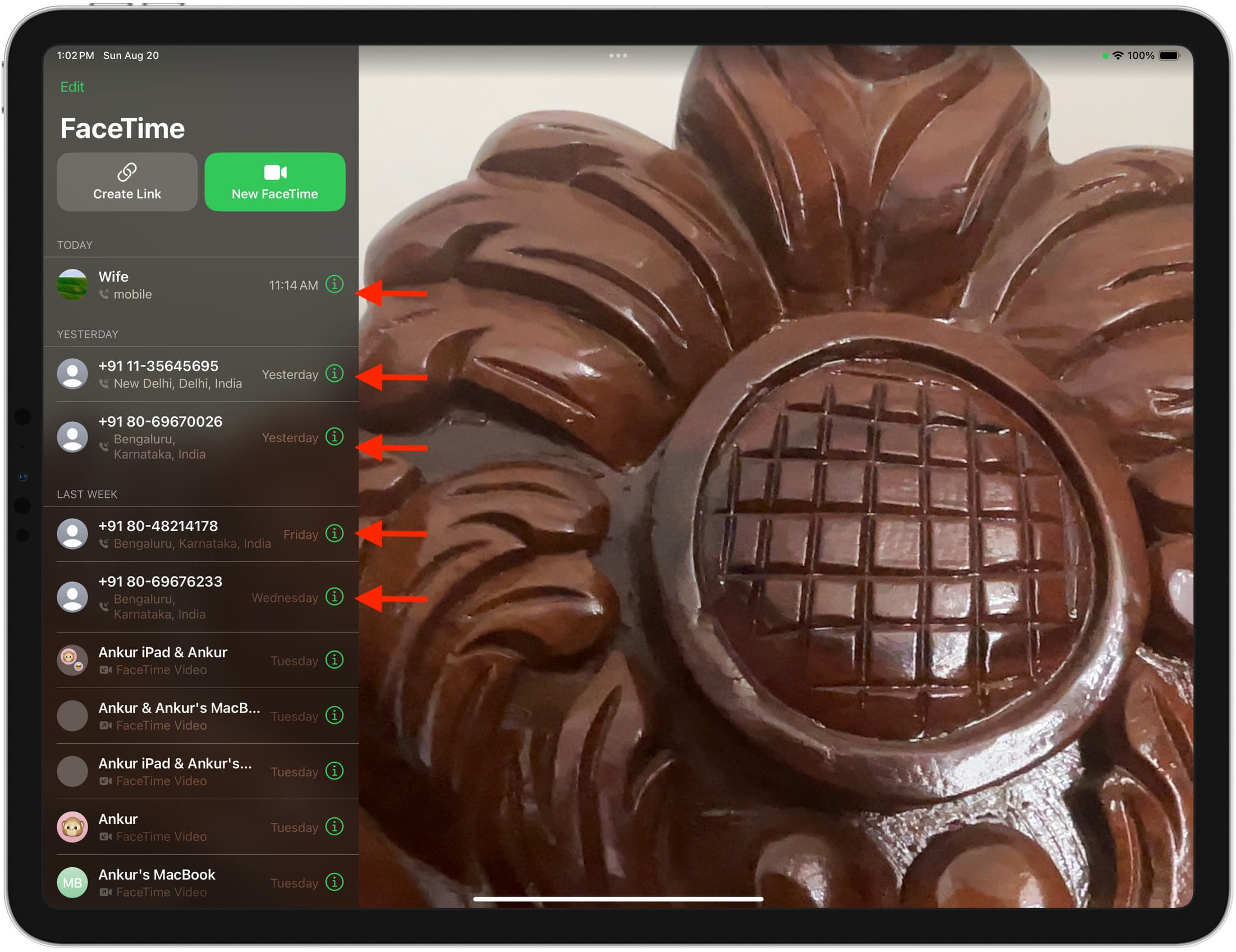
Important: If your iPhone call logs are synced to your other devices, like an iPad or Mac having the same Apple ID, you can see your phone’s recent calls, including standard carrier phone calls, inside the FaceTime app of these devices.
Can I remove all traces of my call history by deleting them from the iPhone Phone app?
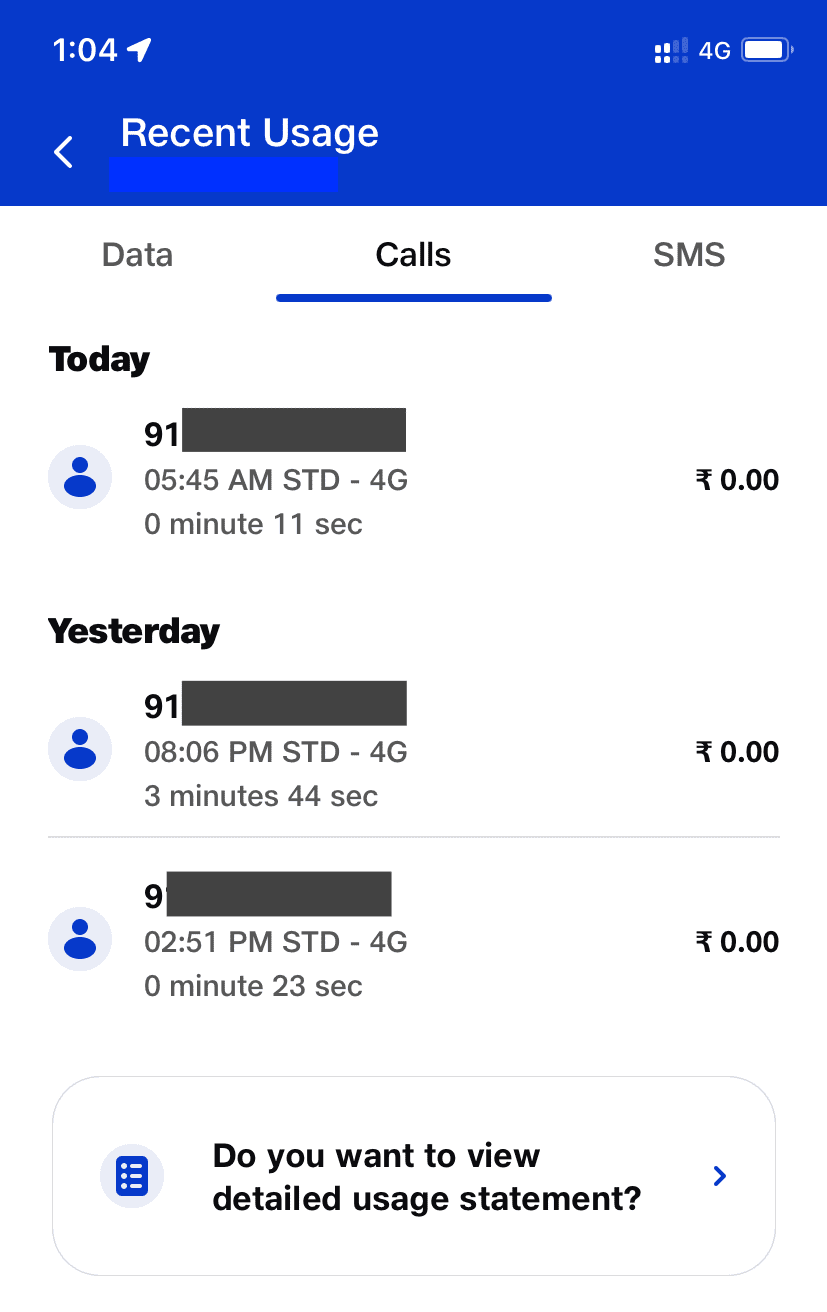
No, the phone company providing your SIM card still retains a complete record of the calls you’ve made and received. Some carriers even allow you to access your call history through their app, but you can’t delete entries from there. Additionally, if you have a postpaid connection, your carrier may send you a bill via email or post, which might include a record of your calls.
More Phone app tips and tricks: