Learn how to convert one or multiple Live Photos into a video on your iPhone and iPad without using third-party apps, websites, or shortcuts.
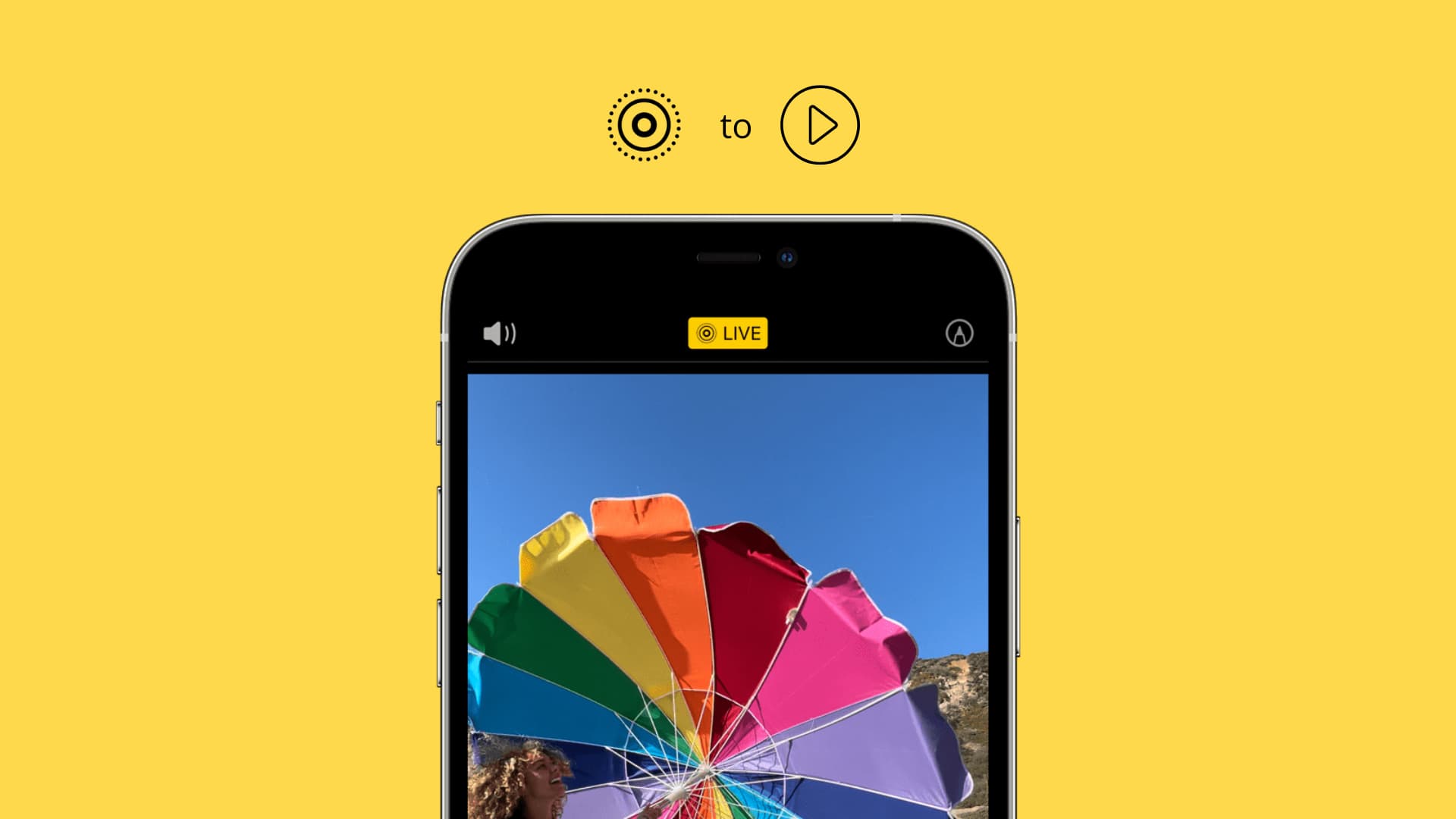
You can turn a Live Photo into a still image, but did you know you can also save a Live Photo as a short video or stitch multiple Live Photos together to create a video reel of your memories, like that trip you took recently? The resulting video has the same resolution as your Live Photo, with no difference in picture quality, while retaining the audio.
Export Live Photo as video on iPhone
- Open the iOS Photos app on your iPhone or iPad.
- Go to the Collections tab and then tap Live Photos under the Media Types heading.
- Tap a Live Photo to open it. Or, tap the Select button and mark multiple Live Photos.
- Tap the three-dot menu icon, then choose Save as Video.

Tip: Choosing consecutive Live Photos from the same event creates a compelling video, but it may take some time to generate. For example, I selected 179 Live Photos of my brother-in-law’s wedding and turned them into a 7-minute video. Don’t worry, the conversion is non-destructive; the Live Photos converted into a video remain intact in the Photos app until manually deleted.
“Save as Video” not showing up in the menu?

If you cannot export a Live Photo as a video, be sure you haven’t disabled a Live Photo’s live portion, which turns it into a still image. And if you’ve applied a motion effect like Loop, Bounce, or Long Exposure to your Live Photo, remove it first by opening the Live Photo, tapping the effect name in the upper-left corner, and choosing Live. If either is the case for even one Live Photo in your selection, the conversion won’t be possible. Therefore, unselect that image and try again.
More on Live Photos: