Learn how to change the key photo for a Live Photo on iPhone, iPad, and Mac by selecting the most compelling and visually appealing moment of the photo.
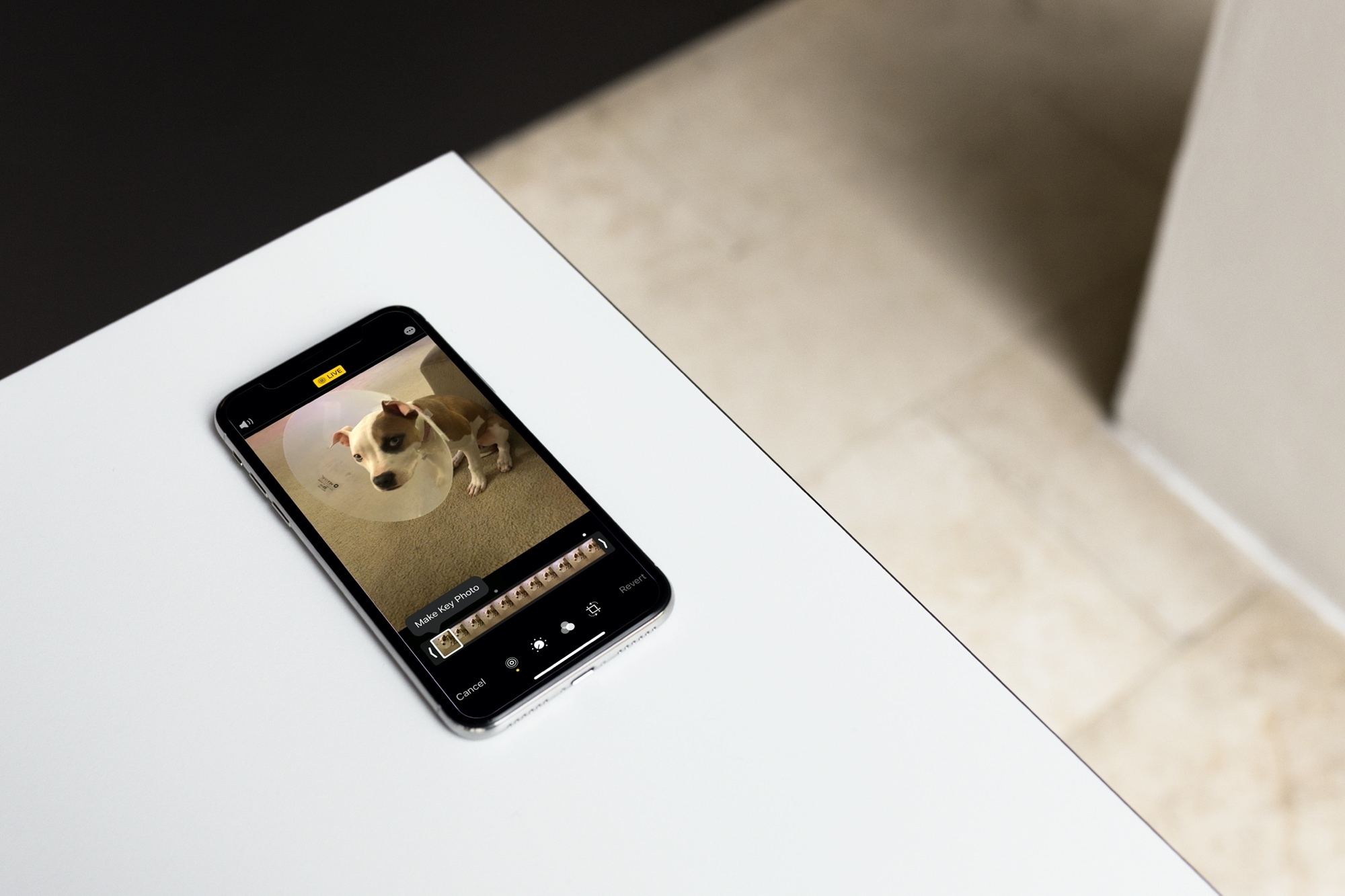
Live Photos are like mini video clips that bring moments to life. But while Live Photos sit in your album in the Photos app, they display as a still shot.
Here, we’ll show you how to change that key photo (i.e., the still image key frame) that displays before you open the Live Photo. Secondly, when you share a Live Photo in third-party apps and elsewhere, the key photo is the one that’s shared as the still image. So, you want it to be perfect.
On iPhone and iPad
1) Open the iOS Photos app and select the Live Photo. To find it quickly, go to the Collections tab and tap Live Photos under the Media Types heading.
2) Tap the edit icon.
3) Tap the Live icon on the bottom left.
4) After the image strip appears, tap to view each picture preview in the Live Photo. When you land on the one you want to use, you’ll see Make Key Photo, so tap it, and save your changes by hitting Done.

You’ll now have the image you selected as the key frame for your Live Photo. So when you review your Live Photos album, you can spot this one easily.
On Mac
1) Launch the Photos app on your Mac and open the Live Photo. You can do this easily by expanding the Media Types section by clicking its tiny arrow and then choosing Live Photos.
2) Click the Edit button on the top right.

3) Make sure the photo is still using Live Photo mode. You should see the Live indicator at the bottom.
4) In the image strip at the bottom, you’ll see each of the pictures that make up the Live Photo. Click each one to see it in the preview above it. When you land on the image you want to use as the key frame, click Make Key Photo, which appears directly above that shot.
5) Finally, click Done to save your changes.

Now, when you view your Live Photos, you’ll see that new key frame representing the picture you changed.
For more, check out: