Learn why the Auto-Lock display setting is grayed out on your iPhone or iPad, then follow our troubleshooting steps to fix this annoying problem.
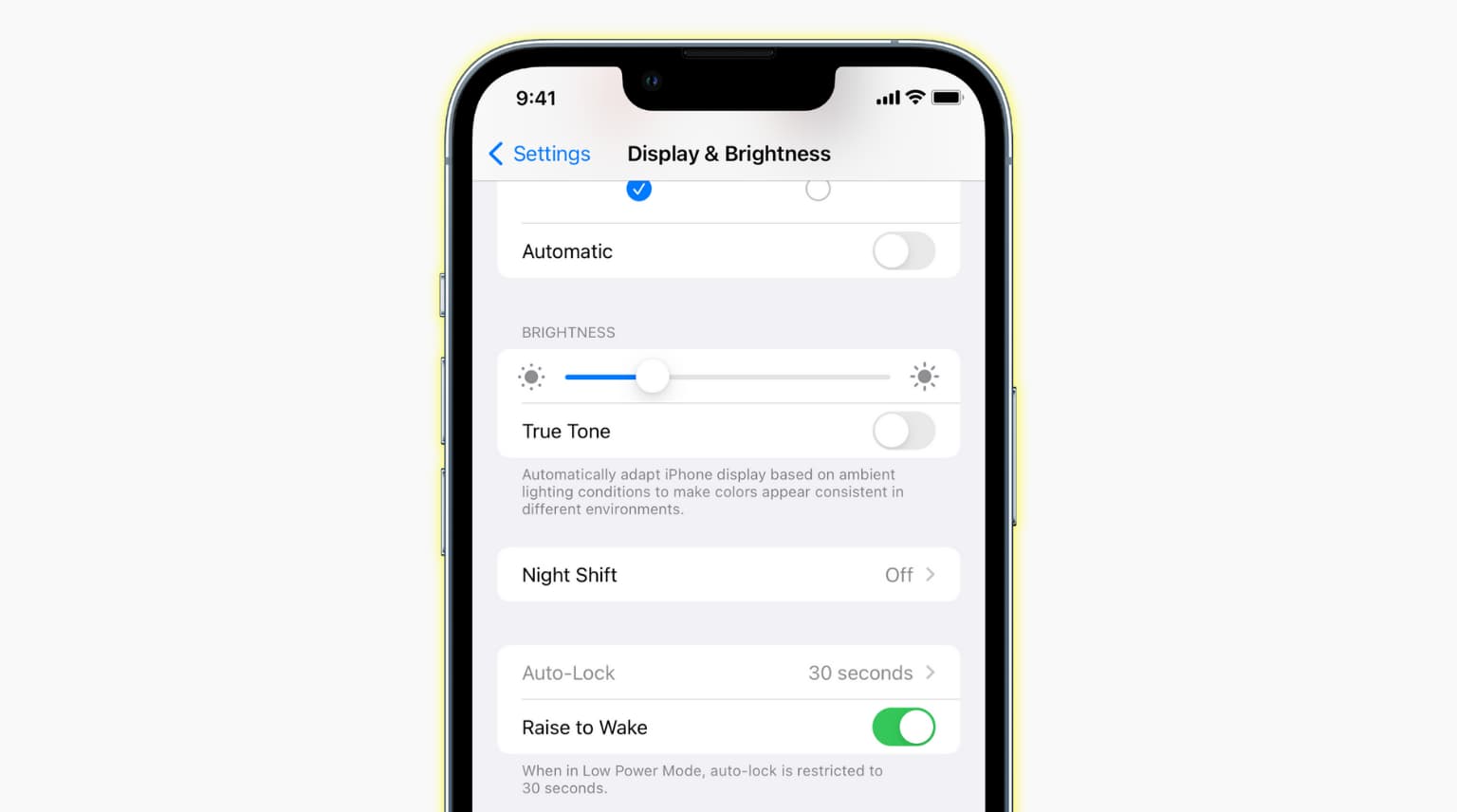
Every once in a while, the Auto-Lock option on my iPhone gets stuck at 30 seconds, even though I clearly remember setting it to 1 minute.
Occasionally, I couldn’t even change the timing in Auto-Lock Settings because the option would appear grayed out. If your iPhone’s Auto-Lock feature is stuck at 30 seconds, here’s a simple way to fix this issue.
Turn off Low Power Mode to fix grayed-out Auto-Lock on iPhone
If your iPhone is in Low Power Mode, the auto-lock option will be grayed out temporarily.
“When in Low Power Mode, auto-lock is restricted to 30 seconds” to help conserve power, according to Apple’s description.
To turn Low Power Mode off, go to Settings > Battery and turn off the Low Power Mode switch. You can also toggle Low Power Mode in Control Center or ask Siri to do it.
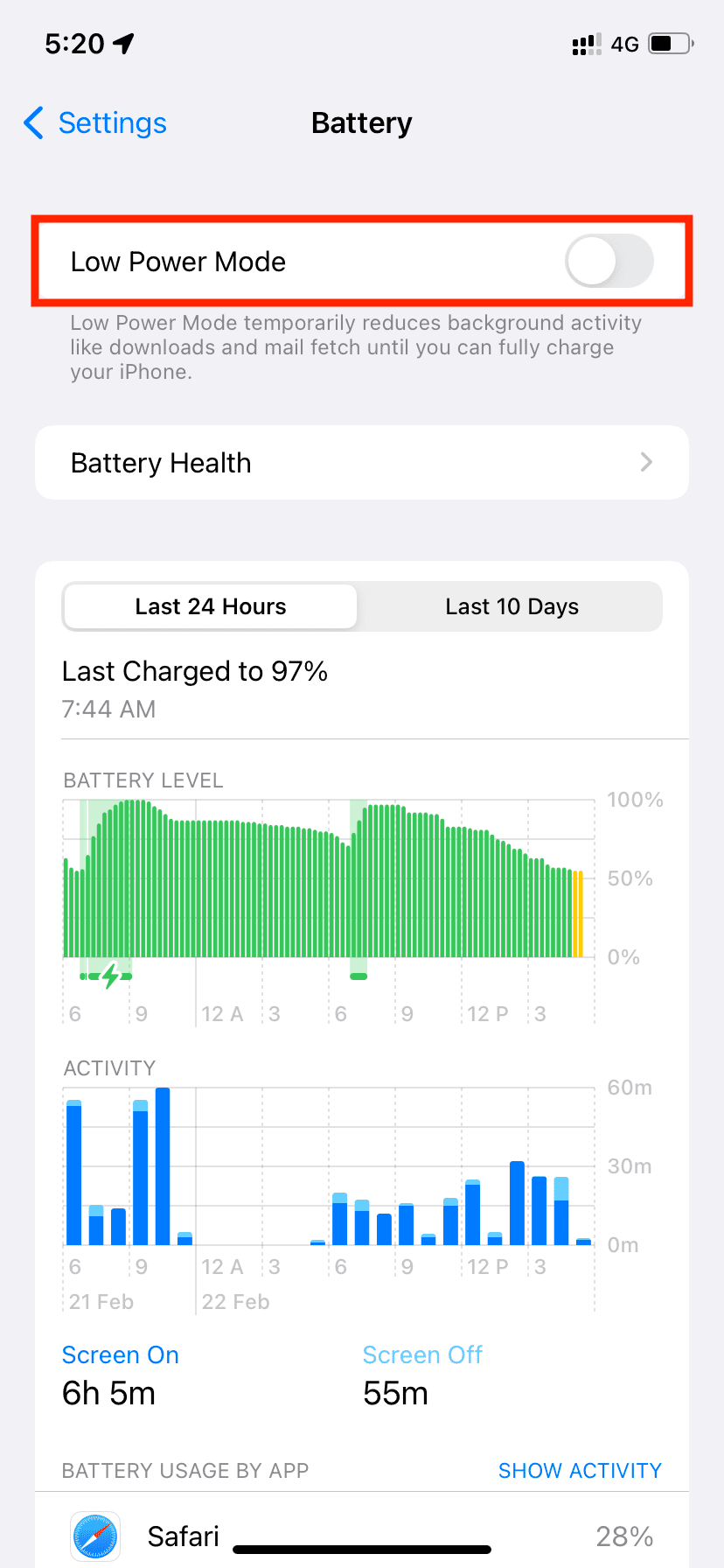
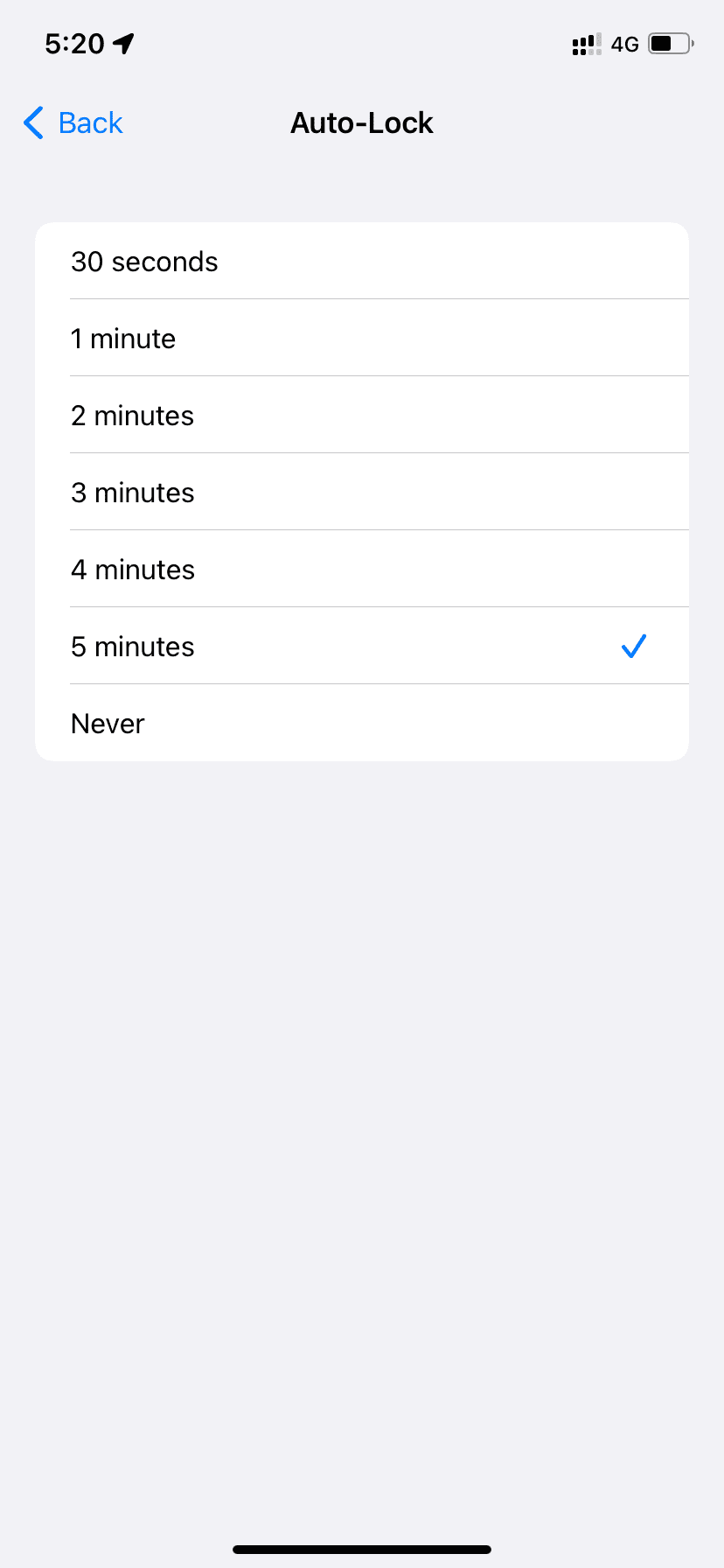
Once you turn Low Power Mode off, you’ll be able to change the Auto-Lock timing again. Otherwise, restart your iPhone and try again.
As a reminder, iOS activates Low Power Mode (which, again, restricts Auto-Lock to 30 seconds) when the battery charge falls below twenty percent. When Low Power Mode is active, the battery icon in the status bar is tinted yellow.
When the battery reaches 80%, Low Power Mode is automatically turned off.
Low Power Mode also turns on manual fetching in Mail instead of automatic fetch, while turning off automatic downloads and the Background App Refresh feature. It also throttles the CPU and disables motion and other visual effects.
Though Low Power Mode makes your iPhone run slower, your phone will still be perfectly usable for most everyday tasks. When I’m out and about, I always keep Low Power Mode turned on, as I’ve found it gives me a bit more runtime.
Also, check out: What is Adaptive Power on iPhone and how to use it?