Find out what steps to take if your iPhone or iPad screen isn’t working properly and flickers or blinks constantly or randomly, disrupting your workflow.

The iPhone screen flickering can be due to software glitches (which is easily solvable) or hardware problems (which require taking your iPhone to a service center).
If the problem is because of software, the solutions below will help you fix that. In case it’s something else, then getting the screen or the faulty part repaired (or doing a self-repair) is your only option.
Are you confusing screen flash with flickering?
First off, if you notice the screen flashing on phone calls and alerts, then it’s not a problem but a lesser-known feature you or someone who uses your phone may have accidentally enabled. Go to Settings > Accessibility > Audio & Visual > Flash for Alerts and turn it off.
If the screen flickers only in a particular app
If you notice the screen flickers only in one app, then here are some steps to take:
- Close and reopen the app
- Update it from the App Store
- Check if some related in-app settings are activated that cause the screen to flash by design
- Delete and reinstall the app
- Contact the app developer directly for help
Restart or force restart your iPhone
Despite the issue, if you can interact with the screen, then turn your iPhone off and back on. If touching the screen doesn’t do anything, force restart your iPhone using physical buttons.
Let it cool down if it’s very hot
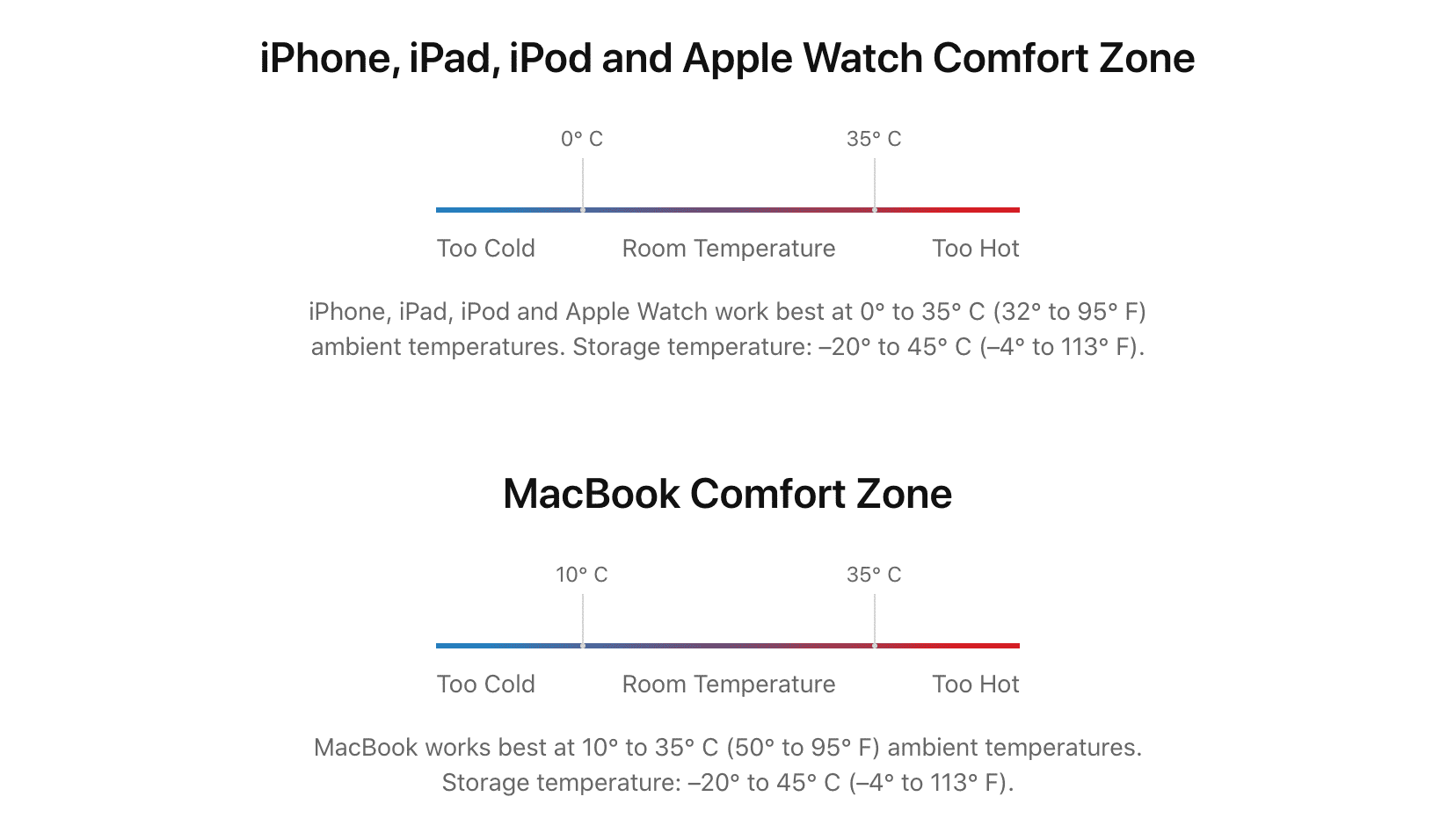
When you’re out on a sunny day or in the car with the AC off, and your iPhone gets very hot, you’ll notice a drop in screen refresh rate and brightness, system lag, and sometimes the display malfunctions, albeit temporarily. Simply keep your iPhone in a cool place or turn it off for 5 minutes. This basic step should solve your screen flickering problems.
Try turning off Always On Display, Auto Brightness, and Reduce Transparency
Some user reports online suggest that turning off these features may help fix the screen flickering problem. Try them out:
- Turn off AOD: Settings > Display & Brightness > Always On Display.
- Turn off Auto Brightness and Reduce Transparency: Settings > Accessibility > Display & Text Size.
Update to the latest version of iOS
If your iPhone is running an older version of iOS, or if turning off one of the features above helps address your problem, then chances are software bugs are the culprit. Head to Settings > General > Software Update to install the latest version of iOS available for your phone. You can also use your Mac or PC to update your iOS device.
Erase your iPhone and set it up again
In case the above software fixes have failed to bring any luck, factory resetting your iPhone can help. But before you do that, understand that you may have difficulty setting up your erased iPhone in case the screen problem gets worse than flickering.
Additionally, even when the iPhone screen is flickering or cracked, there are ways to use it, like with iPhone Mirroring or connecting to a monitor. But you may not be able to do this once the phone data is erased and you fail to set it up by touching the screen.
So, I advise backing up all your iPhone data (also find a spare iPhone if possible), and then you can go ahead with the factory reset process from Settings > General > Transfer or Reset iPhone > Erase All Content and Settings. You can also use recovery mode to erase the device using a Mac or Windows PC.
Get the device inspected at an Apple Store
Lastly, if nothing helps, it’s certain that the problem is hardware-related. Maybe the screen cable that connects to the iPhone’s main board is loose, or there is a hardware problem (that leads to green, white, or vertical lines on the iPhone screen).
Take your faulty iPhone to an Apple Store or an authorized service center to get it checked. You may be able to get free repairs if there are no visible cracks on the screen and your iPhone is under warranty.
Alternatively, explore Apple’s self-service program if you have basic technical knowledge of repairing smartphones.
Were you able to fix the problem?