Learn how to use Picture-in-Picture in Firefox and Google Chrome for seamless video playback while you browse the web or use other apps on your computer.
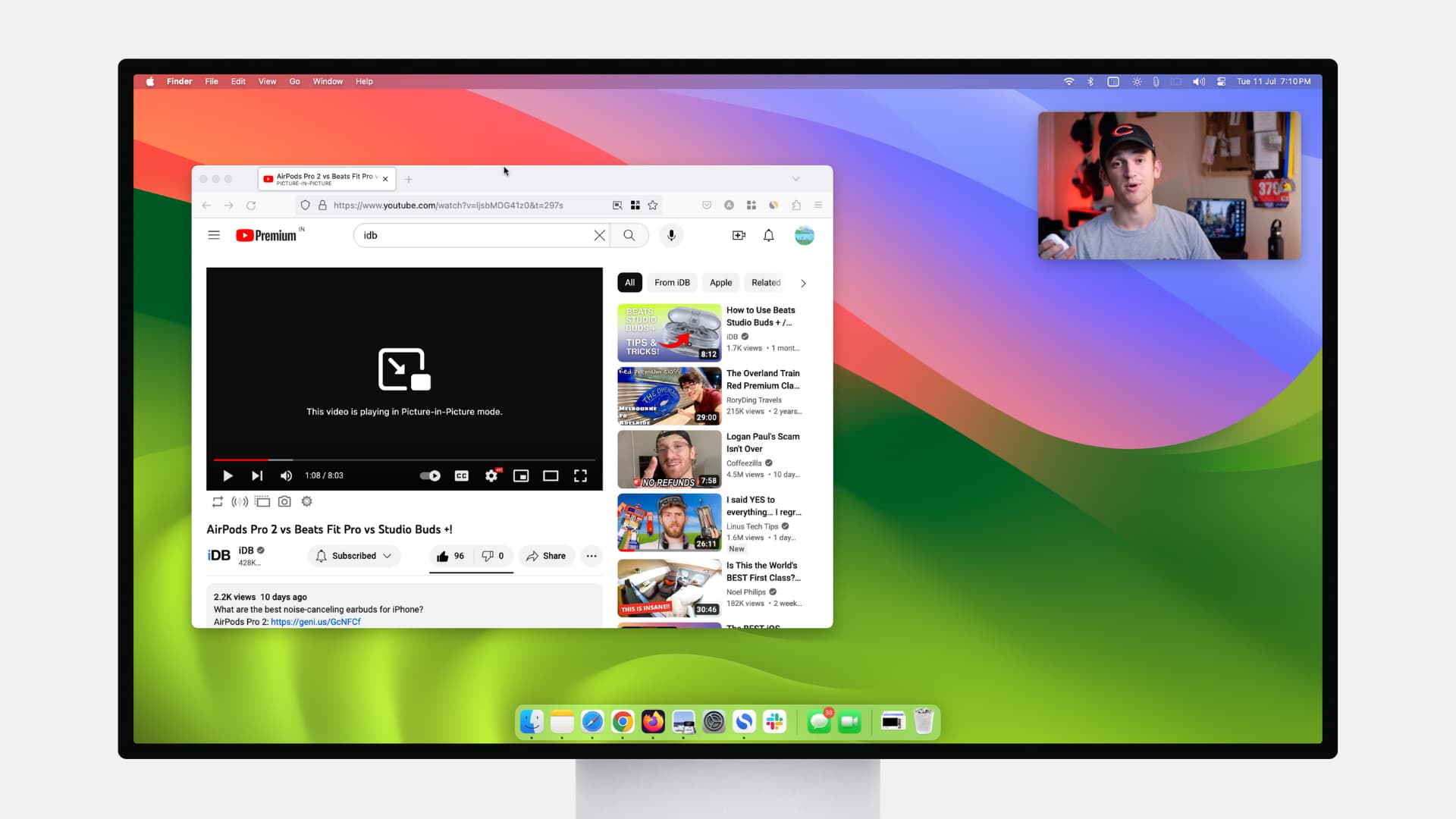
If you’ve been enjoying the Picture-in-Picture (PiP) feature when watching videos in Safari on your Mac, you should know that you can do the same with Firefox and Chrome.
Use Picture-in-Picture in Firefox
1) Open Firefox on your Mac, click the menu button on the top right of the browser window, and select Settings.
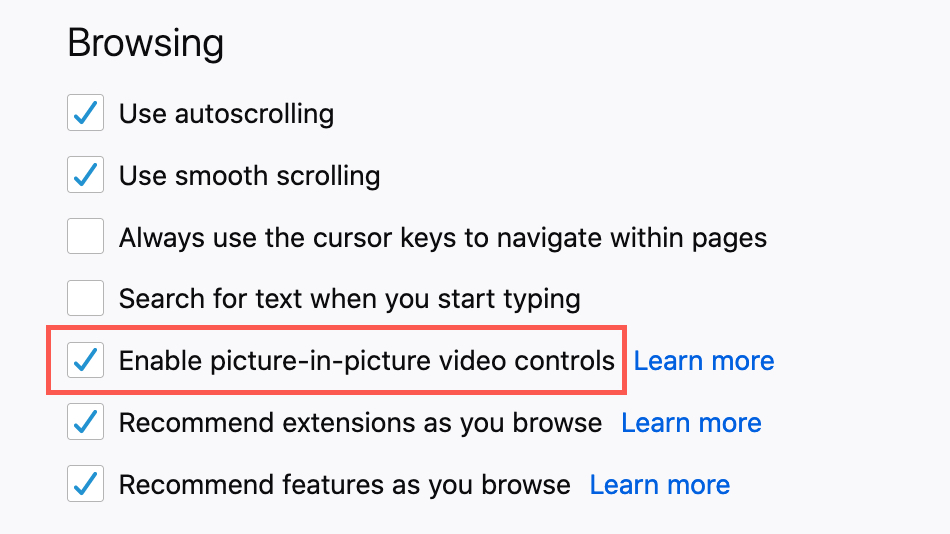
2) Scroll down the General section until you get to the Browsing heading and check the box for Enable Picture-in-Picture video controls.
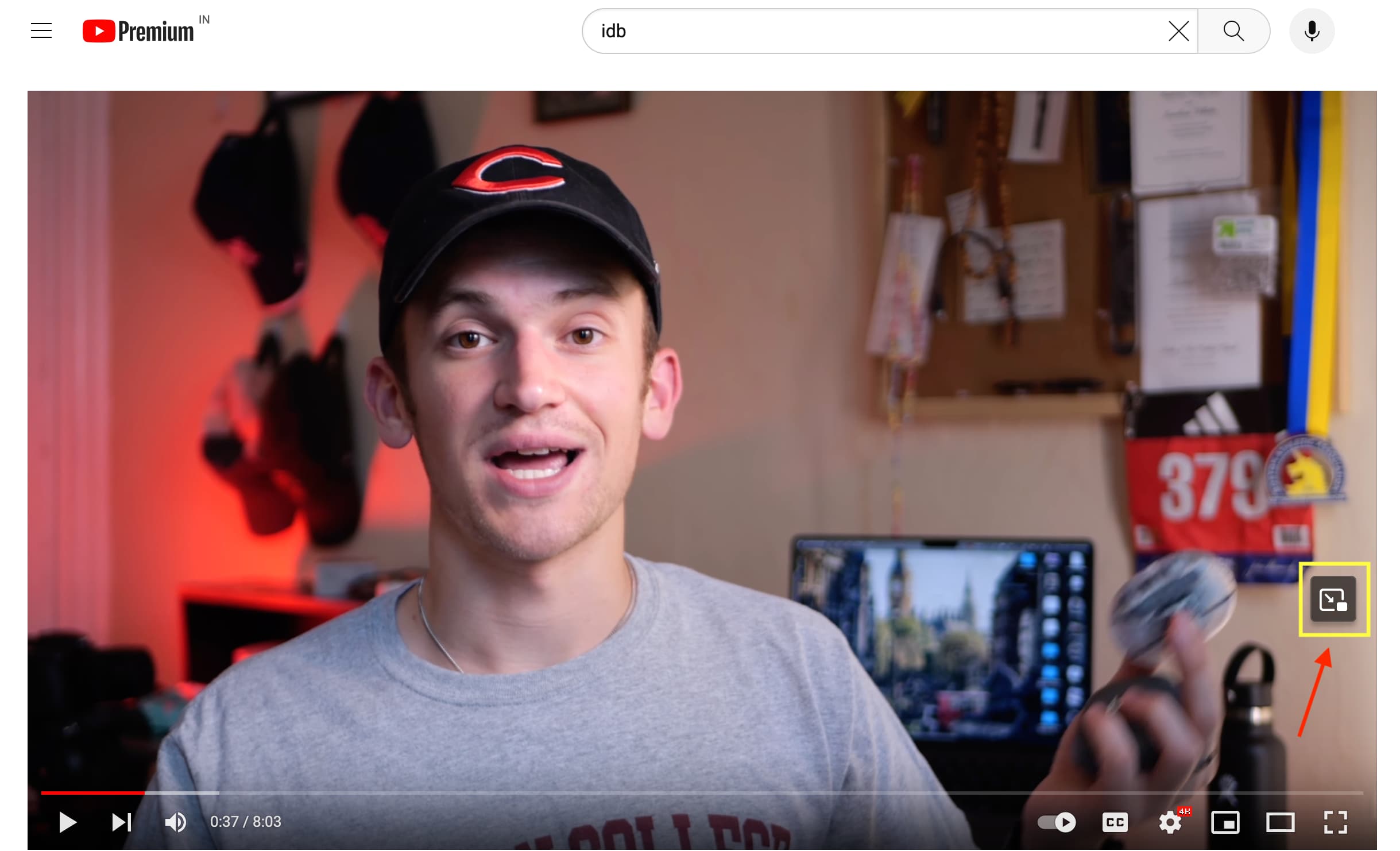
3) When you’re ready to watch a video or have already started one on a site like YouTube or Vimeo, put your cursor over the video. You’ll then see a small Picture-in-Picture icon. Click it.
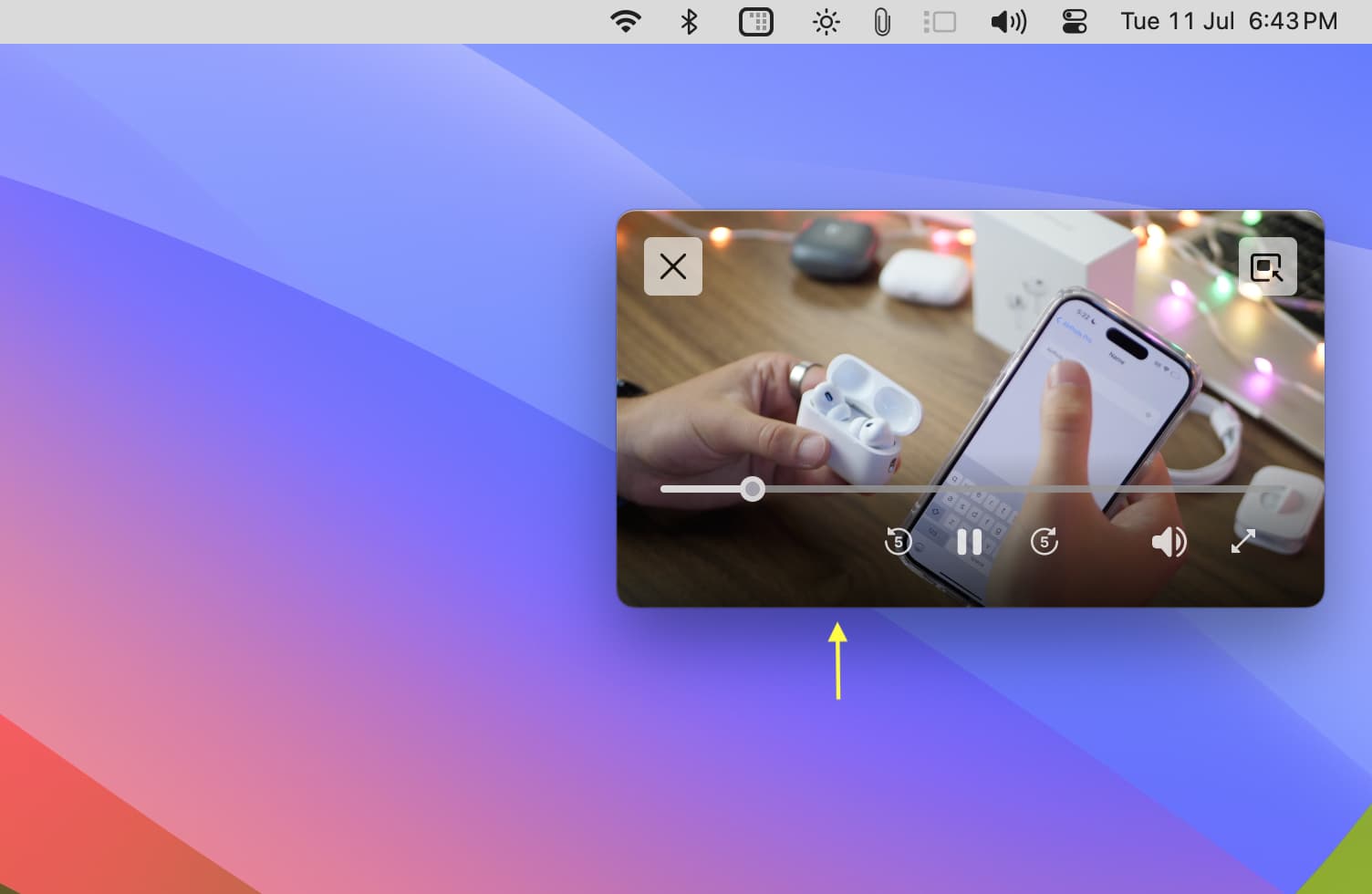
The video will pop out and down to the corner of your screen. You can then move it or resize it. The mini-player has a few useful buttons like pause/play, skip forwards and backward, volume, subtitles, full screen, and another to exit Picture-in-Picture. If you exit, the video will pop back onto the website.
Use Picture-in-Picture in Google Chrome
Different than Firefox, Chrome doesn’t currently have a setting to enable Picture-in-Picture mode. This is a native feature built into Chrome. There is also no convenient little blue box letting you know that PiP is available.
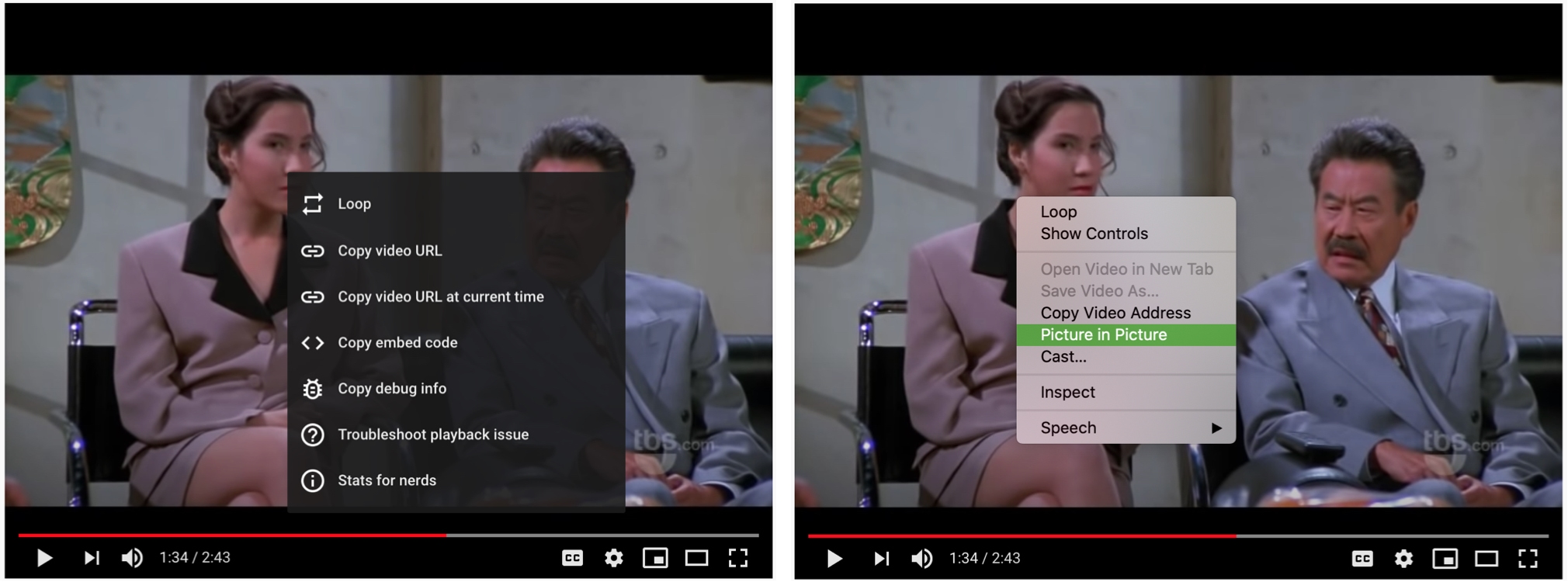
1) When you’re watching a video on a site, right-click on the video, move your cursor slightly, and then right-click once more.
2) You’ll see the first shortcut menu pictured below on the left and then the one on the right. When you see the one on the right, select Picture in Picture.
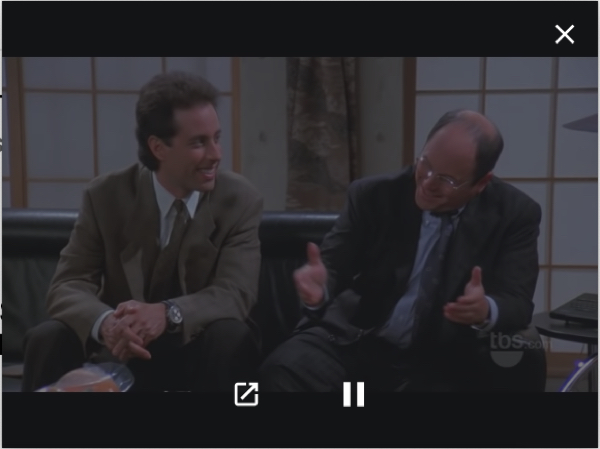
Similar to Firefox, you can move and resize the mini player and have the play/pause and exit buttons.
You’ll also see an icon on the tab that you’re using PiP with.

Use a browser extension
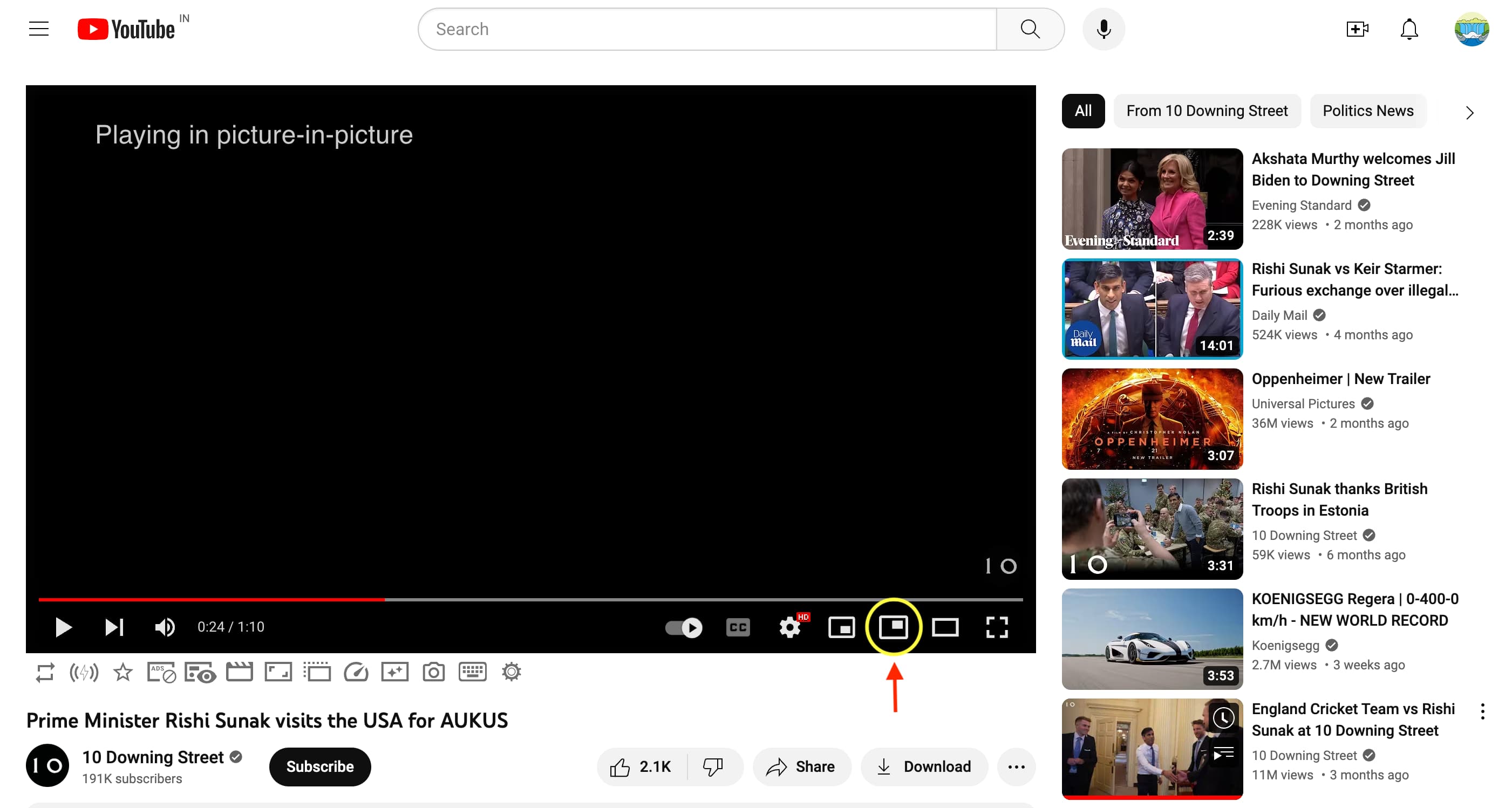
You can use a browser extension like Enhancer for YouTube to add Picture in Picture functionality to Chrome, Firefox, or other Chromium-based browsers. Simply install the extension, optionally customize it, and you’ll see the PiP button on the YouTube video player screen.
Compared to Chrome, PiP access seems a lot simpler in Firefox. Hopefully, Google will take some tips from others and improve its PiP feature.
And remember, not all sites support Picture-in-Picture. So you may come across a video or two where you can’t use PiP mode.
On the same note: