Learn how to change the background color of your spreadsheet or presentation slide in Numbers and Keynote to spruce up your documents.
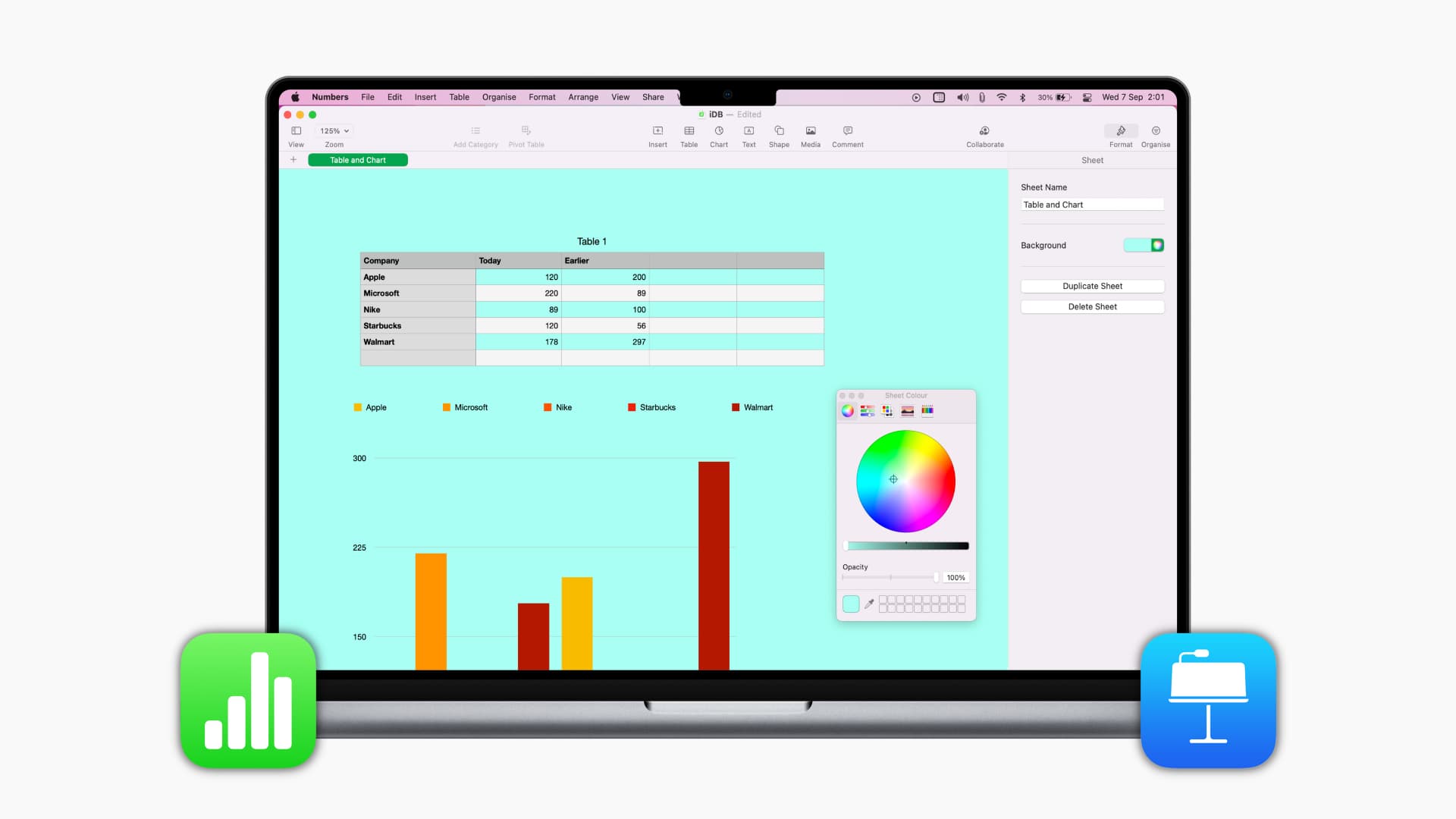
We’ve already shown you how to change the background color of a document in Pages, and now we’re going to do the same for Numbers and Keynote.
Adding a background color to a spreadsheet or slideshow can significantly enhance your documents. It helps you quickly differentiate sheets in a workbook or incorporate your logo as a slide background in a presentation for a personalized touch.
Change the background color in Numbers
On Mac
1) Open the Numbers app on your Mac and start a new document or find an existing one.
2) Click the paintbrush icon (Format) in the top right of the window.
3) Click on a blank space in your sheet. Do not click inside a cell; just move the cursor and click an empty spot.
4) You should see the Background option displayed in the Format sidebar.
5) Select a color from the drop-down box or click the palette button to the right to view all colors or create a custom one.
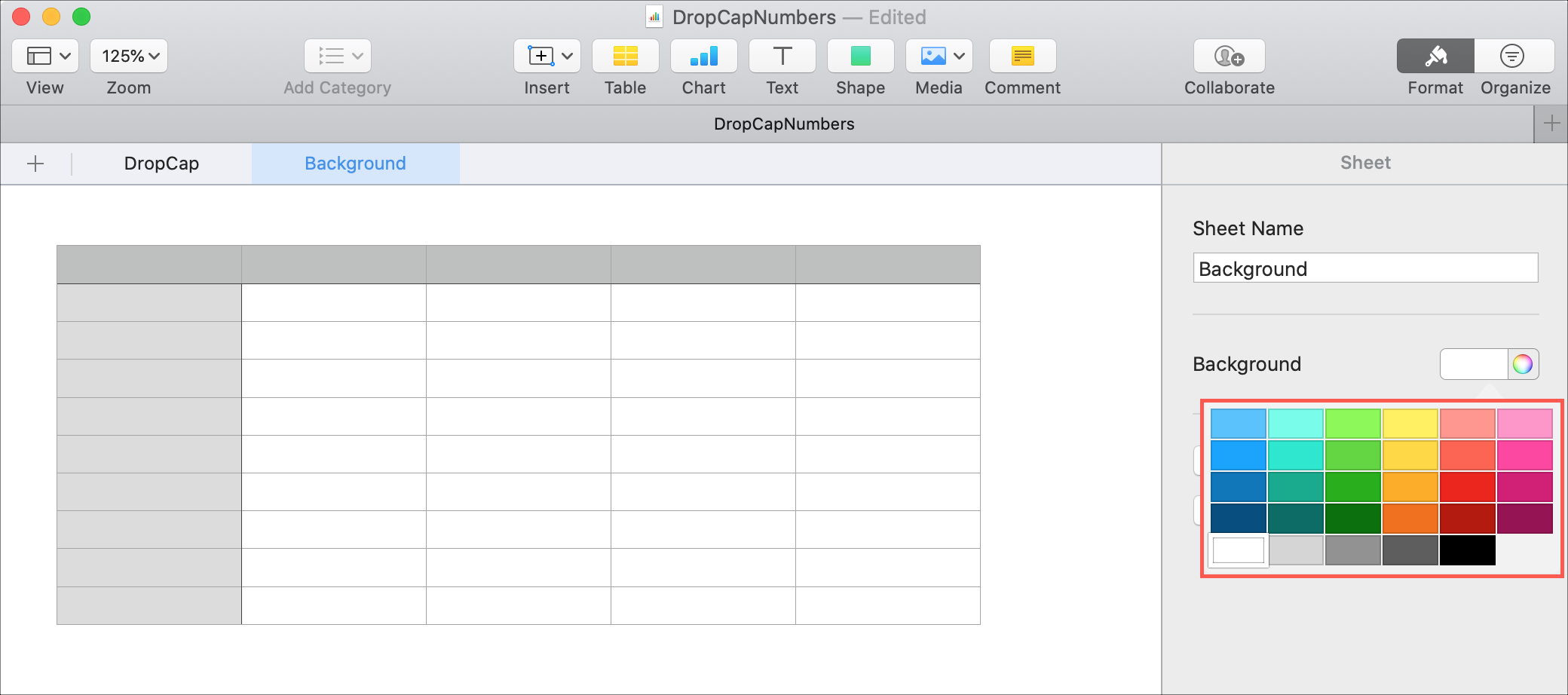
You’ll see the color of your choice become the background for your sheet.
On iPhone or iPad
1) Open the iOS Numbers app and create a new spreadsheet, or open an existing one where you want to add background color.
2) Tap an empty space on the sheet.
3) Tap the paintbrush icon at the top.
4) Select Background and then pick a color. You’ll see your background color apply immediately.

Change the background color in Keynote
On Mac
1) Open Keynote on your Mac and go to the slideshow you want to use, or create a new one.
2) Select one or more slides that you want to change the background for.
3) Click the Format paintbrush icon in the top right of the window.
4) To add a quick, solid color, use the drop-down menu under the Background heading.
5) As with Numbers, you can click the palette button for more shades or custom colors. You’ll also notice that Keynote offers additional color features that can really brighten up your slides.
In the Current Fill drop-down menu, you can select Color Fill, Gradient Fill, Advanced Gradient Fill, Image Fill, and Advanced Image Fill. The advanced options allow you to adjust the small details like a pro. If you add an image, you can choose to go with the original size, or you can stretch it, scale it, or tile it.

On iPhone or iPad
1) Open your slideshow in the iOS Keynote app and select the slide(s) you want to apply color to.
2) Tap an empty space on a slide or outside the slide.
3) Hit the Format paintbrush icon at the top and set the Background color. Similar to Keynote on Mac, you can use gradients or images as your backgrounds, too, with advanced options. Just tap Background, and then use the type of background you want to use and make your adjustments.

Are you going to start customizing the backgrounds for your Numbers or Keynote documents? Let us know!
More iWork tips: