Learn how to use links for websites, email addresses, phone numbers, etc., to make your Pages documents and Numbers spreadsheets more interactive and informative.
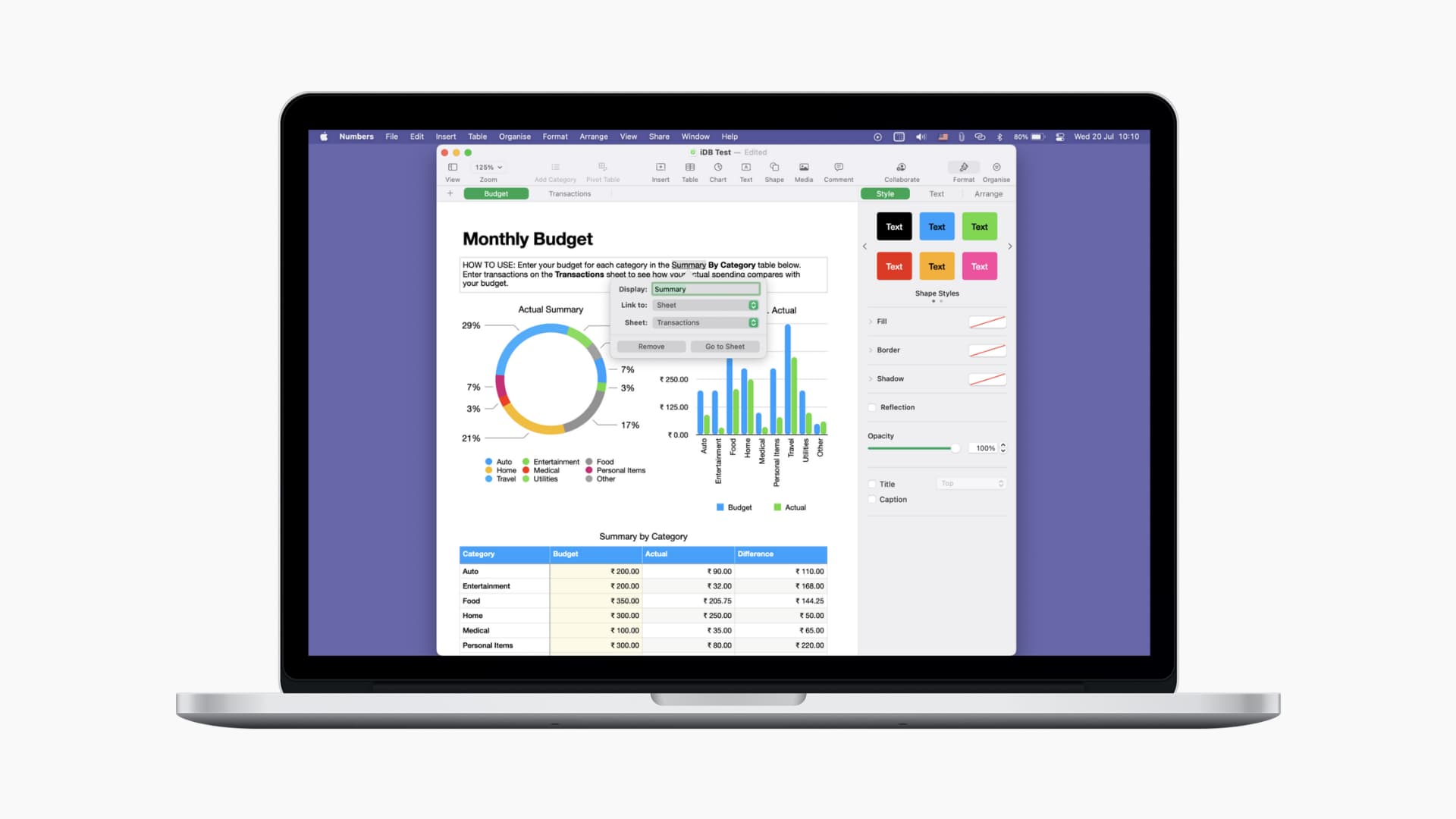
Add a link to a Pages document
1) Open an Apple Pages document on your Mac and select the text to turn into a hyperlink, then press the Command + K keys or click the insert icon in the toolbar, select Link, and pick a link type.

2) Enter the underlying link information. For example, you’d enter a URL for a webpage link, an email address (and optionally a subject) for an email link, and so on. To customize the toolbar tip that appears when hovering over the link, enter text in the Display section.
3) Click the bottom-right button to add the link to your document (button label corresponds to your chosen link type).
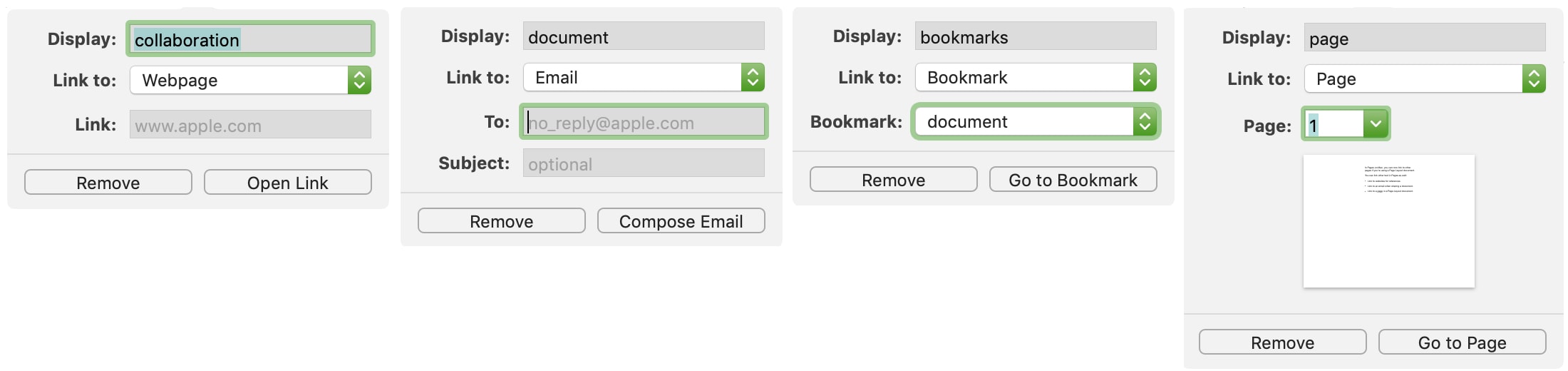
Linking to internal pages only works for Page Layout documents, while bookmark links are restricted to Word-Processing document types. To convert the existing document into a Page Layout version, click File > Convert to Page Layout in the menu. You’ll lose your work, so save the document first. Webpage, email, and phone links work across both document types.
Add a link to a Numbers spreadsheet
Follow these steps to link to a webpage, email address, or another sheet in your Numbers spreadsheet.
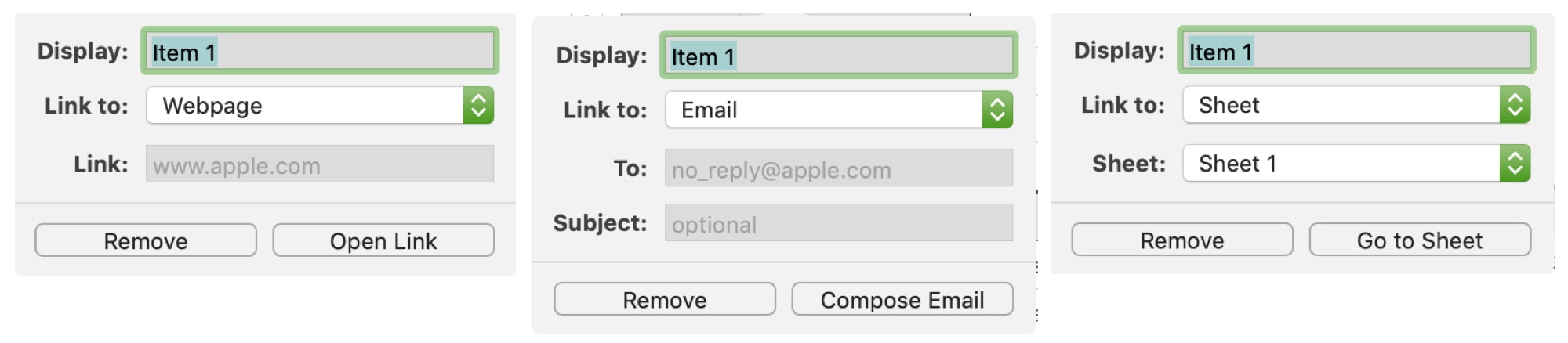
1) Select the text you’d like to turn into a link. Then click Format > Add Link in the menu bar, and choose an appropriate link type. Or, press the Command + K keys and pick a link type from the menu.

2) Enter link details. For a webpage, you’d provide the URL. For an internal link, you’d pick a document sheet. Optionally, customize the link description in the Display section.
3) Click the bottom-right button to add the link to your document (button label corresponds to your chosen link type):
Having actionable links in your documents and spreadsheets can be very convenient in so many situations, whether for school, work, or private use. And both Pages and Numbers make adding hyperlinks a cinch.
Also, check out: