In this quick tutorial, we show you how to block someone who has called you on FaceTime or sent you an iMessage in the Messages app on your Mac.
Block callers in FaceTime
FaceTime for Mac lets you block unknown numbers and existing contacts.
In your FaceTime call list, right-click or Control-click the mobile number, email address, or contact you want to block, then choose Block This Caller in the menu.

If your Mac is using an older macOS version, you must first save an unknown number as your contact before blocking it. Click the info icon ⓘ next to the number to save it to the Contacts app. After that, the Block This Caller option will appear when right-clicking that caller in FaceTime.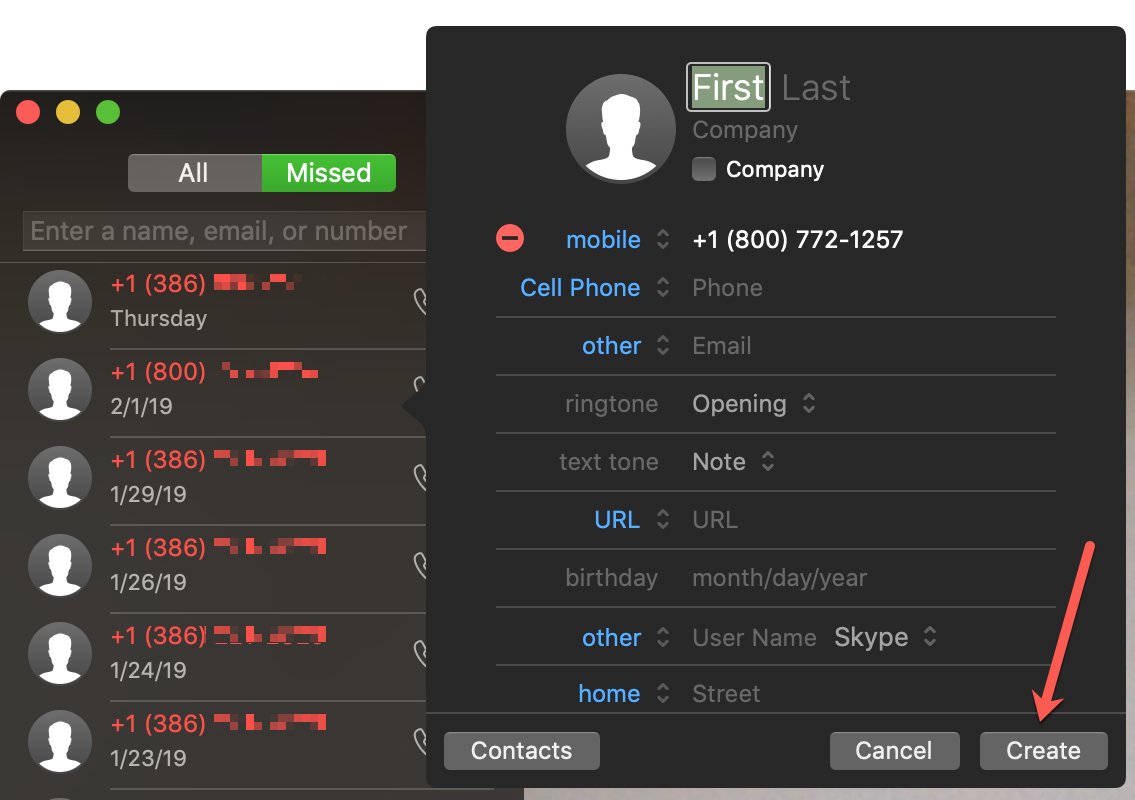
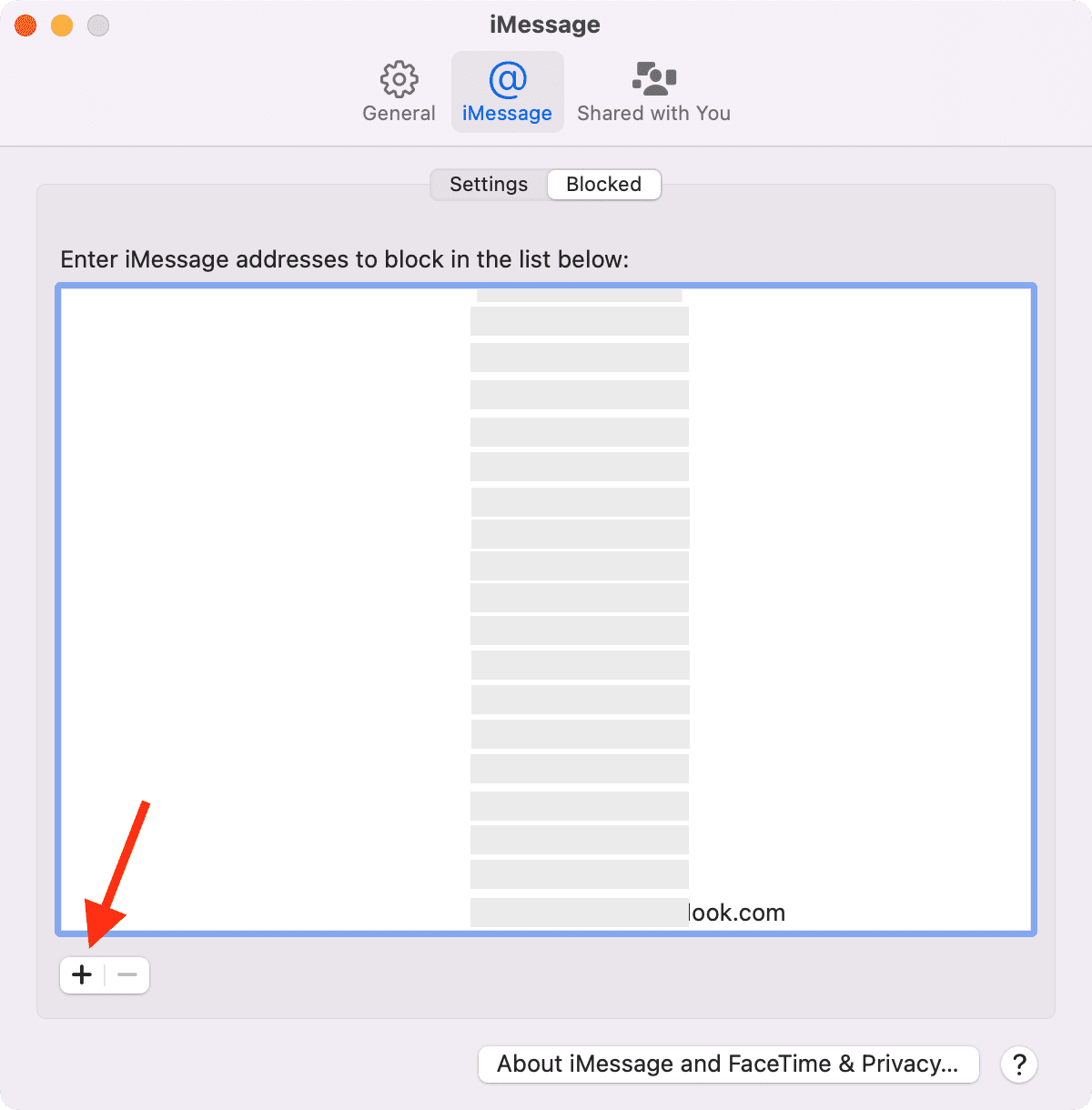
The second method involves managing the built-in blacklist. Click FaceTime > Settings or Preferences in the menu, select the Blocked tab, then click the plus sign (+) at the bottom. Select a contact and their phone number will be added to the Blocked list. Conversely, you can unblock a contact by selecting their number in the Blocked list and clicking the minus sign (-). You cannot use this method to block unknown numbers not saved in the Contacts app.

Block message senders on Mac
Select an unknown number, email address, or contact in the conversation list of the Messages app and click Conversation > Block Person in the menu.

Alternatively, open Messages and click Messages > Settings in the menu bar on a Mac running an older version of macOS. Go to the iMessage tab, switch to the Blocked tab, and add a contact to block. If the contact was saved without a name, it’ll be listed as ‘No Name’ at the bottom of the contacts list.
Block a person in just one place
Your iPhone, iPad, and Mac use a unified block list as long as you use the same Apple account across these devices. Blocking someone on your iPhone or iPad will also block them in the FaceTime and Messages apps on your Mac.
On a related note: