This tutorial shows you the steps to take screenshots on any iPhone and iPad model, including the latest iPhone 17, Air, 17 Pro, and 17 Pro Max.
About the different iPhone buttons:
- Side button: This is the button on the right side of the iPhone.
- Home button: This is the circular button on the front of the iPad or iPhone.
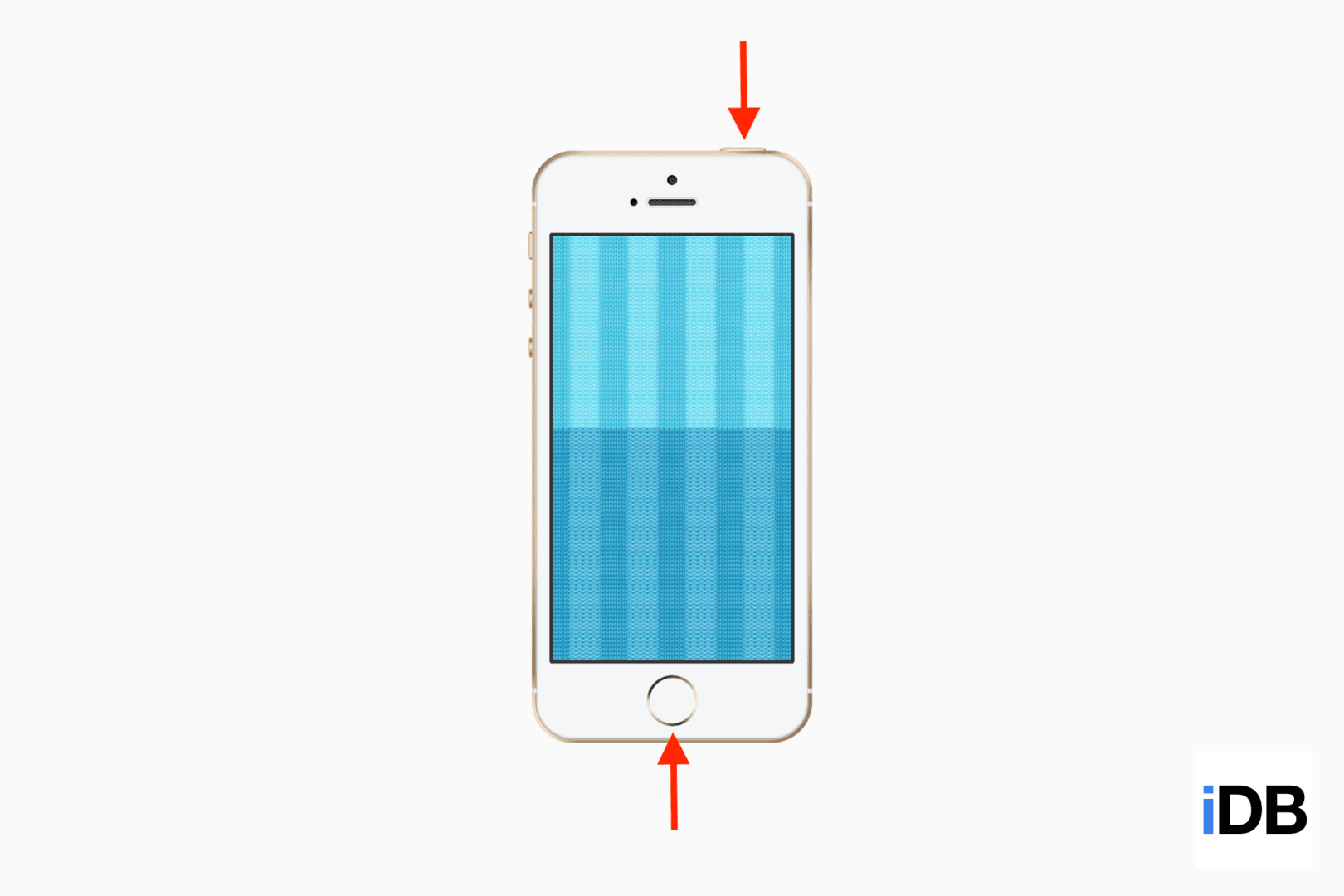
- Top button: This is the button on the top-right of all iPads, and smaller iPhones with a screen size of 4-inch or less (SE, 5S, and earlier).
- Volume buttons: Every iPhone has two volume buttons – Up and Down on the left side of the device. On iPad, both volume buttons are on the right side (or top-left in iPad mini 6th gen).
Take a screenshot on an iPhone with Face ID
Here are the steps to take a screenshot on iPhone 17, 17 Pro, 17 Pro Max, iPhone Air, 16 series, 15, 14, 13, 12, 11, XS, XR, and iPhone X:
- Make sure you’re on the screen whose screenshot you want to take.
- Press the side button and the volume up button at the same time and release them immediately.
- The entire screen will flash white (or light gray when in dark mode), confirming you have captured a screenshot.

Note: If your iPhone is running iOS 26, the screenshot will open automatically in a full-screen preview. You can disable this behavior from Settings > General > Screen Capture > Full-Screen Previews.
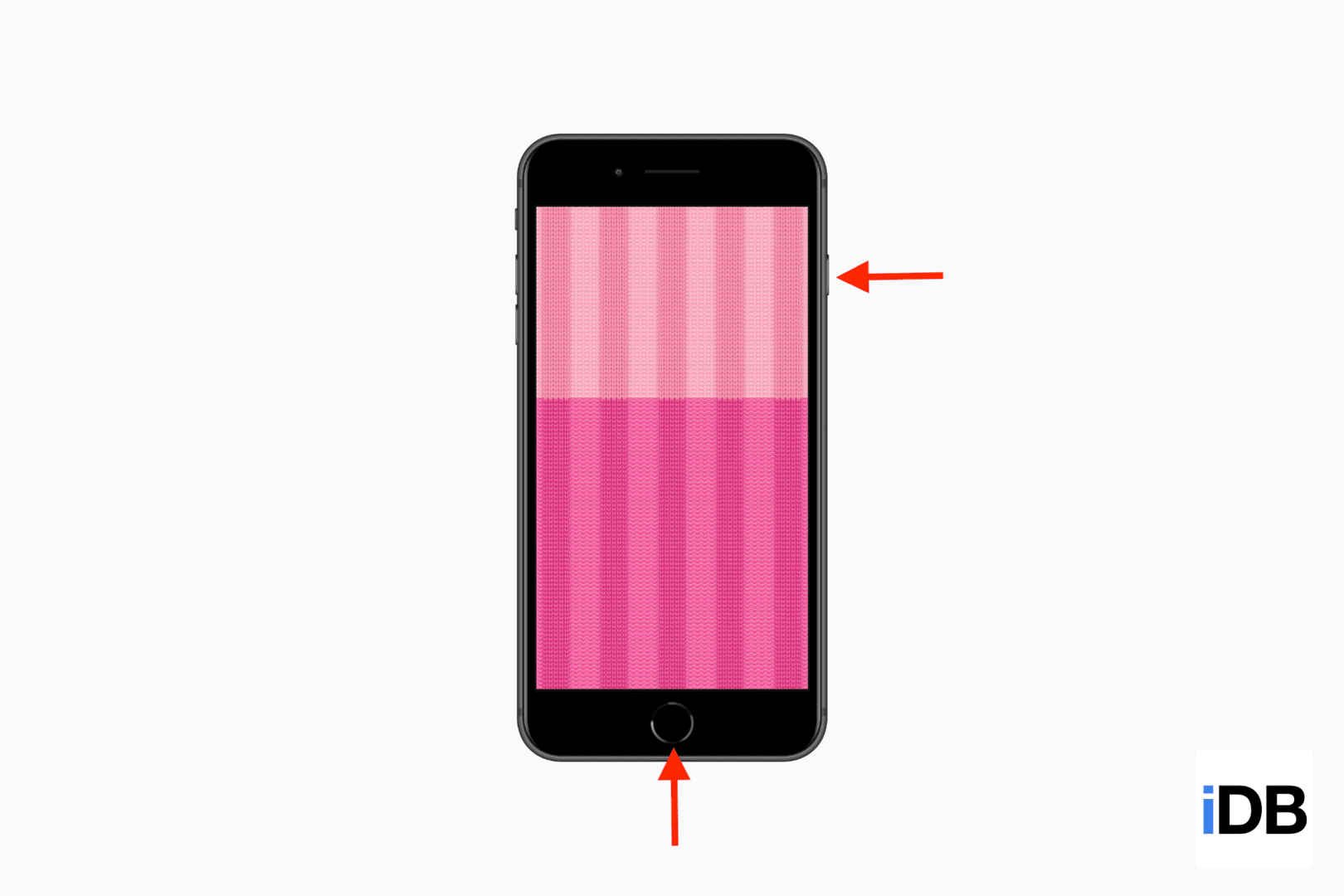
Here’s how to take a screenshot on iPhone 6, 6s, 7, 8, SE 2020, and the iPhone SE 2022:
- Start on the screen where you want to take the screenshot.
- Press together and release the side button and the Home button to capture a screenshot.
- The entire screen will flash to confirm a successful screenshot.
Note: On iPhone SE, 5s, 5, 4s, 4, & earlier, as well as iPod touch, press the top button and the Home button to take a screenshot.
iPad Pro 11-inch, iPad Pro 12.9-inch (3rd, 4th, 5th, and 6th generation), and iPad Pro (M4) have Face ID and no Home button.
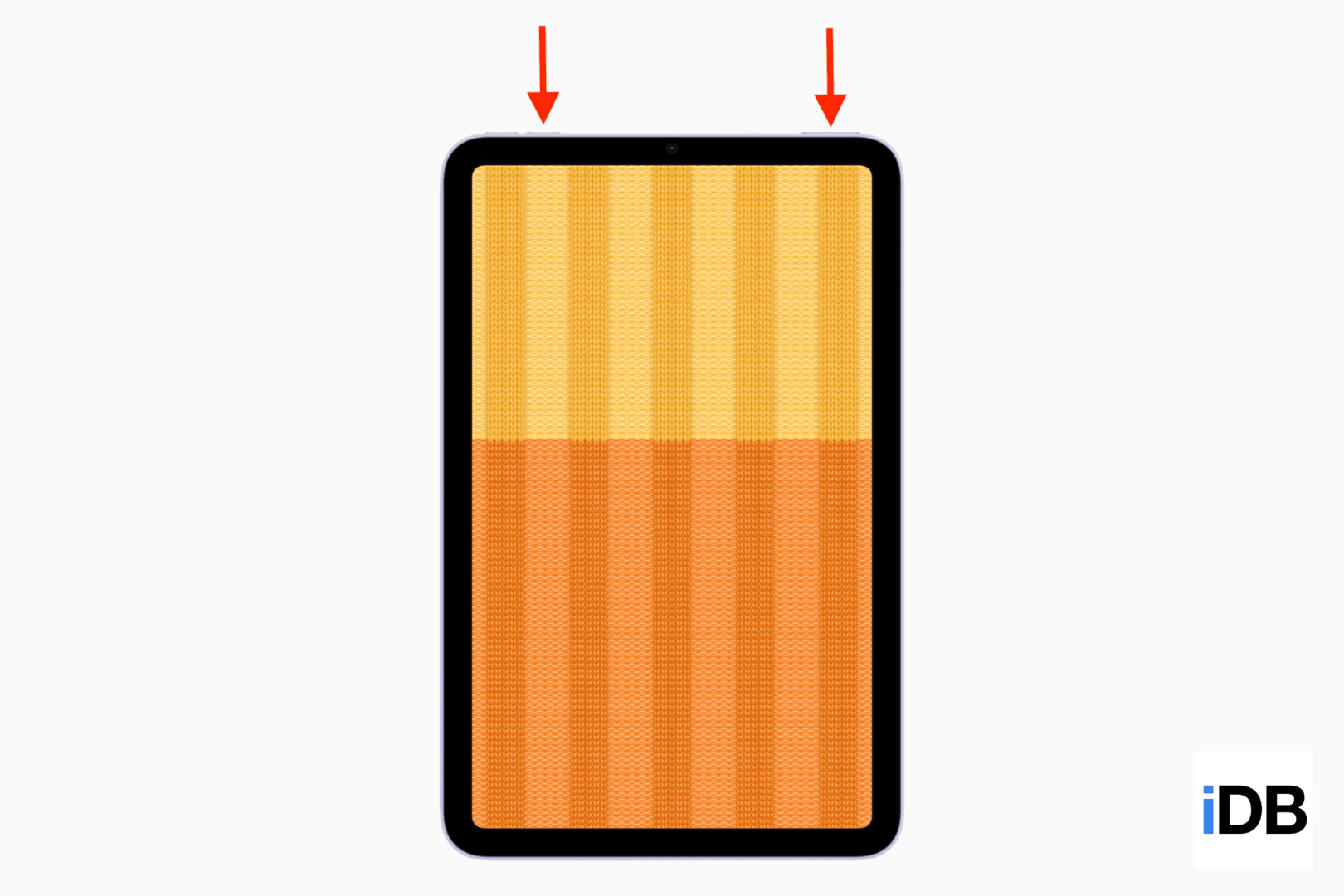
iPad (10th generation and later), iPad (A16), iPad Air (4th generation and later), iPad mini (6th generation), and iPad Air (M2) don’t have the Home button or Face ID. Instead, they have a Touch ID button at the top.
Here’s how to take a screenshot on any iPad without the Home button:
- Start on the screen where you want to take the screenshot.
- At the same time, press and quickly release the top button and any one of the volume buttons.
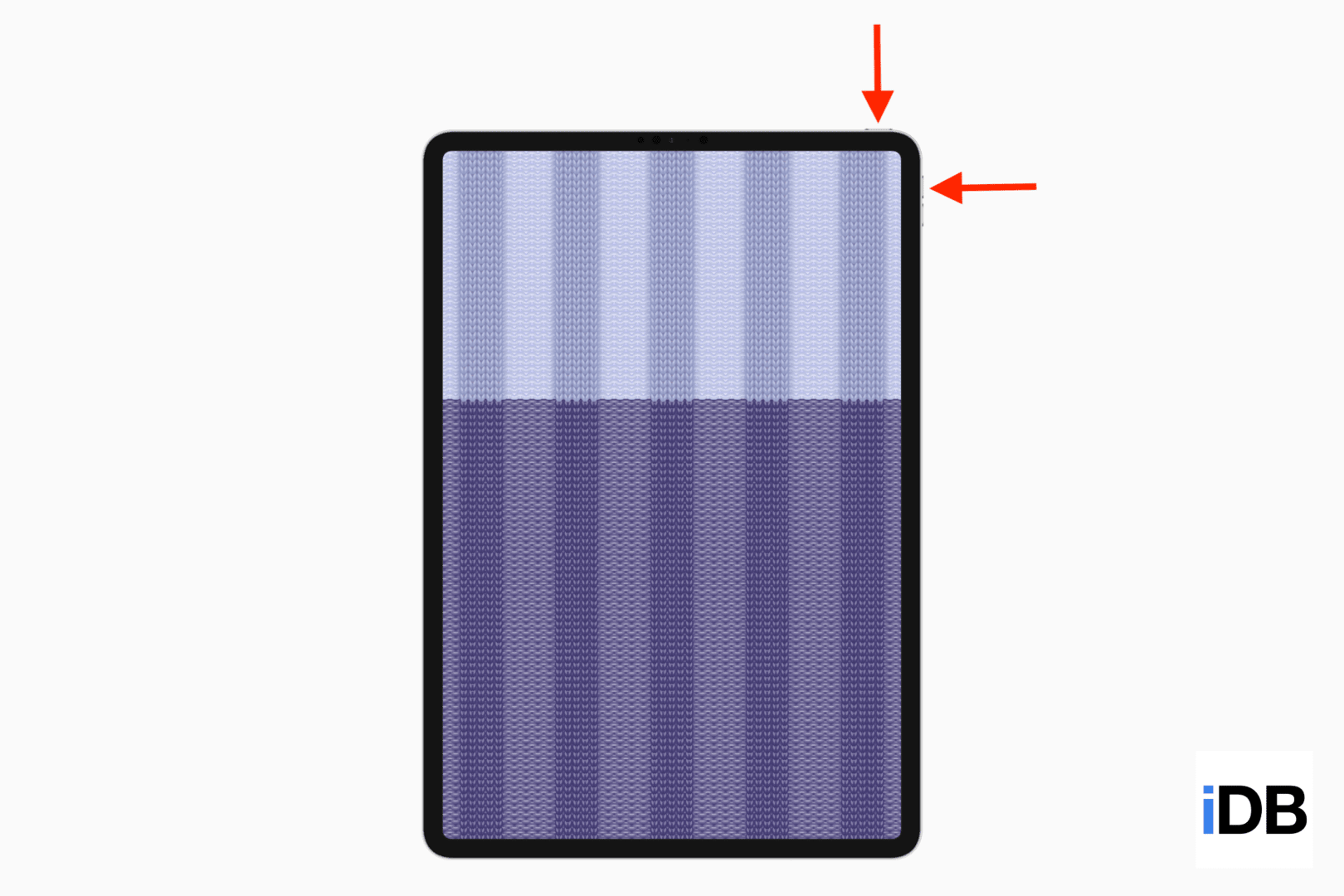
Note: On the iPad mini (6th generation) and iPad mini (A17 Pro), the volume buttons are located on the top left side.
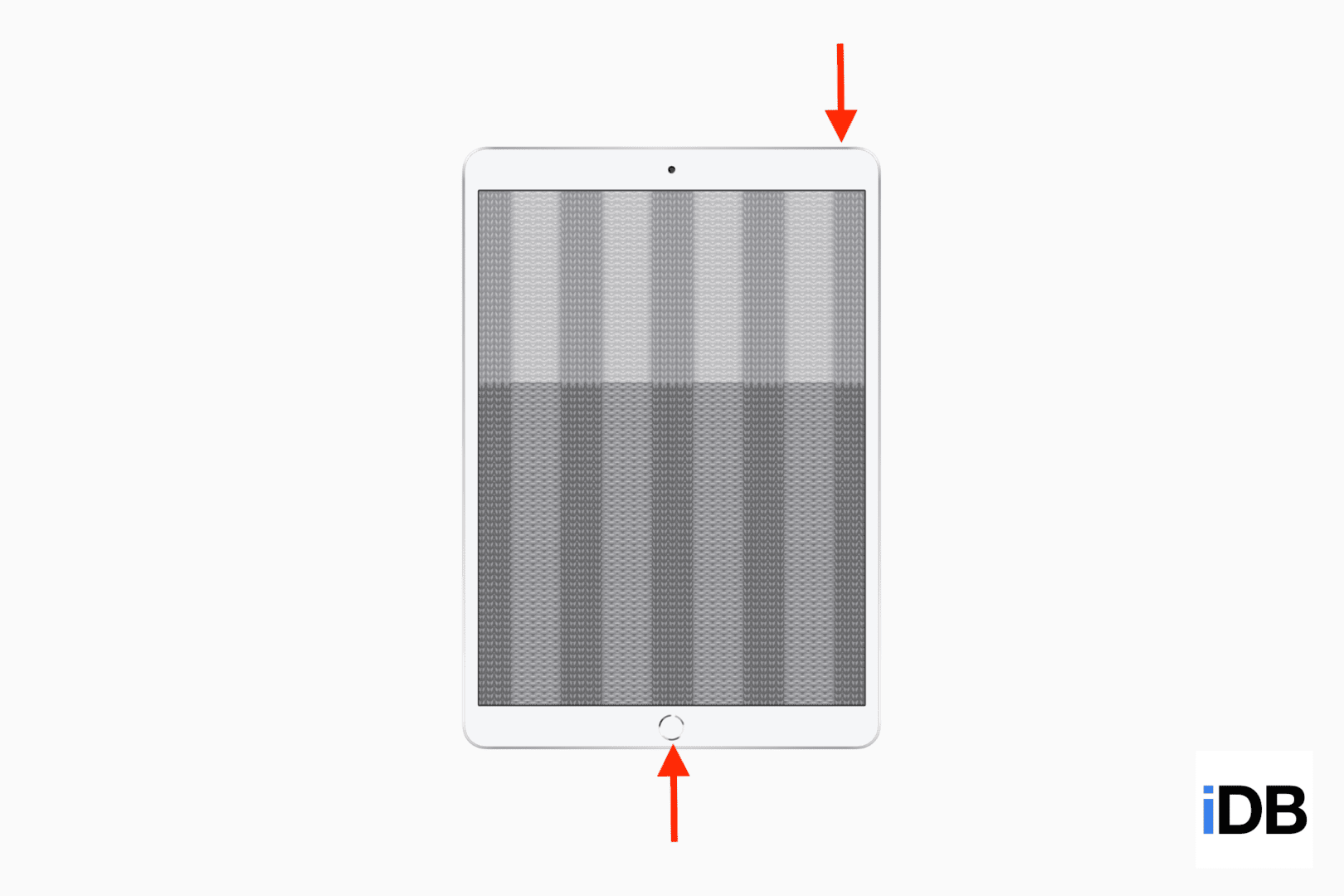
All old iPad models and new entry-level ones, like the iPad 9th generation, have a circular Home button on the front of the device.
- Start on the screen where you want to take the screenshot.
- Press and quickly release the top button and the Home button at the same time to capture a screenshot.
FAQs about iPhone and iPad screenshots
Now that you know how to take a screenshot, here are some related frequently asked questions.
1. Where can I find the screenshots I take?
All screenshots you take are saved in the iPhone or iPad Photos app. You can also go to the “Screenshots” section to view them all in one spot.
2. For how long does the thumbnail remain on the screen?
After you take a screenshot, iOS 26 automatically opens the screenshot preview, but you can turn it off.
Secondly, the screenshot you take appears as a thumbnail at the bottom of the screen. You can tap the thumbnail to edit the screenshot, share it, or use visual intelligence. You can manually dismiss it by swiping it away. And if you don’t do anything, it will automatically disappear in about 6 seconds.
3. Does a screenshot capture everything that’s on the screen?
iPhone screenshots capture everything except most passwords, 2-step verification codes, and a few other such elements. Furthermore, if you take a screenshot of the zoomed iPhone screen, it will appear normal and zoomed out.
Note:
- Some apps can block you from taking meaningful screenshots and capturing what’s on the screen.
- You can’t take a screenshot of the dim Always On Display of your iPhone’s Lock Screen because pressing the buttons instantly wakes up the device and shows the normal screen.
4. What is the file format of an iPhone screenshot?
By default, iPhone and iPad take screenshots in PNG format. But if you switch to HDR screenshots, then the files are saved in HEIF format.
5. Do iPhone screenshots show the Face ID notch?
No. The notch isn’t shown in any iPhone screenshot. The same adjacent screen colors cover the notch area in such a way that everything looks seamless, as if there were no notch present at all. However, the Dynamic Island, when active, is shown in the screenshots.
6. Can I double-tap to screenshot on my iPhone?
Yes. You can use the Back Tap feature to take a screenshot with a double or triple tap on the back of the iPhone. It works even when you have a case on. This feature isn’t available on the iPad.
7. Can I take a screenshot without pressing any button?
If you don’t want to press any button, set up Hey Siri on your iPhone and say, “Hey Siri, take a screenshot.” Alternatively, you can use AssistiveTouch to take a screenshot without pressing physical buttons.
8. How to take an iPad screenshot using Apple Pencil?
Swipe inwards from the bottom left corner of your iPad screen using Apple Pencil or your finger to take a screenshot. If it doesn’t work, go to iPad Settings > Apple Pencil and assign the screenshot action to either the bottom left or right corner.
On a related note: 3 easy ways to record your screen on iPhone or iPad