Learn how to change the volume and take screenshots on your iPhone or iPad, even if the volume buttons aren’t working, and learn what steps to take if the buttons are broken.
How to fix volume buttons not working on iPhone
Learn how to change the volume and take screenshots on your iPhone or iPad, even if the volume buttons aren’t working, and learn what steps to take if the buttons are broken.
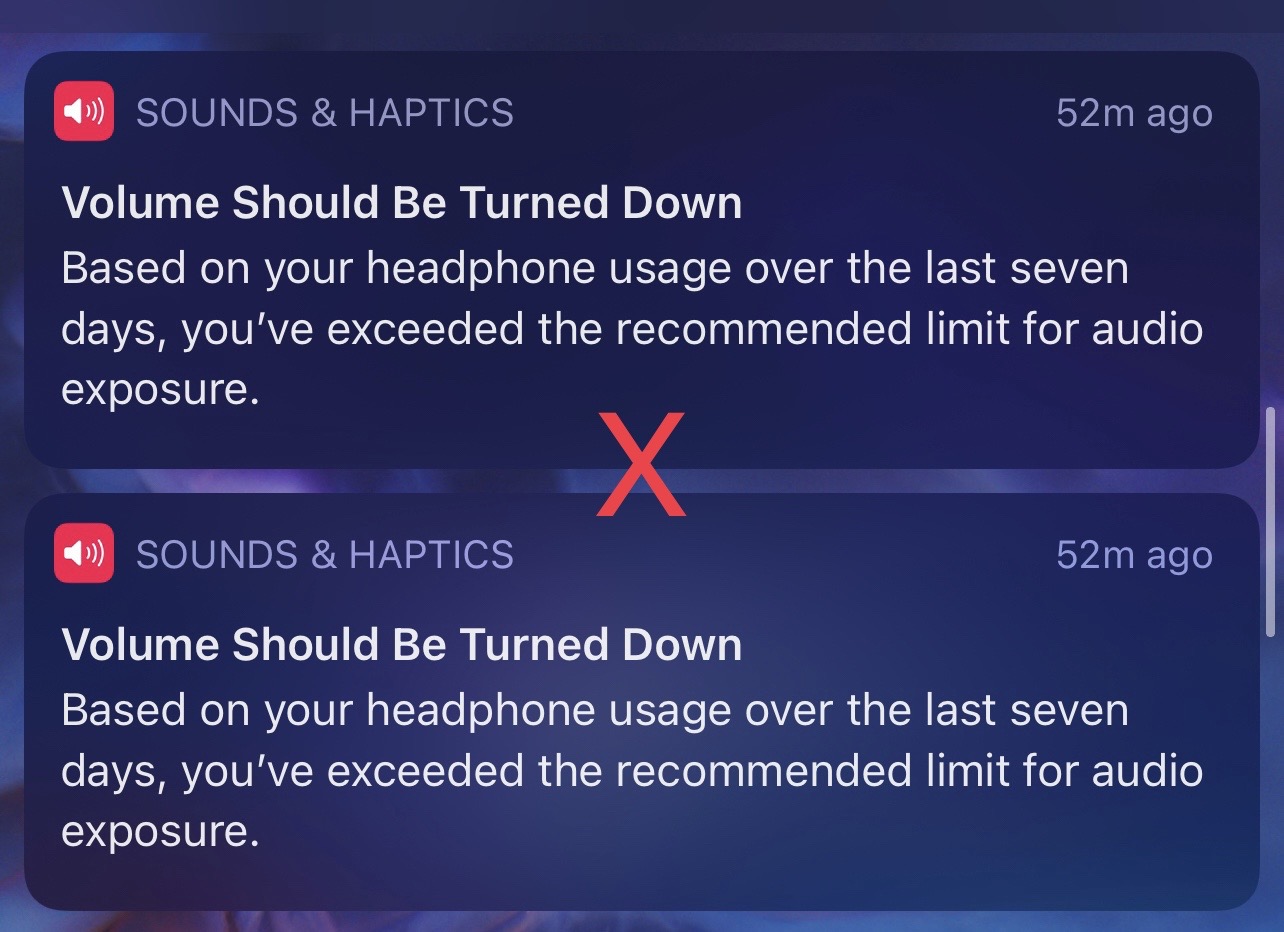
Just last year, we showed you a free jailbreak tweak called F***MyHearing that jailbreakers could have used to prevent iOS or iPadOS from automatically turning down their media playback volume while using headphones to purportedly ‘protect their hearing.’
Many types of jailbreak tweaks exist for the purpose of enhancing an iPhone or iPad’s native capabilities. Among those, a handful focus on upgrading the handset’s volume-centric user experience.
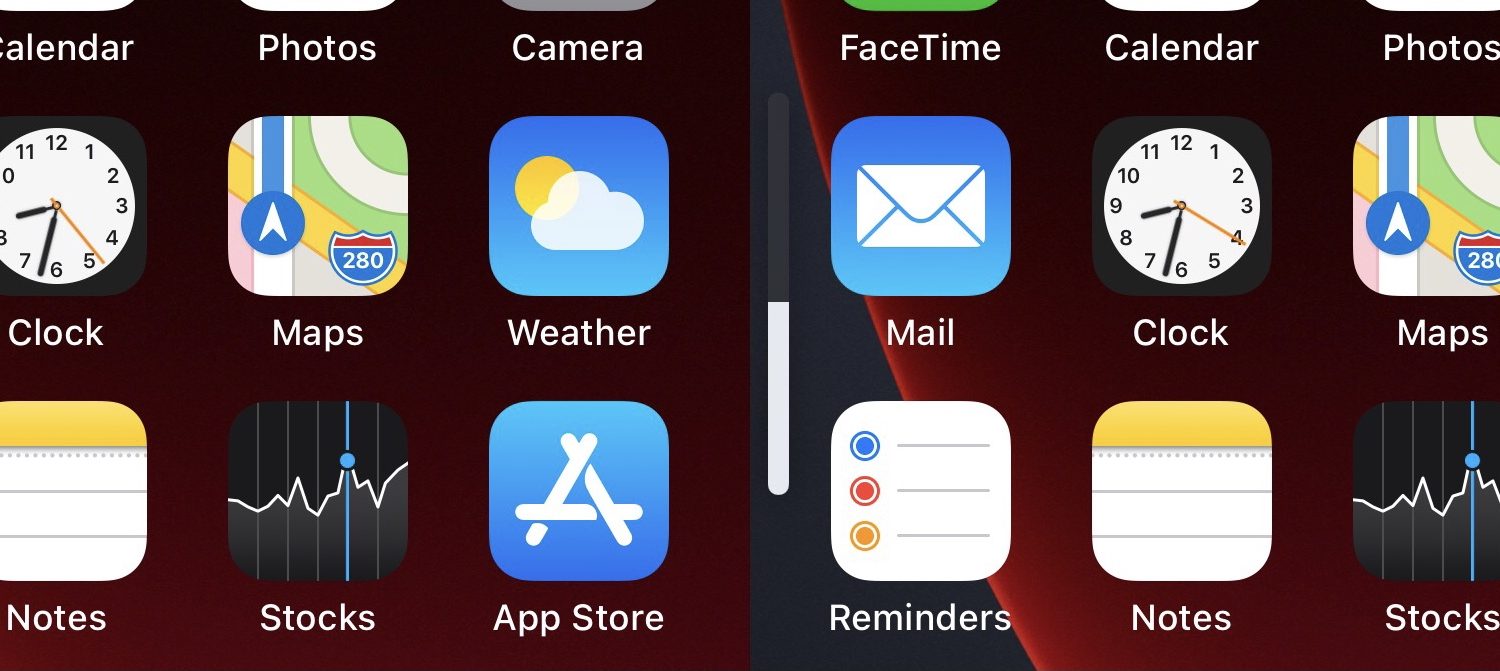
Volume adjustments are a fairly frequent process on anyone’s iPhone, namely because there are times when you might want the sound to be loud for an audience or quiet for your own personal enjoyment.
Making these adjustments often necessitates a higher number of volume button presses because the volume step — the volume change impact of each button press — is very small on a stock device.
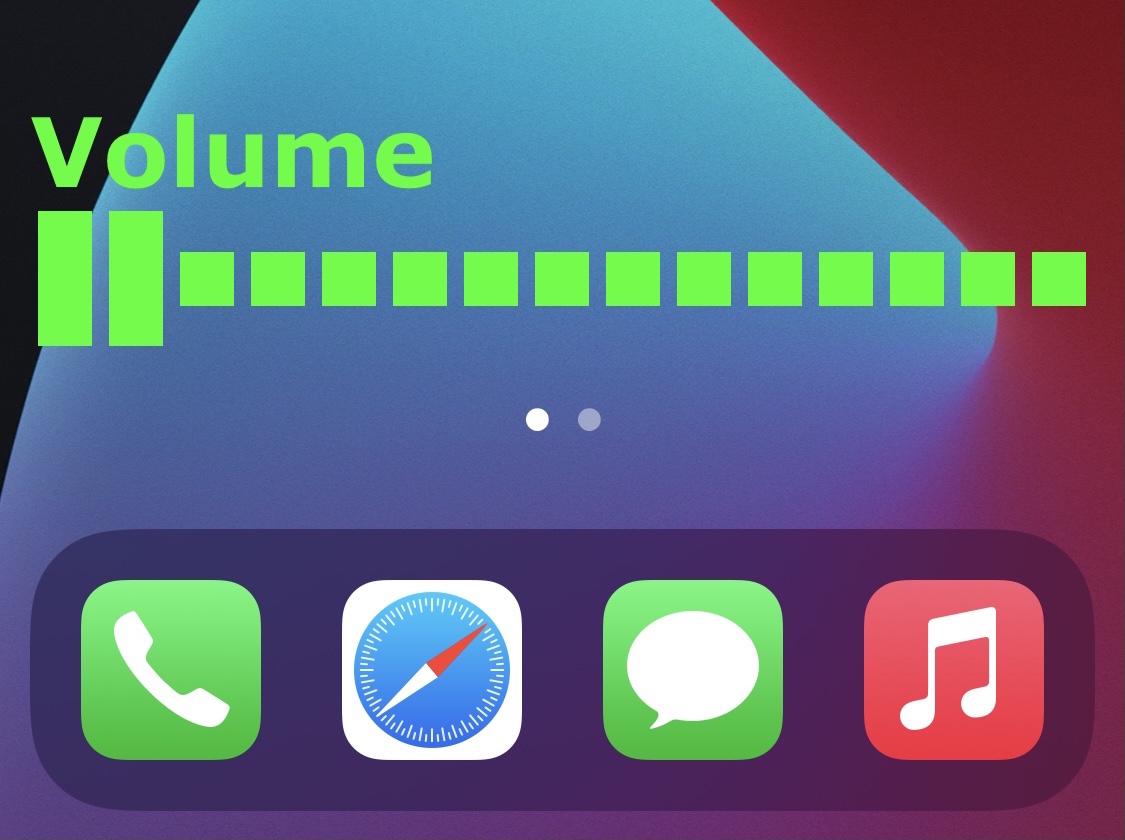
There’s certainly no shortage of jailbreak tweaks that modify the look and feel of an iPhone’s volume HUD interface, but that doesn’t necessarily mean that the current abundance of options on the market offer the look and feel that each individual jailbreaker might be going for.
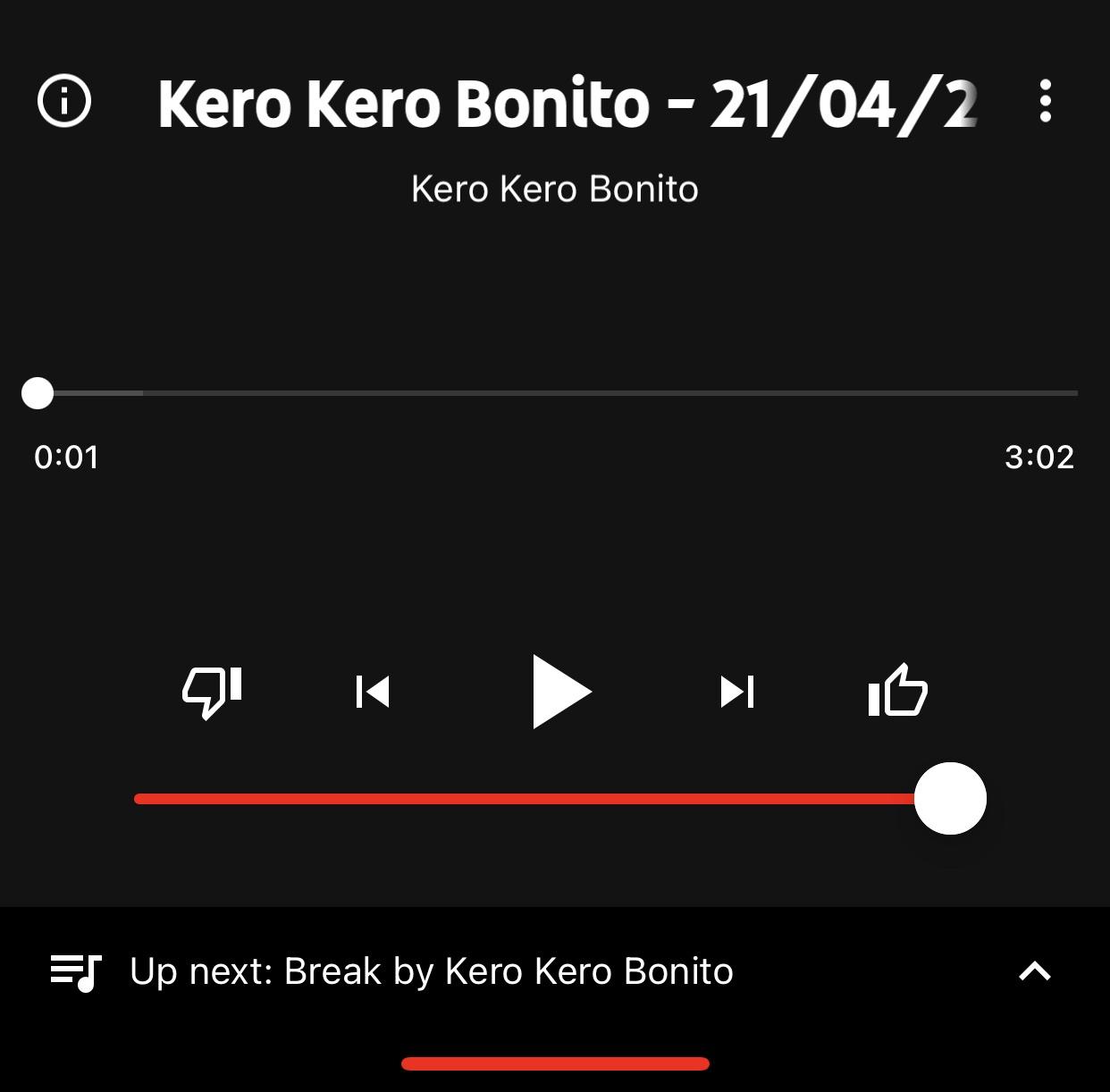
While Apple Music and Spotify are some of the go-to choices for online music streaming, another major contender in this space is YouTube Music, which provides a seemingly endless library of music sourced directly from YouTube.
After signing up for YouTube Premium, one of the first things I did was download the YouTube Music app so that I could enjoy ad-free music streaming without paying an additional fee for a music streaming service. But I noticed something was missing from the app’s Now Playing interface – namely, a volume slider.

If you’re using any recent release of iOS or iPadOS, be it 13 or 14, then your handset automatically attempts to protect your hearing by reducing loud sounds when using headphones for extended periods of time.
The option to reduce loud sounds is adjustable in the Settings app, but as many users have pointed out on Apple’s support forums, the adjustment has its limits and may still negatively impact the media consumption experience in certain scenarios even when the user takes steps to mitigate interruptions.
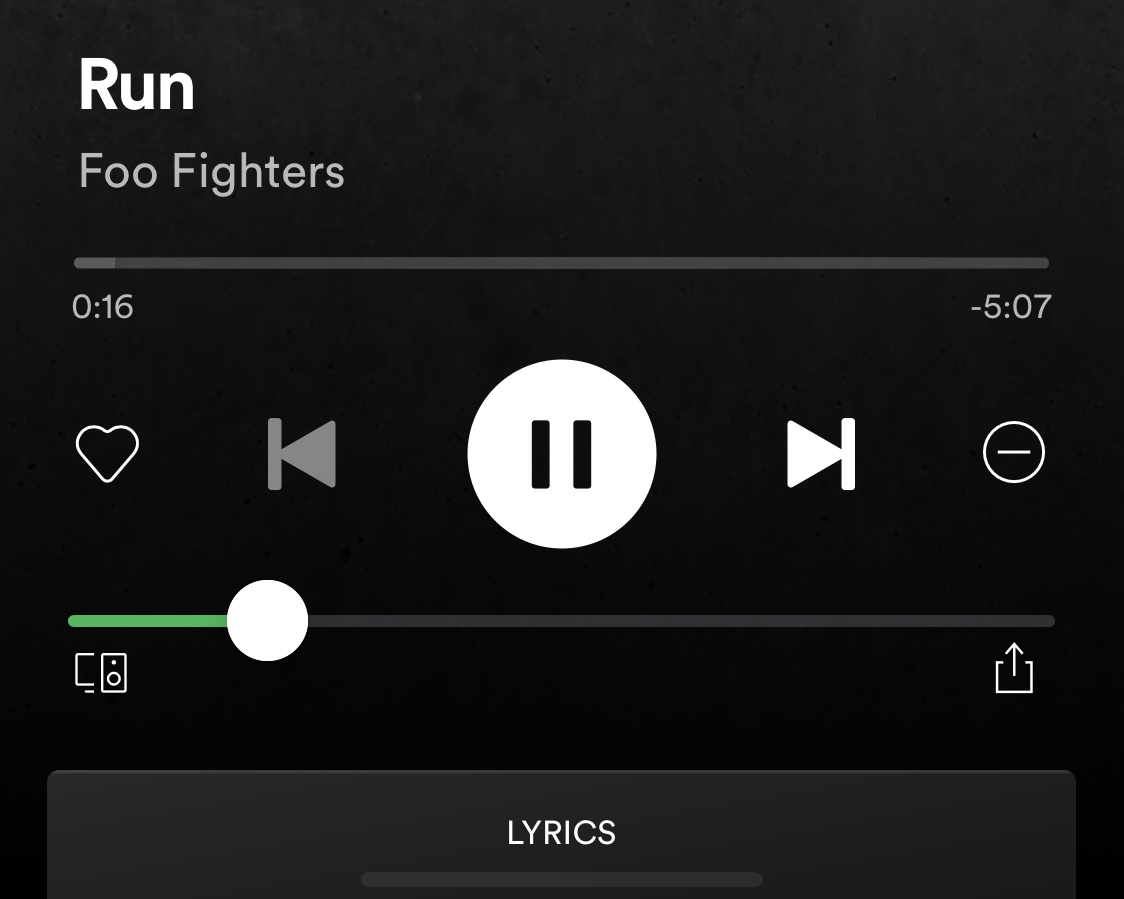
Spotify is a wonderful alternative to Apple Music on Apple’s mobile device lineup, but the app’s third-party Now Playing interface is missing an obvious element that I would’ve expected most music players to incorporate: a simple volume level slider.
If you’re jailbroken and you’d like to add a volume level slider to your Spotify app’s Now Playing interface, then we invite you to try out a newly released and free jailbreak tweak called Volify by iOS developer ginsu.
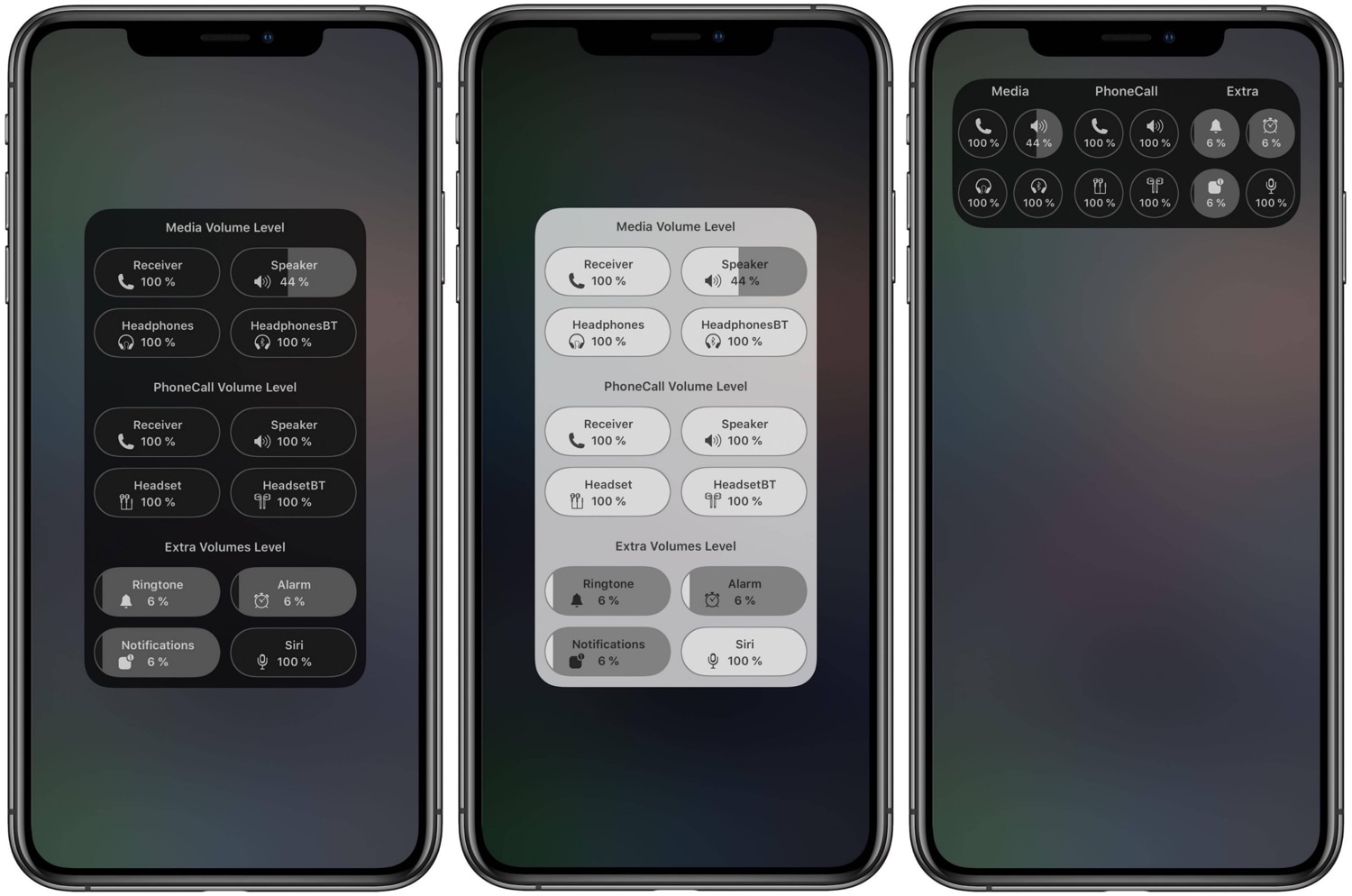
Depending on your surroundings, you might fine-tune your handset’s volume level so that you can hear music, videos, or even voice messages and phone calls. In most cases, we do this by pressing the volume up or down buttons on the side of the device, or perhaps by opening Control Center and dragging the slider to a comfortable listening level.
What many people don’t know, however, is that iOS & iPadOS play host to several different volume level settings. One of those controls your media playback volume, while another controls your phone call volume. You also have individual volume levels for connected Bluetooth devices, notification sounds, and even Siri’s voice.
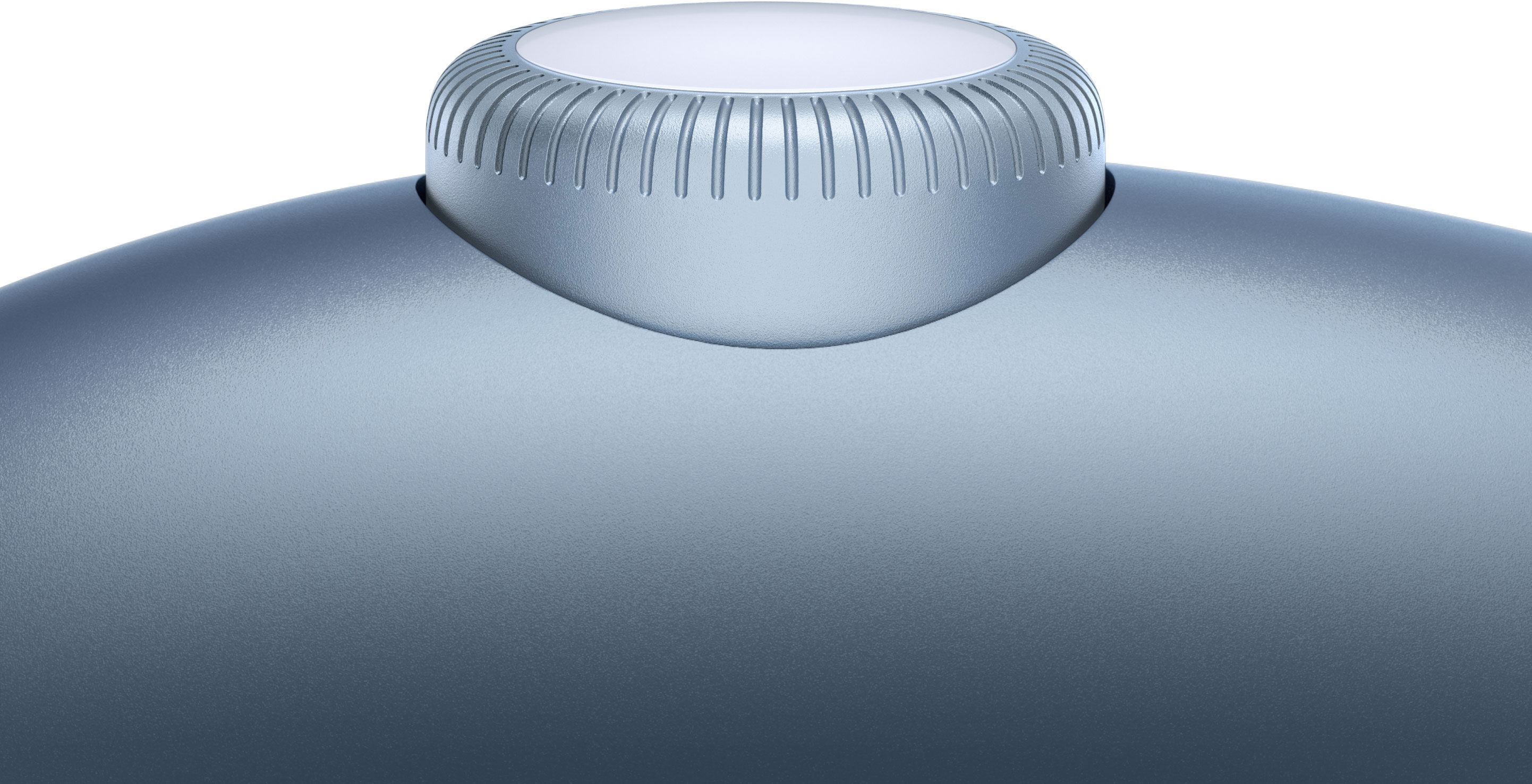
You can turn the volume of your AirPods Max headphones up or down up by using a rotatable Digital Crown button found on the right ear cup. Thankfully, Apple permits you to optionally change the orientation of the Digital Crown button when adjusting the volume. Follow the steps in this tutorial to learn how to reverse the Digital Crown volume controls on your AirPods Max.
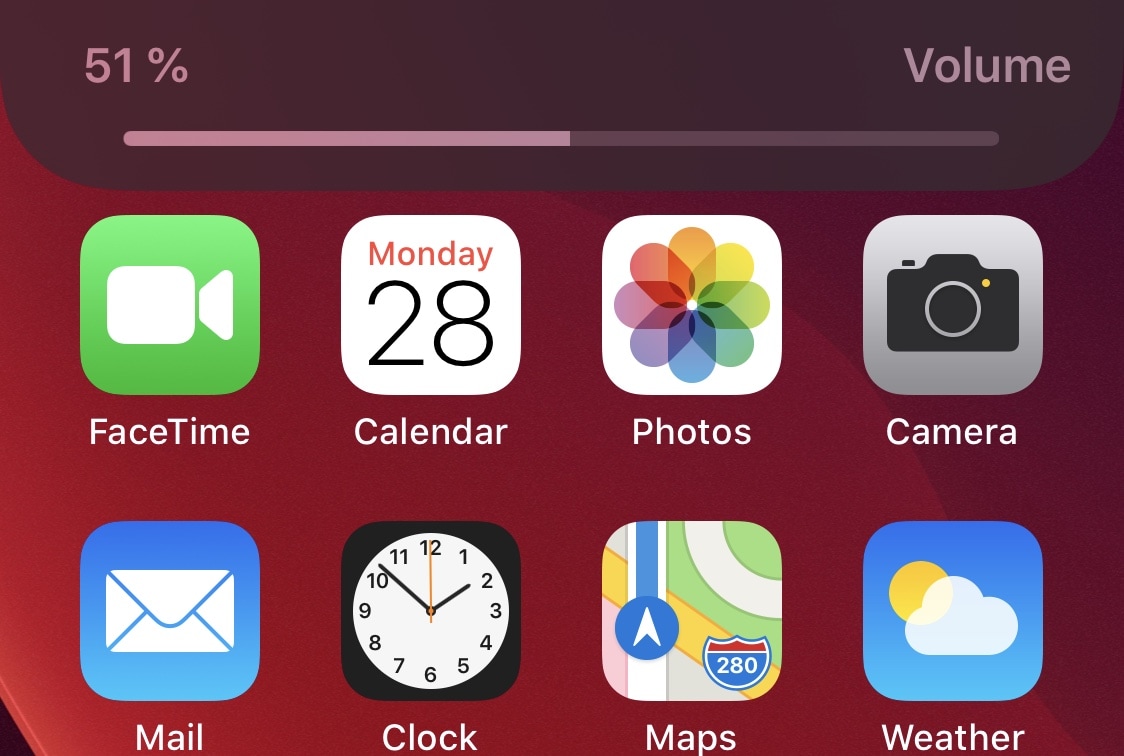
As many veteran iPhone and iPad owners may remember, last year’s iOS & iPadOS 13 release introduced an overhauled volume HUD interface that removed the repulsive mid-screen monstrosity that we were plagued with for countless years. The newer volume HUD materializes off to the side of the display, precluding it from getting in the way as you try to read, watch a video, or peek at photos.
But let’s say that even the newer iOS & iPadOS 13 volume HUD doesn’t do it for you… what then? If you’re not jailbroken, then we can’t offer much of a remedy, but if you are, then we think you’ll probably enjoy a newly released jailbreak tweak dubbed SmartVolumeControl3 by iOS developer midkin due to the myriad of alternative volume HUD interfaces it brings to the table.
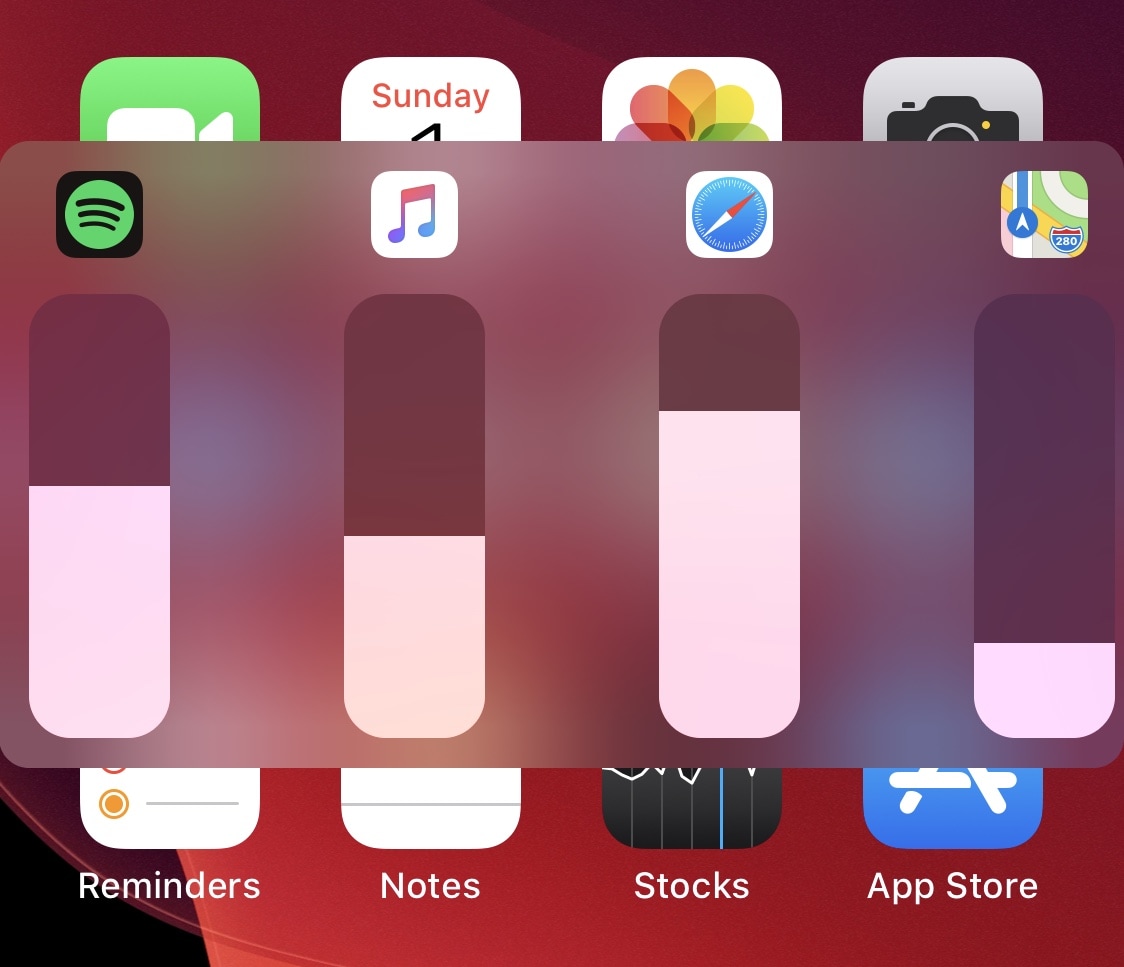
One of the things I’ve wished Apple would build into iOS and iPadOS for the longest time is the ability to control individual apps’ volume levels independently of one another. By that, I mean that I might want a higher volume level saved for my Music app as opposed to my Phone app, or perhaps a higher volume for my YouTube app saved as opposed to my favorite game apps.
While this isn’t currently a feature on stock handsets, the good news for those seeking functionality like what was described above is that a newly released and free jailbreak tweak called VolumeMixer by iOS developer Brend0n makes the concept into a very real feature.