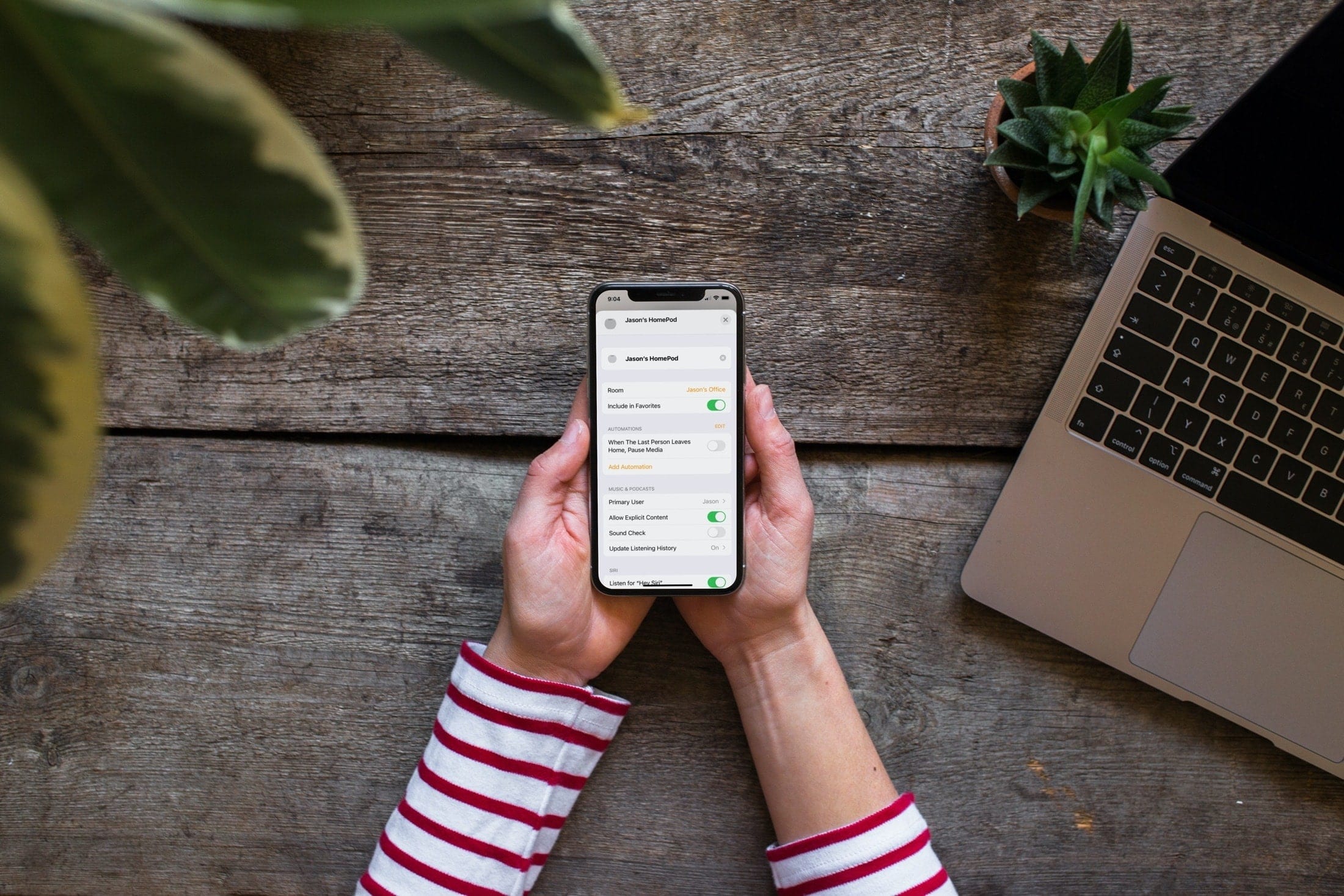
Follow these steps to set up a Primary User on HomePod, ideal for multiple-user households with a main user for each speaker.
How and why to set a Primary User on your HomePod
Learn how to master your Apple devices with our comprehensive tutorials. From iPhone and iPad to Mac, Apple Watch, AirPods, and more, our expert guides will help you unlock the full potential of your Apple products. Discover new features, tips, and tricks each day to enhance your user experience.
Follow these steps to set up a Primary User on HomePod, ideal for multiple-user households with a main user for each speaker.
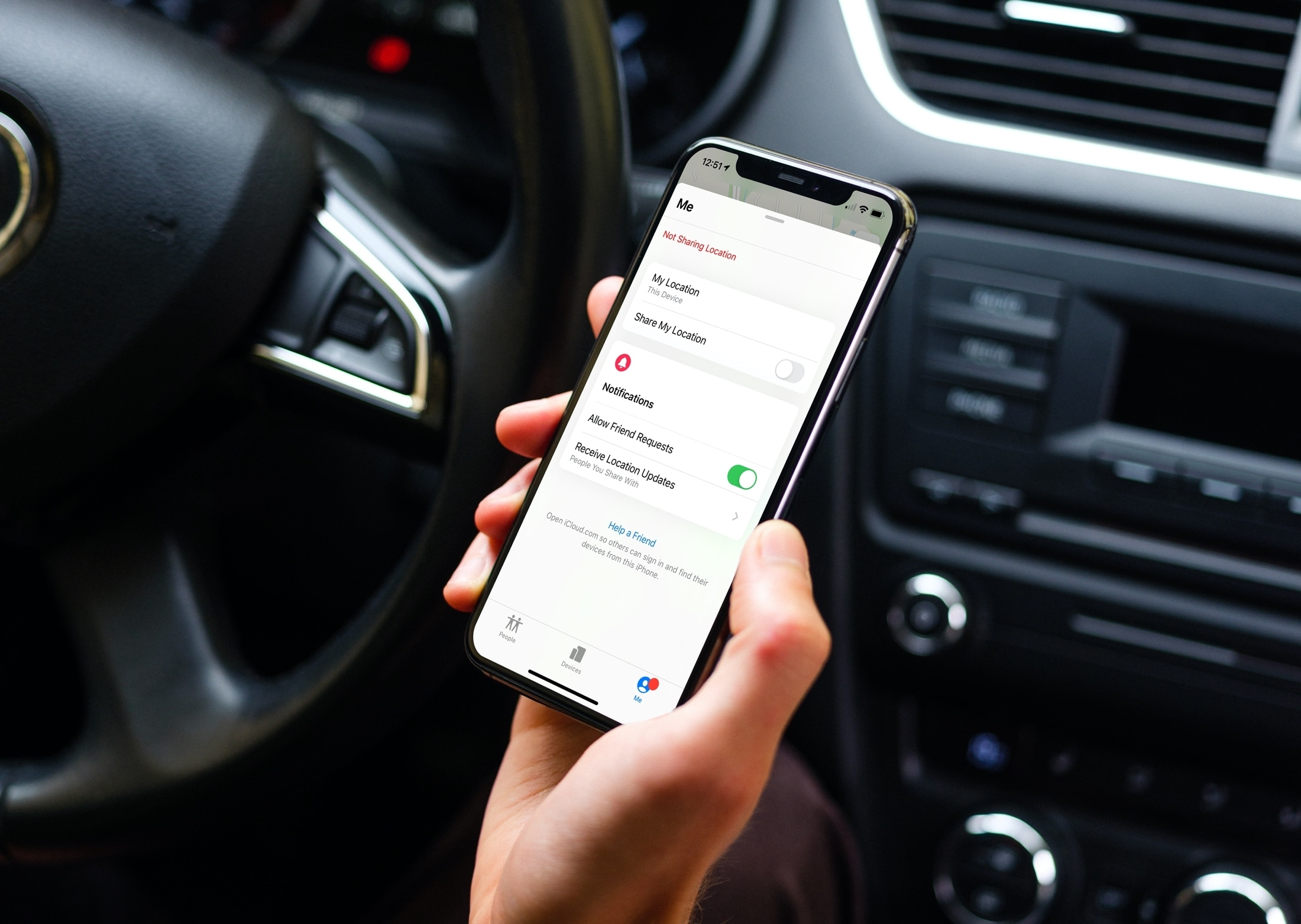
Find out how to regain control of your digital privacy by learning to stop sharing your location, photos, calendar, or activities with someone you had previously shared with.
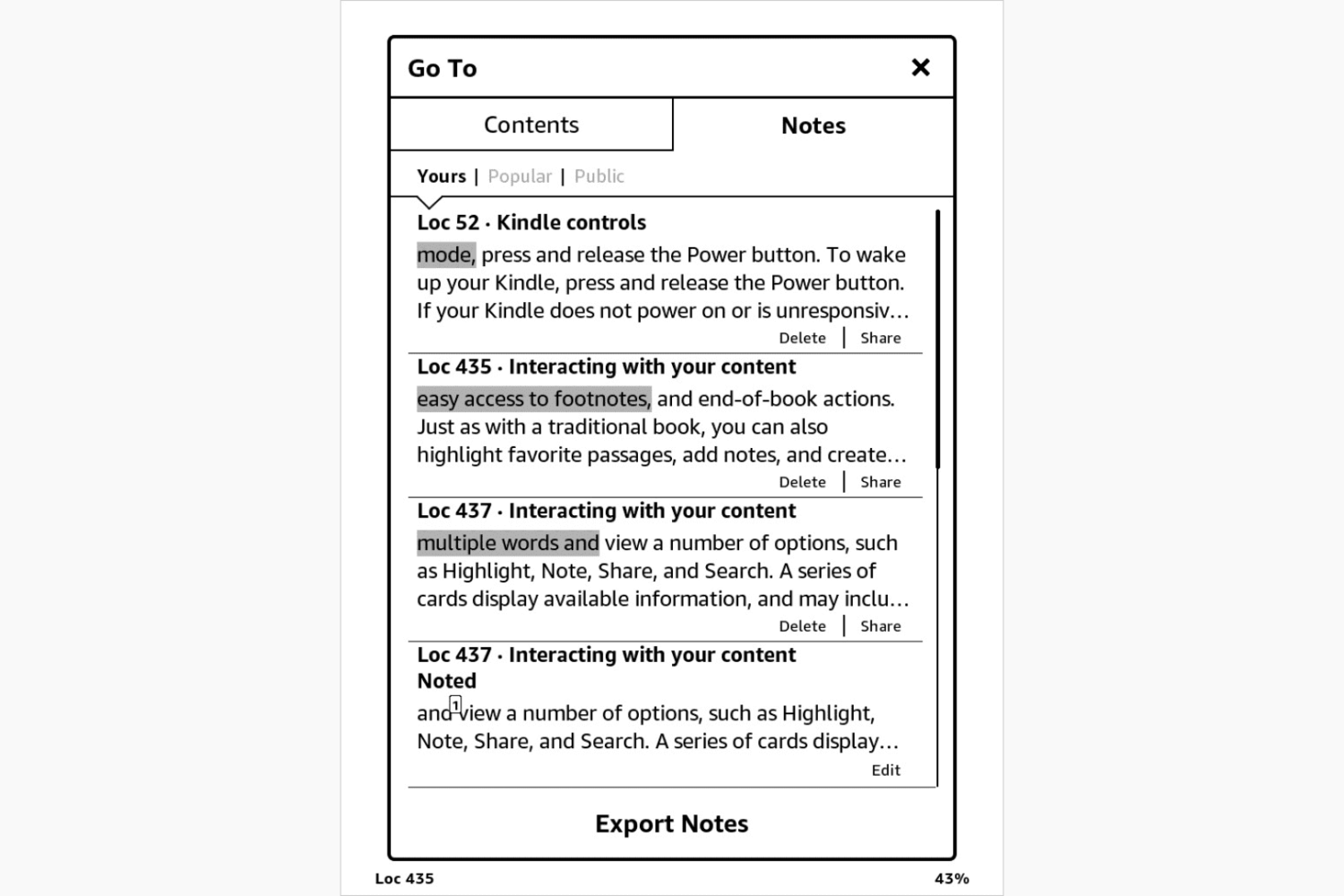
One of the great things about an eReader like Kindle Paperwhite is that you can highlight parts of a book and make notes. This is wonderful for textbooks, user manuals, cookbooks, and similar reads.
On Kindle Paperwhite, highlighting text and adding notes to passages is easy. Plus, you can export these items to the email address for your Kindle and access them online.
Here, we’ll show you how to add and work with highlights and notes on your Kindle Paperwhite.
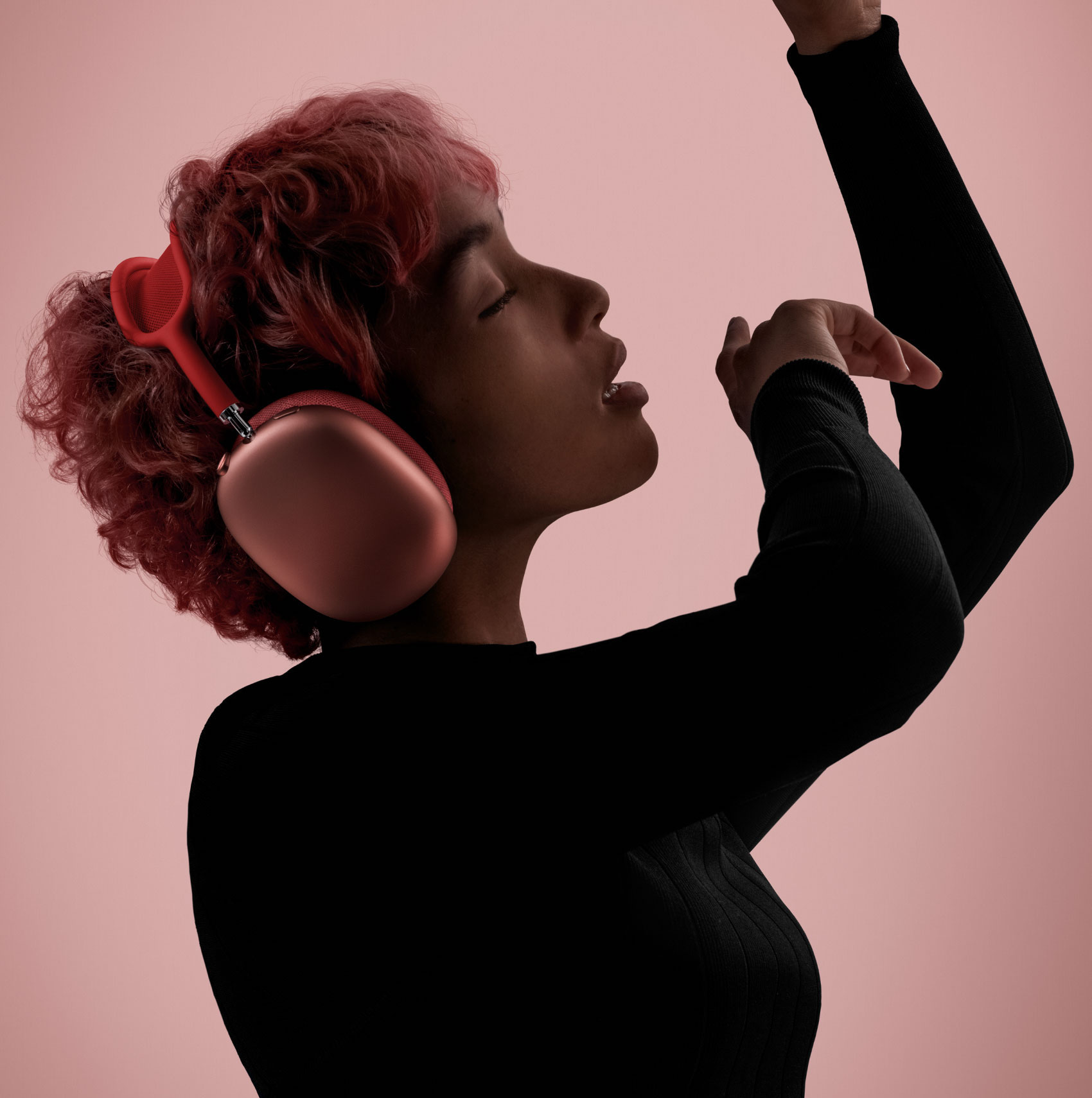
The LED status light on your AirPods Max headphones, found on the top of the right earphone, was designed to indicate the various states and modes of operation such as pairing mode, charge states and reset/restart statuses. Follow along with our helpful tutorial if you need to learn how to decipher the meaning of the various LED light states of your AirPods Max.
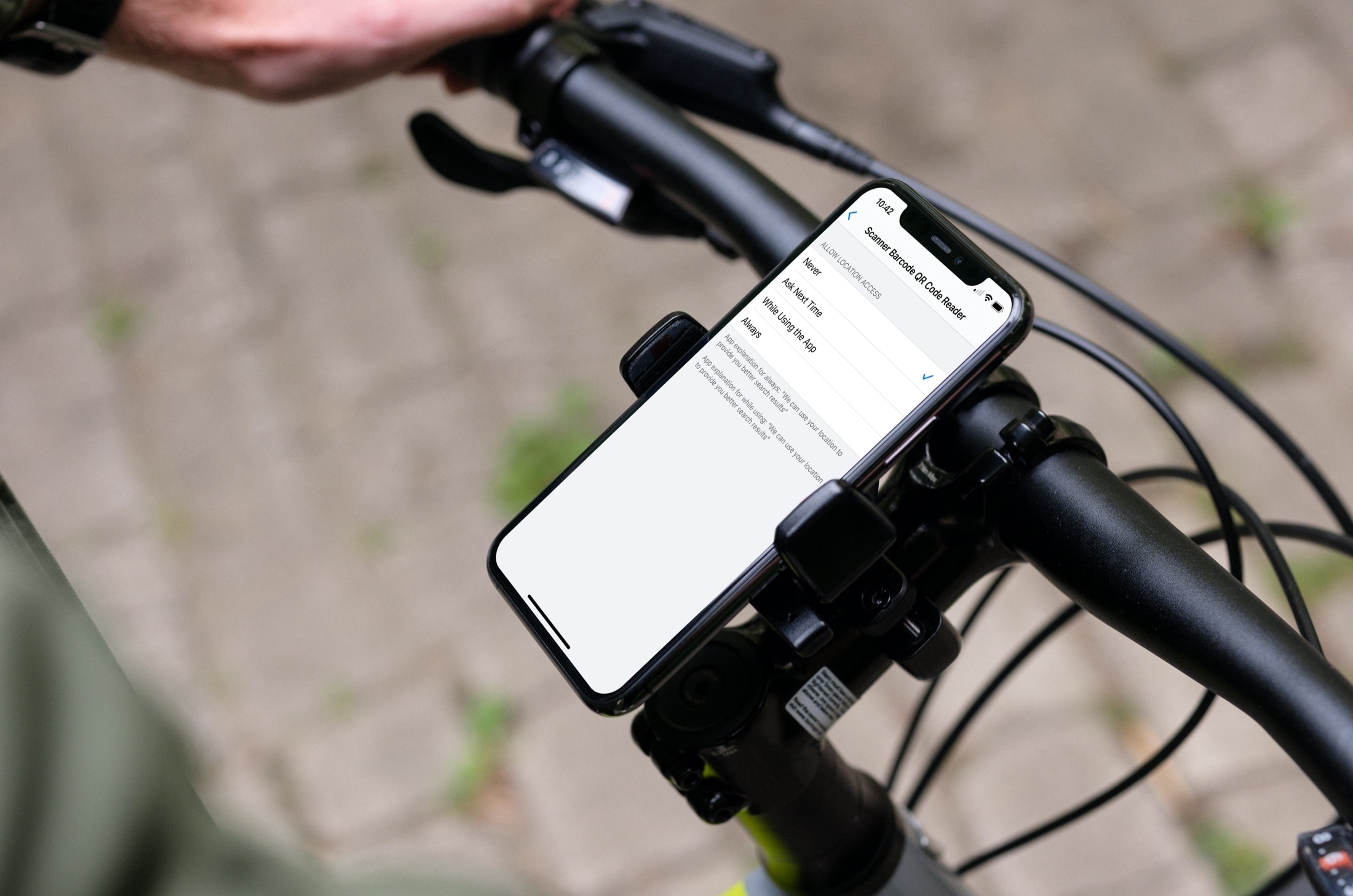
Learn how to stop sharing your location with apps and services, or selectively choose the ones with which you’d like to share by adjusting the Location Services settings on your iPhone or iPad.
Learn how to stop sharing your location on iPhone with everyone or specific people, and increase your privacy.

In this tutorial, we’ll show you how to browse through the previous versions of a PDF or image you’ve made changes to, and restore their older versions in the Preview app of your Mac.
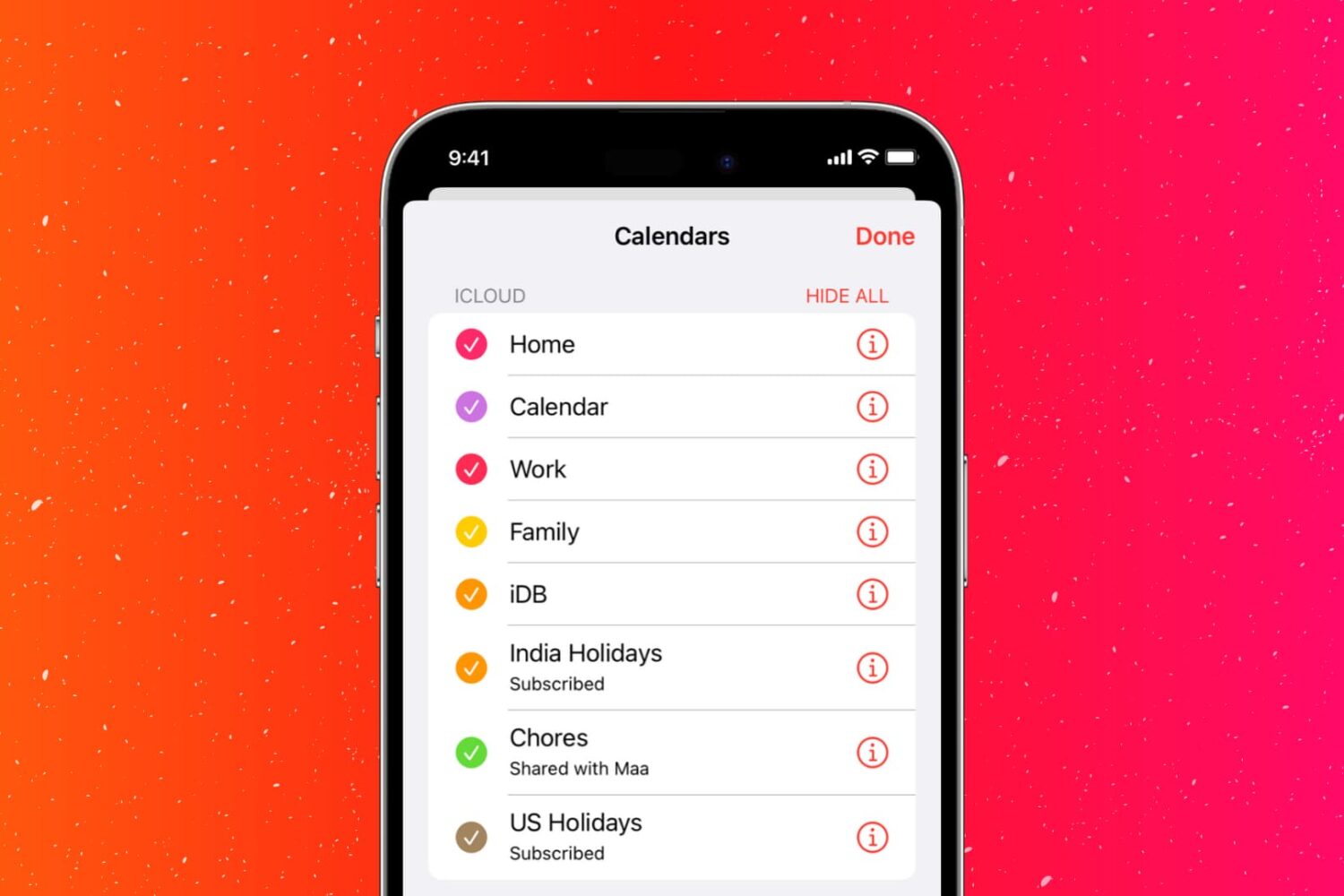
Learn how to stop sharing your calendars on iPhone, iPad, and Mac in just a few steps to increase the privacy around your schedule.
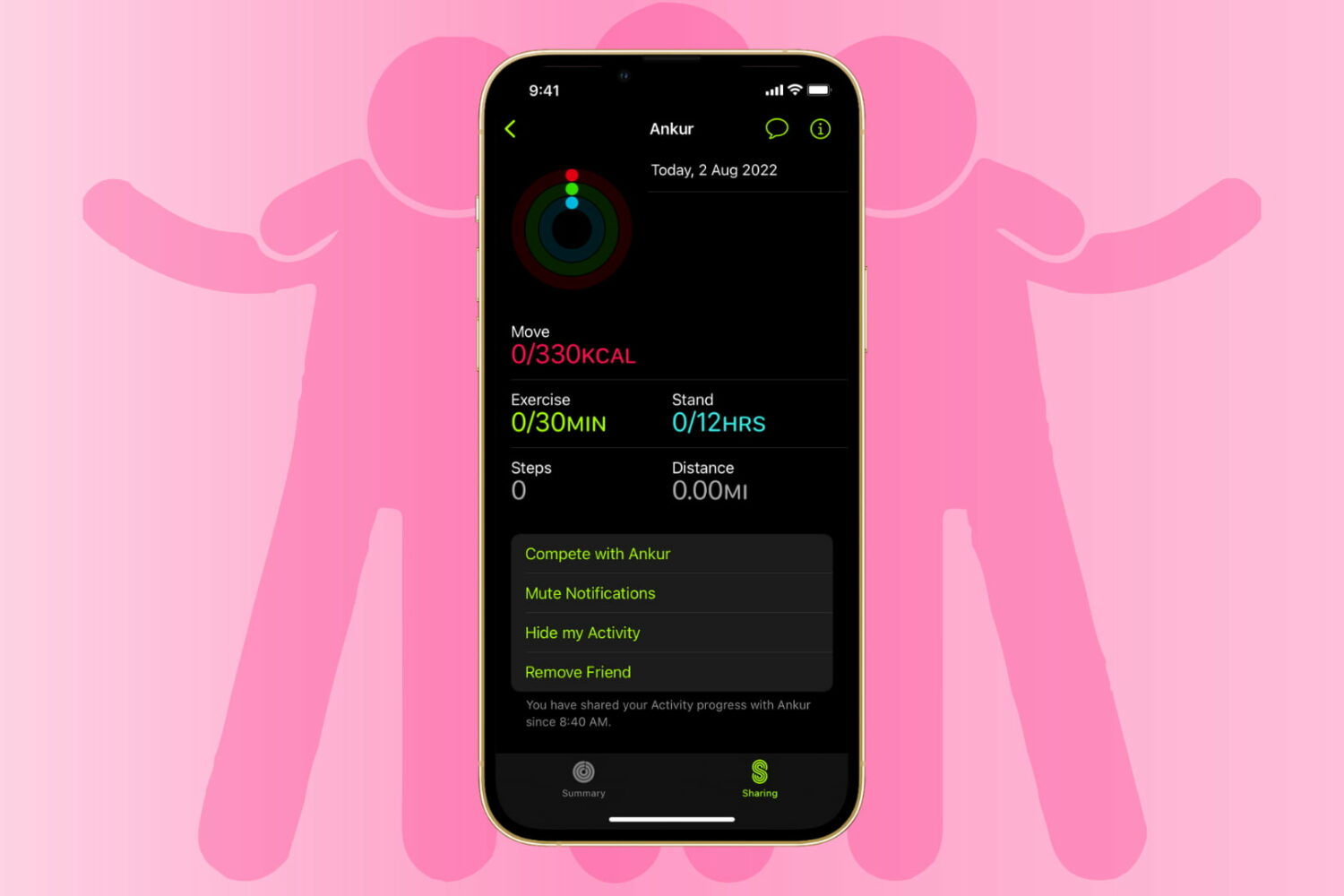
Learn how to stop sharing your Apple Watch activity with your friends and family by hiding your activity from them or removing them as a friend altogether.

Learn how to create and manage Shared Albums in the Photos app on your iPhone, iPad, or Mac to easily share pictures and videos with your family members and friends.

Have you ever noticed something about your iPhone or iPad that made you wonder if someone else used it without your knowledge? If you suspect that another person has accessed your device or your account but aren’t sure how to confirm your suspicions, we’re here to help.
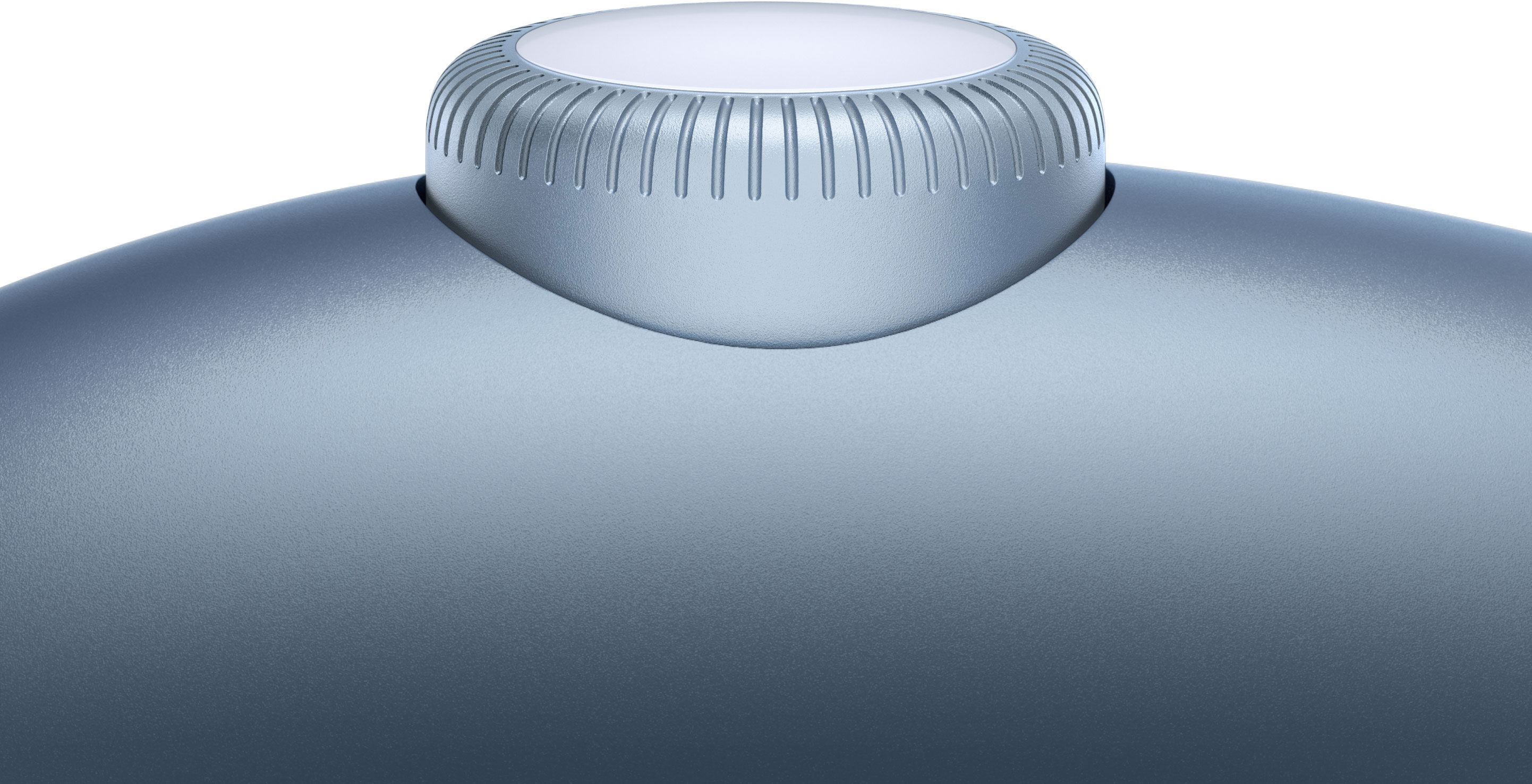
You can turn the volume of your AirPods Max headphones up or down up by using a rotatable Digital Crown button found on the right ear cup. Thankfully, Apple permits you to optionally change the orientation of the Digital Crown button when adjusting the volume. Follow the steps in this tutorial to learn how to reverse the Digital Crown volume controls on your AirPods Max.