Learn how to see which apps, books, music, TV shows, and ringtones your family members have bought so you can review their purchases and also download those media on your iPhone, iPad, Mac, Apple TV, and Apple Watch without paying again.
Along with its many other benefits, Family Sharing lets you share purchases with your family members. This means that only one person in your family group needs to pay for the app that you all get to use.
But what if someone in your Family Sharing group purchases an app that you don’t even know about? It might turn out to be an item that you want to use too. Here’s how to see purchases made by others in your Family Sharing group.
On iPhone and iPad
Depending on the type of items you want to see, you can go to a few different spots on iPhone and iPad: App Store, iTunes Store, and Apple Books.
App Store purchases
- Open the App Store app and tap your profile picture from the top right corner.
- Tap Apps.
- Select your family member to view their free and paid app purchases.

iTunes Store purchases
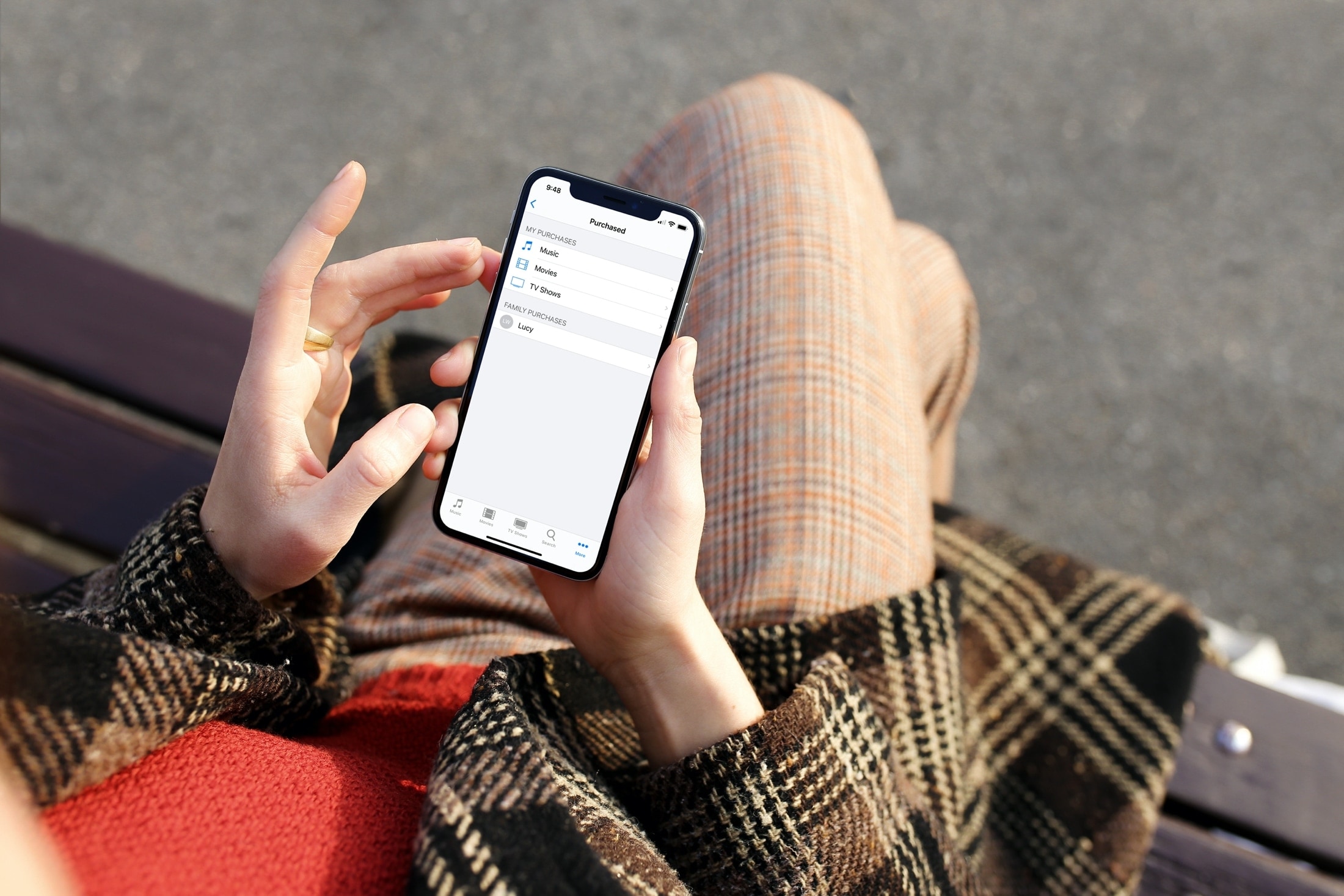
- Open the iTunes Store app and tap the More tab at the bottom.
- Select Purchased.
- Choose your family member in the Family Purchases section to access the music, movies, or TV Shows they have bought from the iTunes Store.

Apple Books purchases
- Open the Apple Books app and tap your profile icon in the top right corner.
- Choose your family member under Family Purchases.
- Pick from Books or Audiobooks, then select All Books, Recent Purchases, or a genre to access their purchases.

You can also view family purchases in the TV app on iPhone and iPad, similar to options you see in iTunes.
On Mac
Like iPhone and iPad, you can head to a specific place for a particular type of item, whether an app, game, book, or show. You’ll open the App Store, Apple Music, Apple TV, or Apple Books app.
App Store purchases
- Open the App Store app and click your profile from the bottom left. Or click Store > Account or View My Account from the menu bar.
- Click the drop-down box next to Purchased by and select a family member.

Apple Music and Apple TV purchases
- Open the Music or TV app and click Account > Family Purchases from the menu bar.
- Click the drop-down box next to Purchased and select a family member.

Apple Books purchases
- Open the Books app and click Account > View Account from the top menu bar.
- Select a family member in the Family Purchases section.

On Apple TV
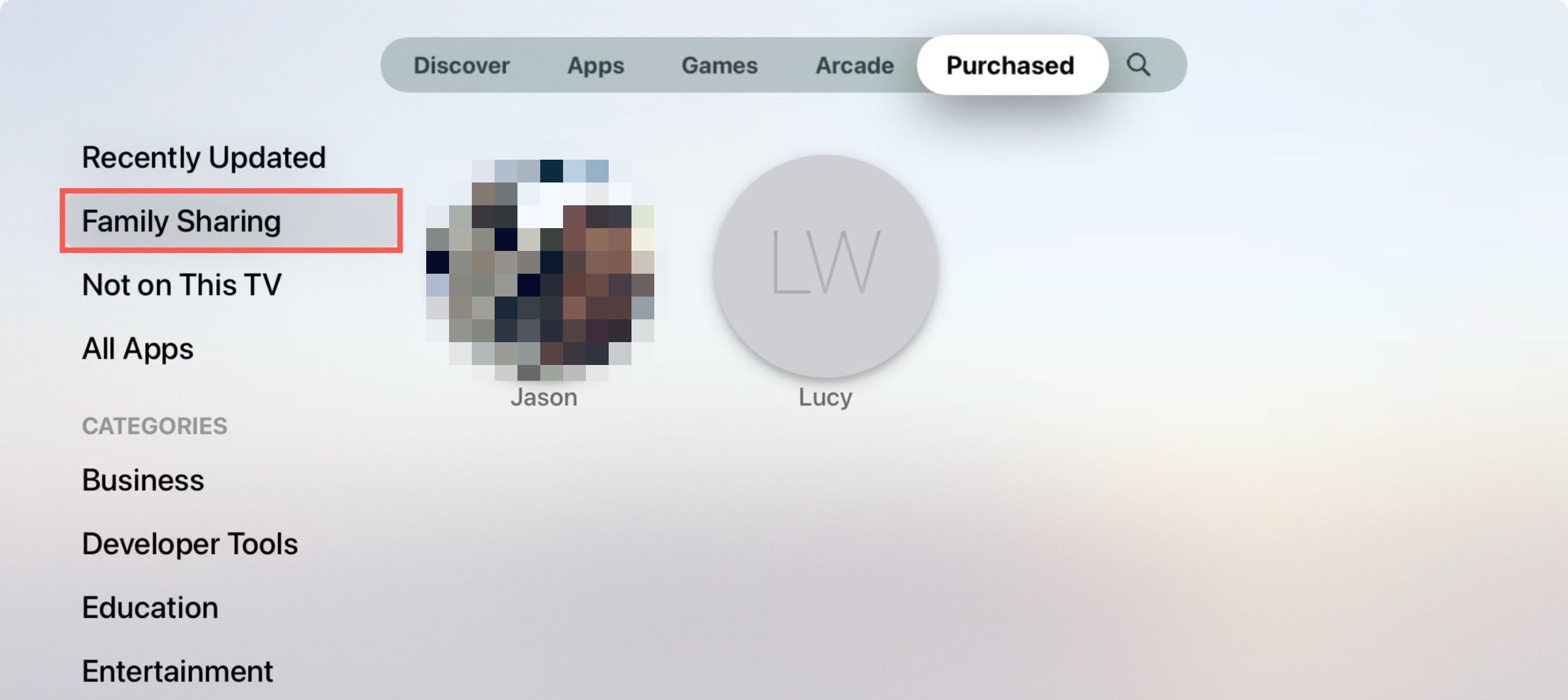
On Apple TV, you can view family purchases for apps, movies, and TV shows, but not music.
- Open the App Store, iTunes Movies, iTunes TV Shows, or TV app.
- In any of the first three apps above, click the Purchased tab. In the TV app, choose the Library tab.
- Pick Family Sharing on the left and select a family member on the right.
On Apple Watch
If you’re interested in sharing Apple Watch apps, you can simply open the App Store app on your wrist and view your purchases.
- Open the App Store app, scroll to the bottom, and tap Account.
- Select Purchased.
- Choose your family member under Family Purchases.

Check out next: