Find out how to add an iCloud Drive shortcut to your Mac desktop and Dock for faster access to your online files, folders, and documents.
How to add iCloud Drive shortcut to Mac desktop or Dock

Stay up-to-date on the latest Mac news, and tutorials. Get expert tips and tricks to optimize your Mac’s performance and learn about the latest Apple products and software updates. Discover the best Mac apps and accessories to enhance your user experience.
Find out how to add an iCloud Drive shortcut to your Mac desktop and Dock for faster access to your online files, folders, and documents.

Whether you’re preparing to jump on a plane or just waiting for a friend to fly in, you may think that you have to download a special app to track those flights. And, while a specific flight tracking app is certainly a great way to go, especially if you’re a frequent traveler, there is another way.
Here’s how to quickly track flights from anywhere with your iPhone and all you need is the flight number.

Learn how to add a website shortcut to your Mac Dock so you can open it with a single click anywhere in macOS.

Learn how to turn off automatic downloads for Apple Music on iPhone, iPad, or Mac to stop the Music app from downloading every song, album, or playlist you add to your library.
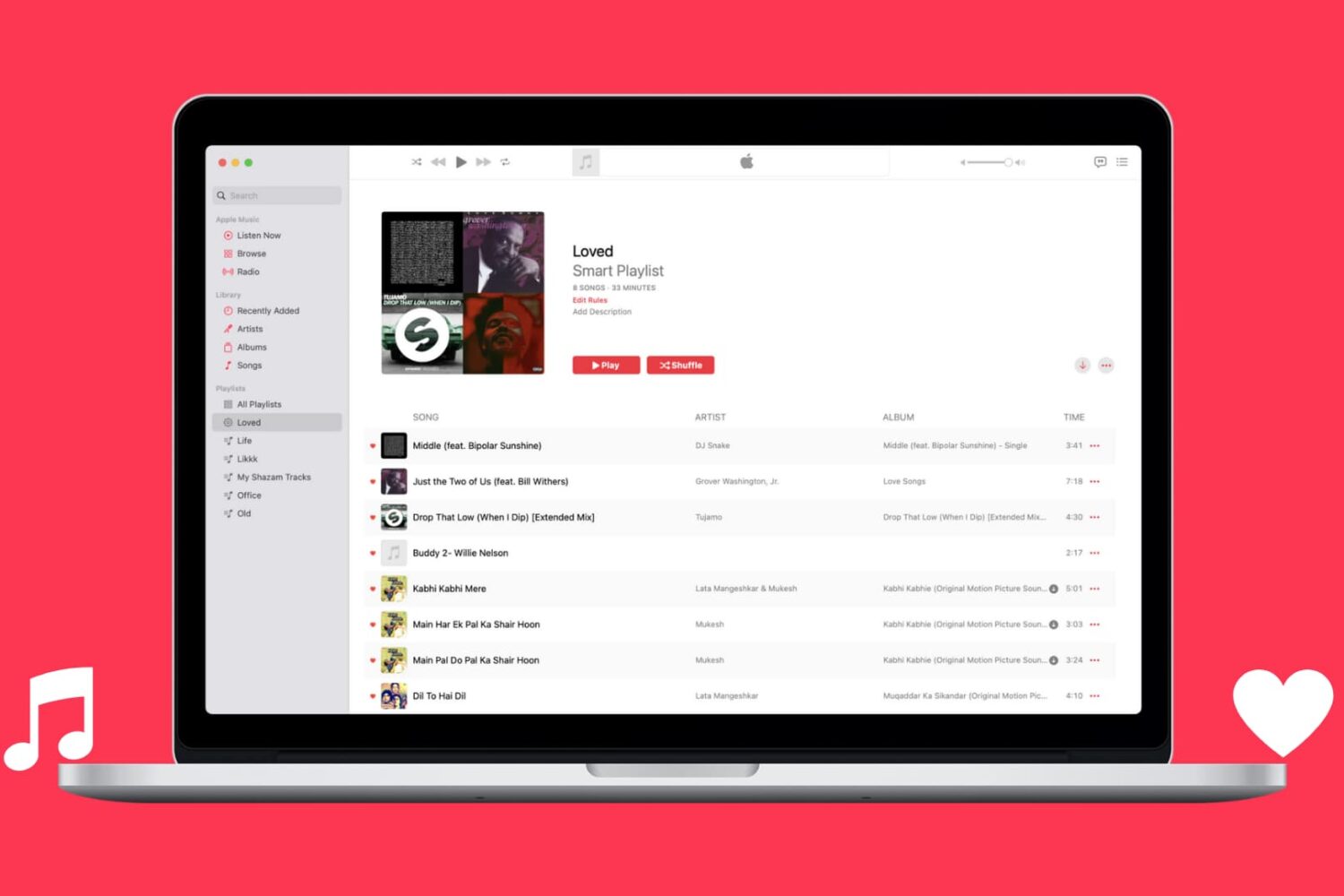
Learn how to automatically capture all Apple Music songs you've loved or favorited in a single spot by creating a special smart playlist.
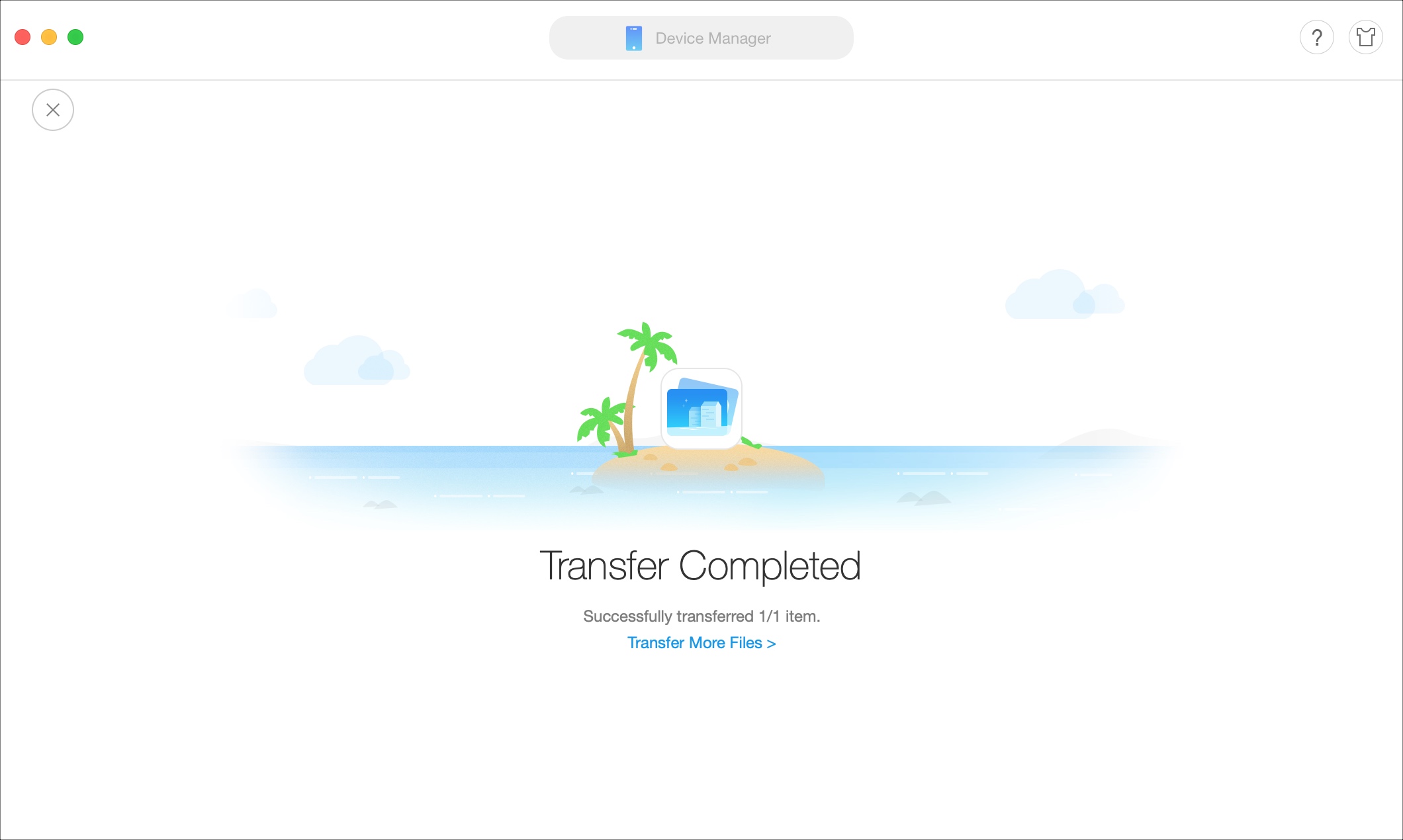
If you’re looking for a way to add movies and shows to your iPhone or iPad without the need for iTunes, then this tutorial is for you.
AnyTrans is an application that lets you manage your device content from your Mac or Windows computer. Transfer files, merge content, use your iPhone as a USB drive, create backups, and more with this one simple tool.
Here’s how to add movies and shows to iPhone or iPad without iTunes using AnyTrans.
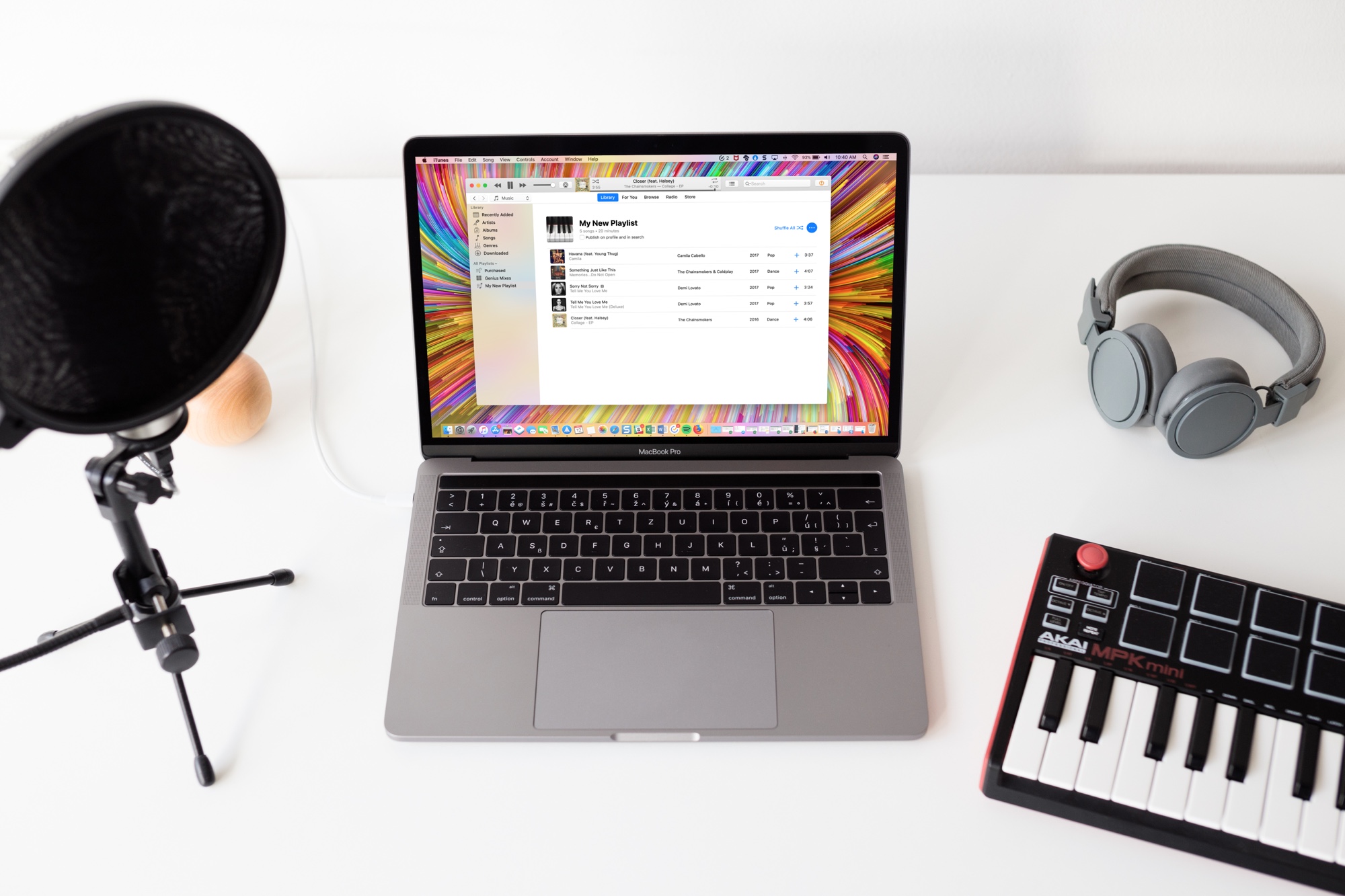
Learn how to stop Apple Music from adding songs to your library when you add them to playlists on your iPhone, iPad, and Mac.
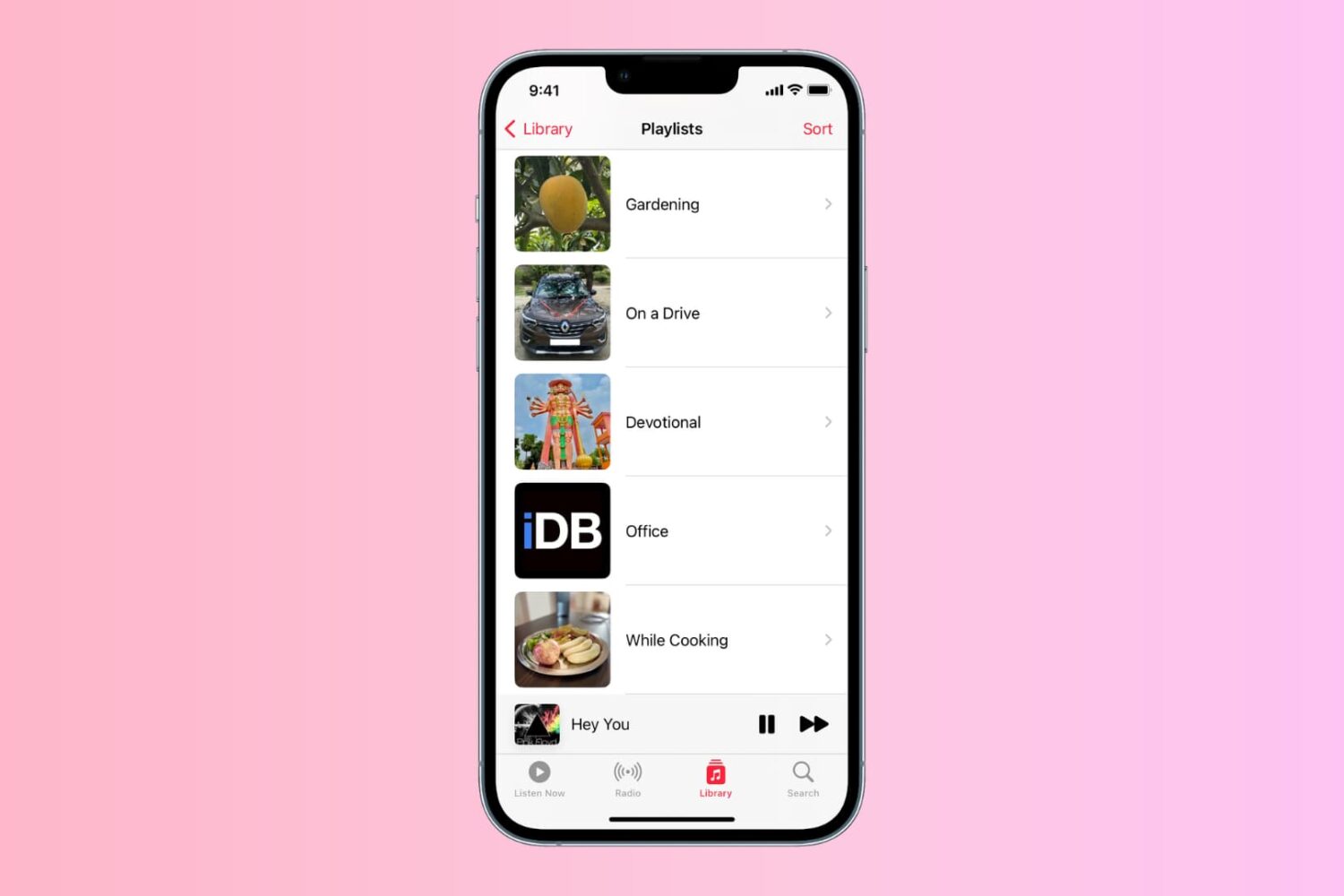
Learn how to personalize the playlist cover image in the Music app on your iPhone, iPad, or Mac to your liking.
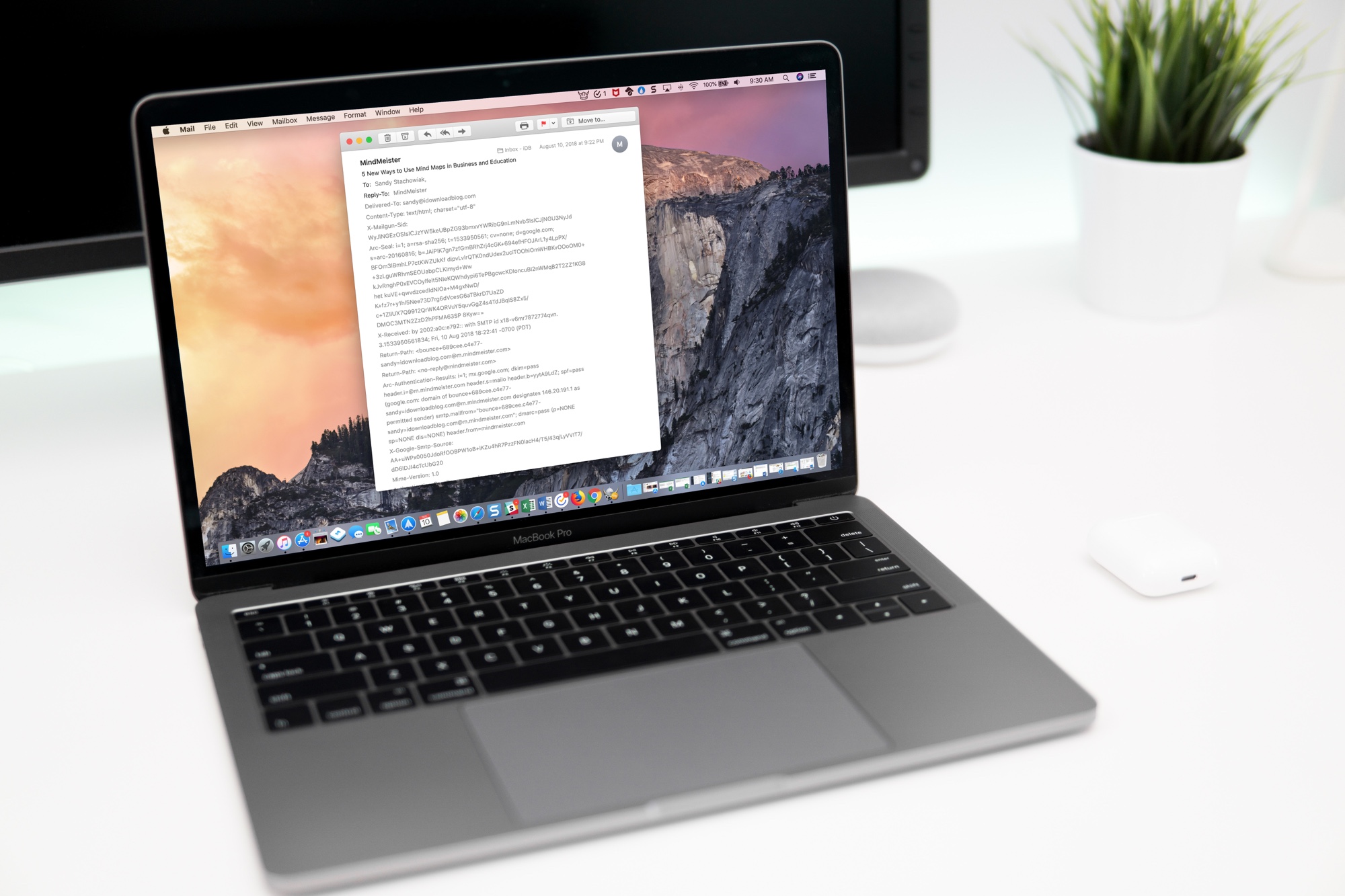
Learn how to view full email headers in Apple Mail on Mac to verify the sender’s authenticity, identify spam or phishing attempts, and troubleshoot issues.
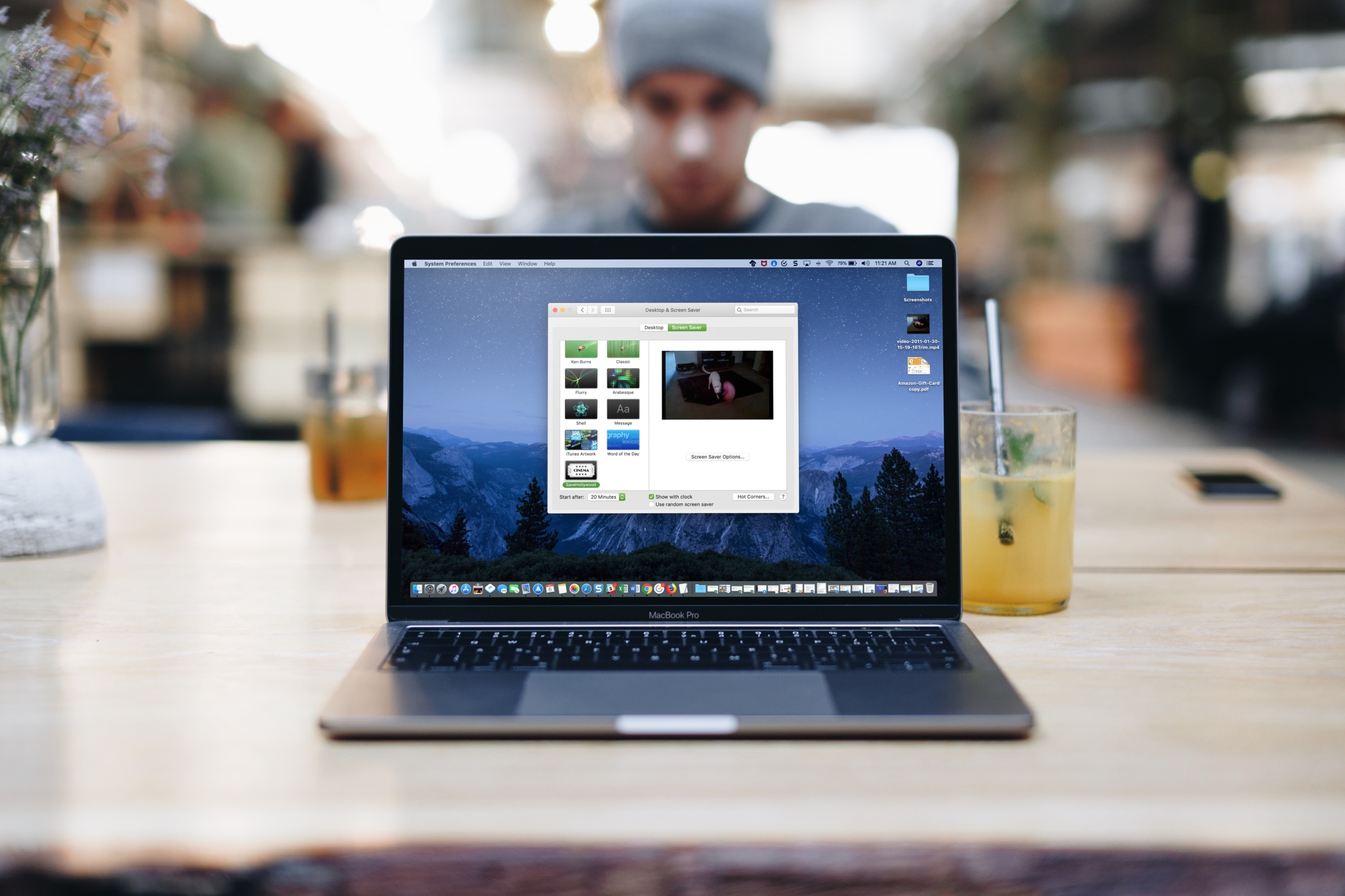
Learn how to use one or more custom videos as your screen saver on Mac to bring motion and life to your display when your computer is idle.
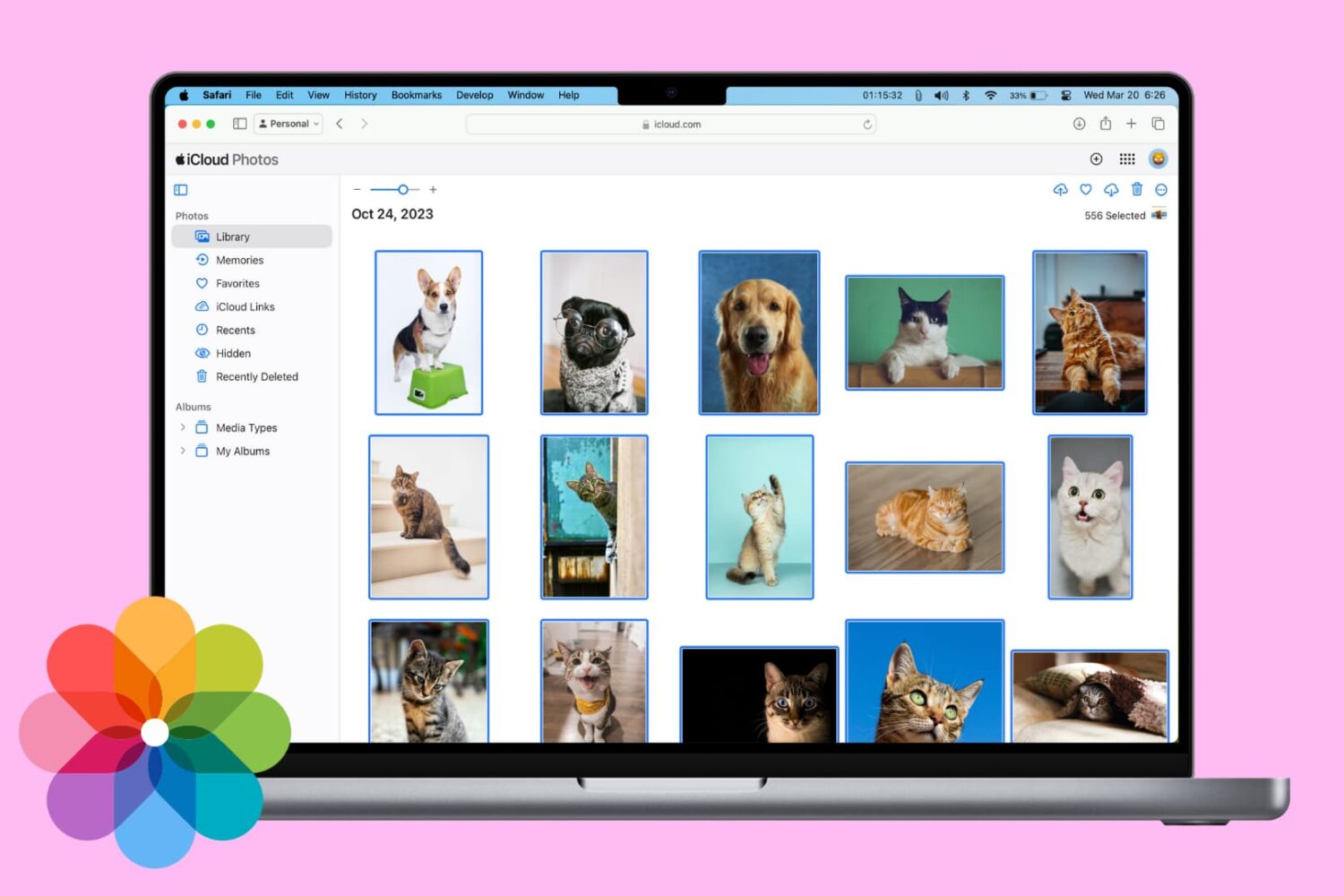
In this tutorial, we will show you three ways to download the photos and videos you have in iCloud to your Mac or Windows PC.
Once you have the photos saved locally, you can back them up elsewhere, edit them with software, or work with them as you please.

Learn how to use the Magic Move transition effect in Keynote presentations on Mac to animate objects as you move from one slide to the next.