Learn how to turn off automatic downloads for Apple Music on iPhone, iPad, or Mac to stop the Music app from downloading every song, album, or playlist you add to your library.
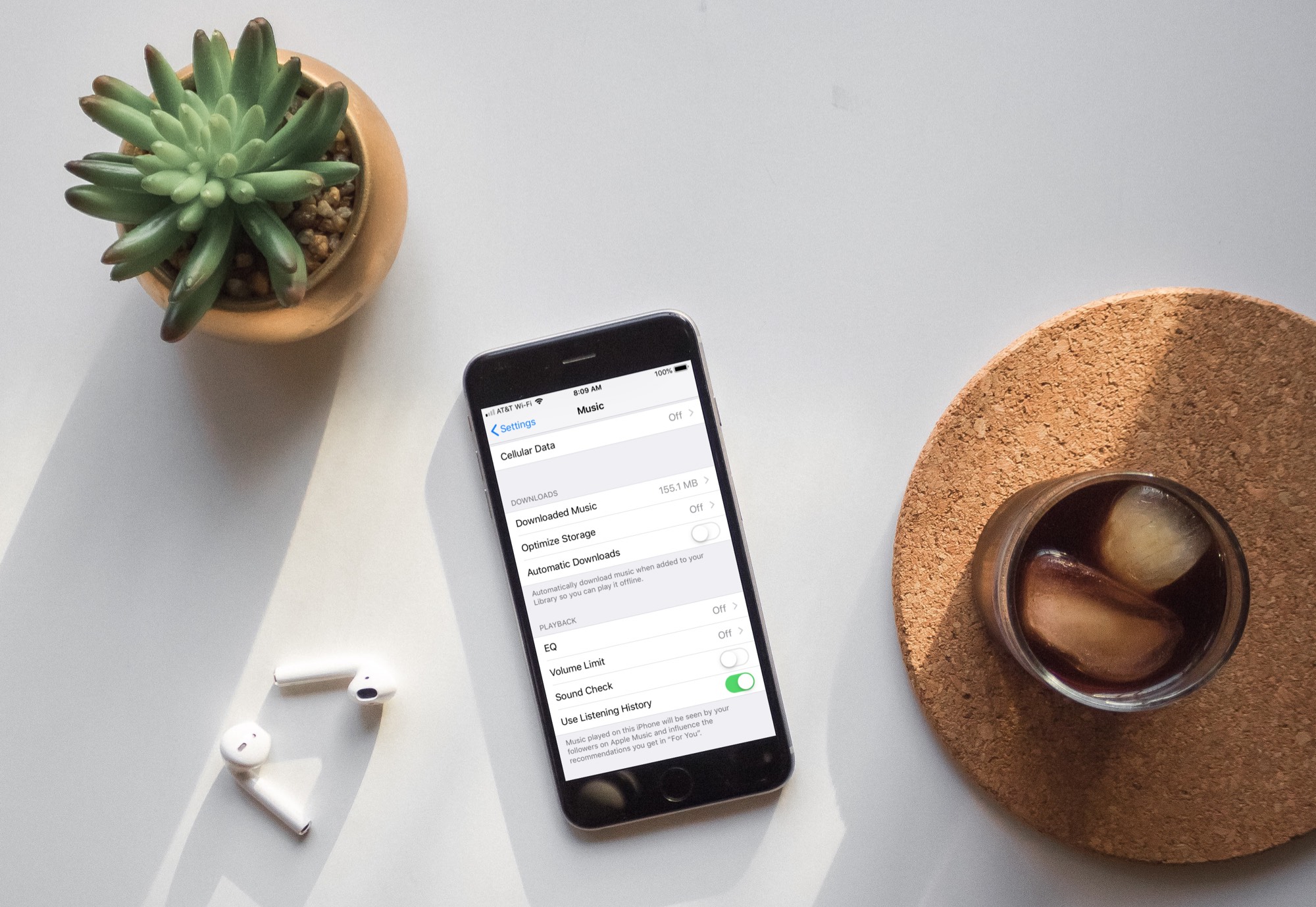
You can add any song, album, or playlist on Apple Music to your library. Doing so prompts the Music app to automatically download it for offline playback. However, those downloads can consume significant storage space, especially as you add more content to your library over time.
With a few taps, you can stop Apple Music from automatically downloading music added to your library, which reduces the size of the offline cache and frees up storage. We’ll show you how.
iPhone and iPad
- Open iOS Settings and tap Apps at the bottom.
- Select Music in the list of installed apps.
- Turn off Automatic Downloads under the Downloads heading to instruct the app not to download songs, albums, or playlists added to your library.

Mac
- Open the Music app, then click Music > Settings or Preferences in the menu bar.
- Untick Automatic Downloads in the General tab and click OK.

Even with automatic downloads turned off, you can still hit the cloud icon to manually download the selected song, album, or playlist for offline listening.
And if you have plenty of free storage space on your device, you can download all your Apple Music songs to your device at once.