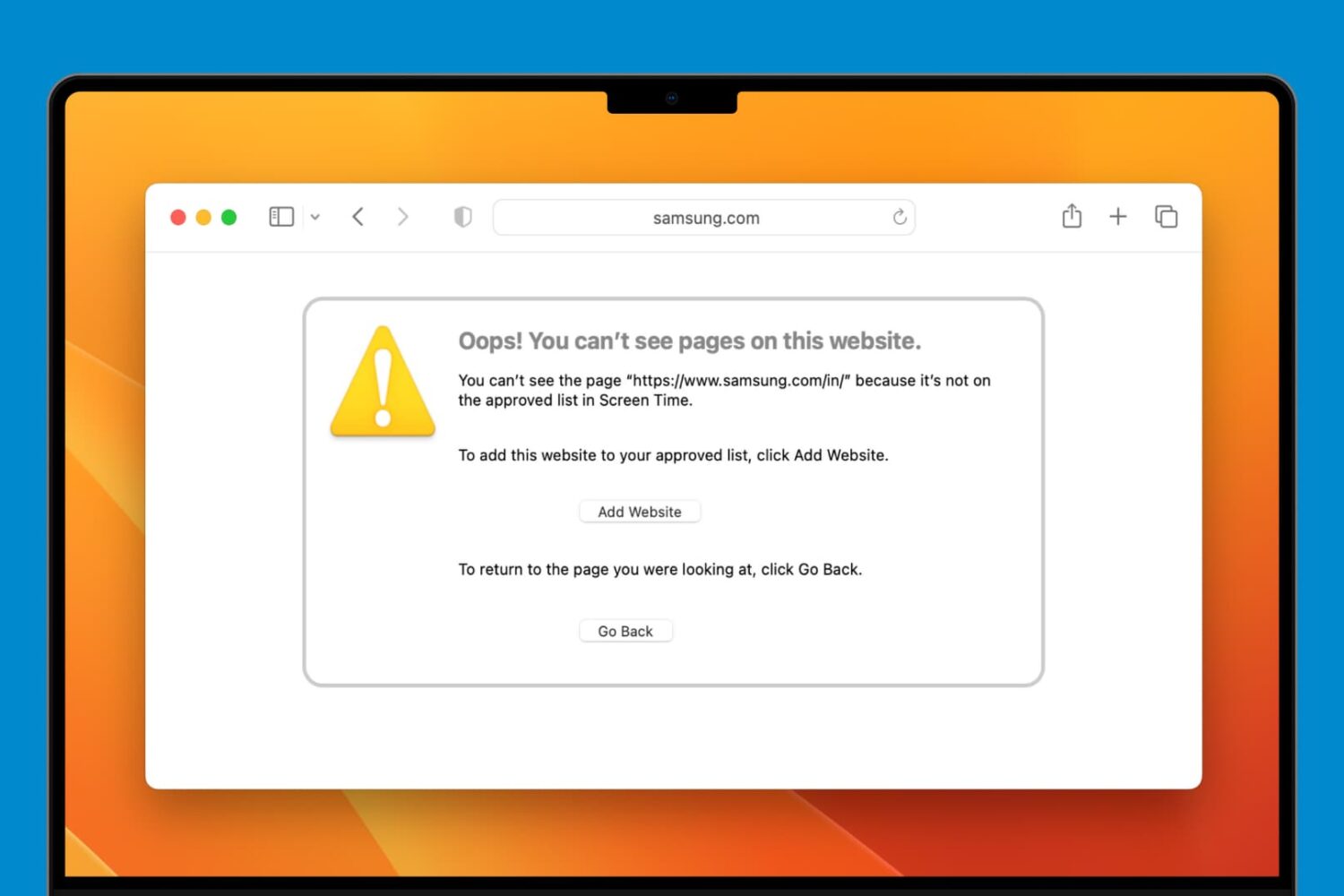
Learn how to block adult, sensitive, or distracting websites on a Mac with built-in Screen Time parental controls or allow only specific ones to keep your child safe online.
How to restrict or allow specific websites on Mac
Stay up-to-date on the latest Mac news, and tutorials. Get expert tips and tricks to optimize your Mac’s performance and learn about the latest Apple products and software updates. Discover the best Mac apps and accessories to enhance your user experience.
Learn how to block adult, sensitive, or distracting websites on a Mac with built-in Screen Time parental controls or allow only specific ones to keep your child safe online.

You can improve your movie and TV show viewing experience by using playlists in the Apple TV app. Here’s how to create and manage a playlist in the TV app on Mac and take binge-watching to the next level.
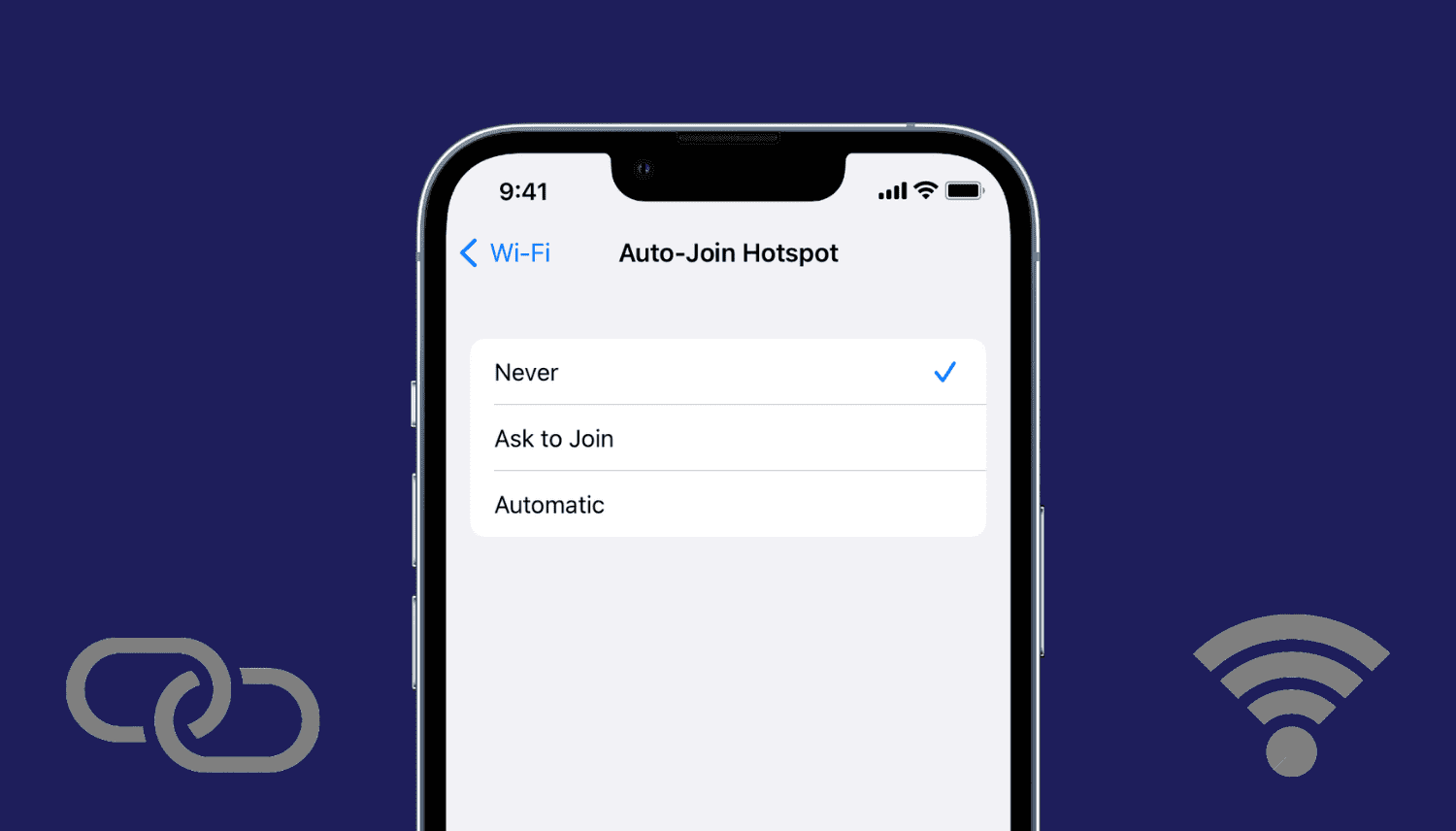
Learn how to stop your iPhone, iPad, or Mac from automatically joining nearby Personal Hotspots from your iPhone and cellular iPad when no known Wi-Fi networks are available.
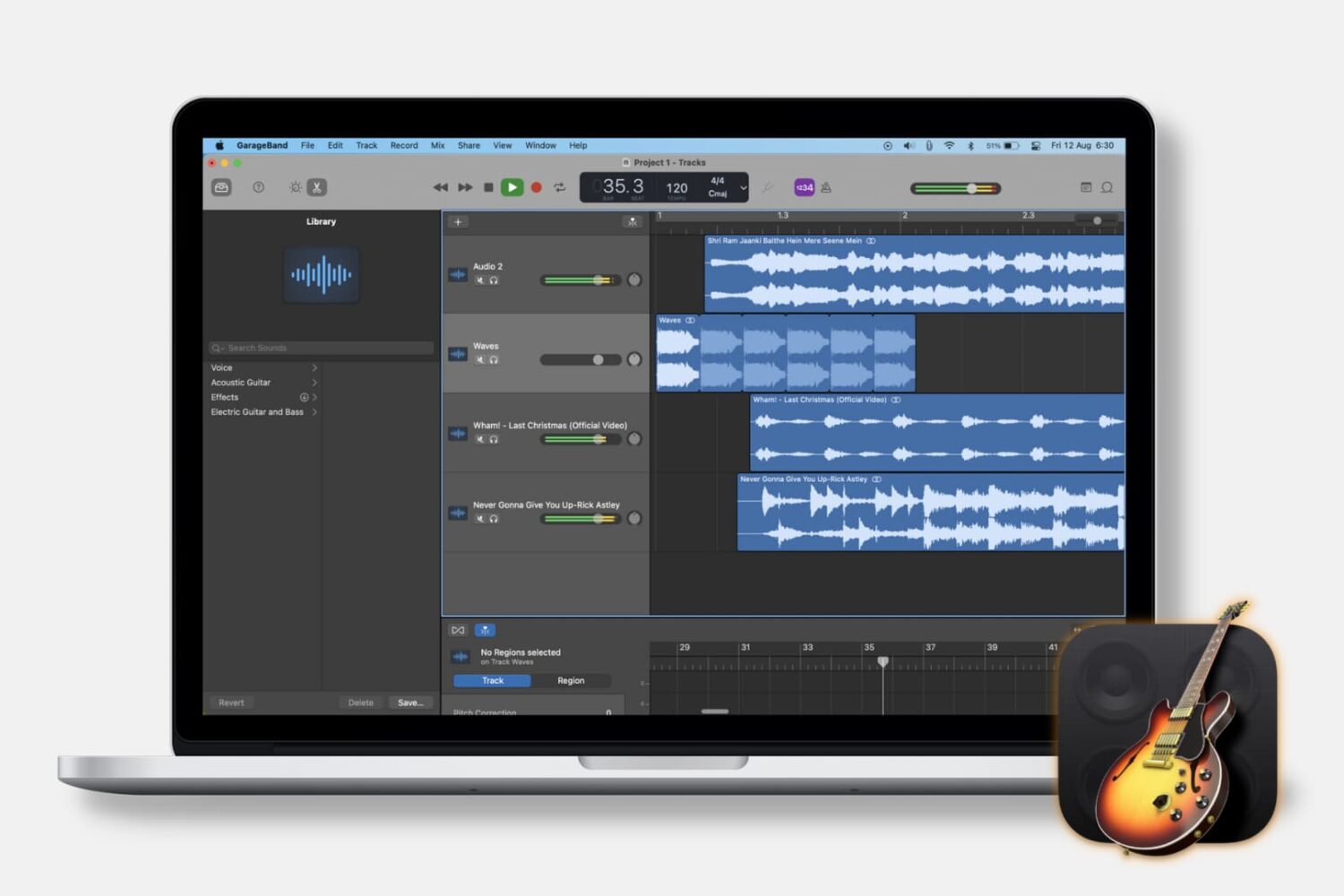
When you’re making music in GarageBand, you may want to pull in other types of audio. Maybe you have a song in the Music app or an MP3 file in iCloud that you want to use in your tune. This tutorial will show you how to import music and audio files into GarageBand on both Mac and iOS.
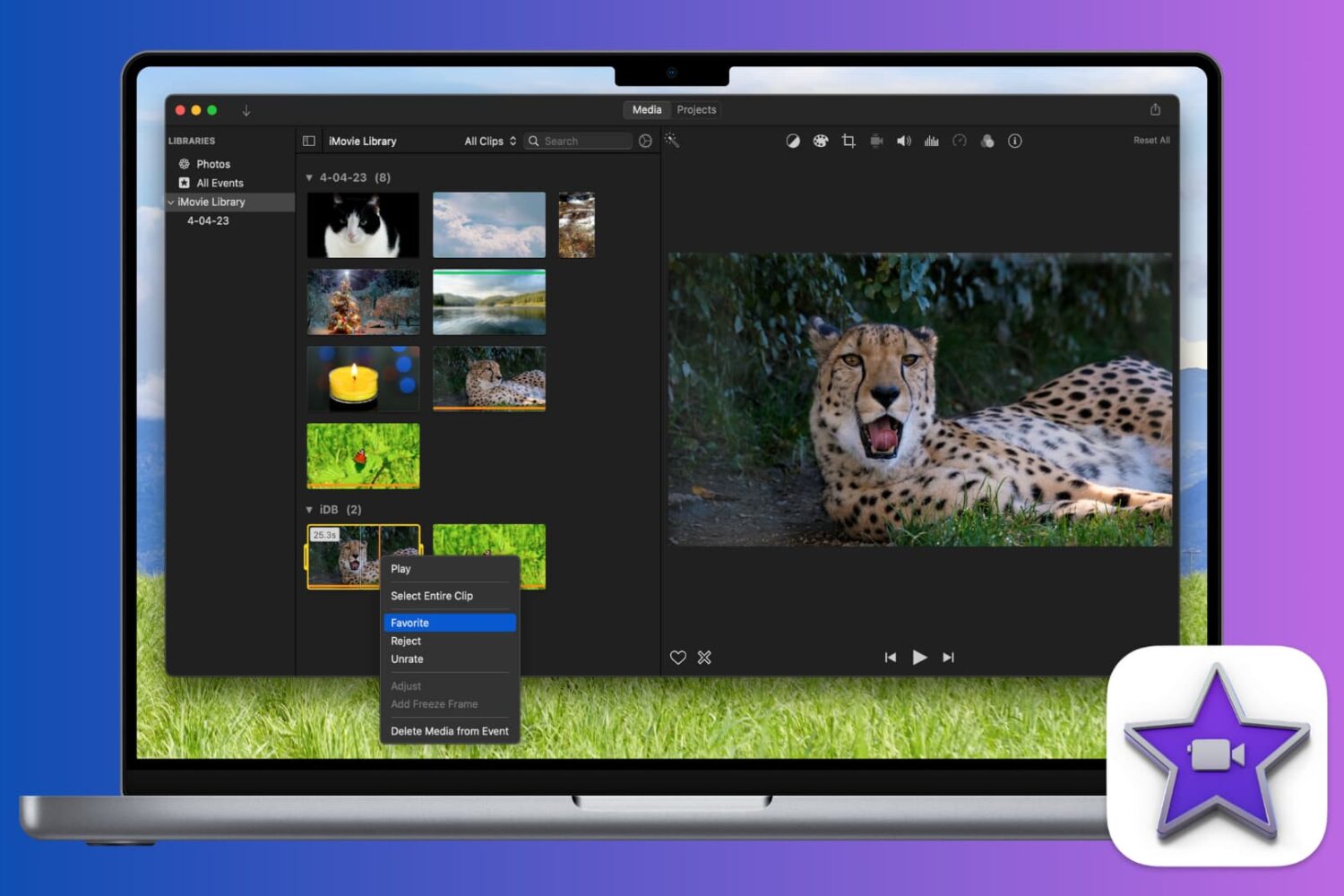
Learn how to mark a video as a favorite or reject it in iMovie when you’re reviewing your clips. This makes keeping and removing clips easy, so you can use the best ones.

From changing your Apple Account email address to checking your Apple Cash Balance, you can access and manage your Apple ID account information right from your Mac’s System Settings, and this guide walks you through it.
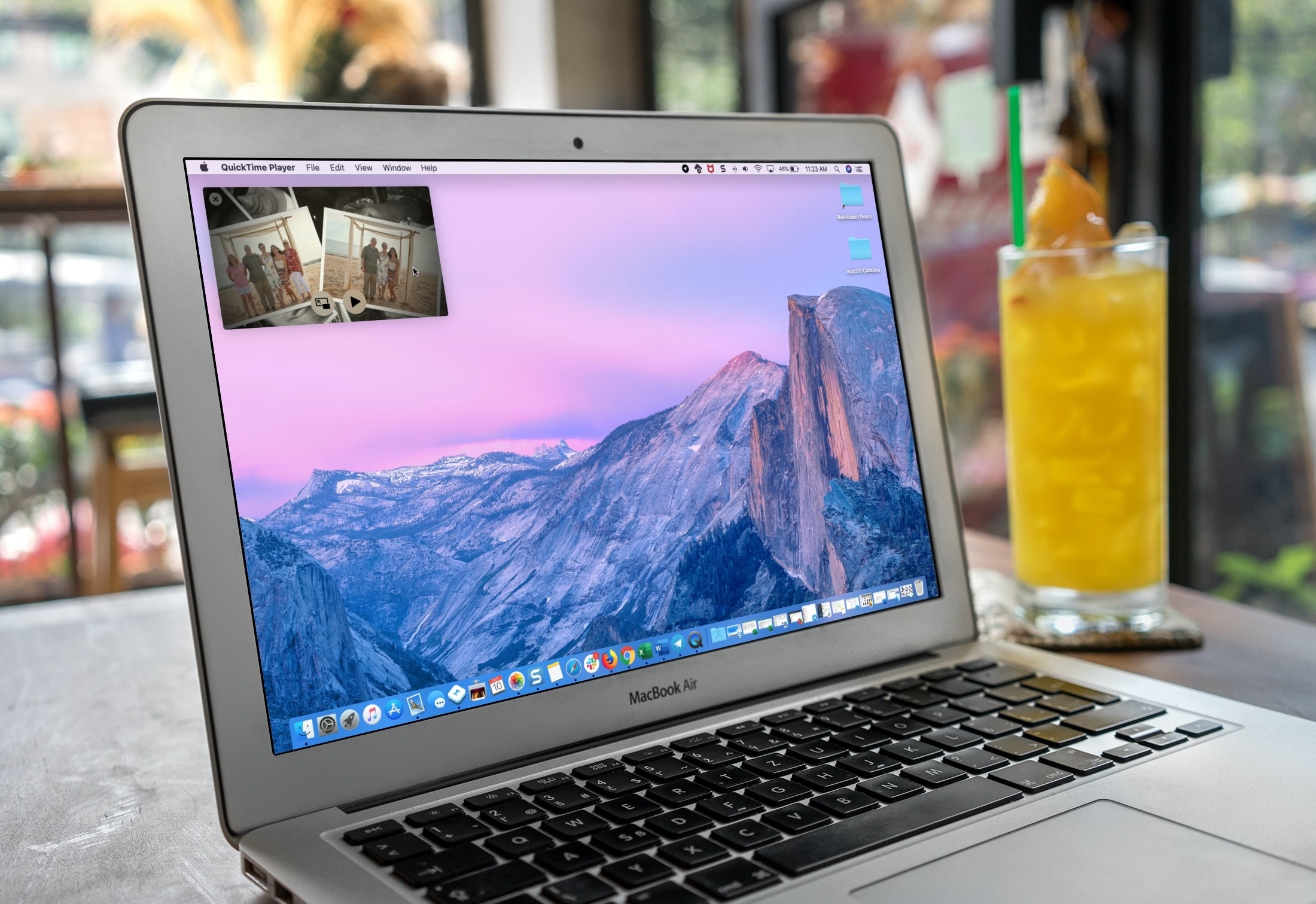
If you use QuickTime Player on your Mac to watch videos and movies, you’ll like its Picture-in-Picture (PiP) feature. It will convert the playing video into a small floating window, which you can resize and place anywhere on the screen.

Learn how to block explicit songs, movies, and TV shows in Apple Music and Apple TV apps on your child’s Mac by setting up parental controls.
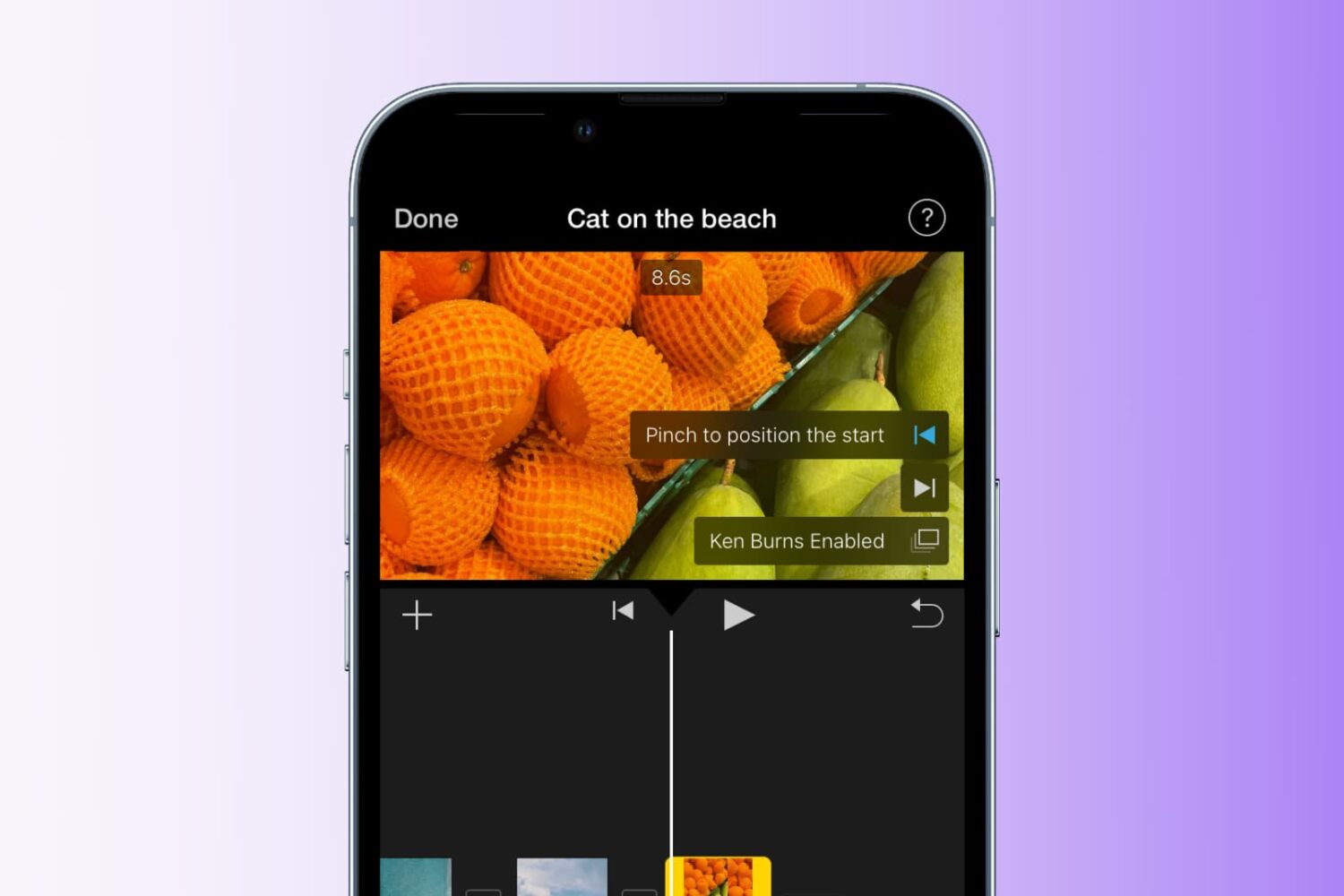
Learn how to add the Ken Burns effect to your images and video clips in iMovie to make them appear as though the camera is moving or zooming in and out, creating a beautiful cinematic effect.
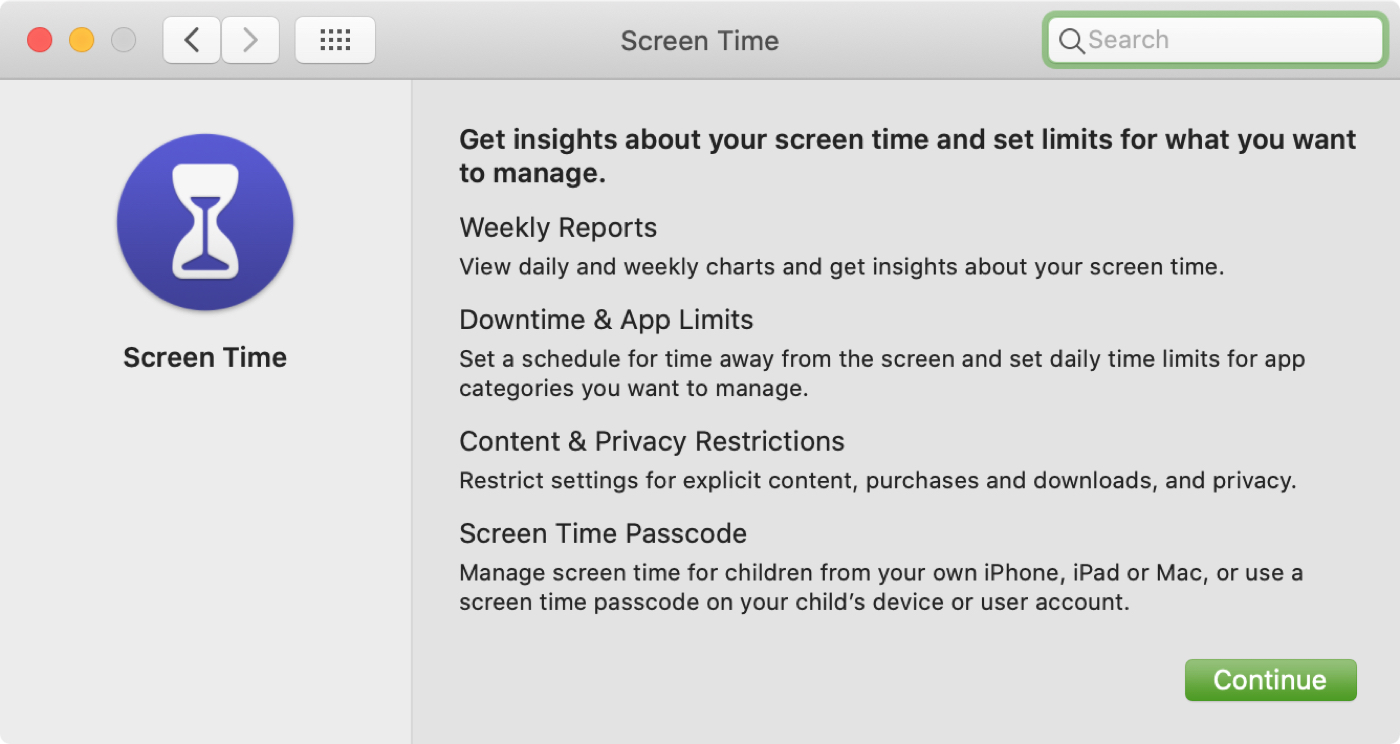
In this tutorial, we will explain how to turn on and use Screen Time on your or your child's Mac to understand device activity, limit app and website usage, set communication limits, and enable restrictions.
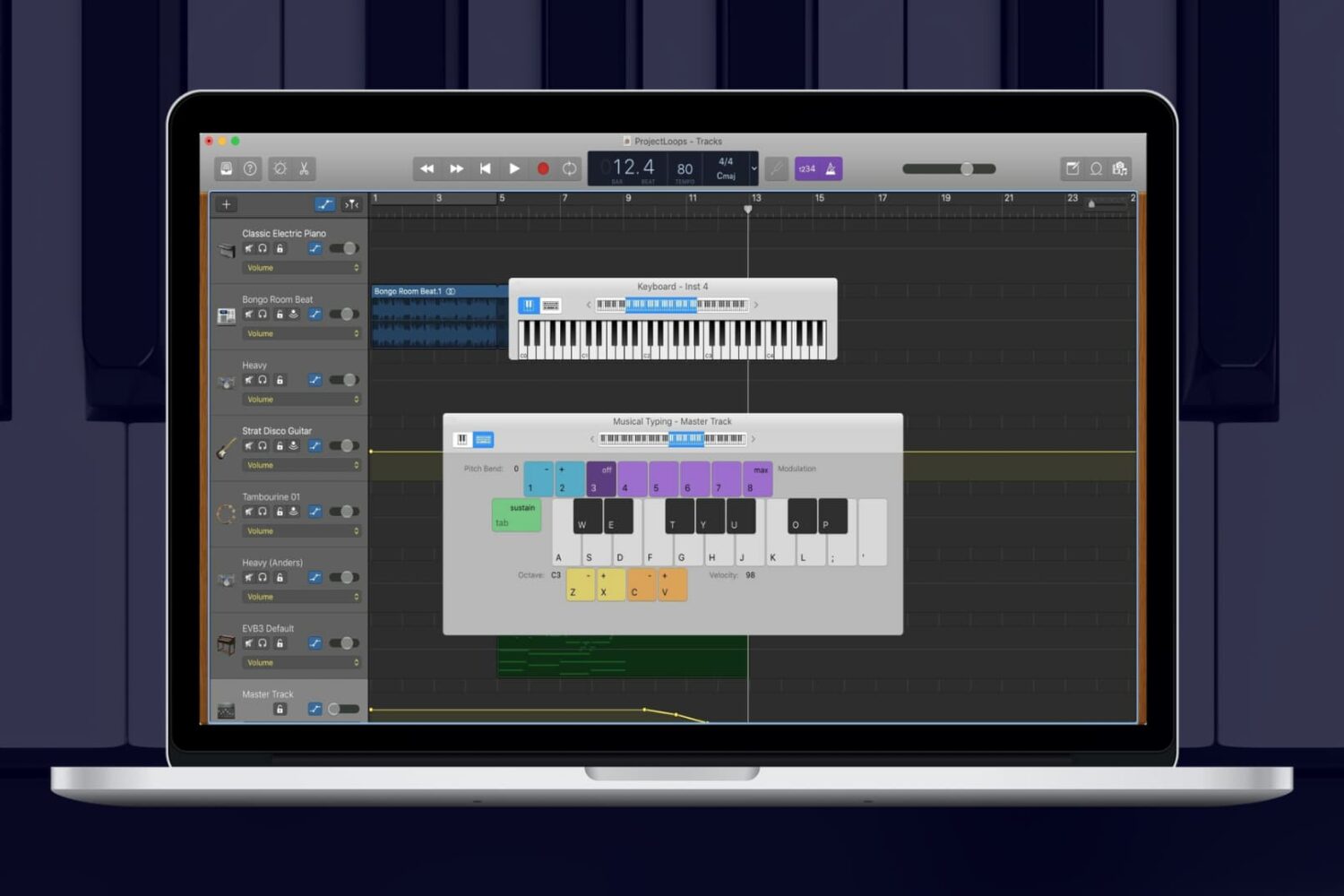
While you can add Apple Loops and import samples to use in your GarageBand creations, you can also use an onscreen keyboard to make music. On Mac, you can use the keyboard as it appears on a piano or organ in addition to musical typing with your computer keyboard. And on iOS, you can tap to open the keyboard and adjust its settings easily.
For making music in GarageBand your way, here’s how to show the keyboard on Mac, iPhone, and iPad.
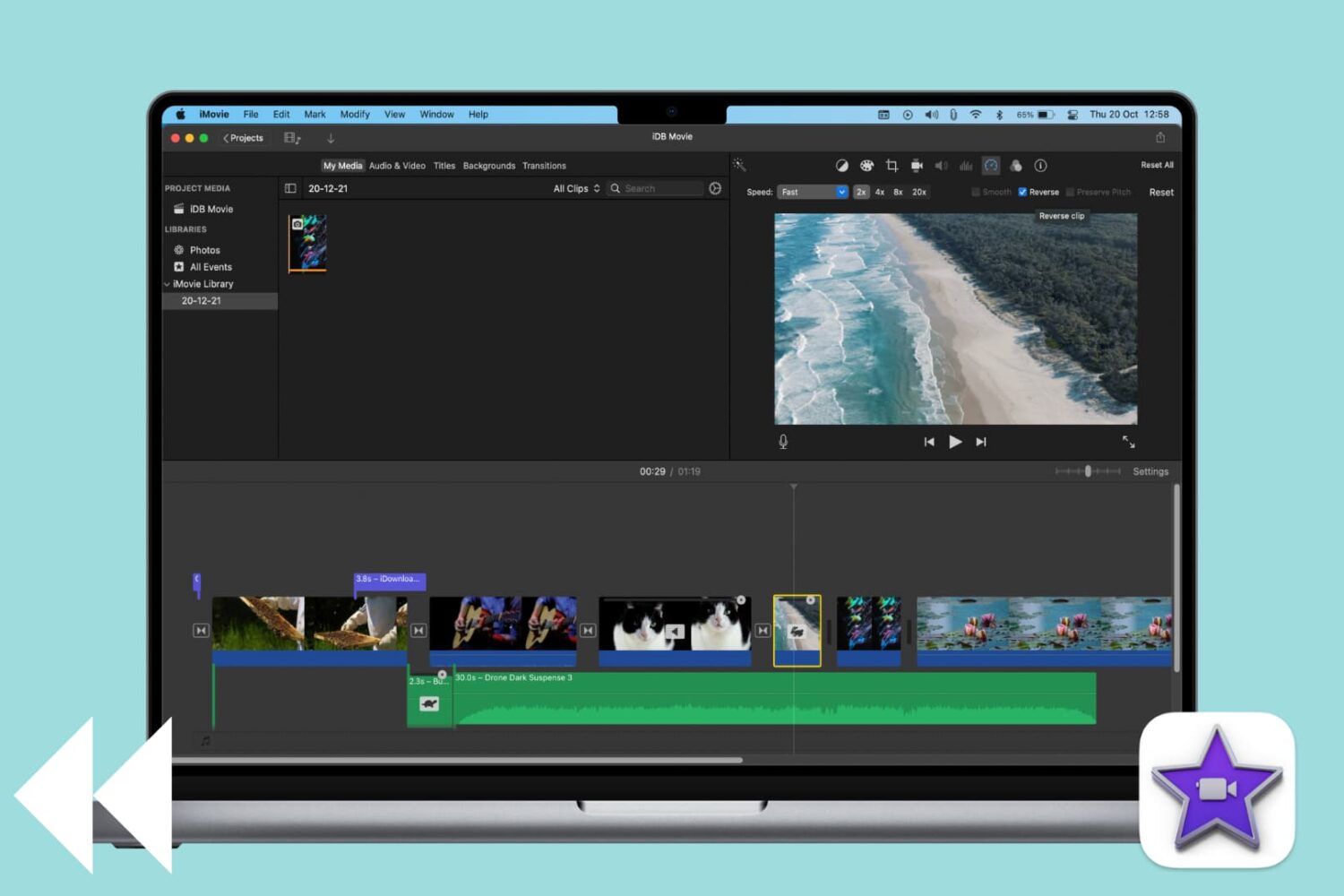
Learn how to reverse a video clip in iMovie on Mac to play it backward and add a cinematic effect to your project.