iPhone

Stay up-to-date on the latest iPhone news and learn new tips and tricks with our comprehensive tutorials. From software updates to new features, we’ve got you covered.

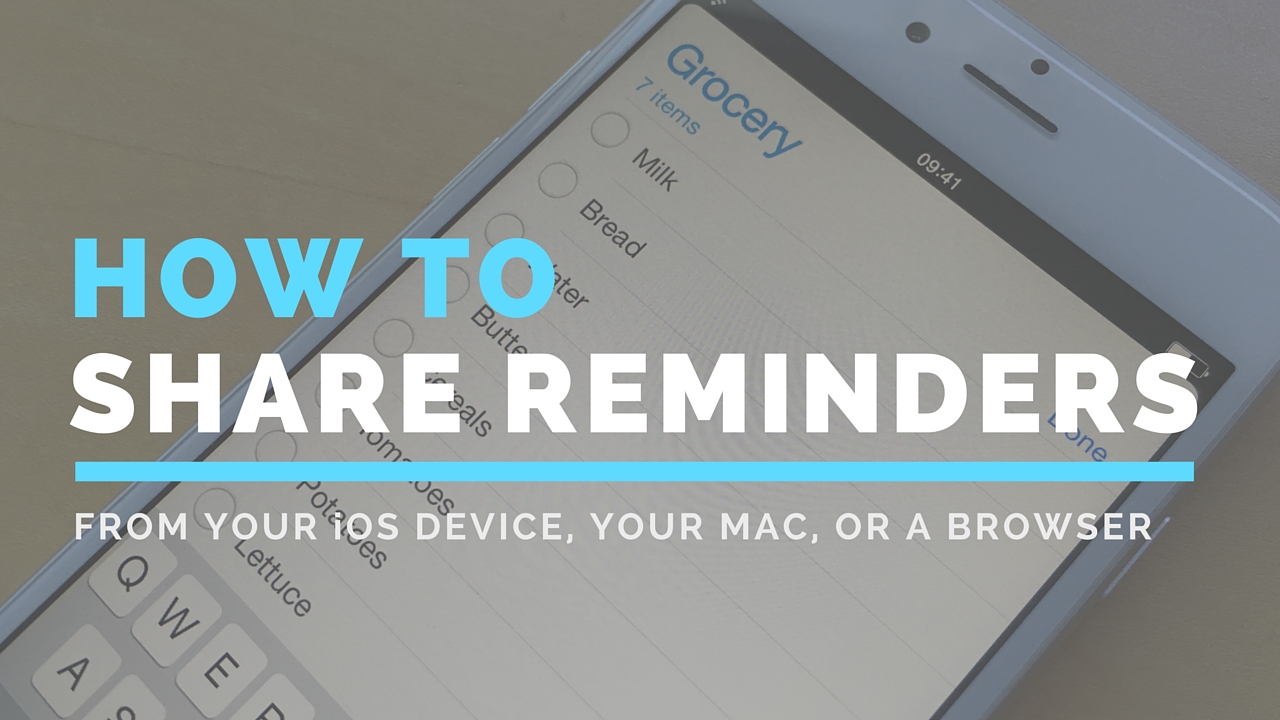
How to share Reminders lists

Although not apparently obvious, Apple's Reminders app on iPhone, iPod touch, iPad, Mac and iCloud.com lets you share to-dos and checklists with friends and family.

Sharing a reminder list with, say, your girlfriend (or wife) is particularly convenient as you’ll both be able to add, delete and check off items as completed, and all changes will instantly appearing on everyone's devices thanks to seamless iCloud syncing.

This isn't just great for grocery lists, shared to-dos and interactive lists among family members, but for business, too. For example, you could share a to-do list with team members to keep everyone apprised of what needs to be done on any particular day.

In this post, we're going to show how easy it is to create a list in Reminders and invite others to participate across iOS, macOS, and the web.

How to direct connect an iPhone to an iPad to share photos and videos

iPhone and iPad connected to each other via cable

It's possible to directly connect an iPhone to an iPad via a Lightning cable. To create a dual-sided Lightning cable, just take a regular Lightning cable and connect the USB end to a Lightning to USB Camera adapter. This, in essence, creates a Lightning to Lightning cable that can be used to directly connect an iPhone to an iPad.

This setup is a novelty to do just because you can. In practice, I find that it adds little value in terms of transmission speed. Still, it's cool that it can be done at all, which is why I thought I'd share it with you.

How to use your iPhone EarPods like a pro

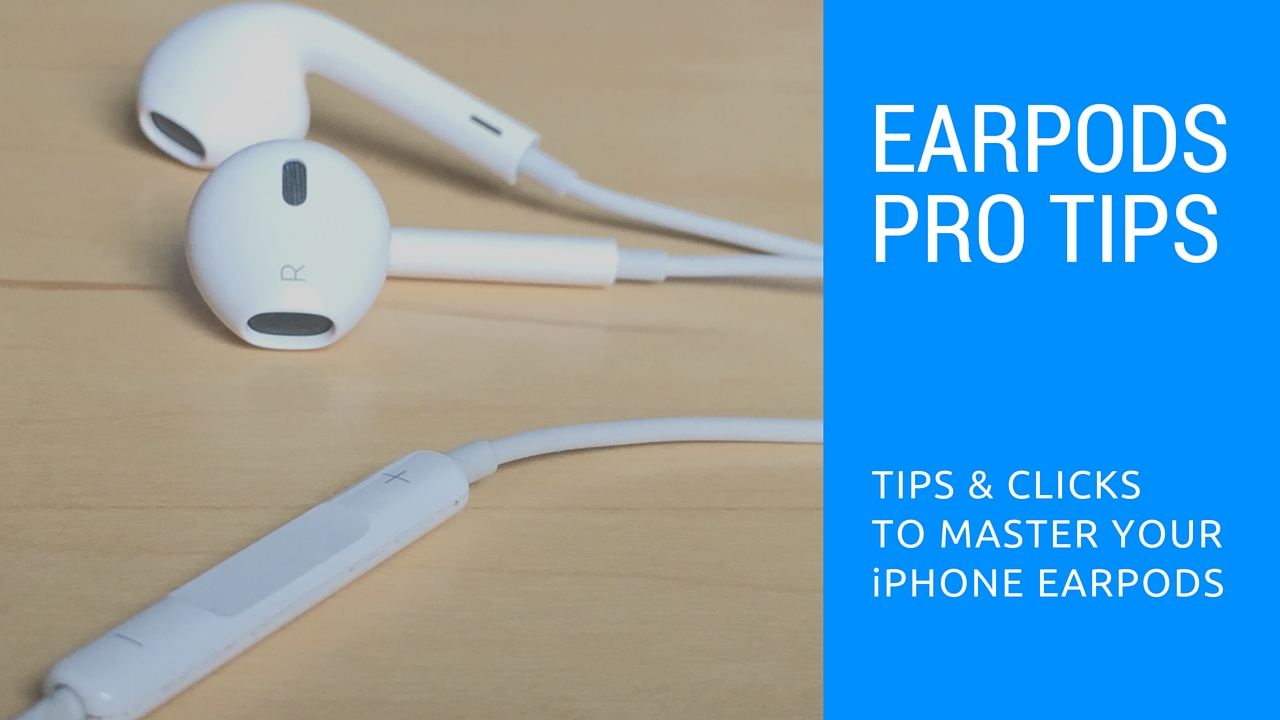
Those funky headphones that came with your iPhone—EarPods with Remote and Mic they're called—only have 3 buttons but boy do they perform a surprising number of functions beyond volume control. And with built-in mic, your EarPods can make and receive phone calls and control media playback.

Moreover, you can use them for recording voice memos, interacting with Siri hands-free, VoIP calling in apps like Skype and more, all with a pinch of the cord. Wait, I need this article to tell me how to plug my EarPods and listen to music?

We're not saying you're not familiar with your EarPods. But as with other things in life, there are always new tricks to be learned. This post will hopefully help you master your EarPods like a pro.

In this article, we'll tell you all the cool things your EarPods can do, from rich playback control and controlling Siri to switching calls on the fly, using VoiceOver and so forth. We'll also discuss EarPods compatibility, talk about keeping your headset in pristine condition and lay out sound advice for using your headset responsibly.

How to check what apps are draining your iPhone battery

See battery usage on iPhone

Battery usage is always a hot topic among smartphone owners, and although I try not to overthink it, there are times when I'm just curious to find out what apps have been draining my battery the most. iOS and iPadOS make it pretty easy to find out the battery percentage an app uses. Here's how to see details about how individual apps have been impacting your iPhone battery.

How to quickly access Wallet and Apple Pay on the Lock screen

Hand holding an iPhone with Apple Pay screen showing added payment cards

Those who have tried Apple Pay can attest that paying with your iPhone couldn't be simpler. You just hold your device near the contactless reader with your finger on Touch ID or your face authenticated with Face ID to pay for the goods or services you bought.

But wouldn't it be great if you could choose any payment cards, passes, and loyalty cards from your Apple Pay account on the Lock screen, without having to unlock your iPhone?

You can now make your purchases by double-pressing the Side button or Home button to access Wallet without unlocking your iPhone, a feature partially borrowed from the Apple Watch. You then simply choose a card and authenticate your purchase via Touch ID or Face ID.

Here's how you can enable Wallet access right from the iPhone's Lock screen with just a few taps.

How to save your iPhone voicemails to the Voice Memos app

Save your iPhone voicemail to the Voice Memos app

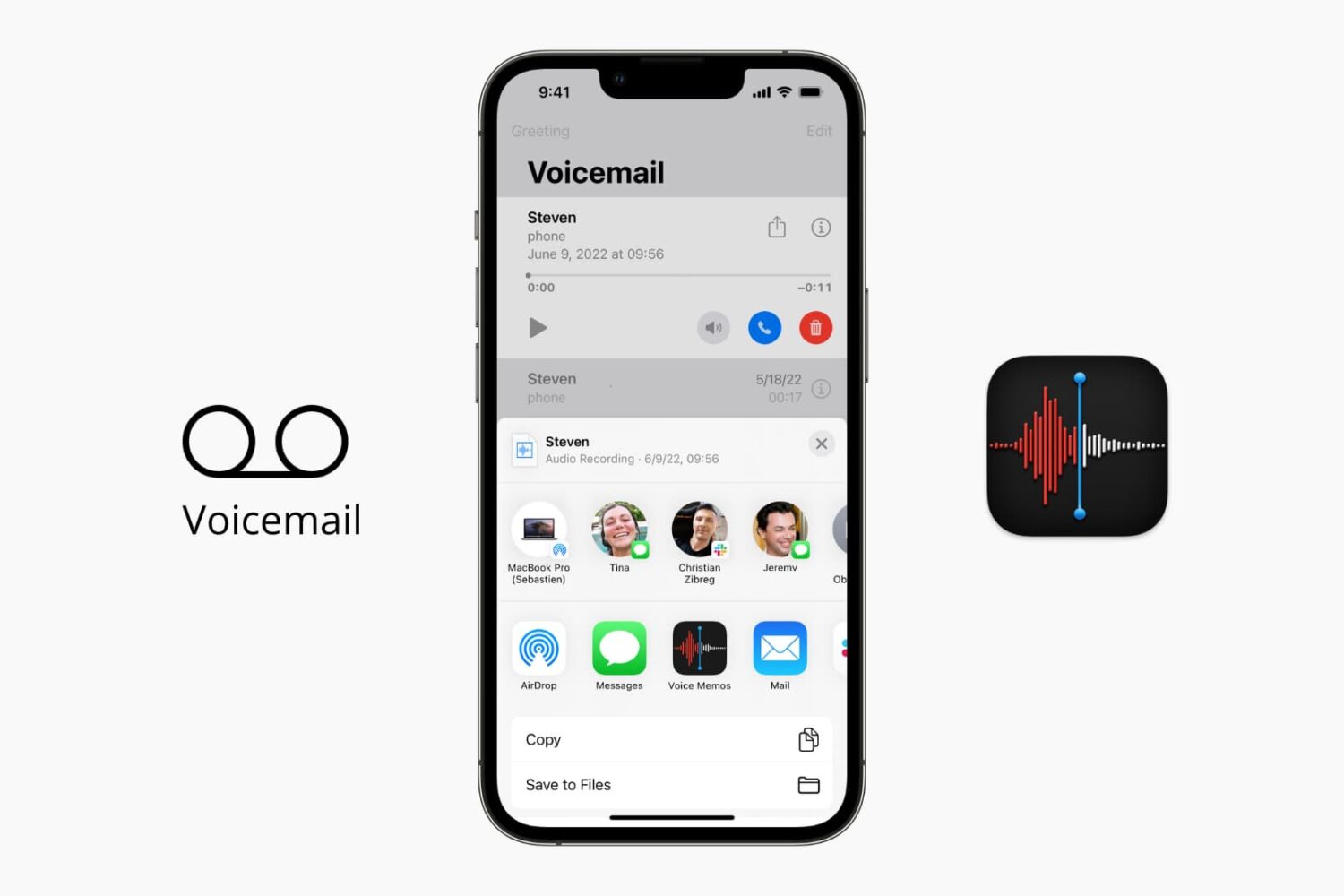
The iOS Phone app makes it easy to save your voicemail to the Voice Memos app. Saving voicemails as voice memos lets you trim the audio before sharing them with others. Plus, the files in the Voice Memos app are automatically uploaded to iCloud and stay safely saved. So, if there is a memorable voicemail, you can keep it forever in iCloud.

In this brief tutorial, we show you how to save your voicemail as an audio note.

How to play Apple Music high quality streams on cellular

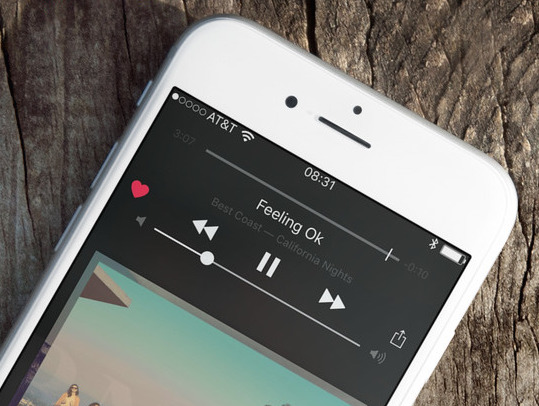
Apple Music on iOS includes an option to stream your music at high bitrates over a mobile data network at all times. As you know, Apple Music defaults to high-quality streams on Wi-Fi.

With this toggle, you can control your cellular data usage by enabling or disabling high bitrates when streaming or downloading music over your carrier's cellular data network.

How to zoom in and out of your iPhone 6s screen with 3D Touch

We have been covering various 3D Touch features extensively here on iDownloadBlog and will continue to do so in the foreseeable future.

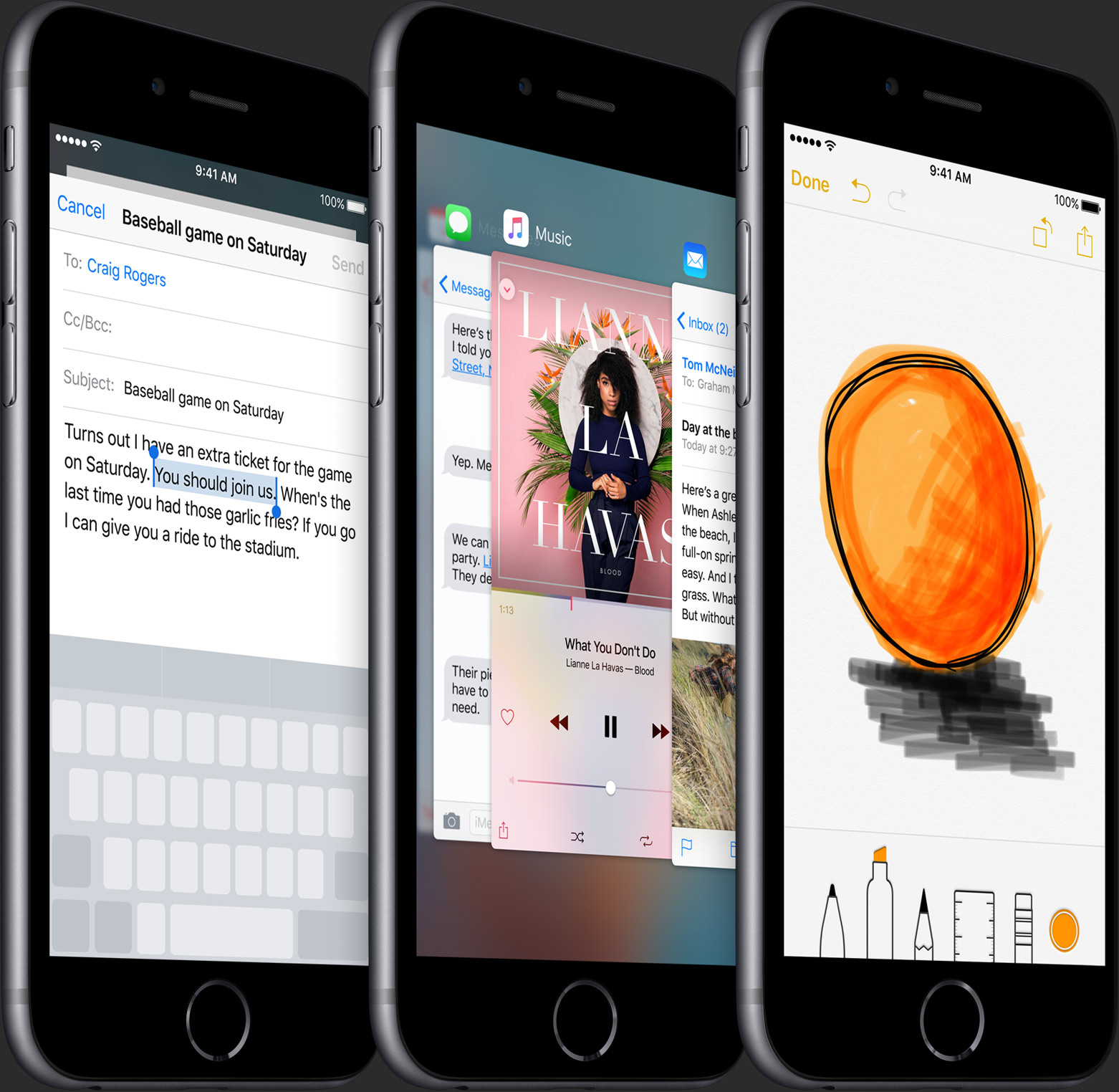
In addition to using your iPhone 6s keyboard in trackpad mode, adjusting the sensitivity of 3D Touch and turning the feature on and off, iOS 9 also provides a way for iPhone 6s owners to use its built-in zooming capability in conjunction with 3D Touch, based on the amount of force exerted on an on-screen controller.

They're calling it Peek Zoom and once activated lets you invoke iOS's standard Zoom feature through 3D Touch rather than requiring you to double-tap with three fingers.

How to turn iPhone keyboard into a trackpad with 3D Touch and select text with precision

iOS 9 brought out a new feature for iPads called easy text selection which lets you slide two fingers on the screen to turn the keyboard into a trackpad of sorts. While in this mode, you can control cursor movement and select chunks of text with precision.

Thanks to 3D Touch, you can bring up this trackpad-esque functionality on your iPhone 7 or later in order to easily select and manipulate text with great precision, here's how.