Productivity

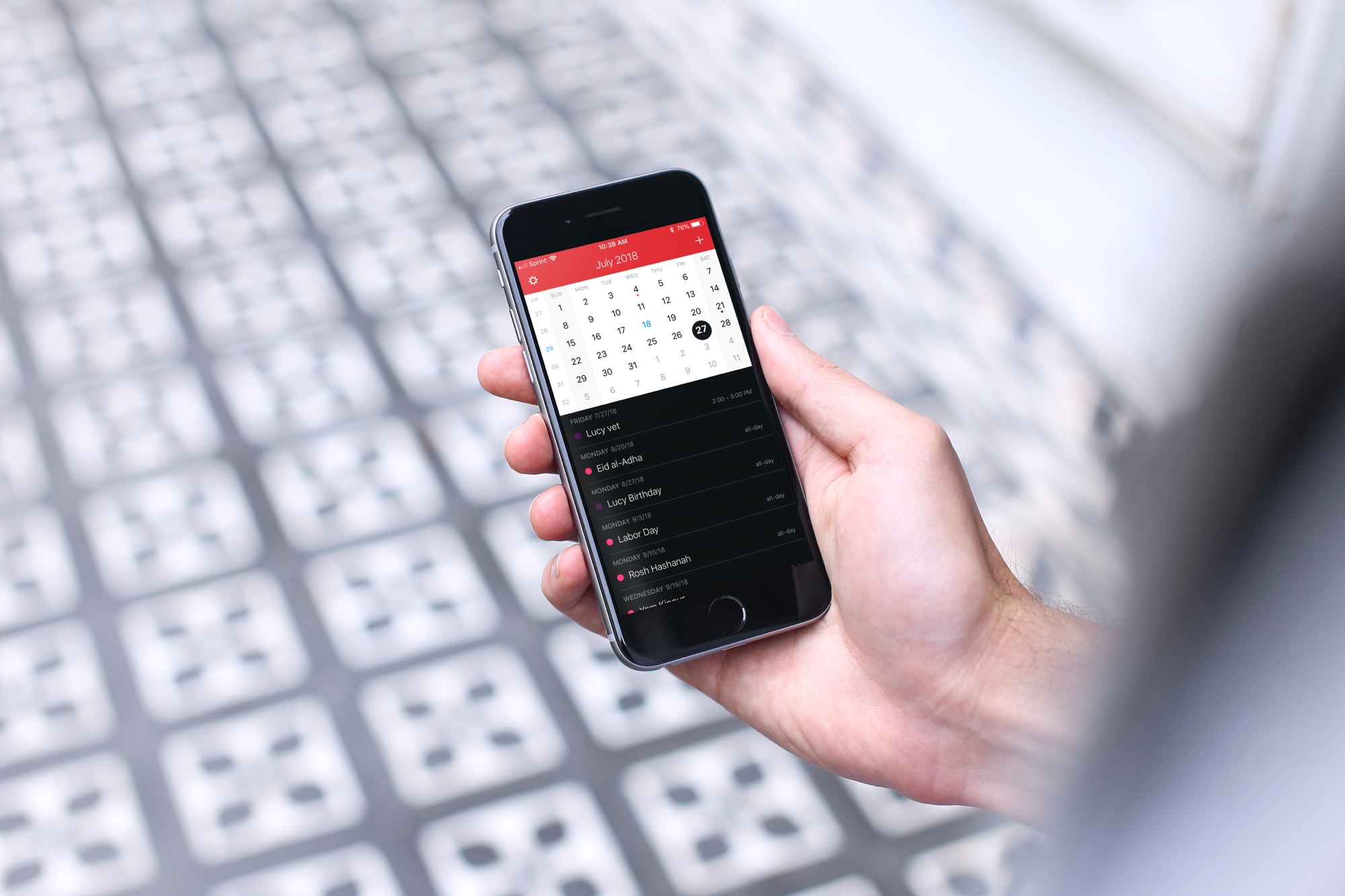
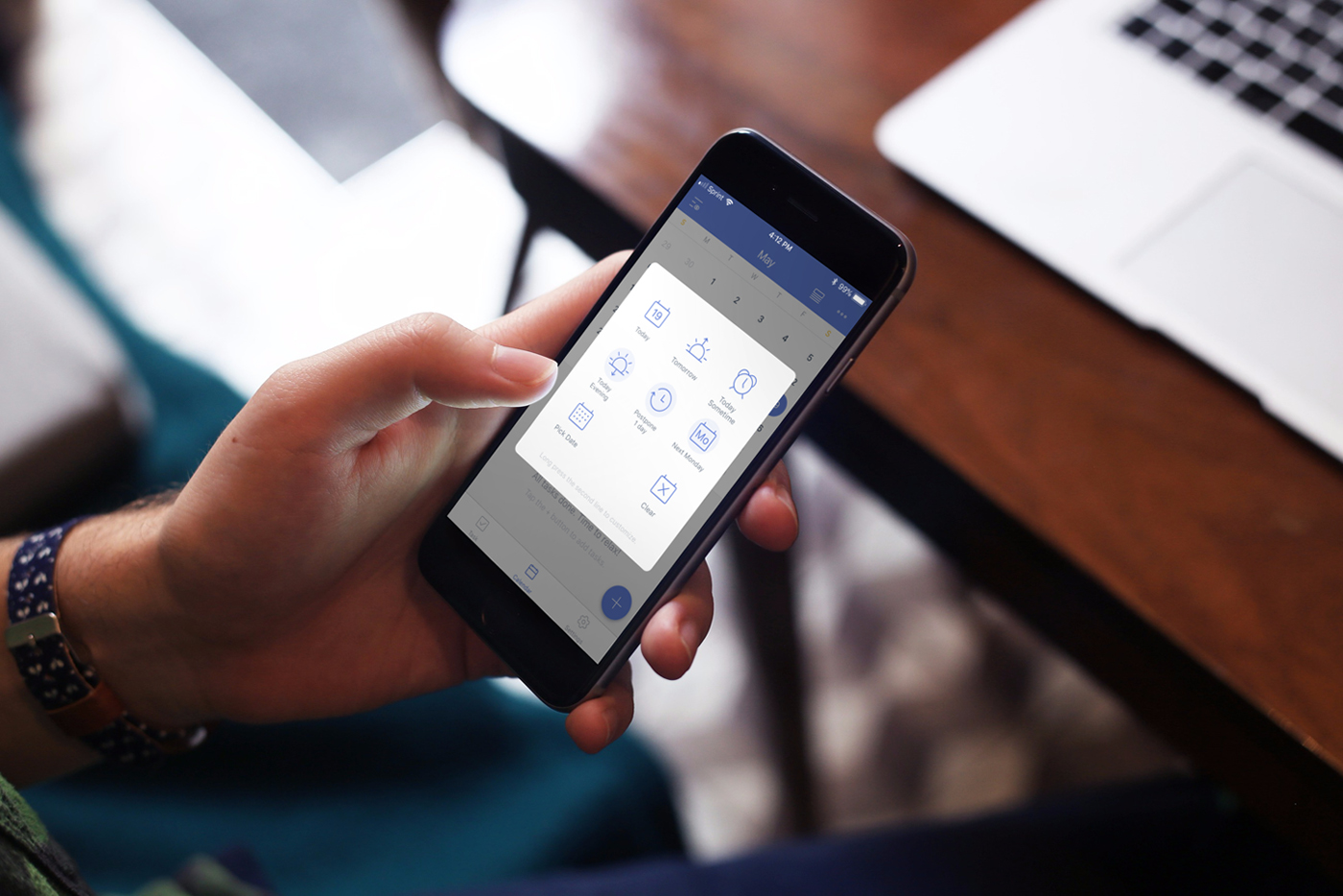
How to customize Fantastical 2 for iPhone to suit your needs

Fantastical 2 on iPhone

If you’ve gone beyond your iPhone’s default Calendar app and purchased Fantastical 2, then you already know the host of features that this app provides. But, have you taken the time to sit down and really customize it?

Getting your calendar exactly as you want it is worth the time. So, here’s your Fantastical 2 tutorial for customizing the app on your iPhone.

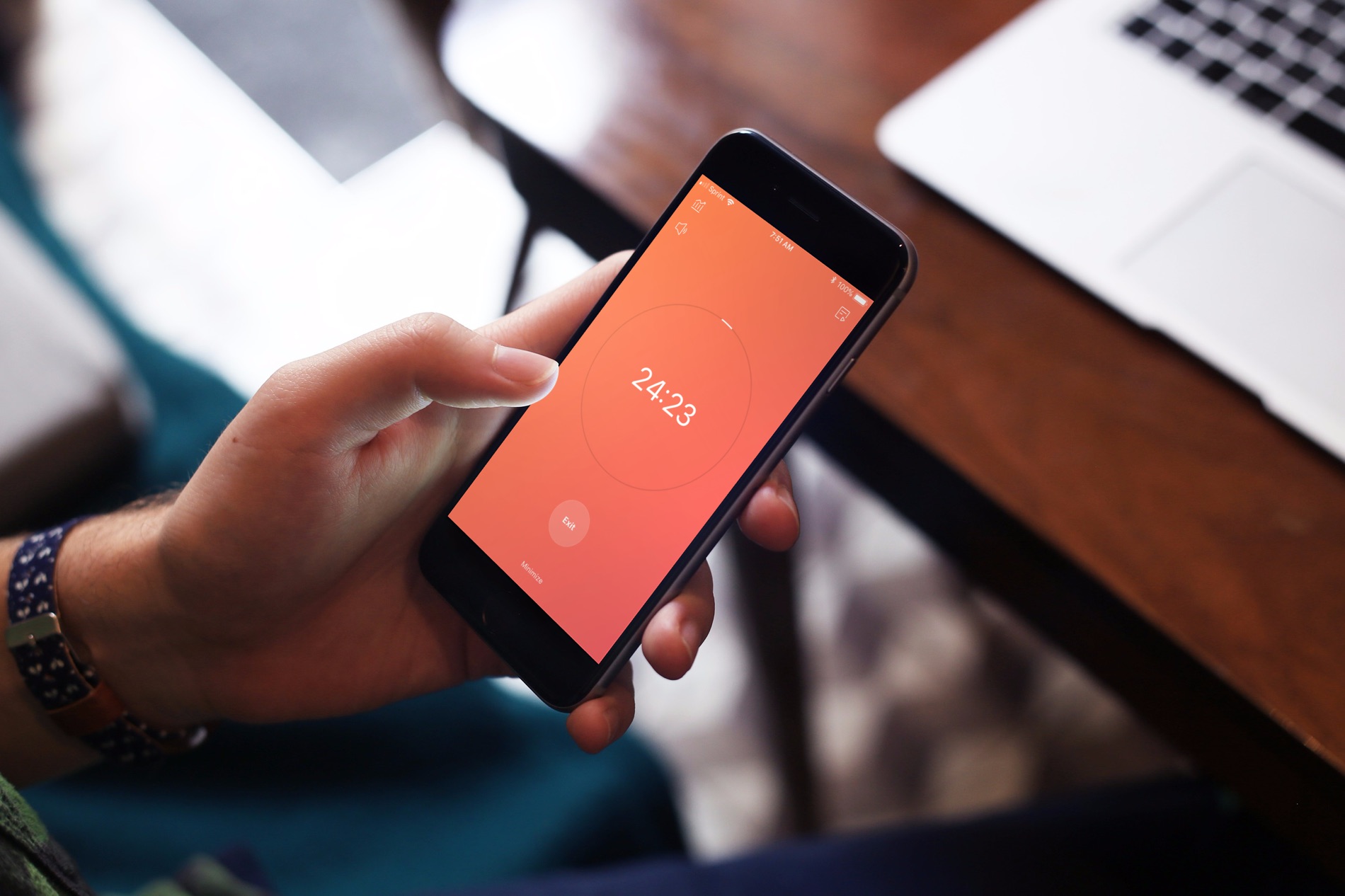
How to turn TickTick into a convenient Pomodoro timer

TickTick Pomo Timer Start on iPhone

If you haven’t heard of TickTick, this handy app helps you manage your tasks. Keep lists, add your to-dos, and be reminded so you never forget a task.

In addition to managing to-dos, TickTick offers a built-in Pomodoro timer. For managing your time, the Pomodoro method has you break down your work into intervals. Normally, you set the timer and work for 25 minutes, take a break, and then work for another 25 minutes. While the durations of work and breaks can be adjusted, the general idea is the same.

So, let’s take a look at how you can use TickTick as a Pomodoro timer.

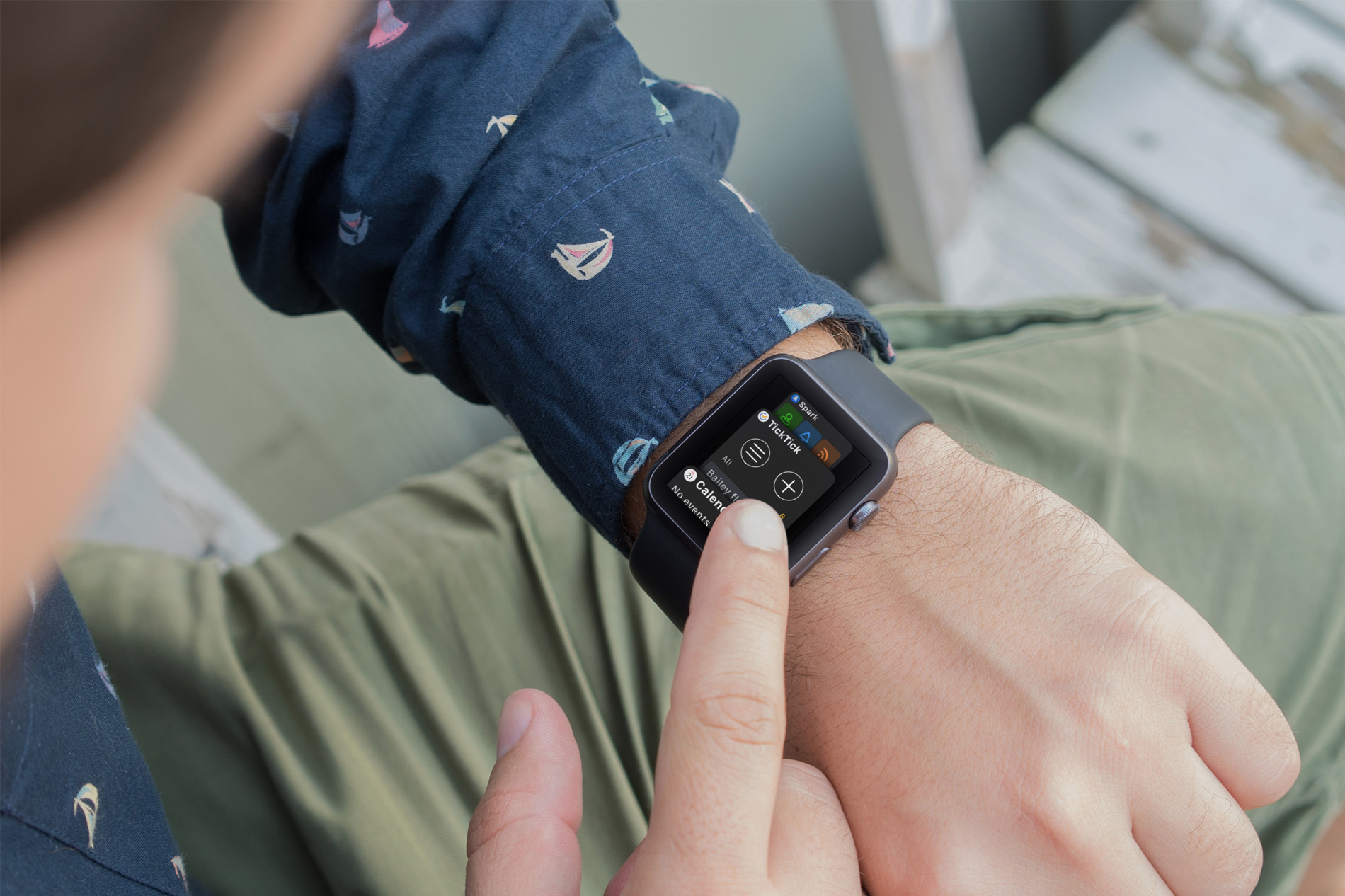
How to organize your Apple Watch Dock for maximum productivity

Apple Watch Productive Dock

Your Apple Watch is more than just a time piece. It’s a wonderful tool for receiving texts, checking emails, getting event alerts, and so much more when you’re on the go. And, along with all of those cool apps that let us do things with our Watch, comes a built-in feature that makes it even better; the Dock.

The Apple Watch Dock is a spot to quickly get to those apps you need and use the most. But, have you really spent time deciding which apps should go there and how they should be arranged? Here are some suggestions for making the most out of the Dock.

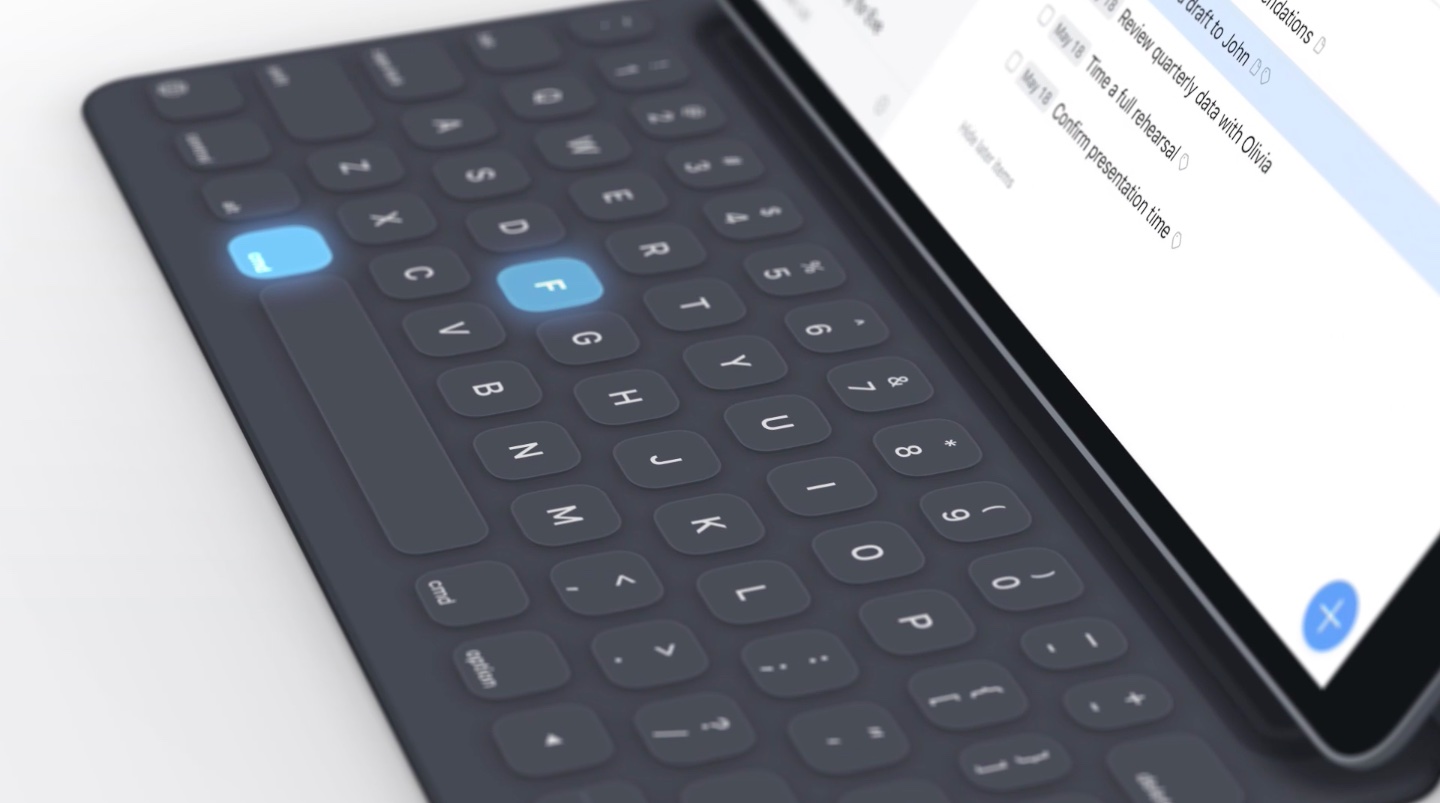
How to minimize an email draft in Mail app for iPhone

Several email drafts in Mail app on iPhone

Have you ever been composing or replying to an email in Apple’s Mail app when a message comes in that you want to read right away? Or, maybe you want to check another message you received before replying but have already started the draft.

If this has happened to you, you probably saved the email you were working on in your Drafts and then went back to it later. But you don’t have to do this because there is an easier way. You can minimize the message you’re composing and pop it back open quickly when you are ready to finish it, and here’s how.

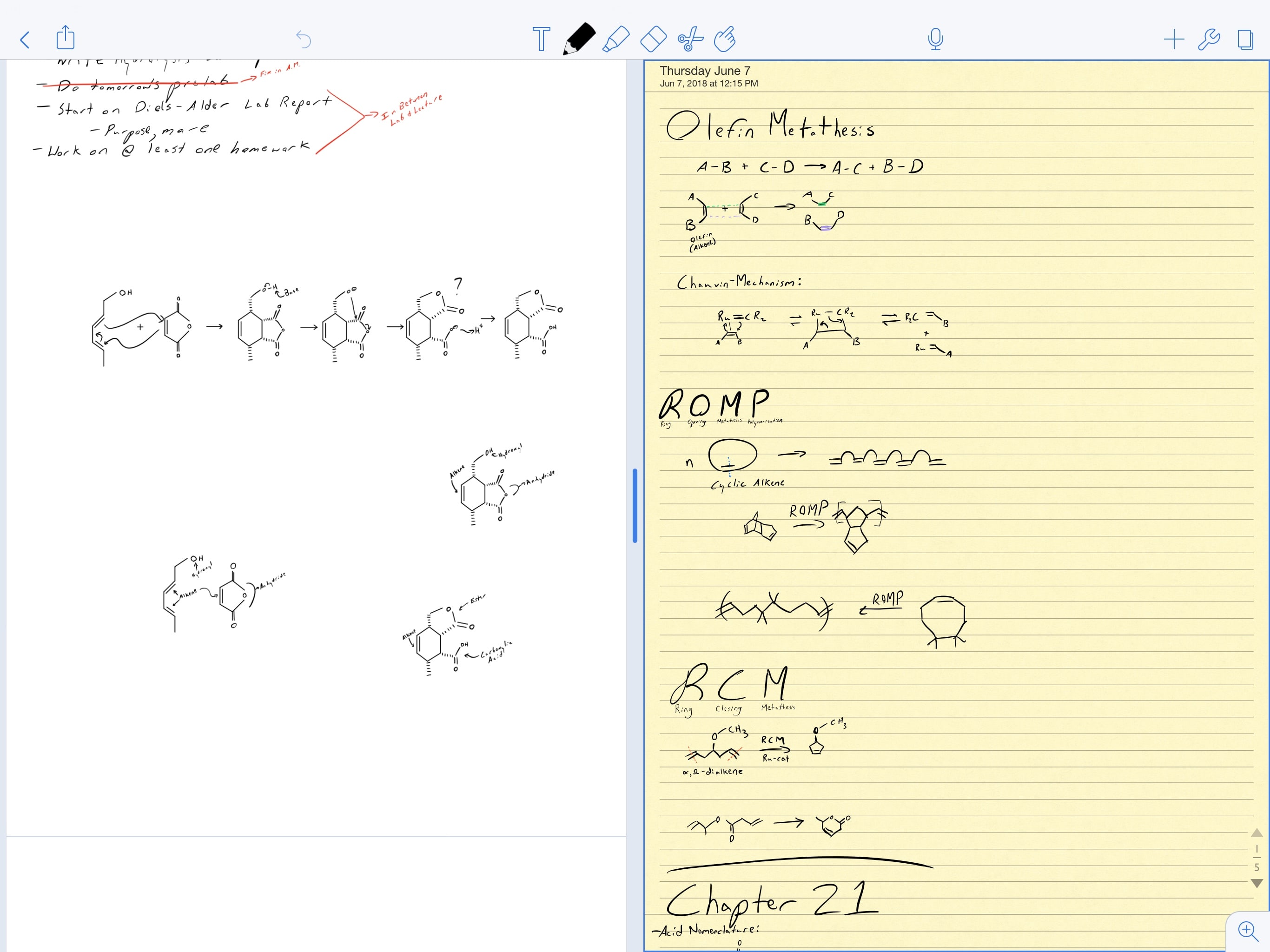
The best free task list apps for iOS to get things done

Best Free Task List Apps

With so much going on in our busy lives, it can be hard to keep up. This is how a task list app can help. You can track your to-dos for work, home, or personal tasks and mark them off as you complete them.

Finding a task list app for iOS that has the features you need can be challenging, especially if you are looking for one that doesn’t cost a penny. Here are three of the best free task list apps for iOS.

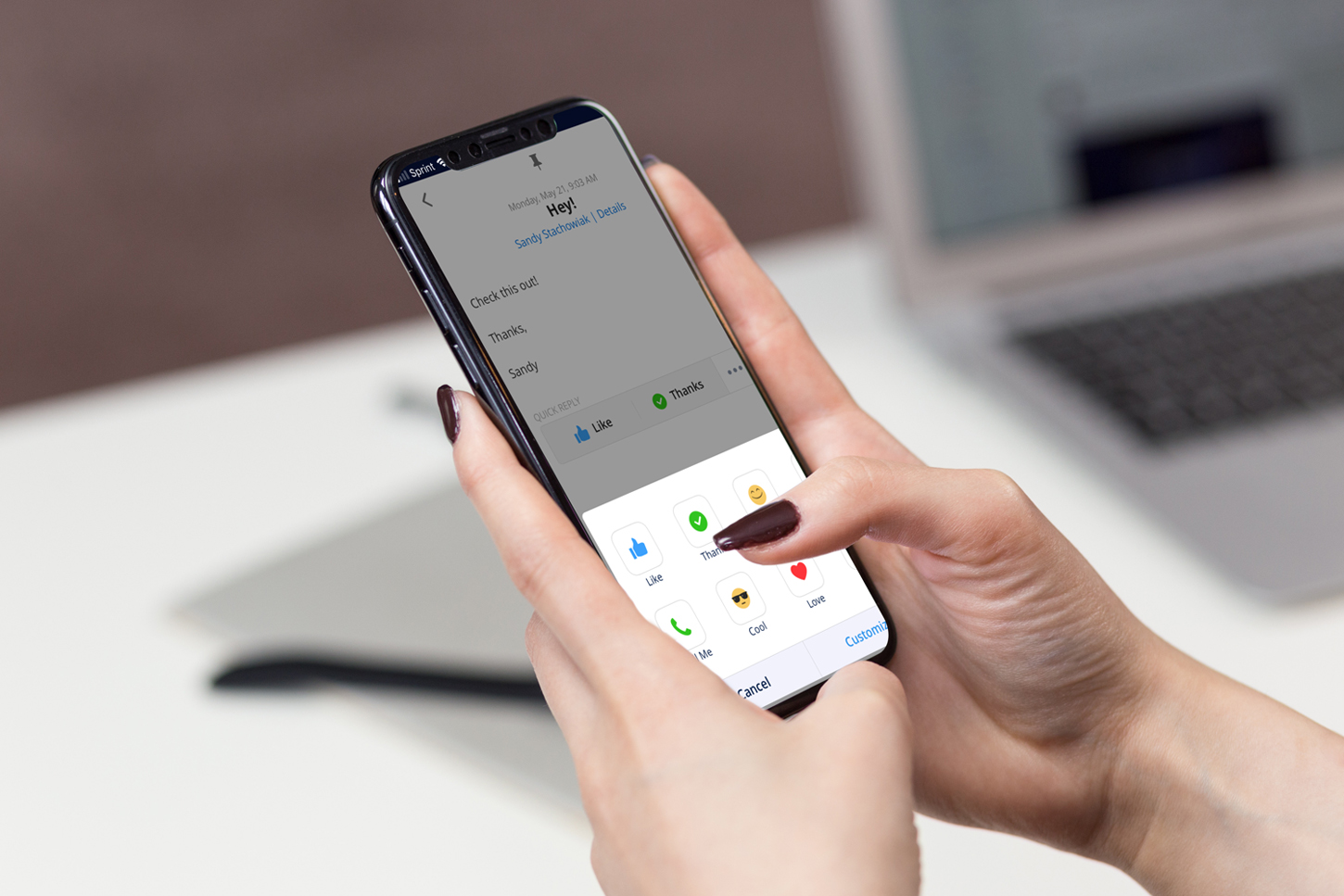
Use these 3 cool Spark email features to save time

Spark on iPhone

If you are considering switching to a third-party app for email, a terrific app to try is Spark. The application is available for iOS and macOS with Apple Watch support, so you can use it on all your devices. Along with that, Spark offers features such as labels and folder management, custom swipes for notifications, and Touch ID inbox protection.

Three additional features of Spark that are real time savers include Quick Replies, Email Scheduling, and Snoozes. Here are how these features work.