The right-click on the iPad is pretty similar in concept and execution to the long-standing right-click on Mac. In this tutorial, we show you how to do that on iPad with your finger, mouse, or trackpad.
How to right-click on iPad and customize it
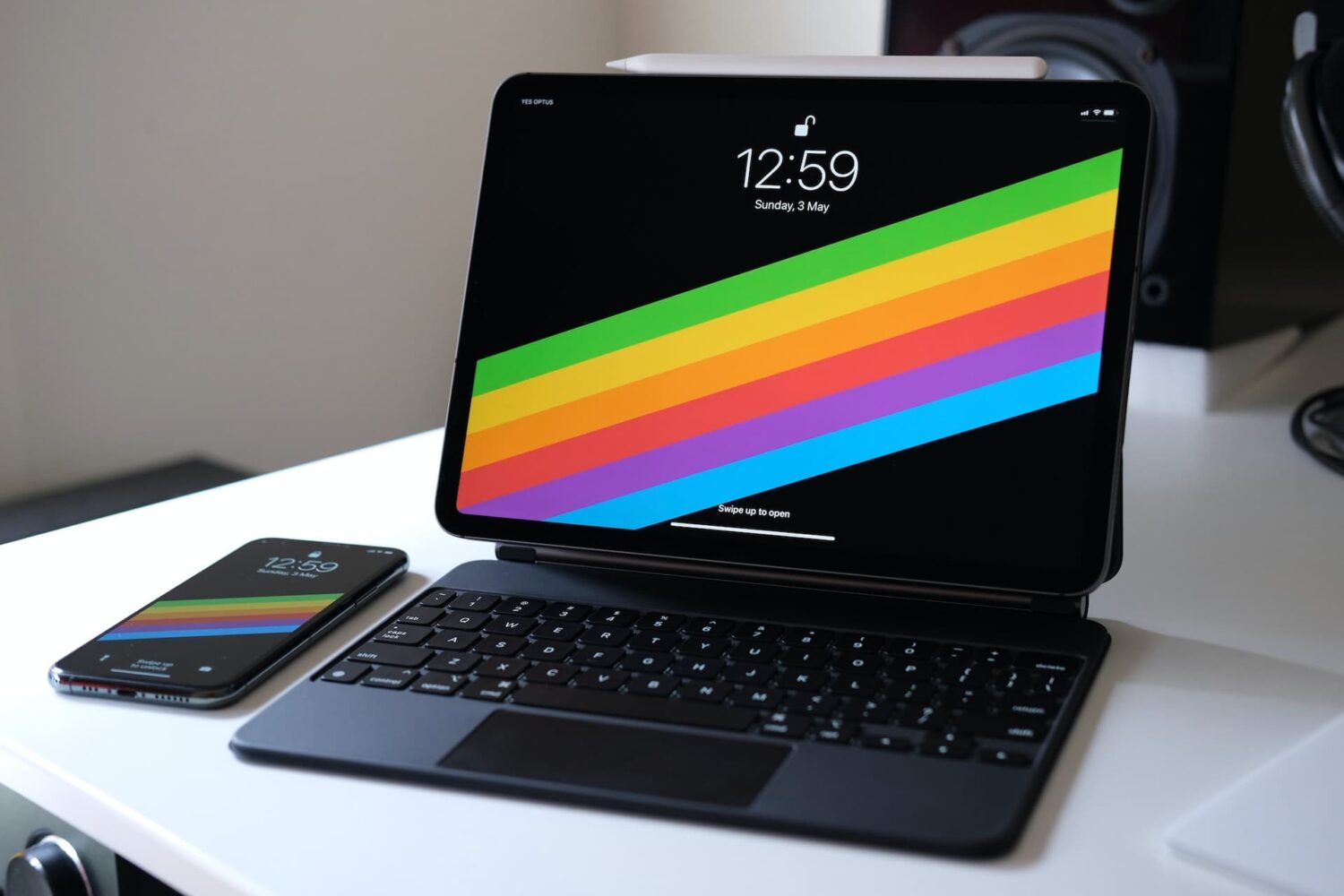
The right-click on the iPad is pretty similar in concept and execution to the long-standing right-click on Mac. In this tutorial, we show you how to do that on iPad with your finger, mouse, or trackpad.
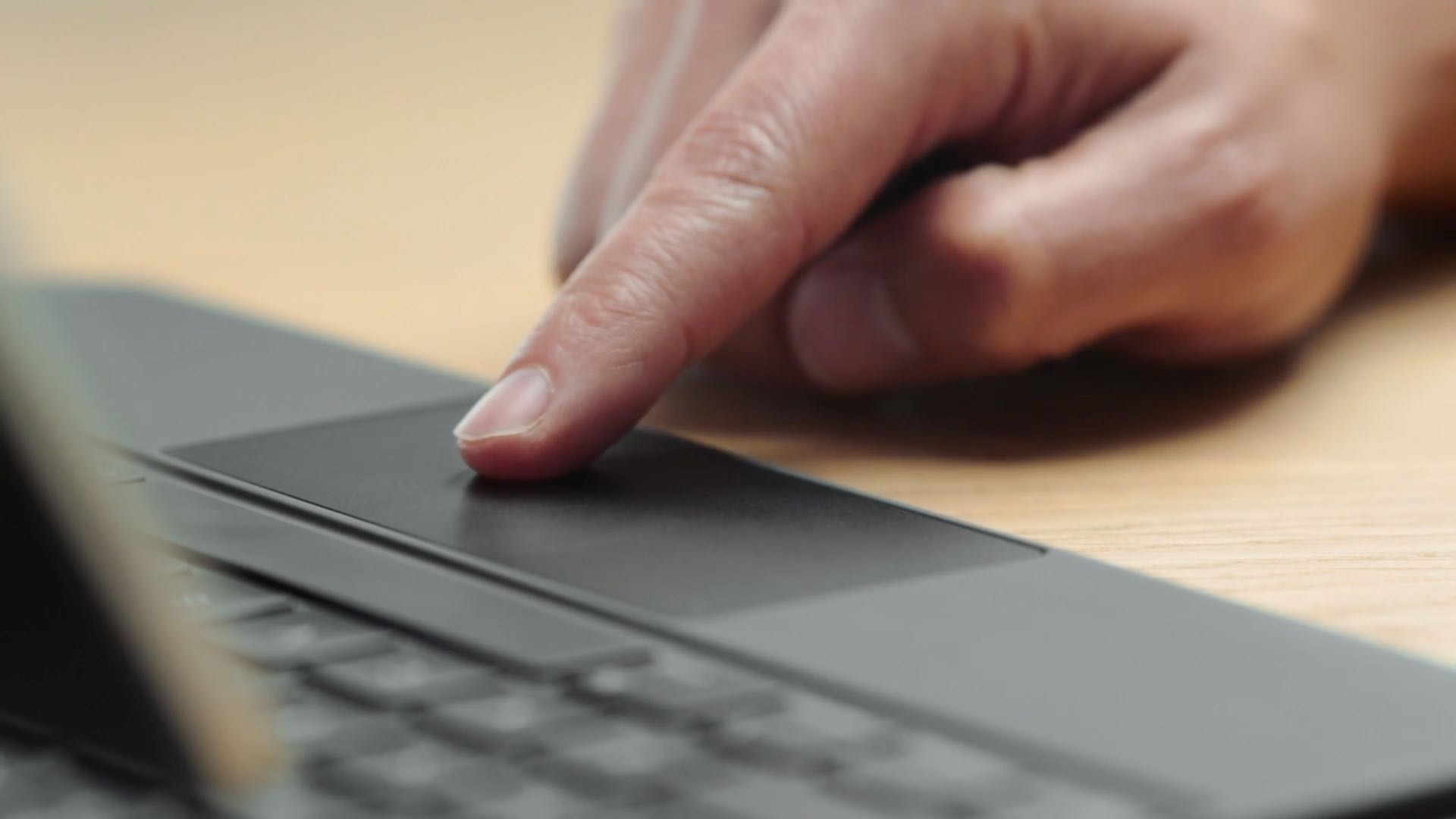
If you need to control your Windows PC desktop or server with Microsft's Remote Desktop Mobile app for iPhone and iPad, you can now do so with proper mouse and trackpad support.
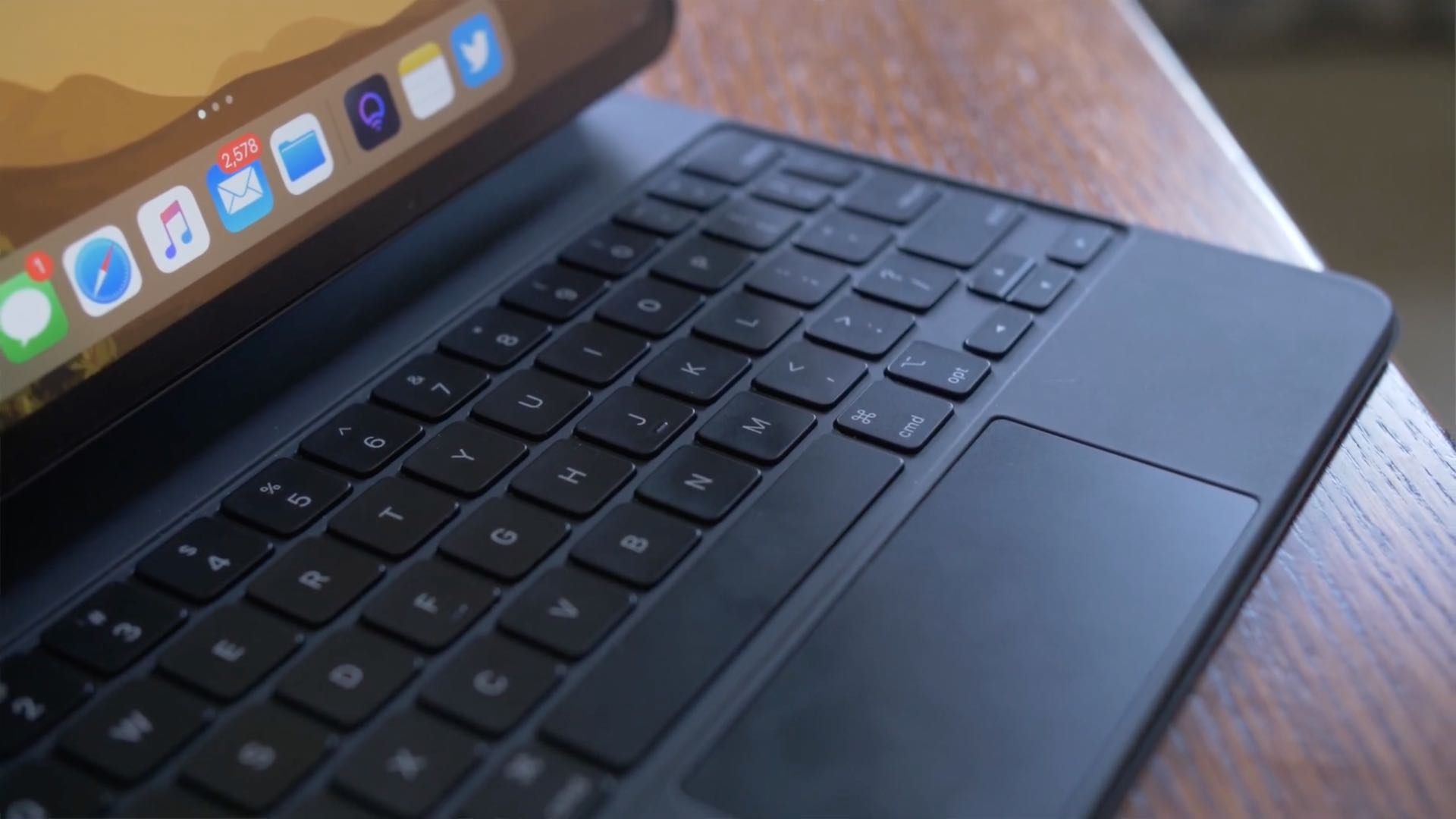
iPadOS brings an adaptive iPad cursor that uses subtle animations when hovering over various parts of the system to help you navigate. As an example, toolbar buttons in apps change color, and app icons on the Home Screen grow bigger. The animated cursor gives you a sense of context, but power users may want to disable these iPad pointer animations in order to enjoy a smoother tracking experience that resembles their computer.
Follow this step-by-step tutorial to learn how you can disable iPad pointer animations with just a few taps.
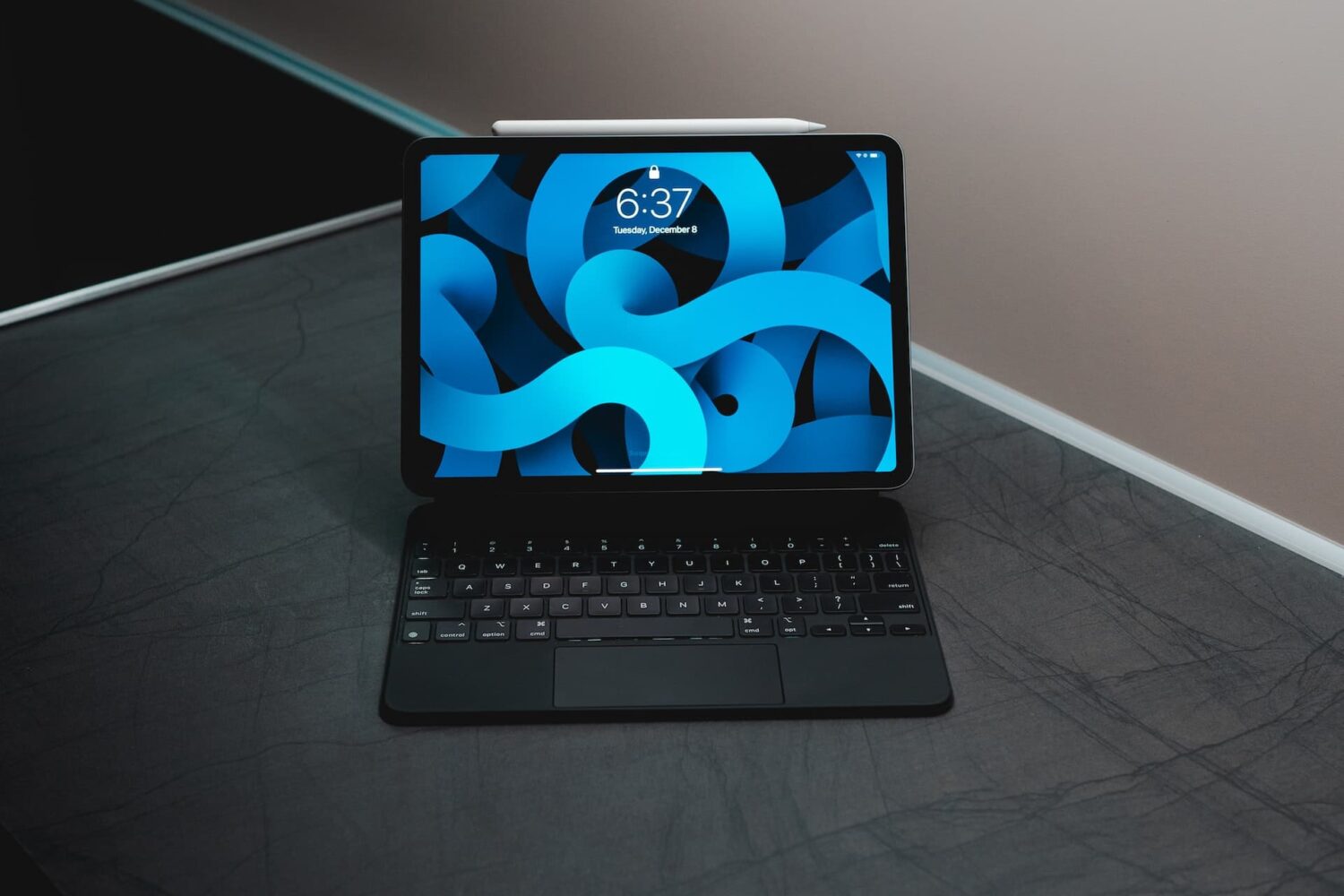
iPad scrolling speed can be adjusted to your liking when using a trackpad or mouse with your tablet. By adjusting the iPad trackpad scroll speed value to your liking, you can make Safari webpages, Office documents, your Photos library, and other scrollable content move faster or slower than the default value. Follow along with us to learn how to adjust the iPad scrolling speed for the connected trackpad and/or mouse to your liking with just a few taps.
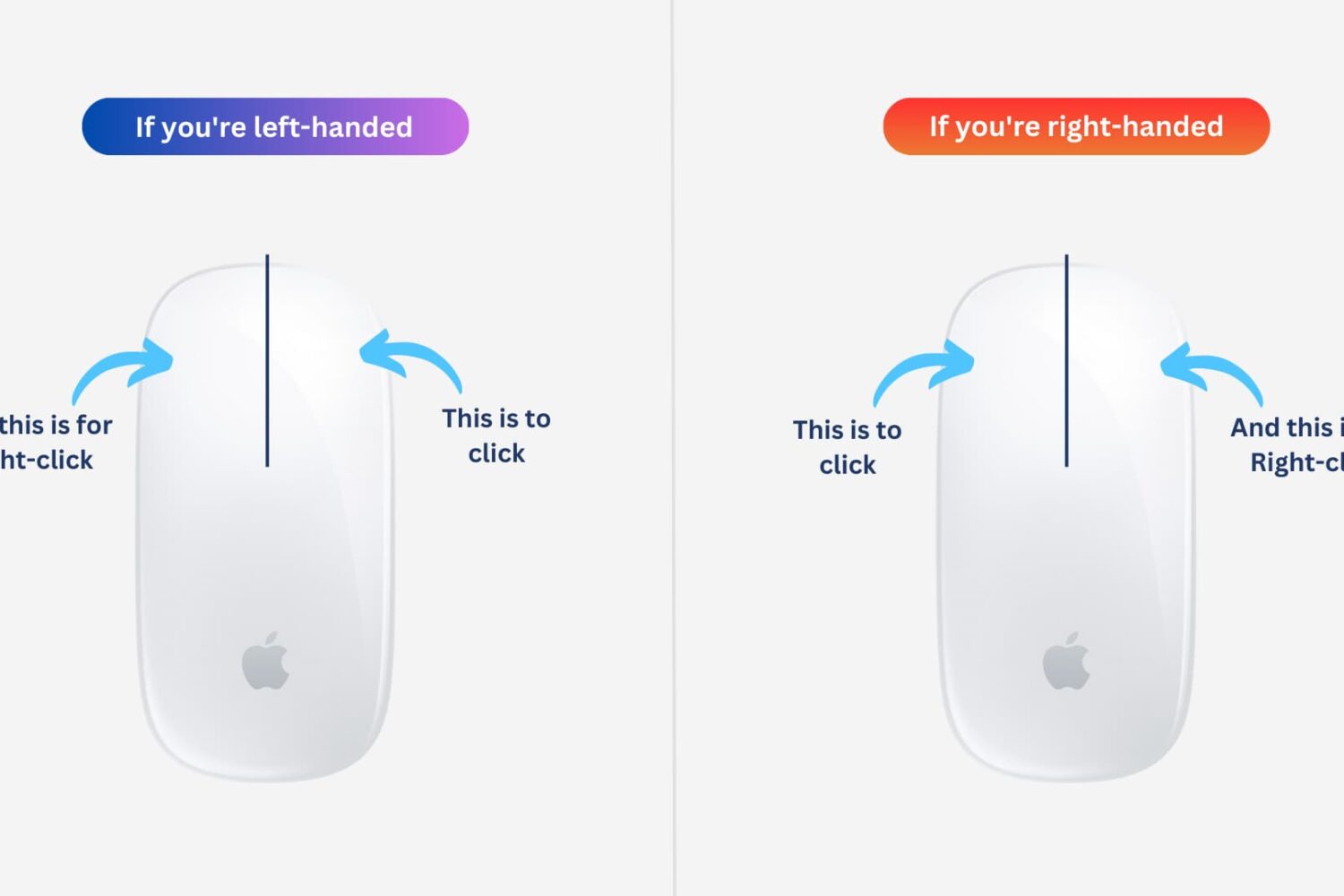
Learn how to easily customize and switch the mouse buttons on your Mac for enhanced control and ease of use. Whether you’re a left-handed user or simply prefer a different button configuration, you can optimize your experience to suit your needs.
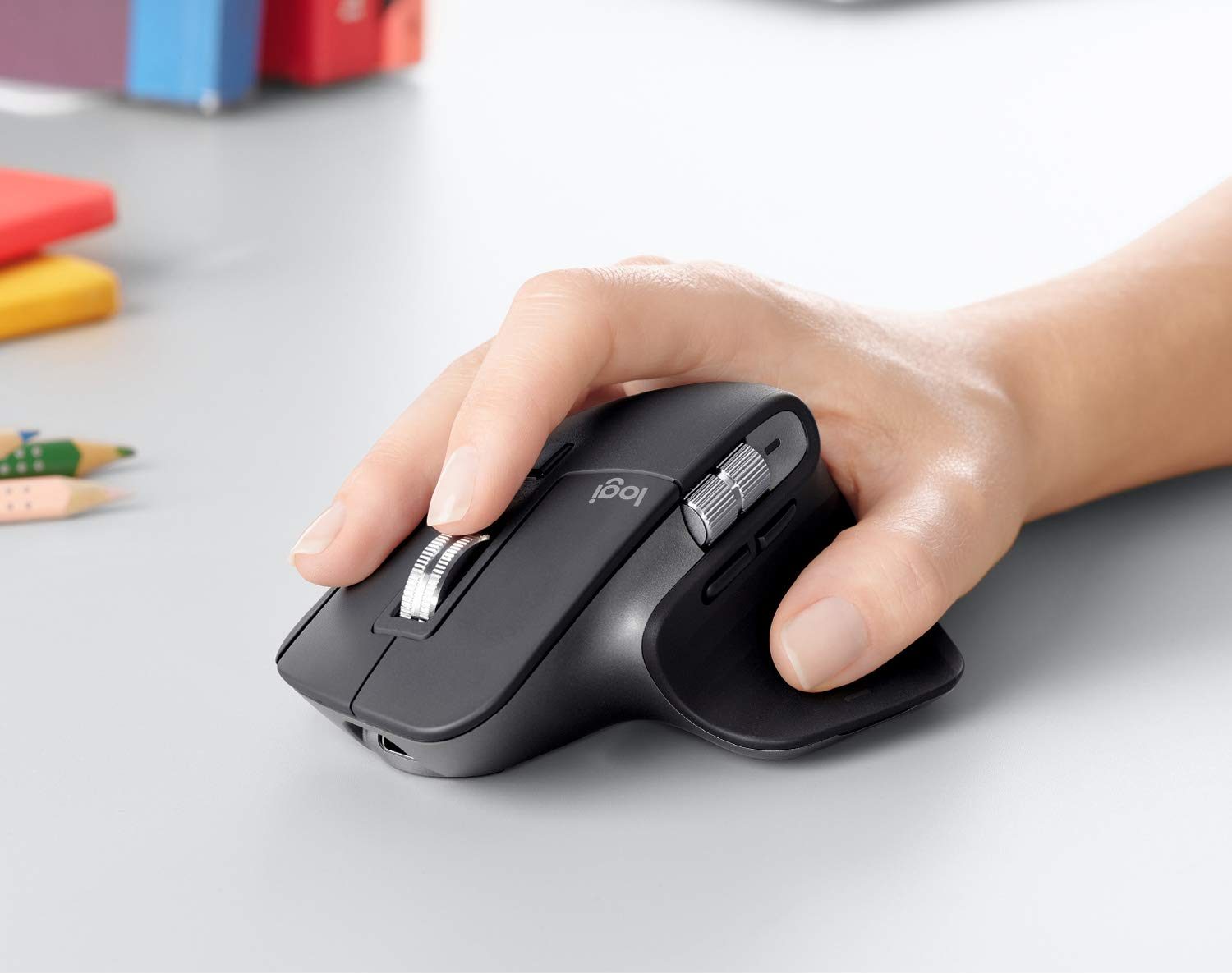
Welcome to Accessory Spotlight, a weekly column where we highlight an accessory that we find to be incredibly useful, a fantastic value, or both. This week we’ve selected Logitech’s MX Master 3 wireless mouse. This one was super easy—the Master 3 is widely believed to be one of the best all-around mice available thanks to its comfortable shape, ultra fast and smooth scrolling, and its ability to seamlessly switch between devices.
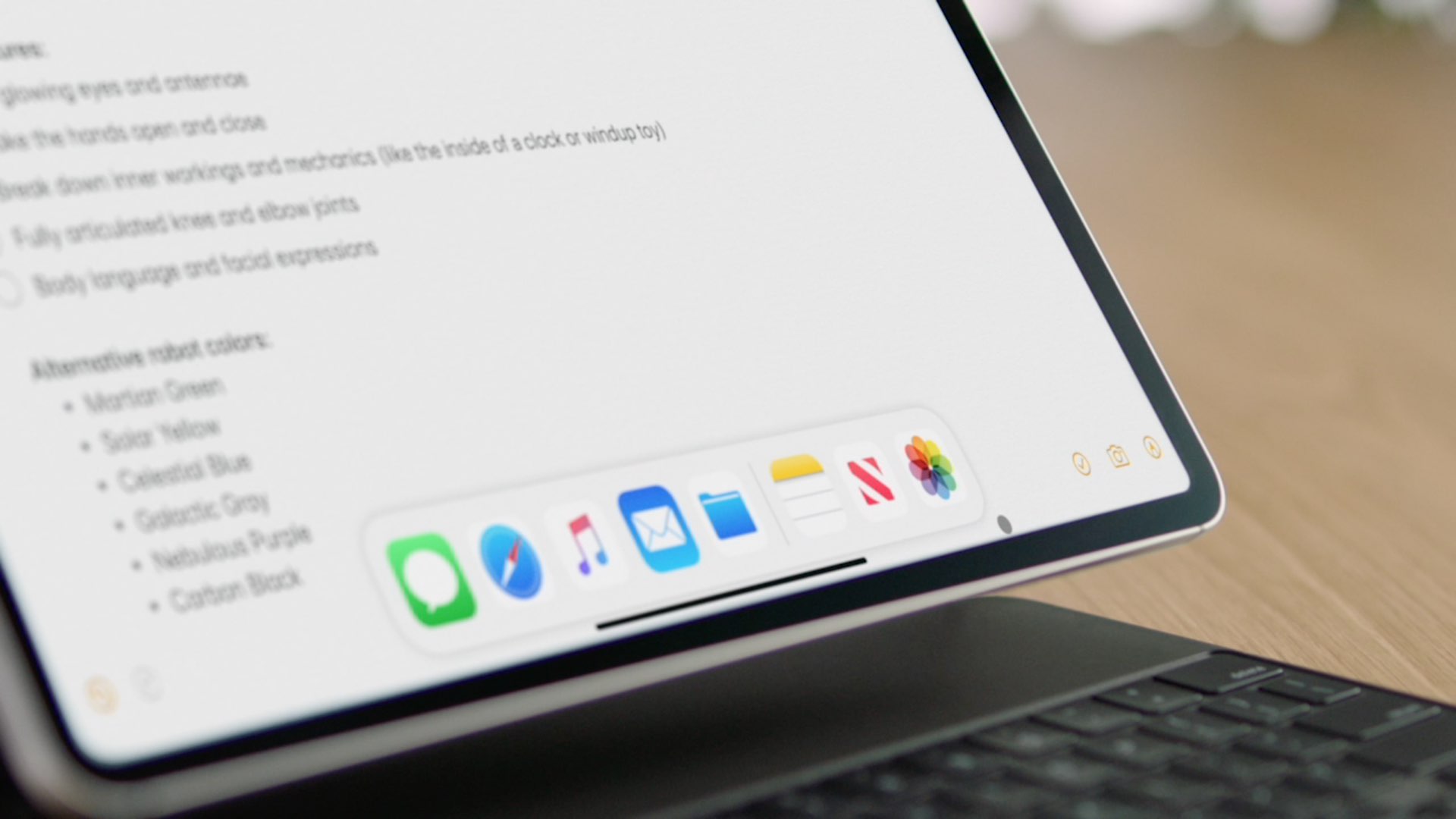
Learn how you can control your iPad pointer with the keyboard keys or number pad via a cool new accessibility feature called Mouse Keys.
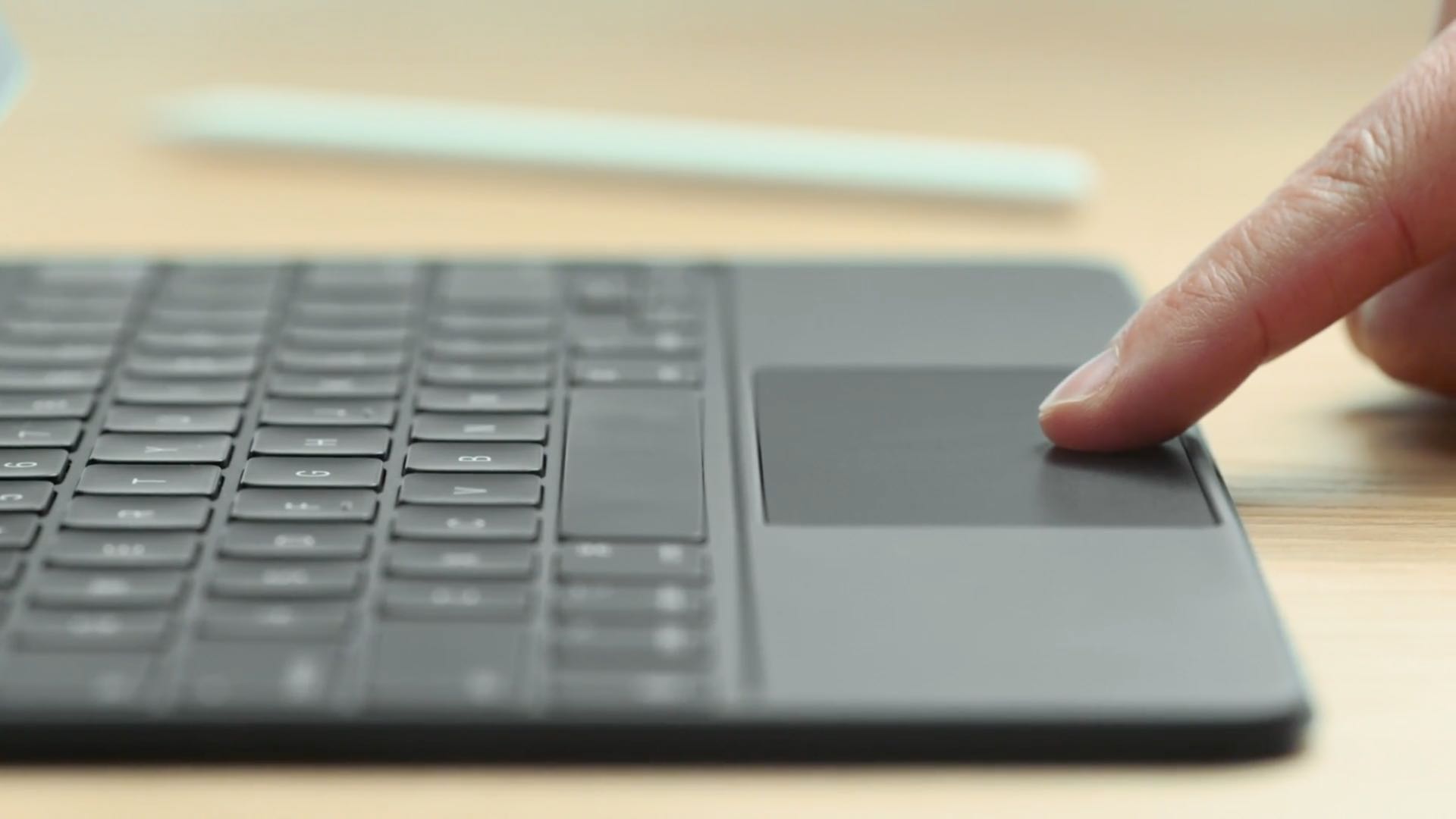
Learn how to reverse the iPad scroll direction when using a trackpad or mouse, which can be helpful if you’re a Windows or Linux user.
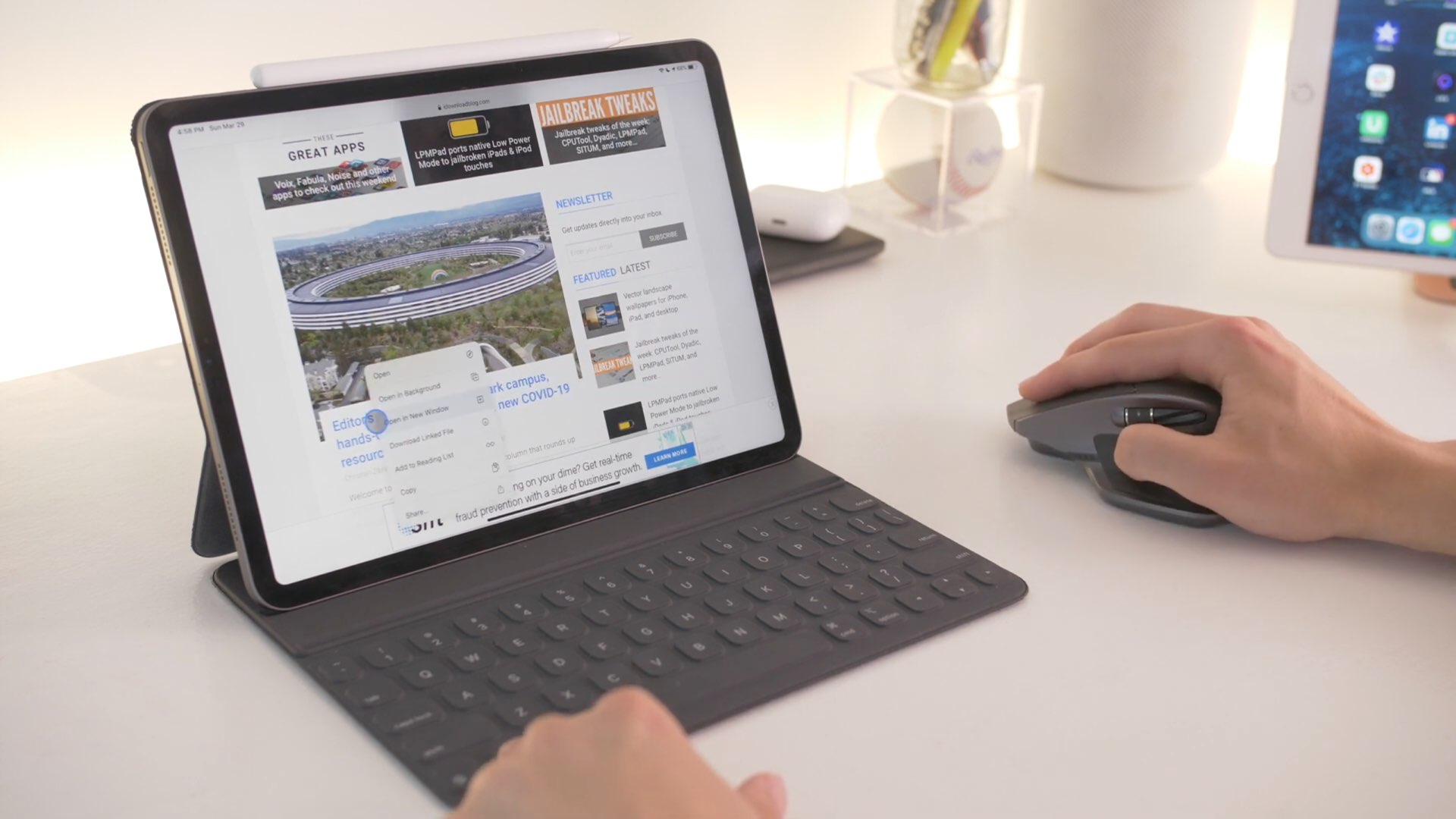
Learn how to adjust your mouse or trackpad pointer speed on iPad with these simple steps for smoother and more precise navigation.
From customizing pointer settings to setting up Hot Corners, boost your productivity with these tips for using a mouse and trackpad on your iPad.
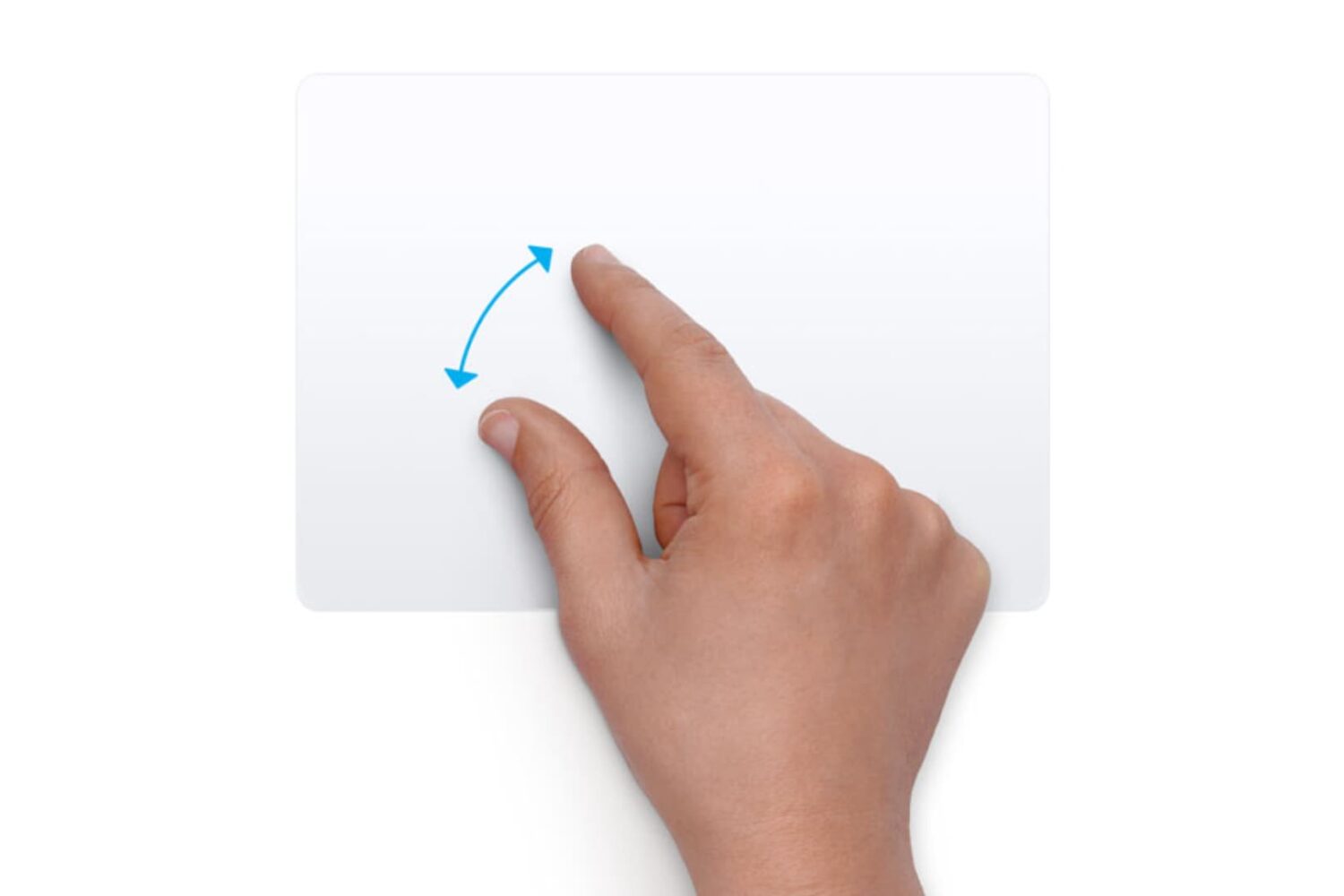
Learn how to customize the trackpad and mouse gestures on your Mac to enhance efficiency and boost productivity.
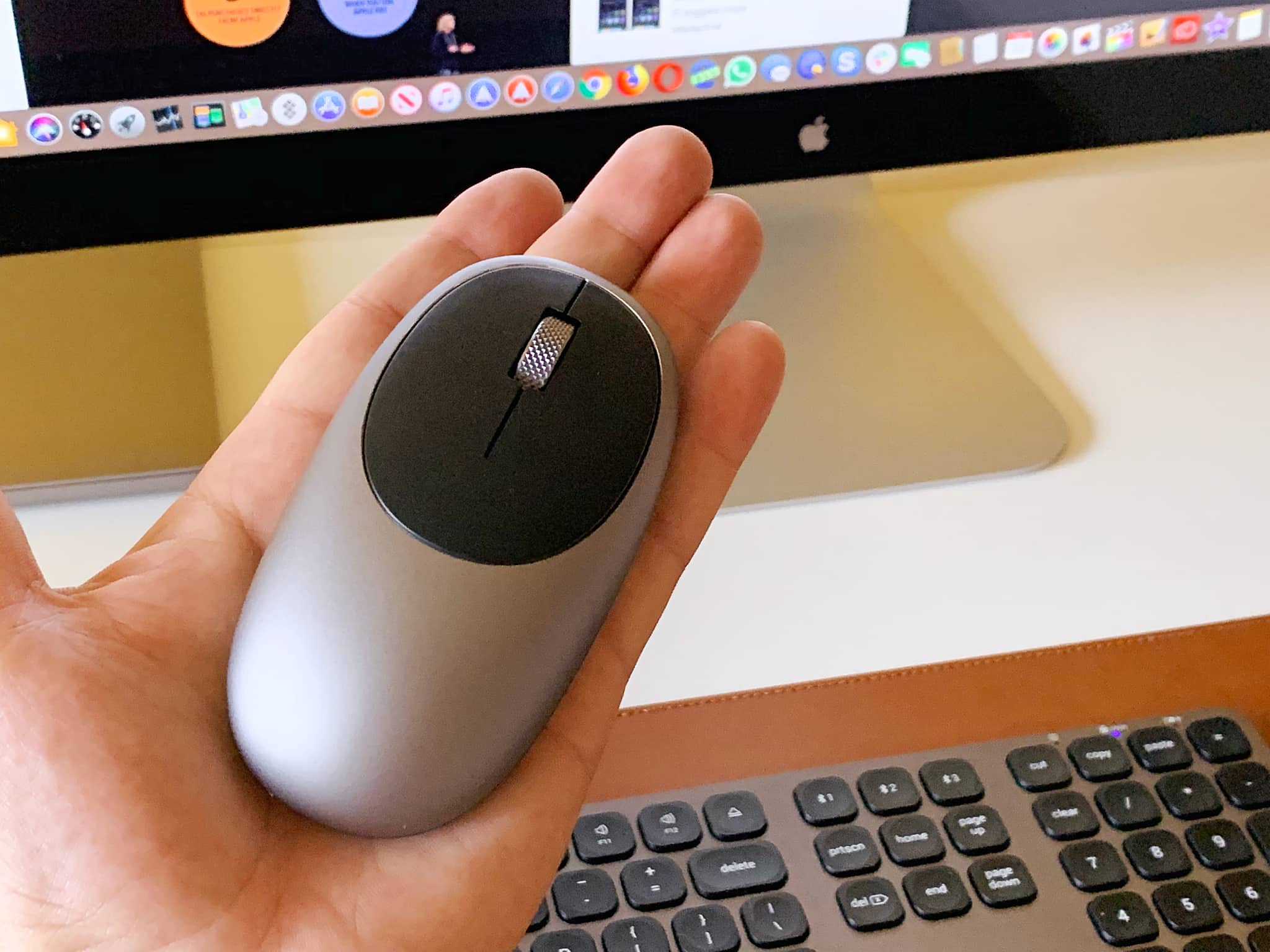
When was the last time you treated yourself to a nice and stylish mouse for your notebook, desktop or tablet? Today we’re testing Satechi’s M1 Wireless Mouse, an affordable wireless pointing device that uses a USB-C port for recharging, feels great in the palm of your hand and provides smooth wireless control of your Bluetooth-enabled desktop or laptop.