Jailbreak

Check out the most comprehensive jailbreaking coverage on the internet, including the latest news, apps, tweaks, and detailed tutorials about everything jailbreak.

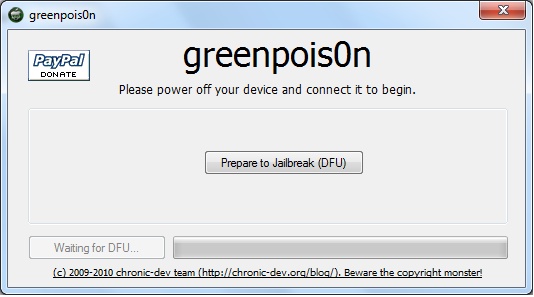
Jailbreak Your iPad with GreenPois0n [Guide]

This guide will show you how to jailbreak your iPad iOS 3.2.2 using GreenPois0n, the latest jailbreak tool by the Chronic Dev Team. If you have already jailbroken your iPad with LimeRa1n and it is working fine for you, then there is no need to jailbreak again using GreenPois0n.

At the time I am writing this, GreenPois0n is for Windows only, although a Mac version should be available soon.

Step 1: Download GreenPois0n and run it as an administrator.

Step 2: Power off your iPad, and connect it to your PC.

Step 3: Walk through the steps to put your iPad into DFU mode to prepare for jailbreak.

Step 4: Once you’re in DFU mode, click the ‘Jailbreak!’ button to jailbreak your iPad.

Step 5: Now, just wait until the status bar shows complete, and your iPad will reboot to the home screen.

Step 7: You should now have a new “Loader” icon on your springboard. Launch Loader. Select Cydia > Install Cydia.

Step 8: One Cydia has successfully been installed, you will be asked if you want to remove Loader. Hit “Remove” and your iPad  will automatically reboot.

Your iPad 3.2.2 should now be successfully jailbroken using GreenPois0n. If you have any question or comment, make sure to add them in the comments section below.

PwnageTool Jailbreak for iOS 4.1 Coming this Sunday

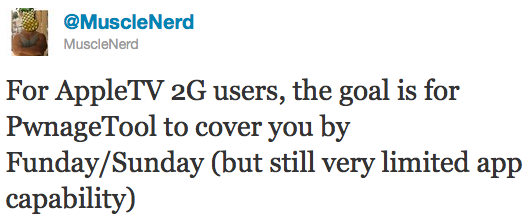
MuscleNerd announced on Twitter earlier today that the Dev Team will be releasing an updated version of PwnageTool to jailbreak iOS 4.1. Not only this version will work with the iPhone 3GS and iPhone 4, but it will also allow to jailbreak the new Apple TV.

PwnageTool is a Mac only tool that allows you to update the firmware while preserving the baseband. It is necessary for those of you who want to be on the latest iOS, while keeping their iPhone unlock. If you're on a PC and want to update to iOS 4.1 while not upgrading the baseband, you may refer to our tutorial...

GreenPois0n Download

After a bit of a shaky start, the Chronic Dev Team has finally released the much anticipated greenpois0n jailbreak, and it's available for download now. Much like the already released limera1n, this jailbreak allows you to jailbreak iPhone running iOS 4.1 and iOS 4.2.1.

The GreenPois0n download is now available for both Windows and Mac, and a Linux version might be in the works. GreenPois0n will allow you to jailbreak the iPhone 3GS, iPhone 4, iPad, iPod Touch 3G, and iPod Touch 4G.

You can download GreenPois0n from our downloads section.

If you're not sure how to use it, you may want to refer to our guide on how to jailbreak the iPhone using GreenPois0n.

Tutorial: How to jailbreak your iPhone Using GreenPois0n

This step by step GreenPois0n guide and tutorial will show you how to jailbreak your iPhone 4.1 using GreenPois0n, the new jailbreak by Chronic Dev Team. This GreenPois0n guide will work for the iPhone 3GS, iPhone 4, iPad, iPod Touch 3G, and iPod Touch 4G.

GreenPois0n is is available for Windows, Mac, and Linux.

Although we encountered a few issues here and there, we were able to jailbreak our iPhone 4 successfully using greenpois0n. Once you get around a few hiccups, the process really isn't all that difficult.

Check inside as we step through the jailbreak process with greenpois0n using a Windows machine. The steps are exactly the same no matter what platform you use.

GreenPois0n Jailbreak for iPhone 4.1 Released

After a couple of days delay, the greenpois0n jailbreak was finally released early this morning. As you all have probably heard, the highly anticipated jailbreak was delayed due to the fact that Geohot released his jailbreak -- entitled limera1n -- shortly before greenpois0n was scheduled to be released.

As a result the Chronic Dev Team opted to use the same exploit Geohot used, instead of simultaneously releasing their infamous SHAtter into the wild for Apple to eventually stamp out.  The release, though, hasn't been without it's fair share of problems...

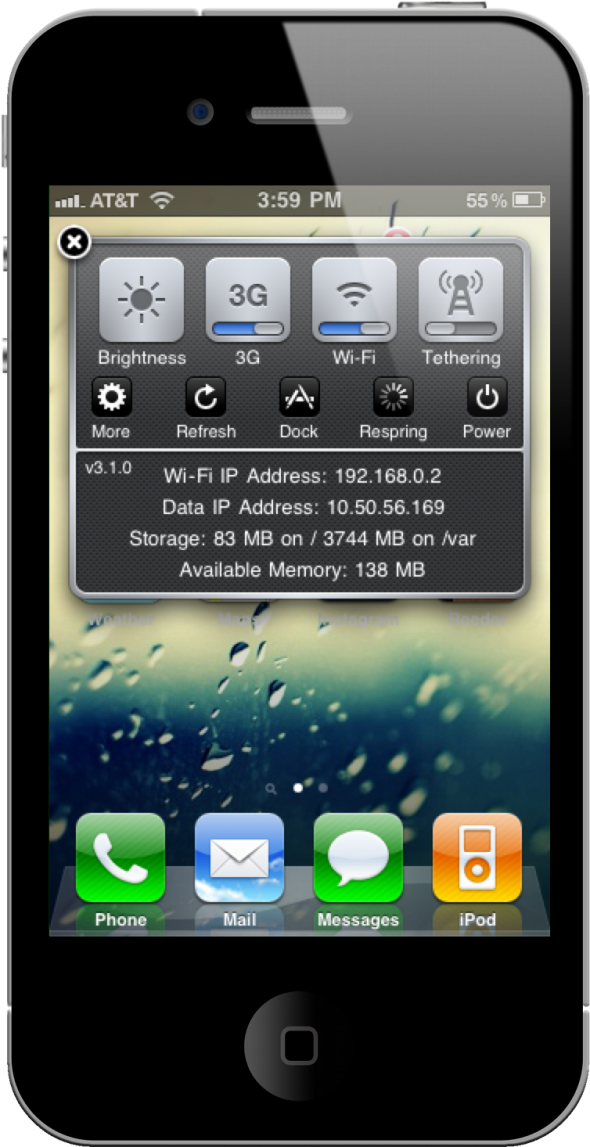
5 of the Best SBSettings Themes

If you have jailbroken your iOS device, chances are you've heard of SBSettings. For years, it has remained one of the staple applications of the BigBoss repo in the Cydia store. If you aren't familiar with SBSettings, go read our original review of the app.

In my opinion, SBSettings is enough reason to jailbreak. The app is that useful. I'm not sure why Apple hasn't implemented the idea into iOS yet. I love being able to quickly toggle my iPhone's resources and settings on and off.

The two things I love in an app are functionality and aesthetics. And in most cases, I won't use an app if it doesn't have both. The functionality of SBSettings is undeniable, but I've found that finding an aesthetically pleasing theme for the app is somewhat tedious. So, I have done my best to comb the far reaches of Cydia to bring you five of the best SBSettings themes...

LimeRa1n Not Working? Try This

LimeRa1n not working? There are a couple things you might have missed that could explain why LimeRa1n is not working for you.

First, LimeRa1n is for Windows only, at least for the time being. Obviously, if you're trying to get LimeRa1n to work on a Mac, it's not going to work.

LimeRa1n also requires the latest version of iTunes to function properly. If LimeRa1n isn't working, make sure your version of iTunes is up to date.

For LimeRa1n to work, you have to run it as an administrator on your computer. You can just do that by right clicking on LimeRa1n and choosing "run as administrator" from the menu.

Another issue you might encounter with LimeRa1n is the following. You ran LimeRa1n without any problem, but when you think you're done, you don't see any LimeRa1n icon on your iPhone screen. If that's the case, try rebooting your iPhone. Alternatively, you may want to hard reset it by holding the Home and Power button together until your iPhone shuts down.

Getting error 3014? Try this.

Finally, many people report getting their iPhone stuck on the Apple logo when using LimeRa1n. If that happens to you, check out our previous post on how to get your iPhone out of reboot loop.

You might have encountered other issues and maybe you even have a solution for them. Please take the time to share your problems and fixes in the comments section below.
In the meanwhile, here are a couple links that might help you:

LimeRa1n download LimeRa1n tutorial

LimeRa1n Download

A quick note to let everyone know that so far, you can only download LimeRa1n for Windows. There is no Mac LimeRa1n download yet. According to Geohot himself, a Mac and Linux version of LimeRa1n should be available soon.

Update: There is now a Mac and Linux version of LimeRa1n.

There are many websites offering fake LimeRa1n download links. My recommendation is to be very careful with those. You can always download LimeRa1n from our iPhone downloads section, or directly from the LimeRa1n website.

I will update this post as soon as we have LimeRa1n download links for Mac and Linux.

If you're on a PC, here is a guide on how to jailbreak your iPhone iOS 4.1 with LimeRa1n.

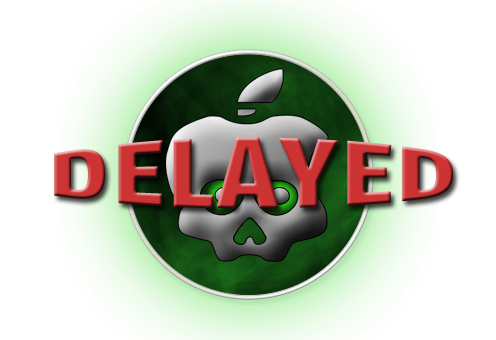
GreenPois0n Jailbreak Delayed Because of LimeRa1n

LimeRa1n came out yesterday creating a bit of controversy in the jailbreak community. Because it revealed a different exploit from SHAtter, releasing GreenPois0n today would have given away those 2 exploits to Apple for them to patch in a near update.

Like I expected yesterday, Chronic Dev Team decided to do the right thing, and postpone the release of GreenPois0n so they have time to work on it while including the new exploit found by Geohot. Today the Chronic Dev Team officially spoke about the whole situation. This is what they had to say. No need to say they are pissed...

How to Jailbreak your iPad with LimeRa1n

Geohot just released LimeRa1n, a jailbreak for all iDevices including the iPad. This step by step guide and tutorial will show you how to use LimeRa1n to jailbreak your iPad iOS 3.2.2.

LimeRa1n is still very buggy and I don't actually recommend using it, so proceed at your own risks...

Step 1: Download LimeRa1n from our here.

Step 2: Plug your iPad in and launch LimeRa1n then click “Make it Ra1n”.

Step 3: Follow the onscreen instructions: hold the Home and Power button together.

Step 4: Release the Power button.

Step 6: LimeRa1n will have your iPad enter DFU mode and will then work its jailbreak magic.

Step 7: Your iPad is almost jailbroken and you should see the following messages.

Step 8: If you don’t see the LimeRa1n icon on your iPad , simply reboot it, then launch LimeRa1n on your iPad and select Cydia to install.

Step 9: Once Cydia is installed, you can uninstall LimeRa1n from the LimeRa1n app on your iPad.

Let us know how it goes for you.

Tutorial: How to Jailbreak your iPhone with LimeRa1n

Geohot's LimeRa1n jailbreak has been released, and even though it comes with its fair share of downsides, it does work for some people. Thanks to iDB reader Whammy who send me screenshots of LimeRa1n in action, we're now able to get a tutorial for you.

This step by step guide and tutorial will show you how to use LimeRa1n to jailbreak your iPhone iOS 4.1. LimeRa1n will jailbreak the iPhone 3GS, and iPhone 4. It will also jailbreak the iPod Touch 3G and iPod Touch 4G. As usual, proceed at your own risks.

This tutorial was done with a PC but LimeRa1n will also work if you have a Mac, and the steps will the exactly the same.

LimeRa1n to Mess Up GreenPois0n Release

Talking about drama... LimeRa1n was released minutes ago and the first reviews are not very good. Worst part is Geohot decided to screw the whole jailbreak community by revealing his exploit whereas the Chronic Dev had been working on their own SHAtter exploit for weeks now.

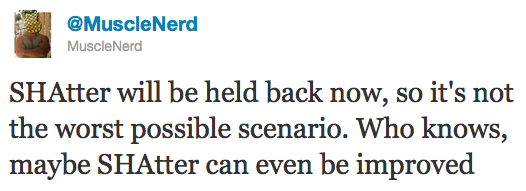
MuscleNerd just confirmed on Twitter that SHAtter will not be used this time for GreenPois0n. Instead of "giving away" 2 exploits to Apple, both iPhone Dev Teams have decided to hold on on the release of a SHAtter-based jailbreak and instead, they will use Geohot's exploit. This is good, but this could also mess up the release of GreenPois0n...