How to

How to transfer your iTunes library to a new computer

The best thing about getting a new computer is that, well, you're getting a brand new computer. It's exciting to have a shiny new toy to play with, making you wonder how you could have been using that old machine for so long.

To me though, the major downside of getting a new computer is that you have to set it all up from scratch. I'm not going to lie; some of that is part of the fun, but it can also be stressful and time consuming. Take migrating your iTunes library to your new computer for example. There is nothing really fun in that, and if you have a large library, it could take hours.

In this post, I will show you how to move your iTunes library to a new computer. Unfortunately I won't be able to save you time or stress, but at least, you'll have simple instructions on how to do transfer all your iTunes songs, albums, album covers, and playlists to a brand new computer.

2 ways to rearrange apps on Apple Watch Home Screen

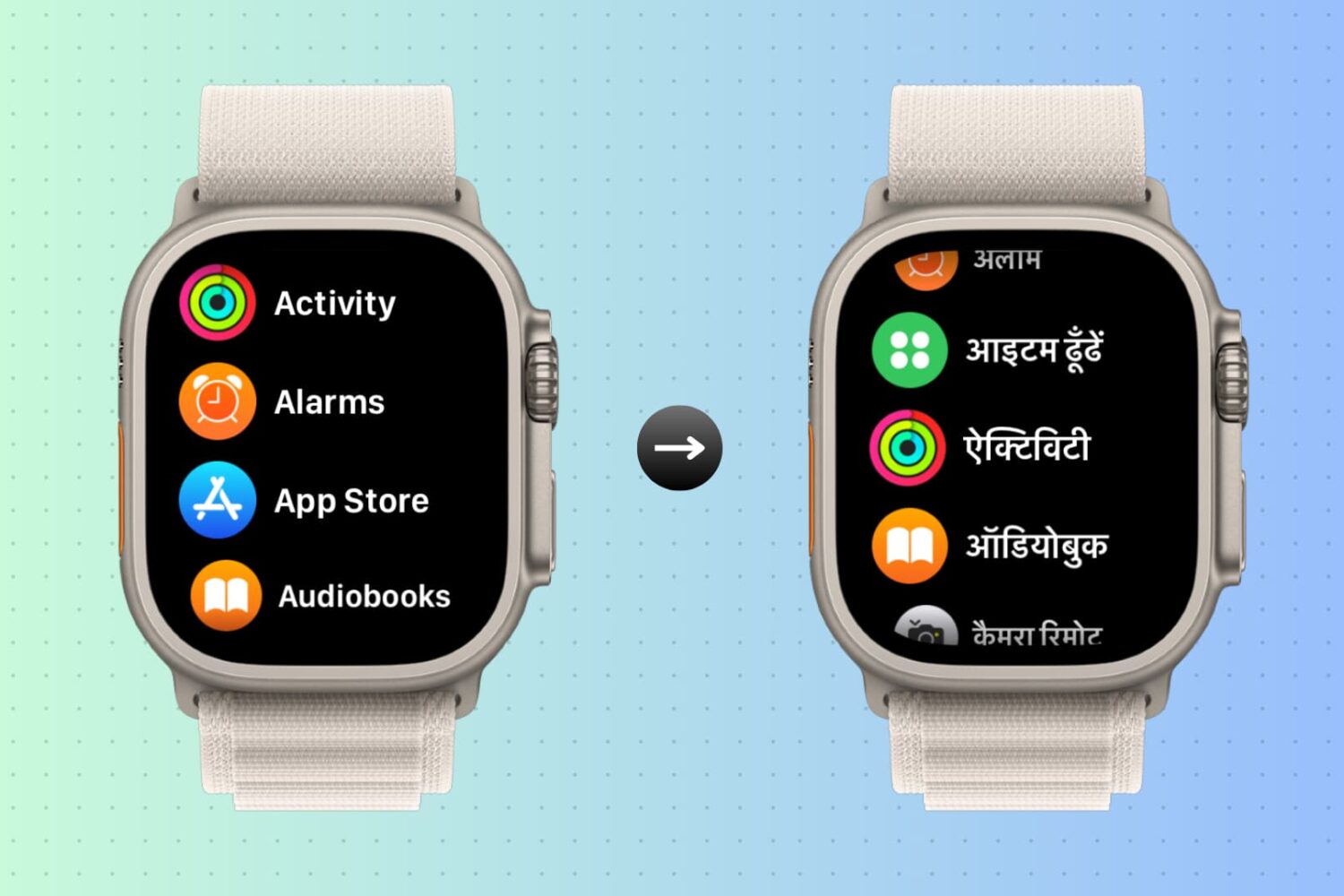
Apps screen on Apple Watch Ultra

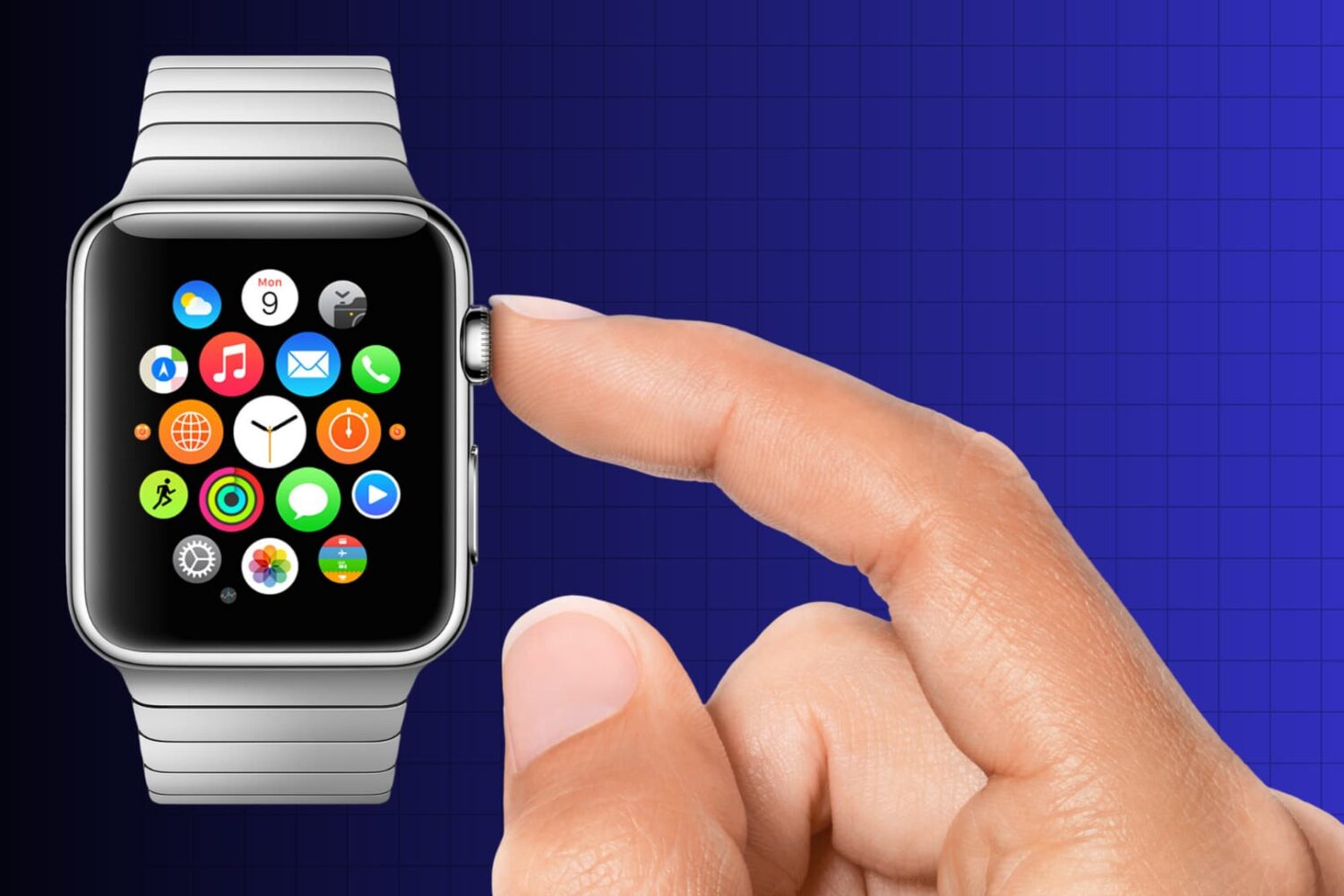
The Apple Watch features a Home Screen that significantly differs from the Home Screen on your iPhone or iPad. The icon layout is a big departure from what you’re used to on your iPhone, and while some may like it, others may think it looks a bit messy. Thankfully, apps can be rearranged per your liking, and we’ll show you how.

How to complete various actions hands-free on Apple Watch

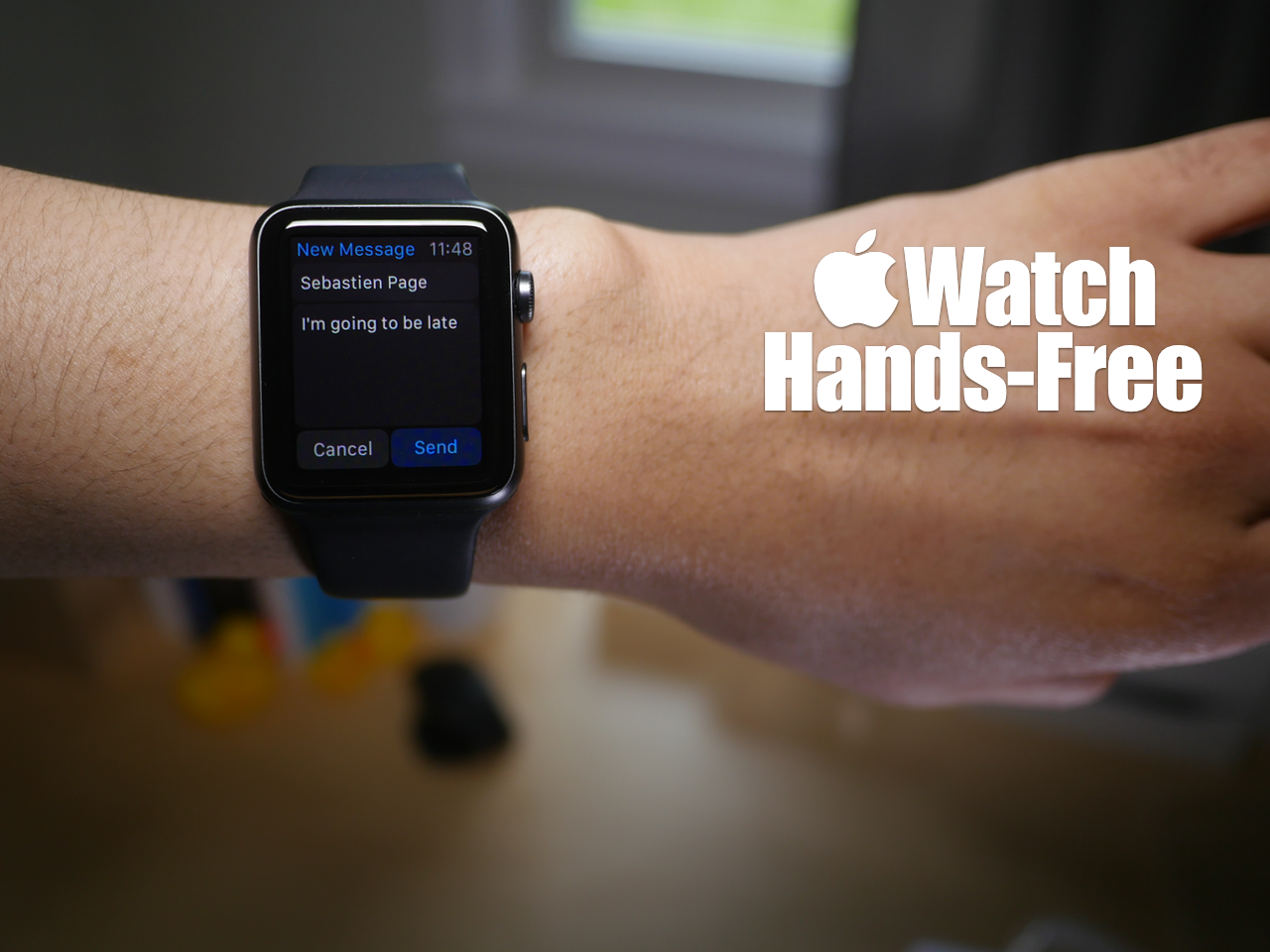
You may have noticed that while using Siri, the Apple Watch interface presents on screen buttons that you have to tap with your finger to confirm commands. While this is doable in a lot of circumstances, it takes away from the hands-free element that's necessary in many situations.

At times, it's simply impossible to physically tap a button on the Apple Watch to confirm a command, and that's where using the Hey Siri hands-free assistant to its full potential can come in handy. In fact, it's totally possible to send text messages, establish calendar events, set reminders, and more without touching your Apple Watch.

Yes, despite what the Apple Watch interface may lead you to think, you can use Siri completely hands-free in quite a few scenarios. Watch our hands-on video for the details.

Apple Watch and potential skin irritation

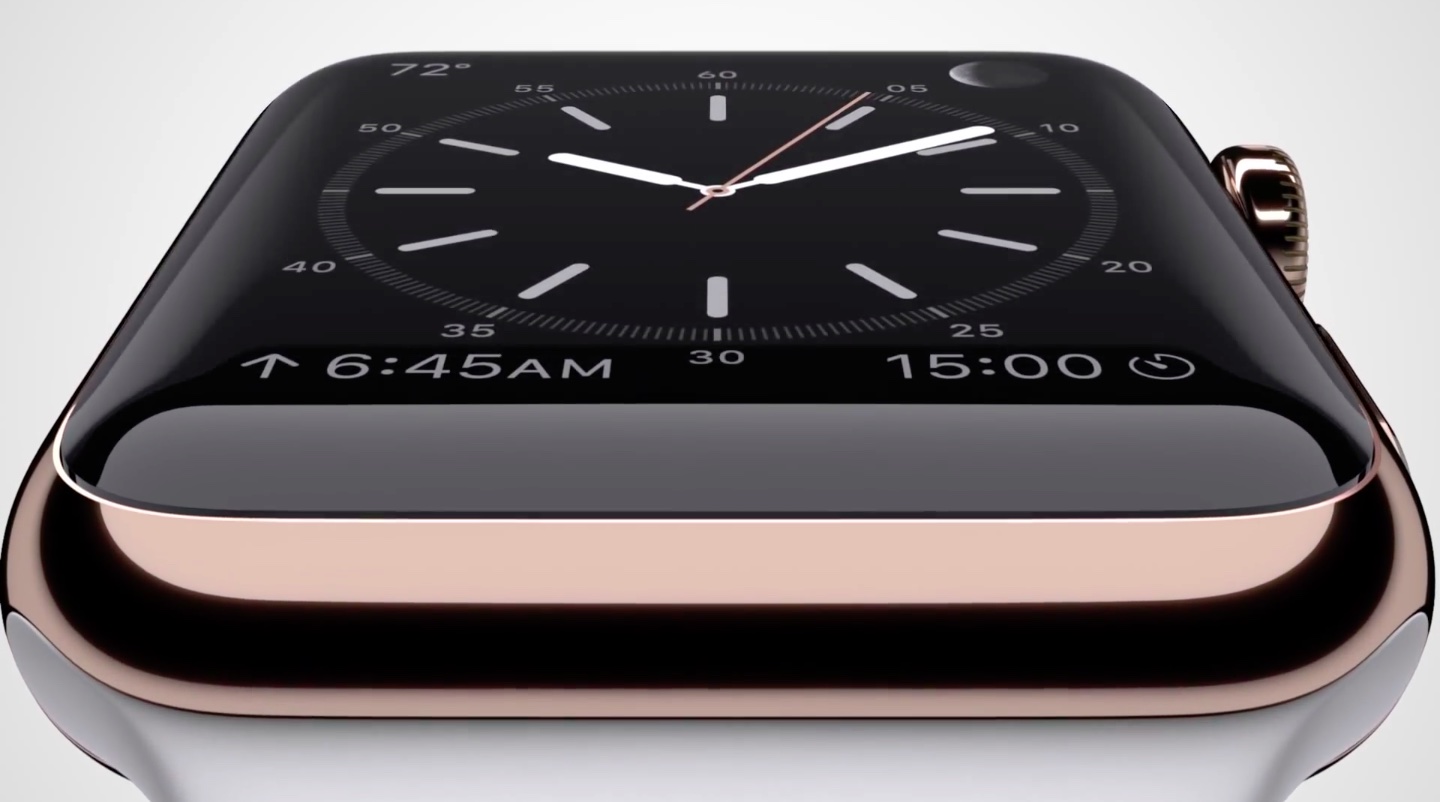
Apple makes a big deal of the materials with which the Watch and its many bands are made and has even put together a special Craftsmanship webpage and promotional videos highlighting why its materials represent an achievement in itself.

Some people, however, who suffer from allergies or are simply sensitive to certain materials touching their skin should take into account the following tips and guidelines in order to avoid skin irritation, maximize comfort and prevent long-term damage to the device.

What are Glances and how to use them

Glances on Apple Watch are quick summaries of information that can be quickly viewed at a glance—hence the name. Glances contain, or at least should contain, information that you view the most frequently.

Why did Apple include Glances in Watch OS? How many glances can you have configured at once? These questions, and others are answered in this Glances overview.