How to

Watch OS 1.0 lacks the necessary security features to dissuade thieves

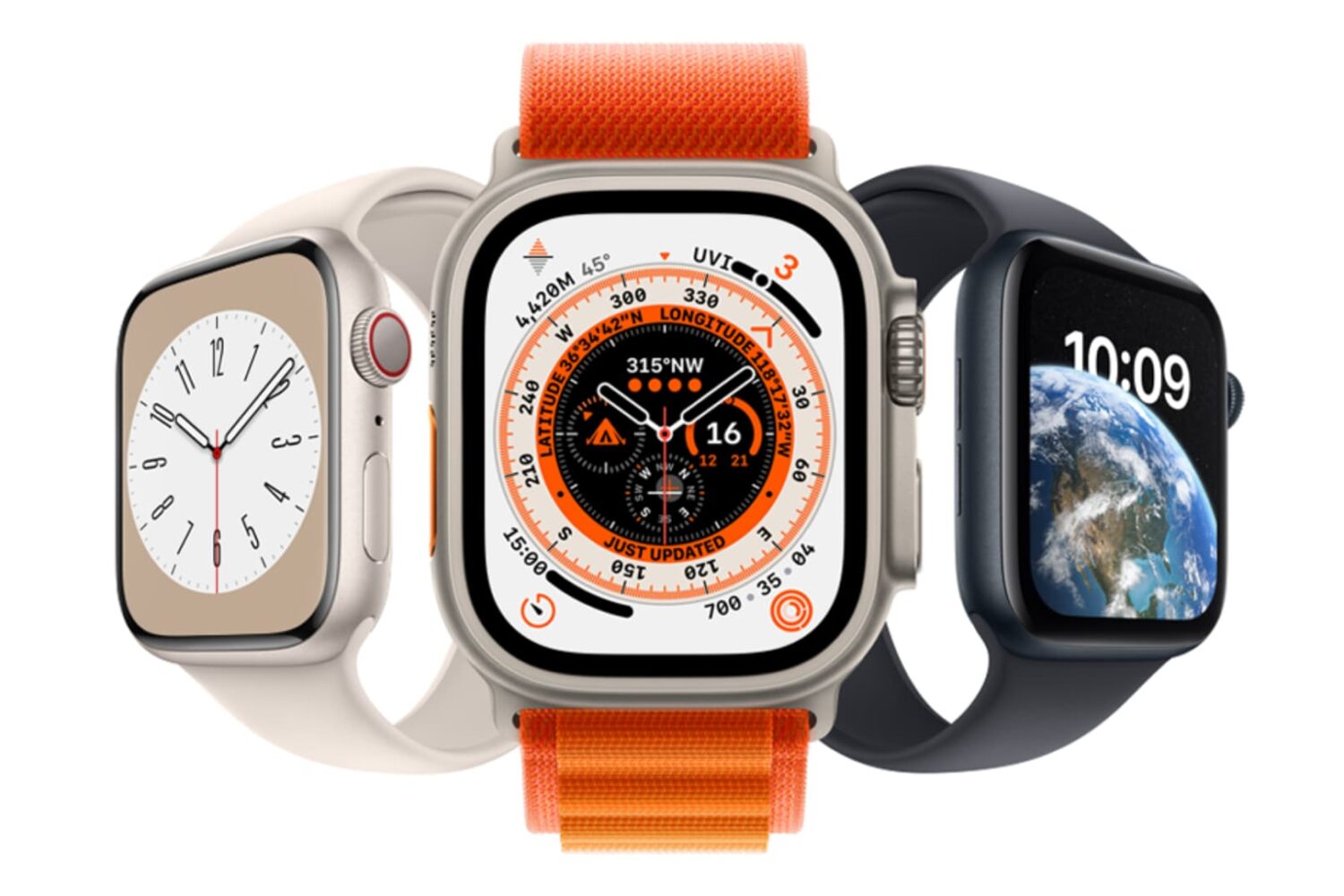
The Apple Watch contains security measures to prevent thieves from accessing your data, but it doesn't include the necessary features to dissuade thieves from trying to steal your device to begin with.

The problem stems from the lack of an Activation Lock-like feature on Watch OS 1.0.

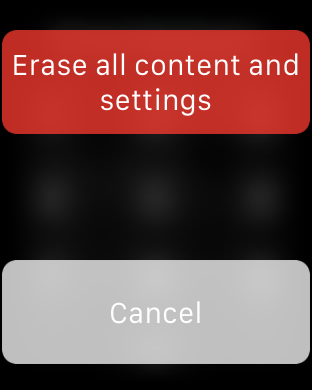
Unlike the iPhone, if someone steals your Apple Watch, they can easily reset the device (bypass the passcode), and pair it with a new iPhone logged in to a different iCloud account. In other words, it's totally feasible to steal an Apple Watch and set it up on a different device as if you just purchased it from an Apple Store.


Why you should be using a passcode on your Apple Watch

Passcode screen on Apple Watch

There seems to be a bit of misunderstanding when it comes to using a passcode on the Apple Watch. I've seen more than a few comments about how inconvenient it would be to have to "enter a passcode on that tiny screen every time I want to use the watch." Indeed, it would be inconvenient if that were a true statement; thankfully, it's not.

How to see friends on your Apple Watch

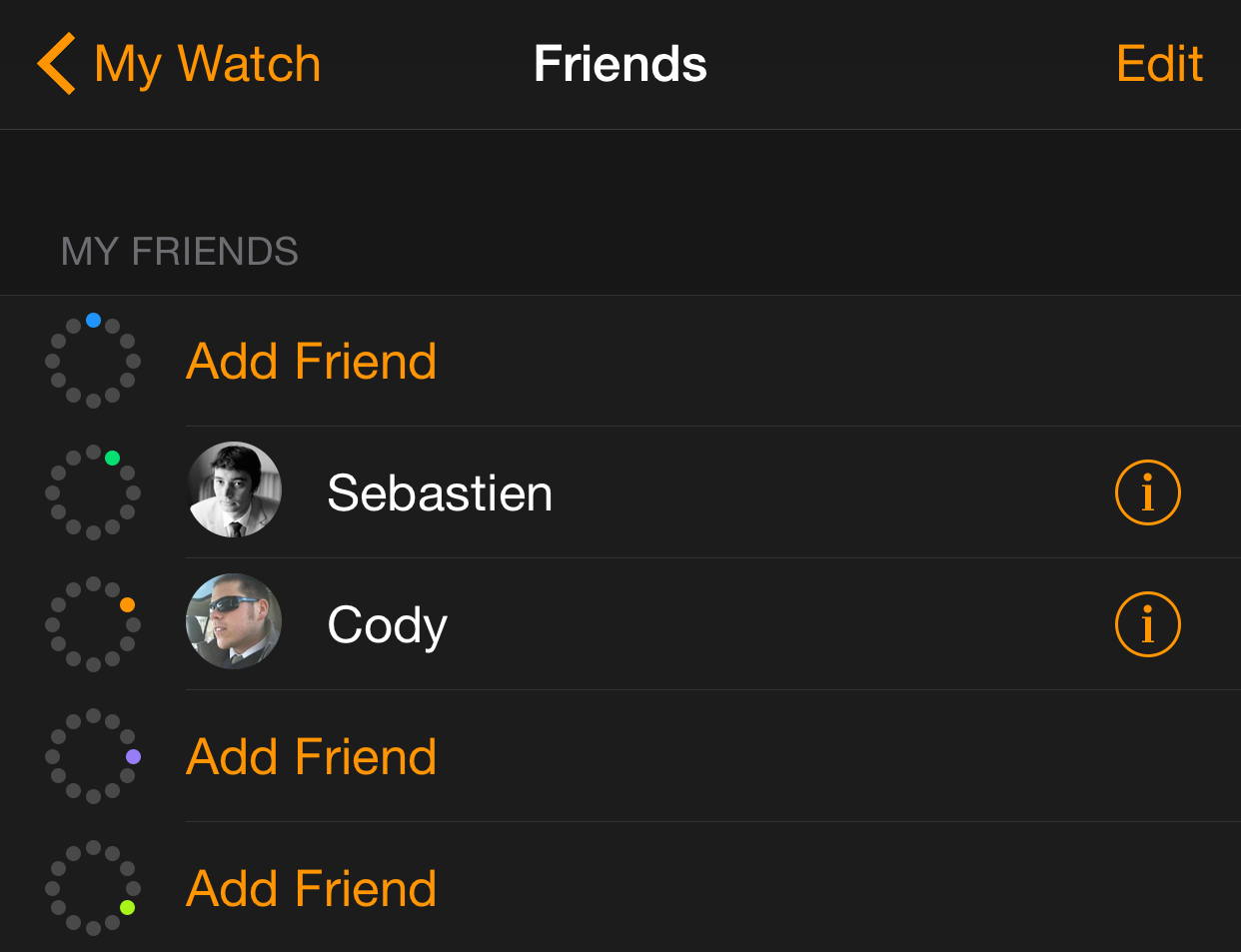
The Apple Watch allows you to quickly access up to 12 different contacts designated as friends. Persons on your list of friends should be contacts that you wish to stay in touch with most frequently.

Only friends have the privilege of receiving Digital Touch inputs—taps, sketches and heartbeats. You can also text, send emoji, or call friends quicker than you can with other general contacts.

How to add friends to your Apple Watch

One of the primary features of the Apple Watch is the quick way in which it allows you to get in touch with friends. Only friends are allowed to use the Digital Touch feature on Apple Watch, and those added to your list of friends can also be quickly called or messaged using handy shortcuts.

On initial Apple Watch setup, up to 12 of your favorite contacts from your paired iPhone will automatically be added to your list of friends. If you don’t have any favorite contacts, or if you wish to change, remove or add contacts to your Friends list, then this Apple Watch tutorial is for you.

How to quickly dismiss an autocorrect suggestion on Mac

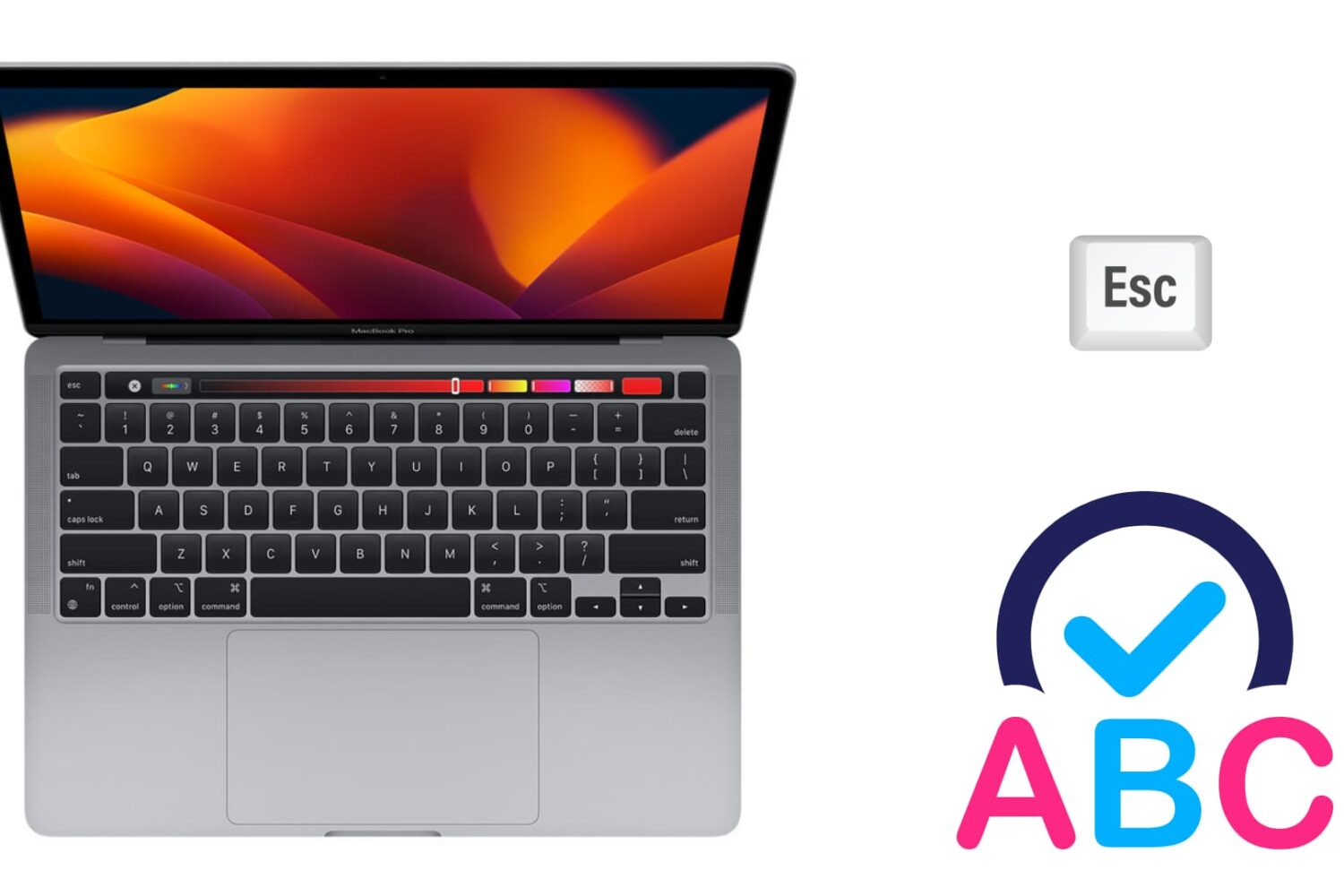
Image to illustrate autocorrect on Mac

There are two ways to dismiss an autocorrect suggestion. There is the obvious one, which lets you use your mouse pointer to reject the autocorrection, and there is a keyboard shortcut that's actually much quicker to use, especially when you're currently typing.

In this brief post, we will show you how to swiftly ignore the autocorrect suggestion on your Mac using an easily accessible keyboard action.

How to transfer your music to a new computer using iTunes Match

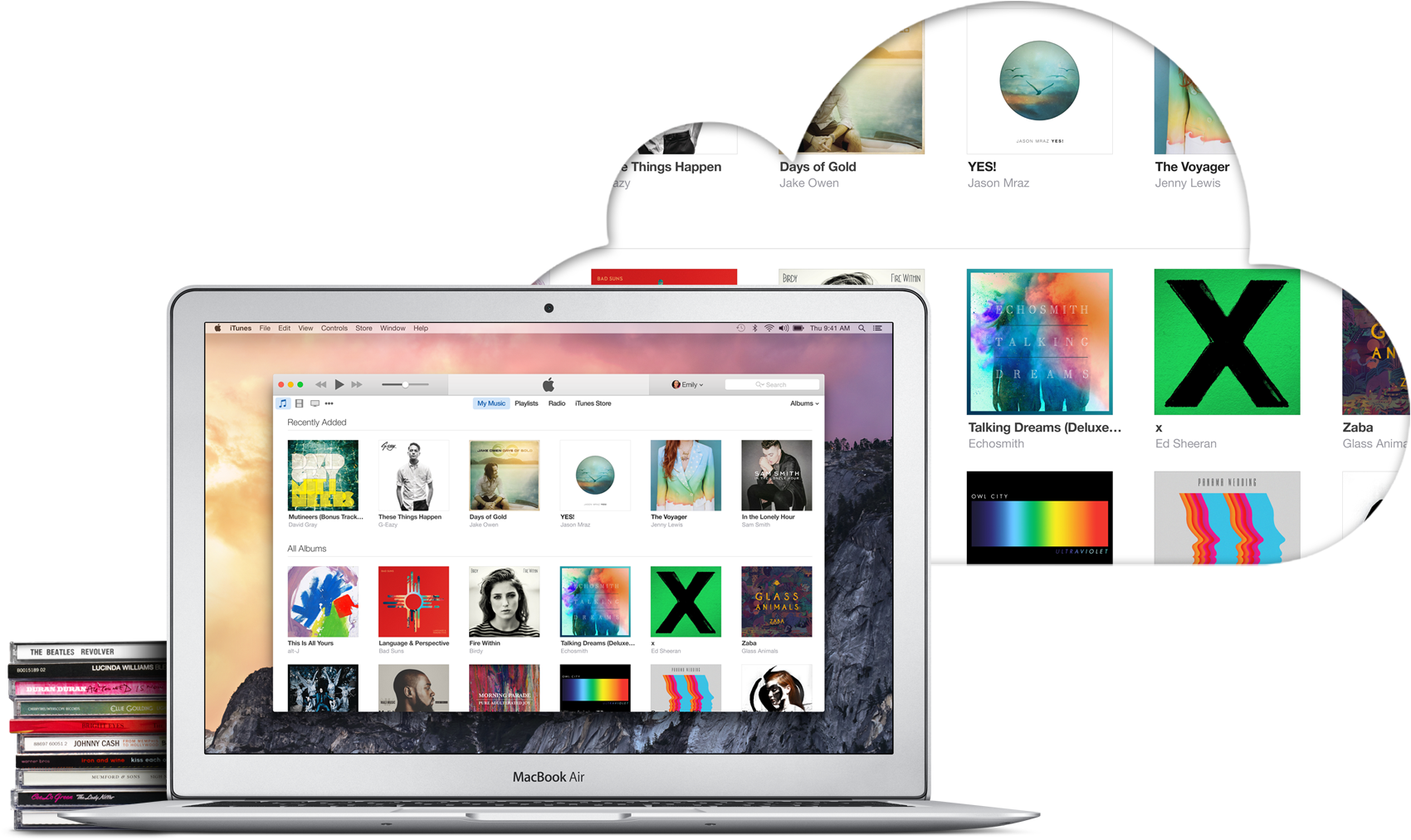
iTunes Match is a paid service from Apple that allows you to store all your music in iCloud, regardless of where it originated from. For example, it could be music imported from CDs, downloaded from online music stores, or even music that was downloaded in ways that go against copyright laws. In short, iTunes Match matches or uploads all your music to iCloud so you can stream or download it from any of your Apple devices, including Mac, iPhone, and Apple TV.

With that said, iTunes Match offers an easy way to move your iTunes library to a new computer without having to deal with transferring files from one hard drive to the other. In this post, I will show you how to transfer your iTunes library to a new computer using iTunes Match.