How to

How to change or reset your iPhone voicemail password

When iPhone first came out in 2007, it was the first device to include Visual Voicemail, a feature that allows users to view their voicemails, scroll through them, and of course listen to them, directly from the device. With Visual Voicemail, no need to dial a number and go through an automated message system to listen to your voicemails.

Since everything is now handled directly on the phone, you can also change your voicemail password directly from your iPhone.

Twitter for iOS and twitter.com to start autoplaying videos today—here’s how to turn it off

You could say I'm not a big fan of intrusive autoplay videos in apps, not to mention those pesky autoplay video ads on some websites. With that in mind, I was taken aback when Twitter announced today adding this very feature to its iPhone and iPad application and the web interface.

Now when you stumble upon a tweet with an embedded Vine, animated GIF or a clip in Twitter's native format, it will begin to play back automatically.

It's all part of the grand plan to shove advertising down our throat though Twitter would have us believe it's trying to make our lives easier so we could “keep up with the action without missing a tweet and get a better sense of what’s been shared instantly.”

Because autoplay videos suck your cellular data, this feature is a major concern in this age of non-unlimited plans. True, Twitter promises to opt out of autoplay anyone who's on a high-rate data plan, but I'd rather trust my instincts and revert back to the old-school click-to-play experience.

Thankfully, there's an easy way to do just that.

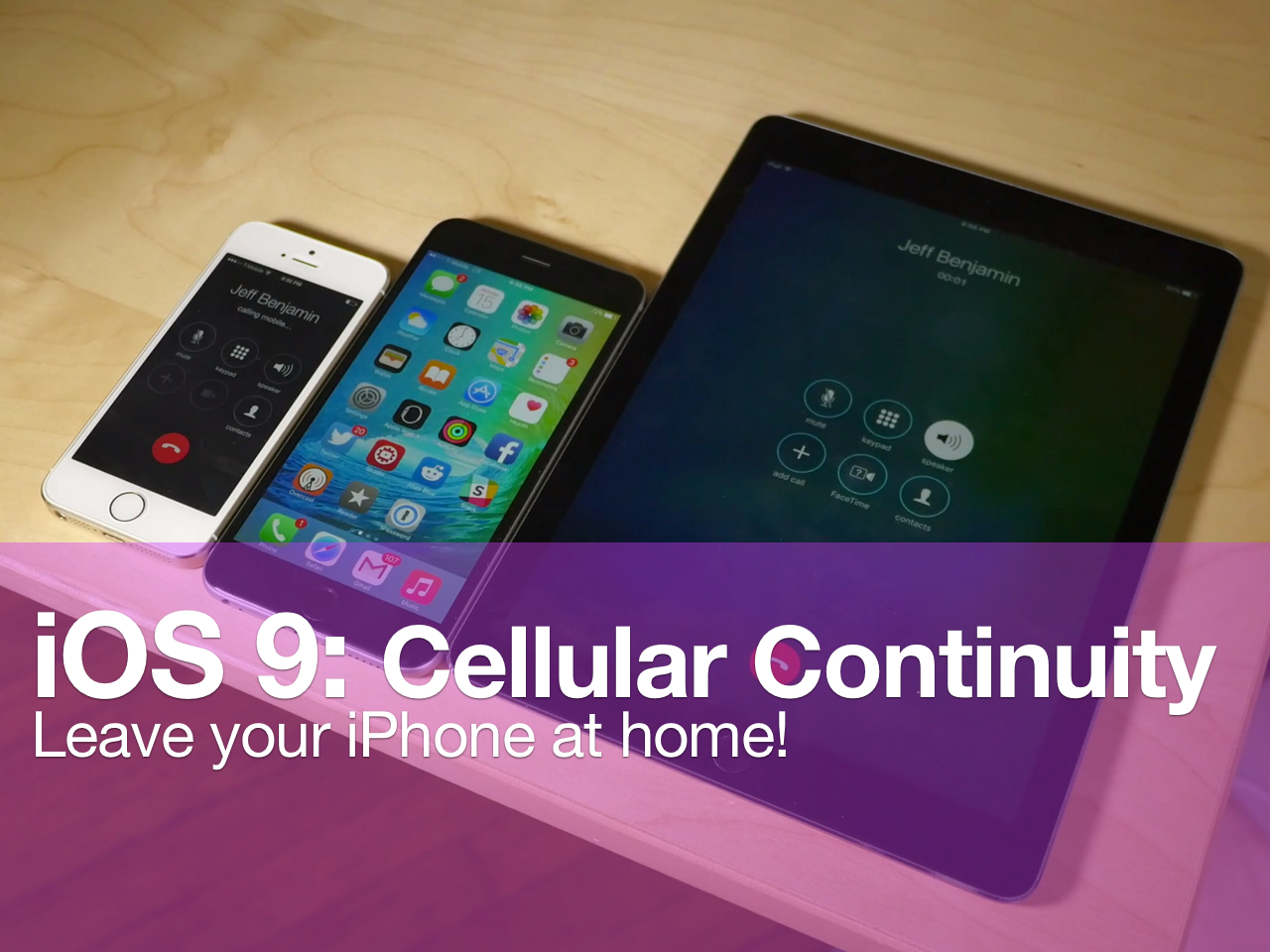
Cellular Continuity allows for phone calls on iPads even when your iPhone is off

Last week, it was reported that cellular Continuity would be making its way to iOS 9. The first carrier to support cellular Continuity is T-Mobile, which is unsurprising; it was the first to adopt Wi-Fi calling on iPhone as well.

Cellular Continuity allows you to use the Continuity features that debuted with iOS 8, features such as the ability to answer phone calls destined for your iPhone on Macs and iPads, without needing the involved devices to be connected to the same Wi-Fi network.

That means that you'll be able to leave your iPhone at home, and still receive phone calls on your iPad or other valid device while away from home and connected to the Internet via cellular or Wi-Fi.

But it goes deeper than that. After testing out this new feature on the iOS 9 beta, the Continuity features appear to be truly bound at the cellular network level. In fact, I could receive phone calls on my iPad while my iPhone was completely turned off. Watch our video demonstration for more insight.

How to set up and use Apple Pay with Apple Watch

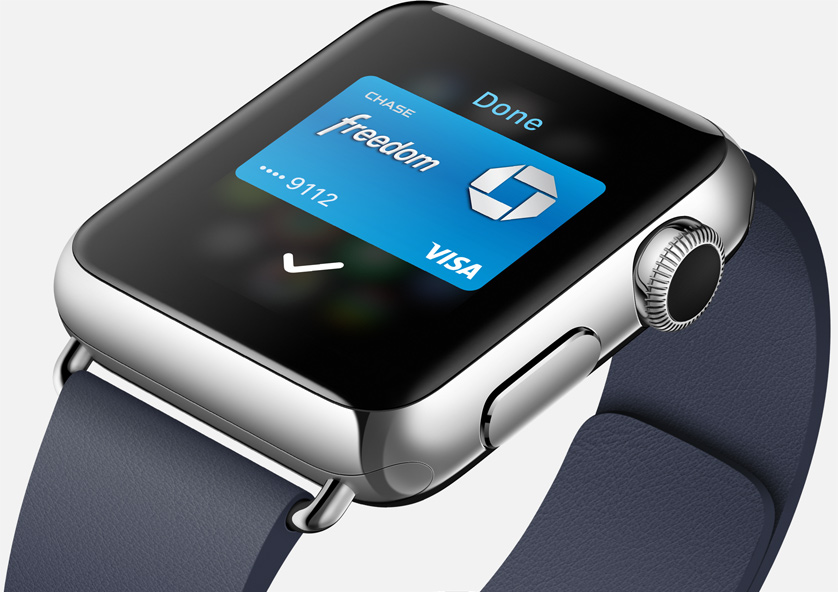
The Apple Watch has built-in NFC, which stands for Near-Field Communication, for making wireless payments on the go. And in a typical Apple fashion, the watch doesn't even have to be in the range of its paired iPhone, nor does it have to establish a network connection, to make the payment.

Before you can start making payments with a flick of your wrist, you're going to need to set up Apple Pay on your Apple Watch. In this tutorial, I'm going to lay it all out for your and explain how to set up, manage and use Apple Pay with your Apple Watch.

How to find great quotations without visiting any Google Search results

The Internet is the perfect place to research some of the greatest quotes from the world's most insightful people, but often searching for a quote feels like finding a needle in the haystack. What if you could find great quotations without having to click through a bunch of links in search results like an animal? Well, now you can as Google has quietly rolled out handy Quotes cards that inject your search results with—you guessed right—quotes.

In this post, I'm going to teach you how to retrieve quotations on your Mac, iPhone, iPod touch or iPad without visiting any Google Search results.

How to export and import your Health data

Apple has really changed the way I think about my overall health and fitness, starting with iOS 7 and the M7 motion coprocessor of iPhone 5s. I went from being completely oblivious of my weight and physical fitness, to being obsessed with them. Apple Watch has made that even more obvious, as I now feel accountable for everything I do. At the end of the day, I have the satisfaction of looking at my stats in the Health app and see my progress.

As someone who talks about Apple for a living, I am often restoring devices, moving data from one iPhone to another, and also upgrading hardware every year. This is part of the fun for me. But there is a downside to this behavior: every time I set an iPhone as a new device, I lose all of the data from my Health app.

In this post, I will show you how to export Health app data, and import that same data into a freshly restored device, or a new device, depending on your situation.

UPDATE: A new application has been released in the App Store that makes the Health data import process much easier. While the information contained in this post is still accurate, I must say that Health Data Importer makes moving your Health data from one iPhone to another a breeze and I suggest you read that post instead.

iOS 9 lets you save email attachments to iCloud Drive

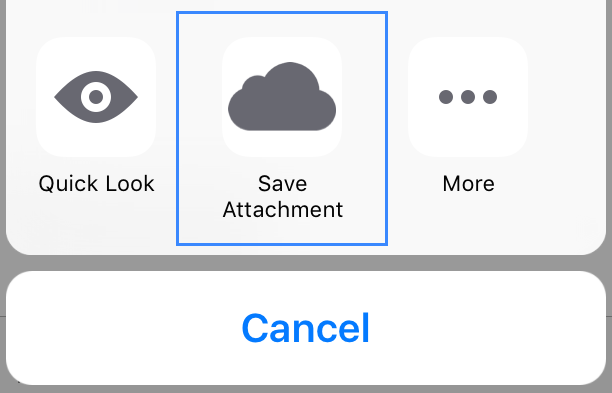
iOS 9 offers a new feature that allows you to save attachments received via emails to iCloud Drive. Similar to the way iOS currently lets you save email attachments to third-party services such as Dropbox or Google Drive, this new feature takes advantage of the Share extension, bringing a new Save Attachment icon for easy sharing to your iCloud Drive.

How to watch WWDC keynote live on Mac, iPhone, iPad, Apple TV, Windows, Linux and Android

As you know, Apple's annual Worldwide Developers Conference kicks off tomorrow with a State of the Union-like keynote address. WWDC is the most important event for the Apple community as it gives a sneak peak at how the firm plans to woo app developers in the year.

The 26th summer event runs from June 8 through June 12 at San Francisco’s Moscone West, where CEO Tim Cook will share the stage Monday morning along with other company executives to deliver latest advances concerning iOS, OS X and Watch OS platforms.

iDownloadBlog, the biggest name in jailbreaking, doesn't get invited to Apple events. Not to worry: we'll be providing a remote live coverage of the two-hour long presentation and following up with related tidbits throughout the day so you don't miss a thing.

Apple will be providing a live stream through the Apple Events webpage on its website, using the new familiar weblog-like layout.

Although the official live stream is limited to Mac, iPhone, iPod touch, iPad and Apple TV devices, you can enjoy it on other platforms, too. Without further ado, here's a quick tutorial on what you'll need to watch the keynote live on both Apple devices and non-Apple platforms like Windows, Linux and Android.
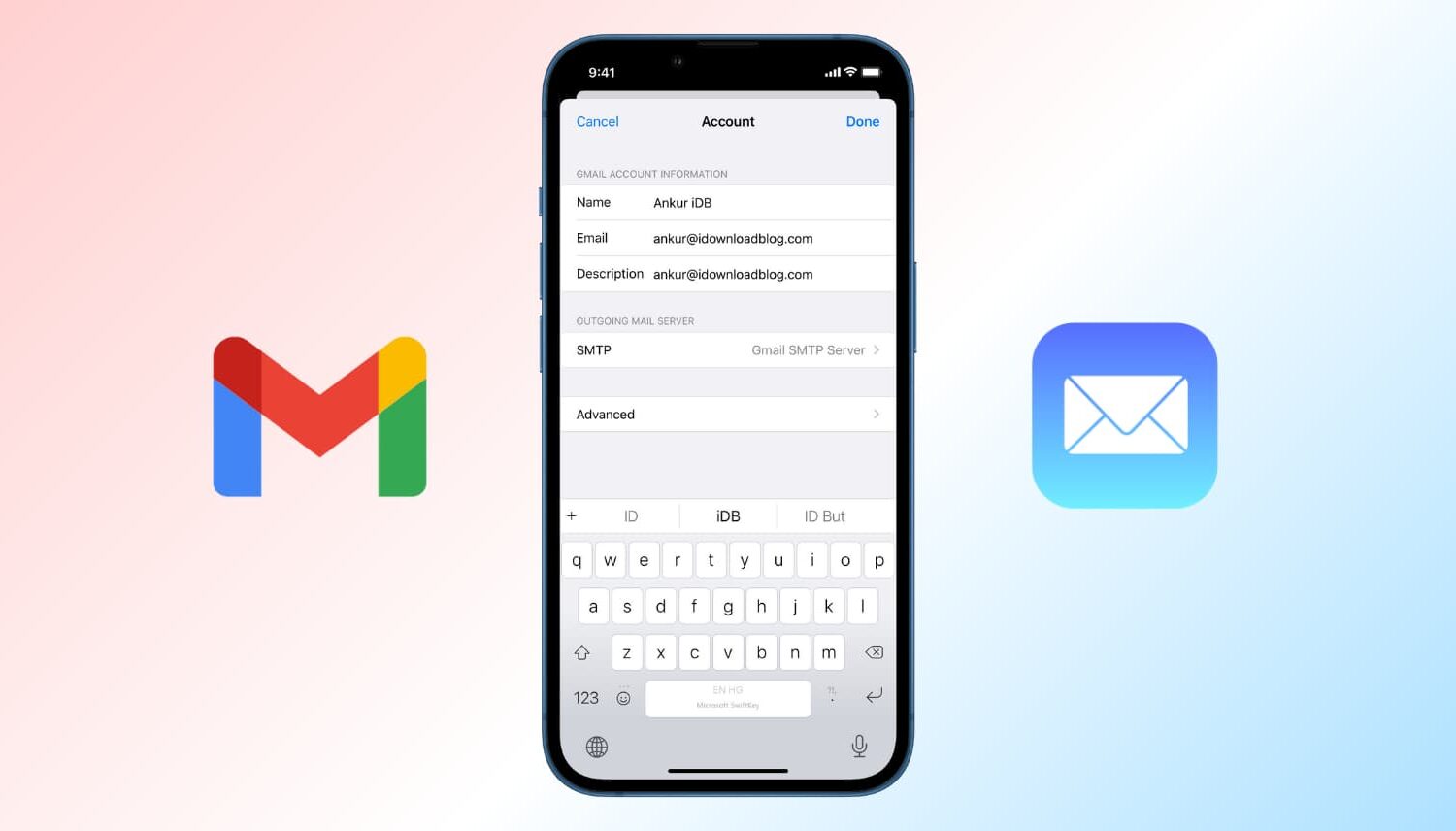
How to change your email display name

Change email display name on iPhone and Mac

When you send someone an email, it usually shows the name you set while creating the account. Suppose you made a typo while setting up your email, or used your nickname or a fake name, and now every email you send has this name you no longer like.

In this tutorial, we show you how to change the name that's displayed in the email you send to someone from your iPhone, iPad, Mac, and iCloud.

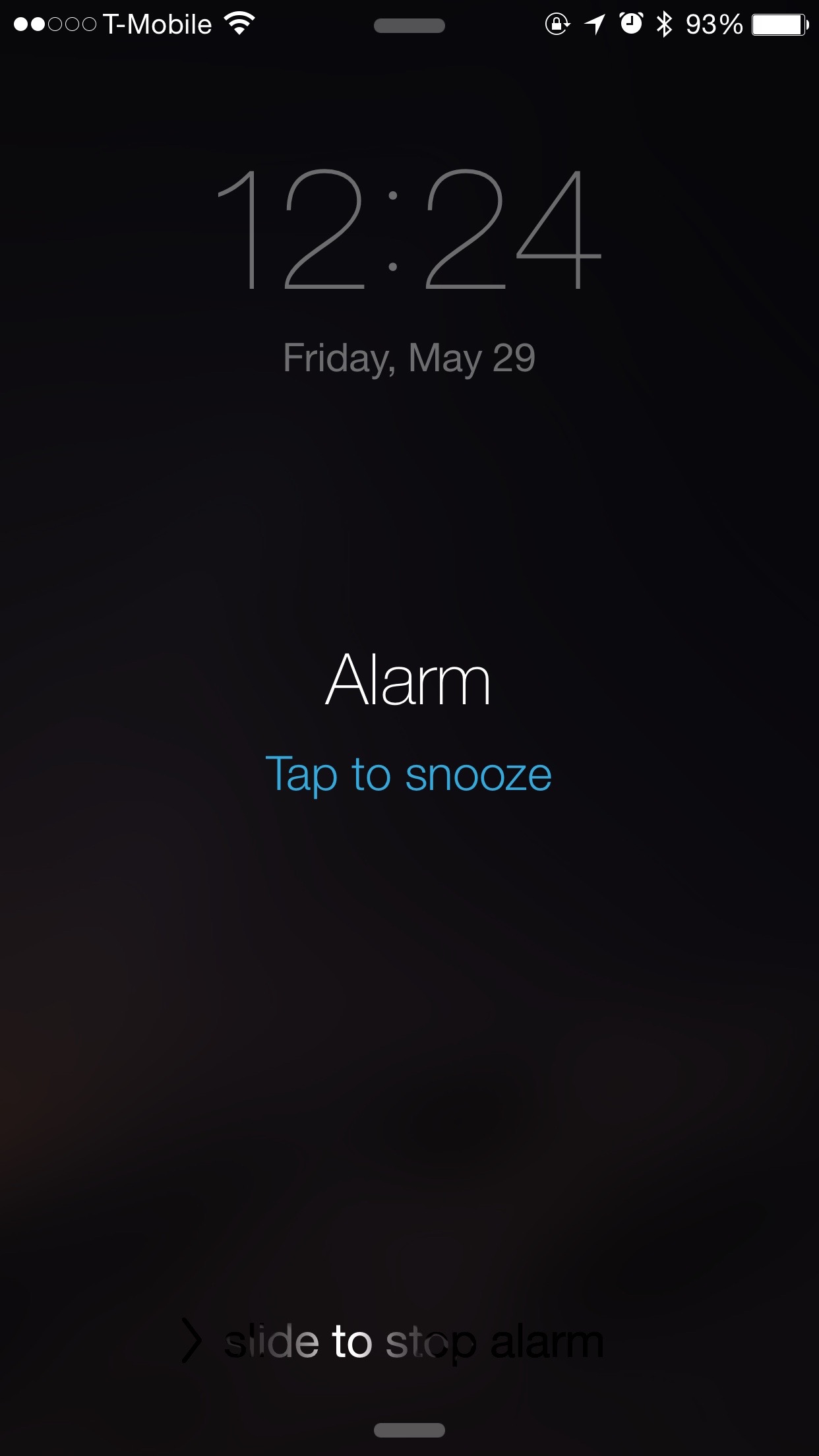
How to snooze or dismiss an iPhone alarm from Apple Watch

Since some of the features on Apple Watch and iPhone are mirrored between each other, one may think that Alarm clocks set on Apple Watch would appear on the iPhone and vice versa. This is only somewhat true.

As it turns out, Alarms set on Apple Watch do not appear on iPhone and alarms set on iPhone do not appear on Apple Watch. Sort of.

Confused? In this post, we clarify the way that Alarm clocks work between the Apple Watch and iPhone.