How to

How to install AFC2 on a jailbroken iOS 8.3 device

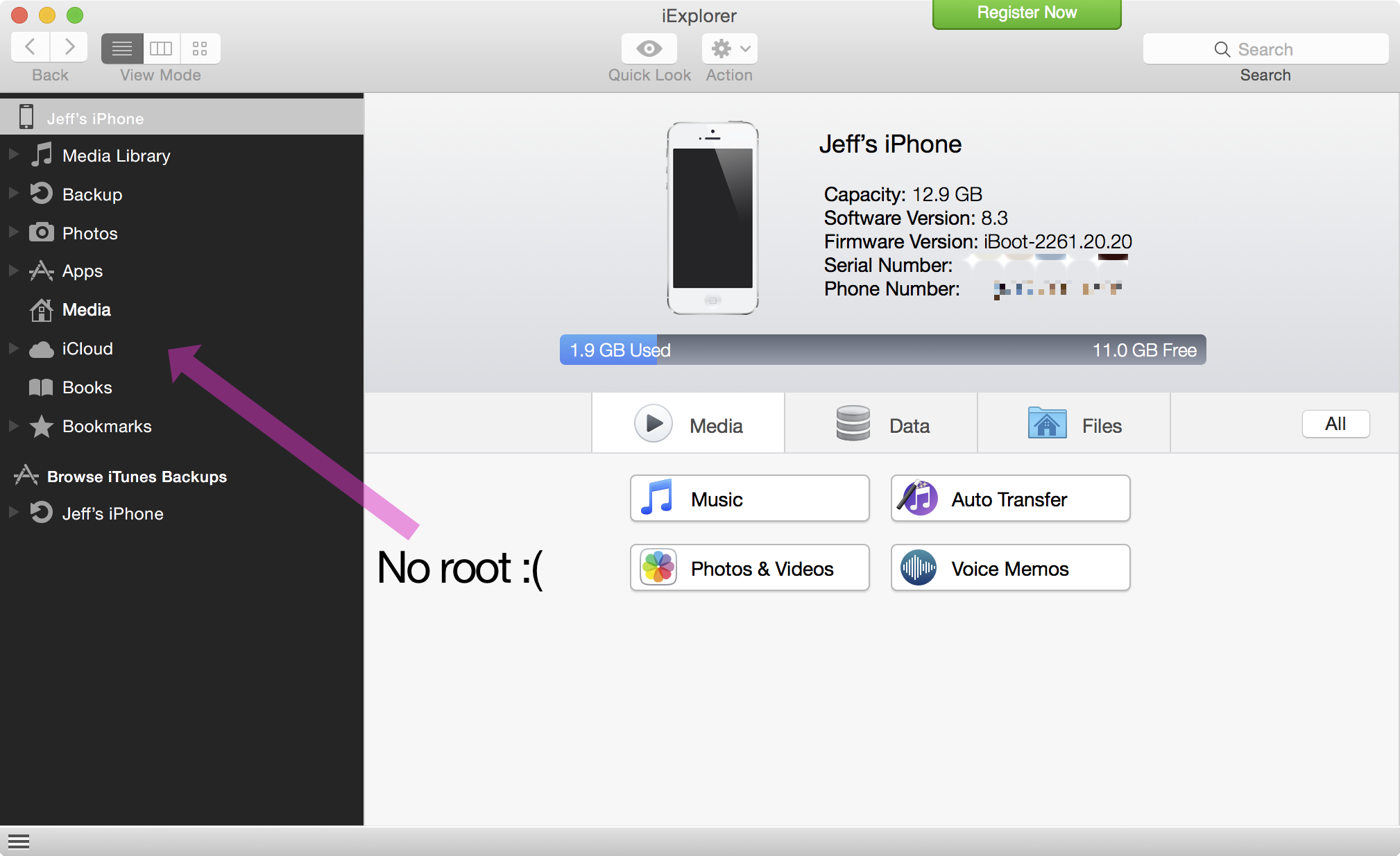
One of the great things about having a jailbroken device is that you can browse the native root file structure directly from your computer. This is done via tools like iFunbox and iExplore.

The only catch is that you need a special package installed on your jailbroken device before you're given access to the filesystem. This package, Apple File Conduit, better known as AFC2, allows you to do just that.

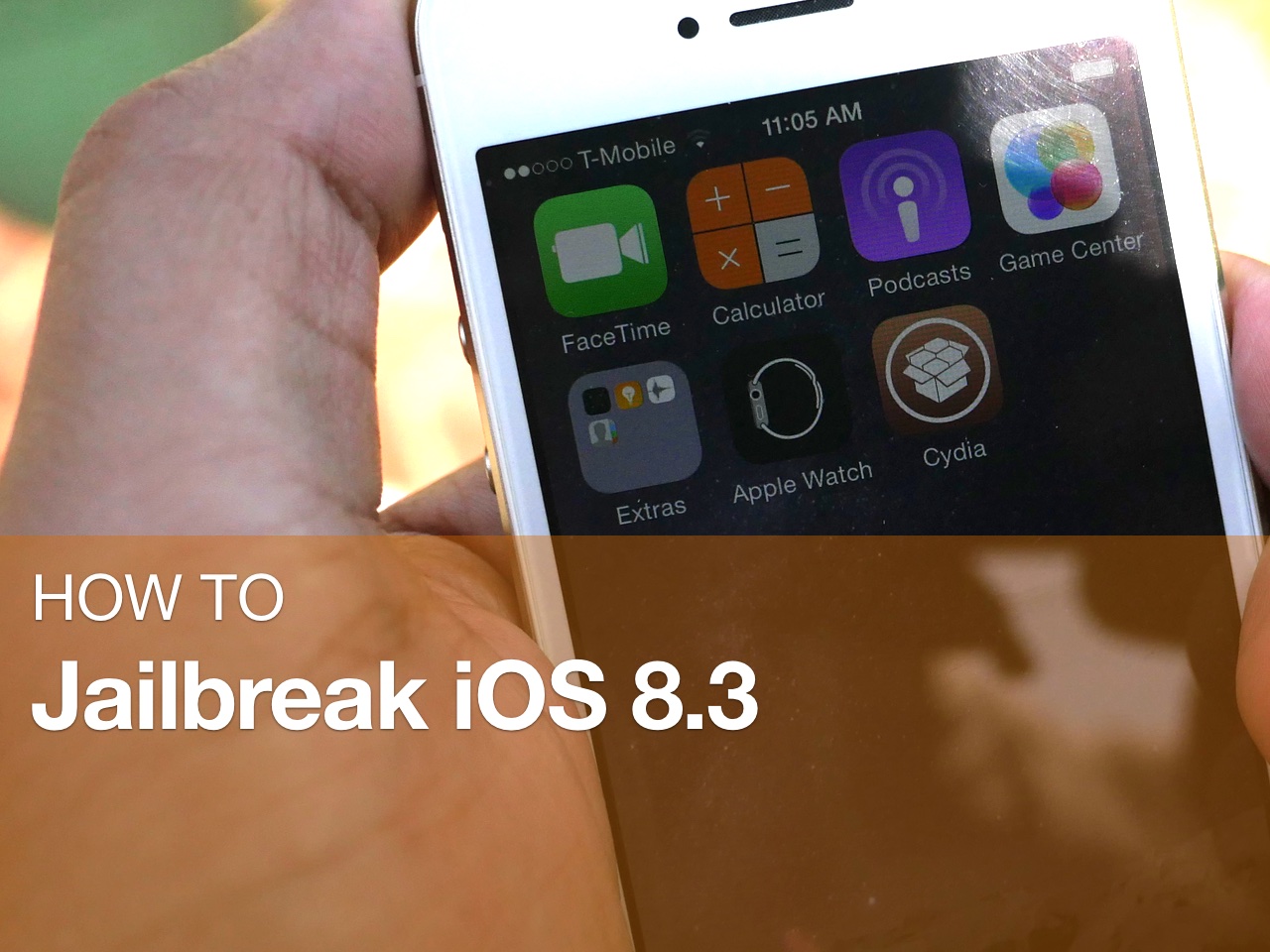
The TaiG jailbreak for iOS 8.3 doesn't automatically add AFC2 support to your jailbroken device, but it's easy to add it after your jailbreak. Just follow this simple tutorial, and you'll be browsing your root filesystem on your Mac or PC in no time.
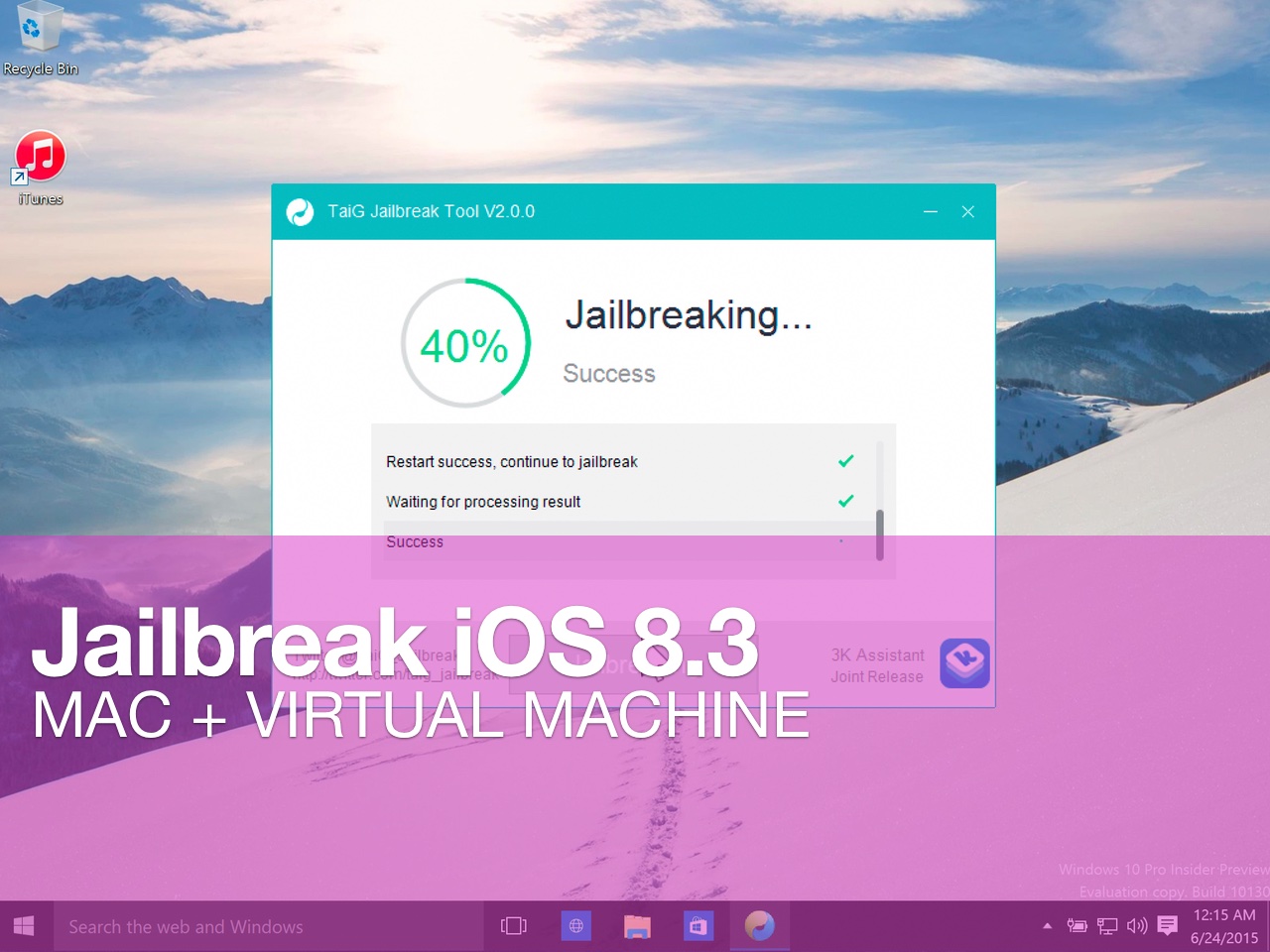
How to jailbreak iOS 8.3 or iOS 8.4 on Mac using a virtual machine

Although the iOS 8.3/iOS 8.4 jailbreak was a surprise, it was no surprise that the release was limited to Windows only. While this can make some Mac users feel bitter, it's actually not a very big deal at all.

Thanks to the awesome virtual machine software that we have on the Mac, it's super-easy to jailbreak an iPhone on our Macs, even if said jailbreak is Windows only.

In this complete tutorial, I'll walk you through the entire process of setting up the virtual machine, installing a valid version of iTunes, and jailbreaking your iPhone.

The most impressive thing about this tutorial is that it can all be done in less than 18 minutes (not including the necessary file downloads), and it's 100% free to do.

If you're a Mac-only user, there really is no excuse for you not to be jailbroken if you want to be. This method is tried and true, super-reliable, and it just works. In fact, by sticking to this method and following my video, you'll likely be able to avoid many of the pitfalls plaguing those who are experiencing issues with the TaiG tool.

How to jailbreak iOS 8.3 with TaiG 2.0

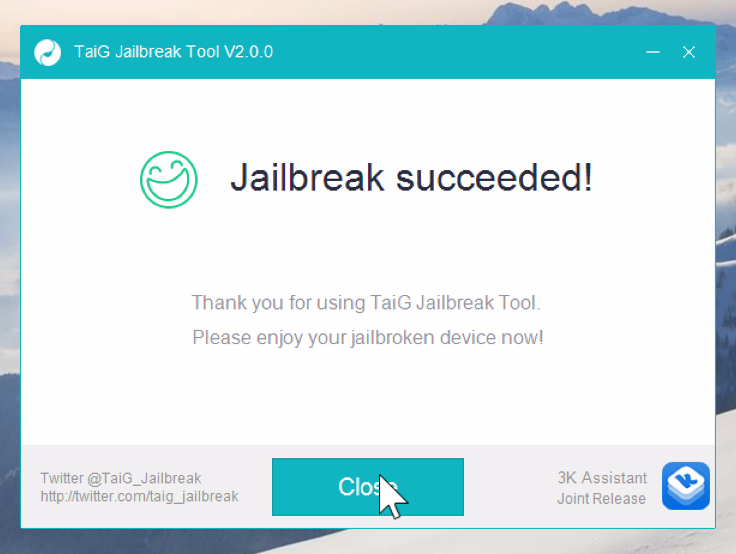
In this tutorial, I will show you how to jailbreak your iPhone or iPad running iOS 8.3 using TaiG 2.0. This jailbreak is super easy to do, and takes minimal effort if the instructions are followed closely.

Watch our full video walkthrough inside, as I take you through the step-by-step jailbreak process for iOS 8.3.

How to fix the TaiG 20% timeout for the iOS 8.3 jailbreak

Thankfully, the 20% error that was causing us problems earlier today has been solved. If you received this error, you need to downgrade your version of iTunes.

I decided to downgrade to iTunes 12.1.0 as suggested by several of my Twitter followers, and just like that, it worked. If you're having problems with TaiG 2.0.0 hanging at 20% completion for the iOS 8.3 jailbreak, then try downgrading your version of iTunes.

How to mute tabs in Safari on your Mac

Like pinned tabs, tab muting isn't a new idea, as it's been implemented in other web browsers in the past. But starting with OS X 10.11, Apple has brought native tab muting to the Safari browser.

The ability to mute tabs at will brings more control to the user. It's especially beneficial when encountering those annoying auto-playing advertisements.

In this video walkthrough, I'll show you how to use Safari tab muting, and explain its ins and outs.

Is your Mac able to take advantage of OS X El Capitan’s Metal?

When OS X 10.11 El Capitan launches this fall, it will feature Metal, a graphics framework Apple originally introduced for iPhones, iPads and iPods following the release of iOS 8 last fall. In addition to making El Capitan's user interface and apps perform smoother than before, Metal for Mac is absolutely huge news for game developers and makers of graphics-intensive apps.

Like on iOS, El Capitan's Metal significantly reduces the overhead of graphics frameworks such as OpenGL by enabling low-level access to your Mac's graphics subsystem. Photo apps, games and video editing software like Adobe After Effects will experience up to ten times faster draw call performance by offloading certain tasks from the CPU onto the GPU.

But does your Mac sport modern hardware needed to support Metal's features? It's dead simple to determine this for yourself, here's how.

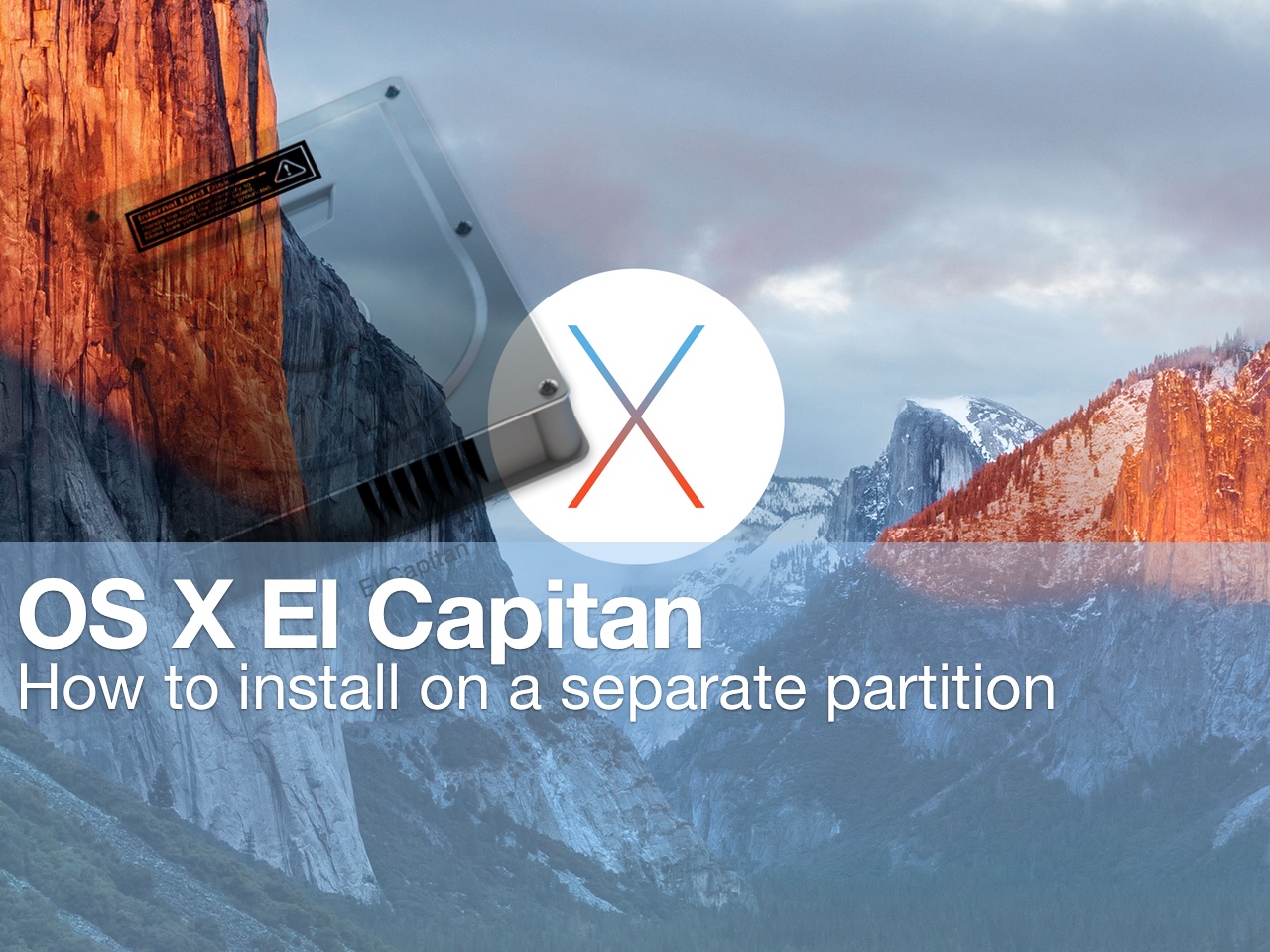
How to install beta software on a separate partition

Itching to run the latest macOS beta, but don't want to upgrade your primary Mac installation with a beta release? You'd be wise to carefully consider the prospects of running a beta release as a daily driver. That said, it is possible to run beta software on your primary machine without compromising your current installation.

By creating a small test partition on your primary drive, you can create a great landing space for the beta. Read and watch our walkthrough to see how easy it is.

How to set up Time Machine on Mac OS X

Time Machine is a Mac utility that allows you to automate hourly, daily, and weekly backups on an external drive that's connected directly to your Mac or via a local network. It's seen as the first line of defense against data loss, and features simple setup.

Setting up Time Machine, in its most basic configuration, is extremely easy. All you need to do is launch the Time Machine preferences, turn on Time Machine, select a Backup Disk, and you're pretty much set.

Of course, there's much more to Time Machine than just the initial setup, but in this first post in our Time Machine tutorial series for OS X, we'll cover some of the basic set up options.

How to remove unused language files from your Mac and free up disk space

There are approximately 150 different localized languages coded into OS X. Most people only use one language on their computer, maybe two. That leaves hundreds of megabytes of space being used up by languages you will never access in your operating system.

Monolingual is a utility that allows you to remove many of the more than 150 foreign languages from your Mac, freeing up disk space for more important files. We've got a tutorial that explains how to download and use Monolingual to delete unnecessary language files, plus a couple of very important tips to follow before completing the process.

How to automatically hide a Mac app when clicking elsewhere on the screen

Maintaining a clean workstation is perhaps one of the best ways to help with productivity and clear-thinking. Not only does this apply to one's desk or office, but for those of us who work with computers, it extends to the Dock, folders, and desktop. Keeping things clean and orderly in OS X is vital for getting things done efficiently, and this Mac tip helps do exactly that.