How to

How to save your iPhone voicemails to the Voice Memos app

Save your iPhone voicemail to the Voice Memos app

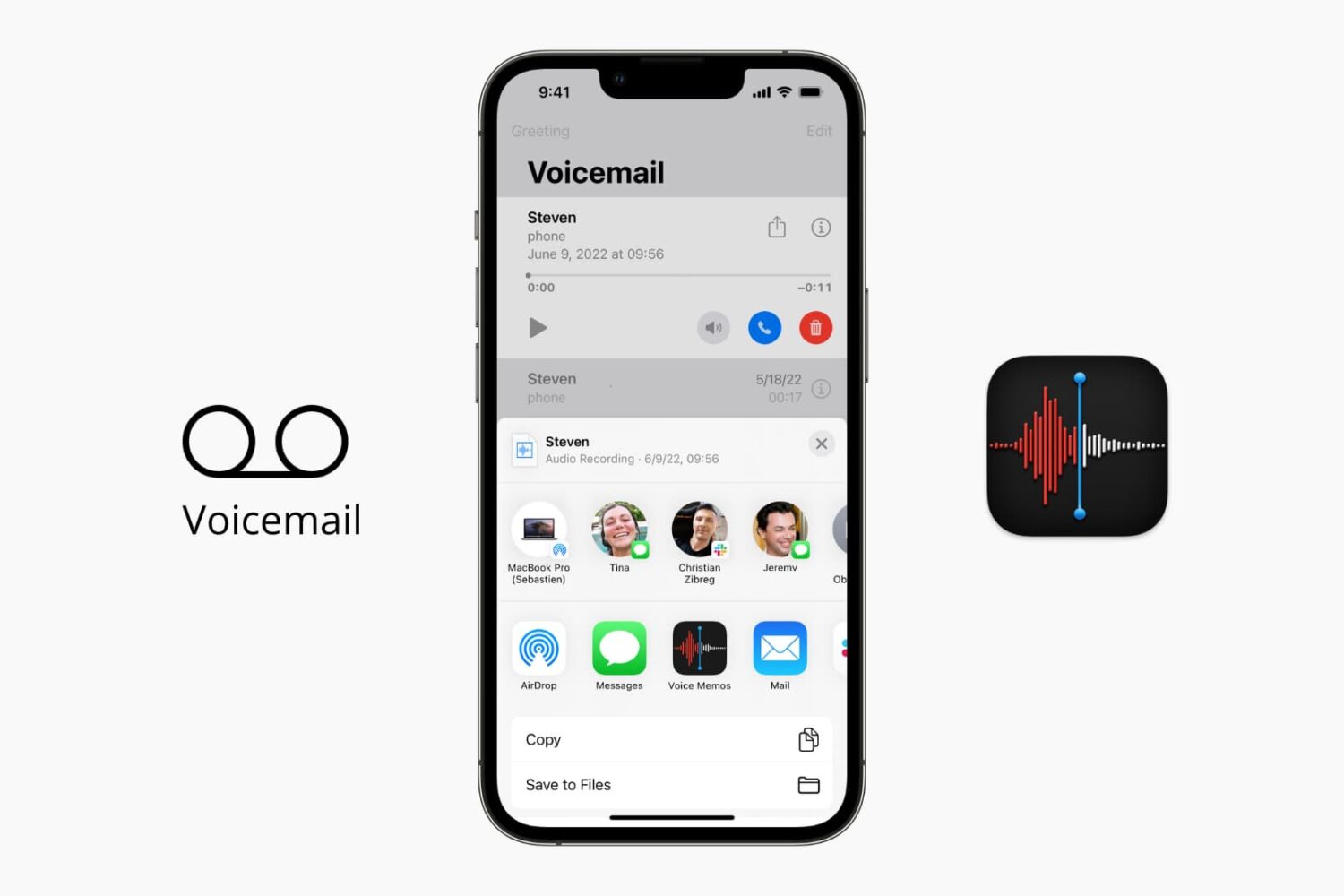
The iOS Phone app makes it easy to save your voicemail to the Voice Memos app. Saving voicemails as voice memos lets you trim the audio before sharing them with others. Plus, the files in the Voice Memos app are automatically uploaded to iCloud and stay safely saved. So, if there is a memorable voicemail, you can keep it forever in iCloud.

In this brief tutorial, we show you how to save your voicemail as an audio note.
How to play Apple Music high quality streams on cellular

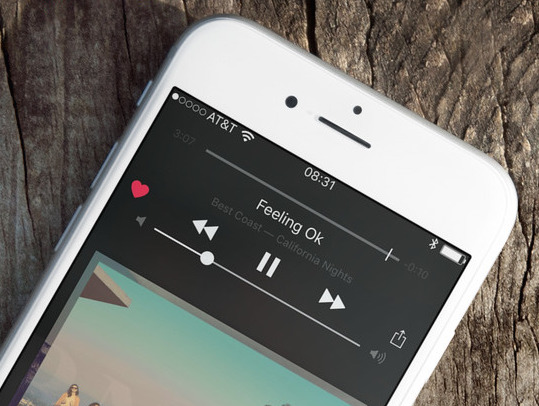
Apple Music on iOS includes an option to stream your music at high bitrates over a mobile data network at all times. As you know, Apple Music defaults to high-quality streams on Wi-Fi.

With this toggle, you can control your cellular data usage by enabling or disabling high bitrates when streaming or downloading music over your carrier's cellular data network.

How to share Live Photos

Apple won't describe them as such, but Live Photos are just short video files, and like any files, they can quickly be shared with friends and family. But unlike video files, Live Photos need to be shared in very specific ways in order to preserve the live aspect of the photo.

For instance, if you email a Live Photo to someone, the file will be stripped of the video component and will be attached and sent as a jpeg. So how do you send a Live Photo while making sure the "live" part of the photo remains?

How to disable the mouse pointer shake gesture on Mac

Have you ever woken your Mac up from sleep, and couldn't find the mouse pointer among the mess of windows and desktop icons. We've all been there before.

Starting with El Capitan, macOS is hoping to help out with that, courtesy of a brand new addition to the operating system. It's certainly not a headline feature, but macOS can help you quickly locate your mouse or trackpad pointer by simply shaking your mouse or swiping your finger back and forth on the trackpad in quick succession.

Watch our video inside to see how it works. We'll also show you where to go to disable the feature in System Preferences.

How to turn a Live Photo into a still photo

Live Photos was one of the main features introduced with iOS 9 and iPhone 6s. Some might see it as a gimmicky feature, others like me might see it as a great way to inject a little more life into photos.

The process of taking a Live Photo is pretty simple. It's on by default, and you have nothing to do. Simply shoot a photo like you would normally do, and you're done. Your device will capture an extra 1.5 second of video before and after the photo was taken, stitching it together and turning a frozen moment into a lively one.

But what if you want to turn a Live Photo into a still one? As with most things iOS, it's actually pretty simple.

You can finally send messages completely hands free with watchOS 2

A new feature of watchOS 2 finally allows users to send messages completely hands free, and even though there is a catch, it's a much welcome improvement to communicate via text message without having to physically touch the device.

The catch is that this new feature only applies to messages you create from the Home or Watchface screen using Siri. It does not work for replies to messages you receive, and doesn't work if you go straight to the Messages app and tap Reply. Still, if used right, it can make the process of sending messages completely frictionless.

How to zoom in and out of your iPhone 6s screen with 3D Touch

We have been covering various 3D Touch features extensively here on iDownloadBlog and will continue to do so in the foreseeable future.

In addition to using your iPhone 6s keyboard in trackpad mode, adjusting the sensitivity of 3D Touch and turning the feature on and off, iOS 9 also provides a way for iPhone 6s owners to use its built-in zooming capability in conjunction with 3D Touch, based on the amount of force exerted on an on-screen controller.

They're calling it Peek Zoom and once activated lets you invoke iOS's standard Zoom feature through 3D Touch rather than requiring you to double-tap with three fingers.

Why 4K video matters on the iPhone 6s

Why would Apple enable 4K video capture on a phone that can't actually display 4K content in full resolution on screen? The reasons are multifaceted, but one obvious reason is that it allows users to zoom in on video while still maintaining crisp resolution.

Coincidently, iOS 9 now supports pinch to zoom and double-tap to zoom on videos in the Photos app. This makes it possible to zoom in to a specific portion of the video without necessarily sacrificing the amount of resolution needed to look great on most of today's displays. Zooming also allows for creative and flexible video editing solutions while working in apps like iMovie, which supports 4K editing. To make a long story short: it's all about the zoom.

How to enable 1080p Slo-mo videos on iPhone

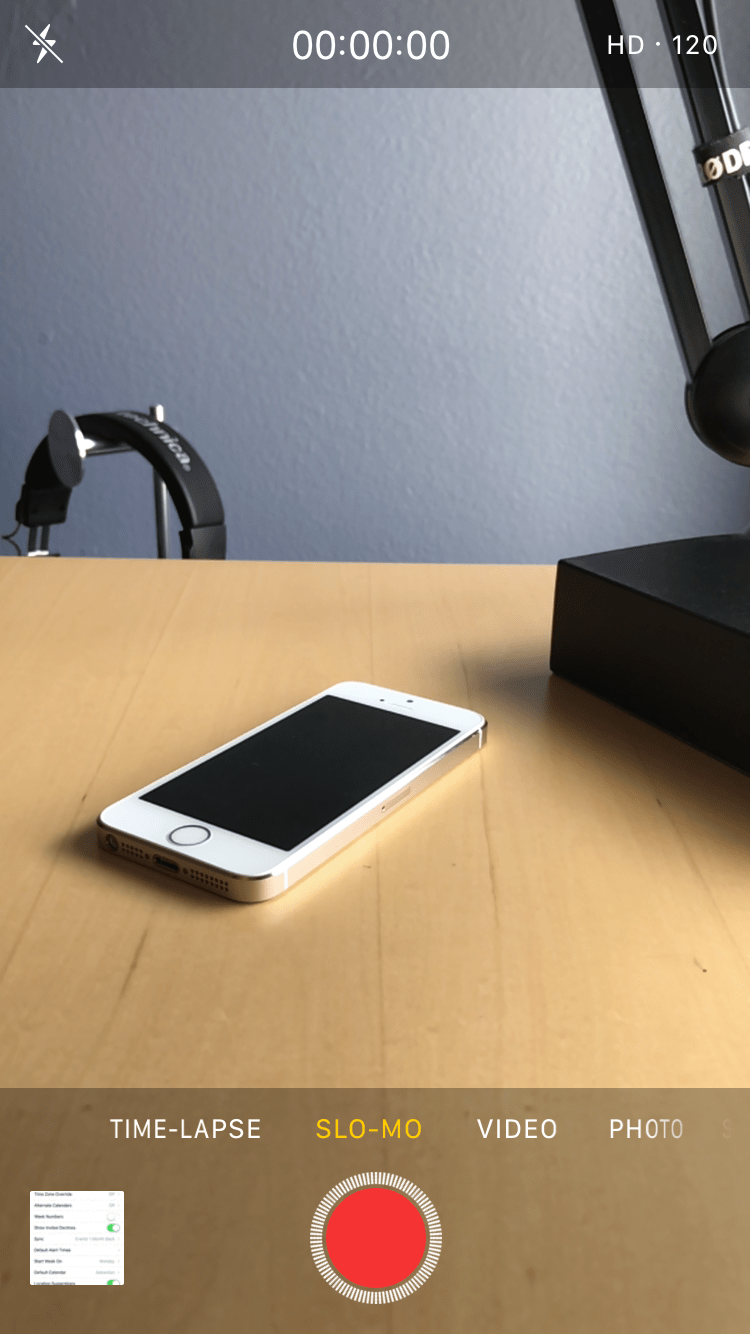
The iPhone iSight camera has received several remarkable improvements over the year, headlined by its ability to shoot 4K video. Another big feature is its ability to shoot slow motion videos in 1080p. Older iPhones, like the iPhone 6, were only capable of shooting "Slo-mo" videos in 720p resolution. With new iPhones, you can now enjoy slow motion videos in full HD glory.

How to use 3D Touch on iPhone 6s: a video tutorial

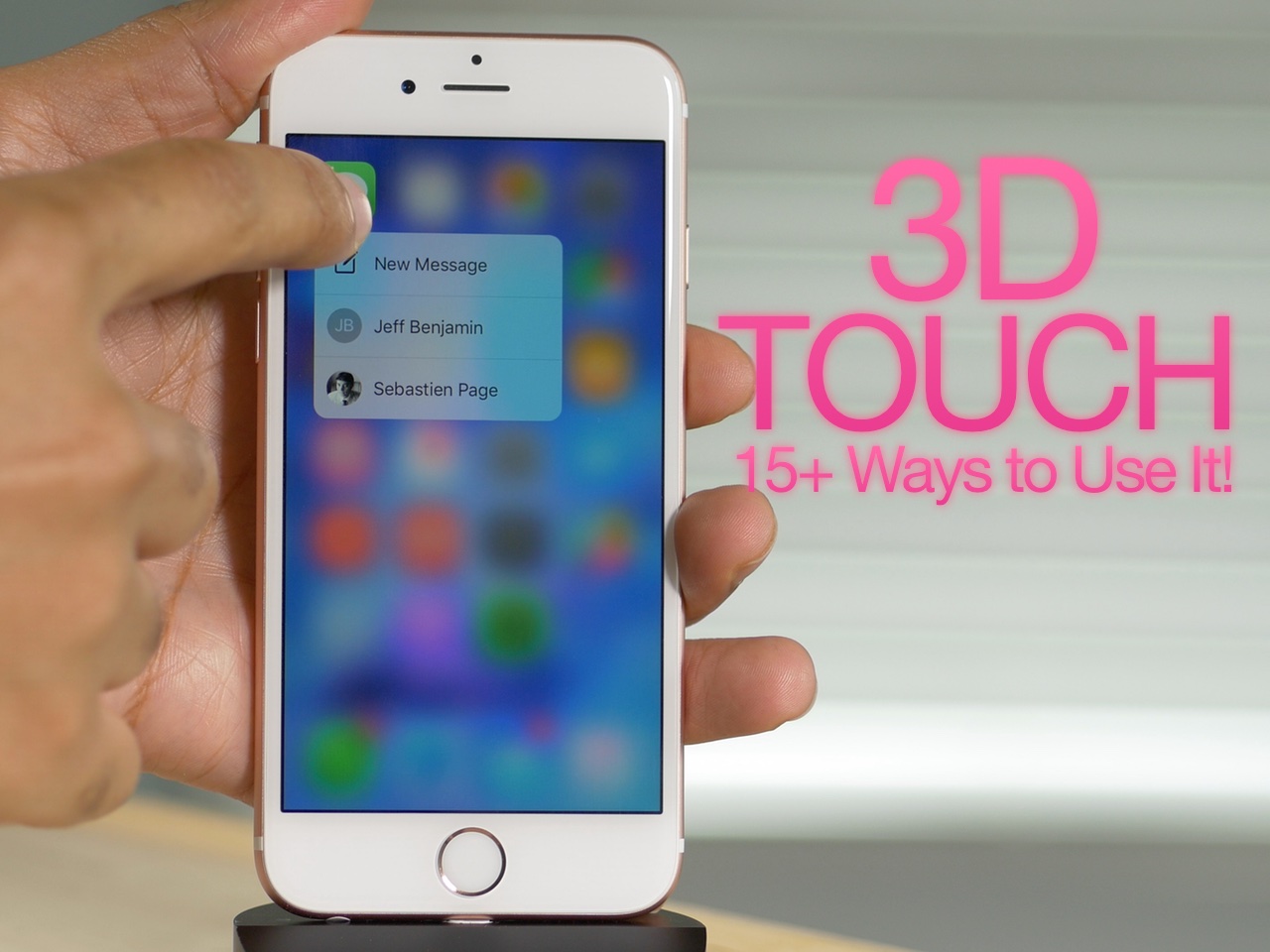
3D Touch is the biggest new feature to come to the iPhone 6s, and it brings a whole new interaction paradigm to the iPhone. 3D Touch is possible by means of a new pressure sensitive screen used in Apple's new iPhone hardware.

By tapping into this new input method, Apple and third-party developers are able to lend users access to quick Home screen shortcuts, in app previews, and quicker access directly to specific pages within an app. Not only is 3D Touch an awesome feature today, but its potential for the future is even more exciting.

In the following video, I'll share over 15 different points on 3D Touch. Perhaps you'll find something in this list that you weren't aware of.