How to

How to turn iPhone keyboard into a trackpad with 3D Touch and select text with precision

iOS 9 brought out a new feature for iPads called easy text selection which lets you slide two fingers on the screen to turn the keyboard into a trackpad of sorts. While in this mode, you can control cursor movement and select chunks of text with precision.

Thanks to 3D Touch, you can bring up this trackpad-esque functionality on your iPhone 7 or later in order to easily select and manipulate text with great precision, here's how.

How to adjust 3D Touch sensitivity

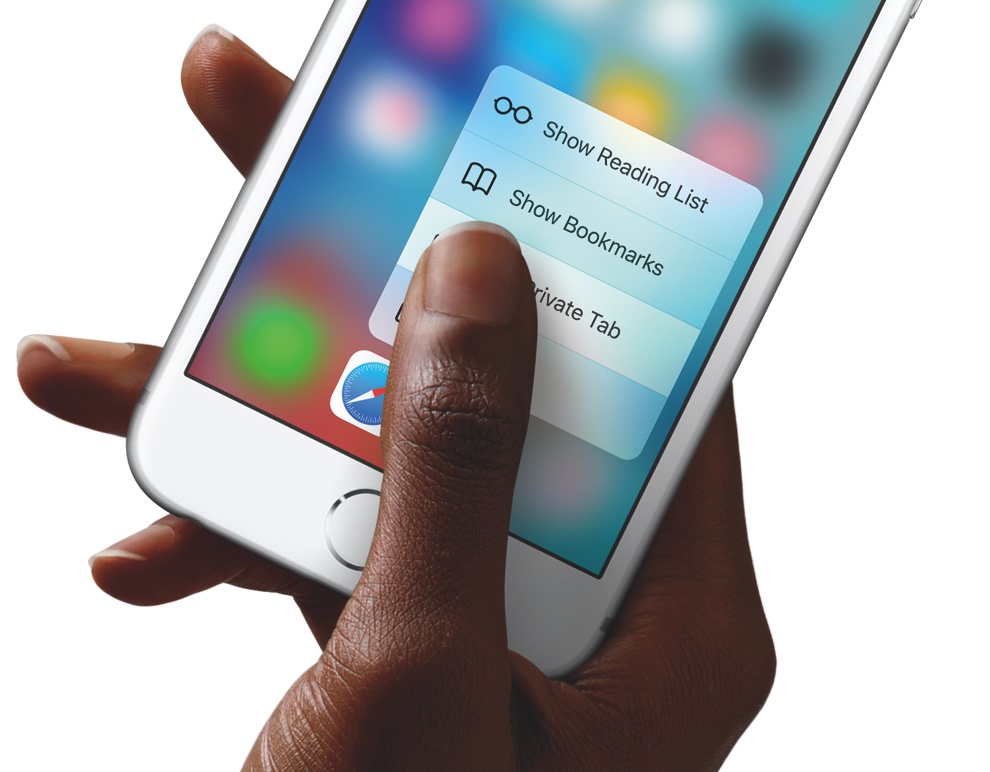
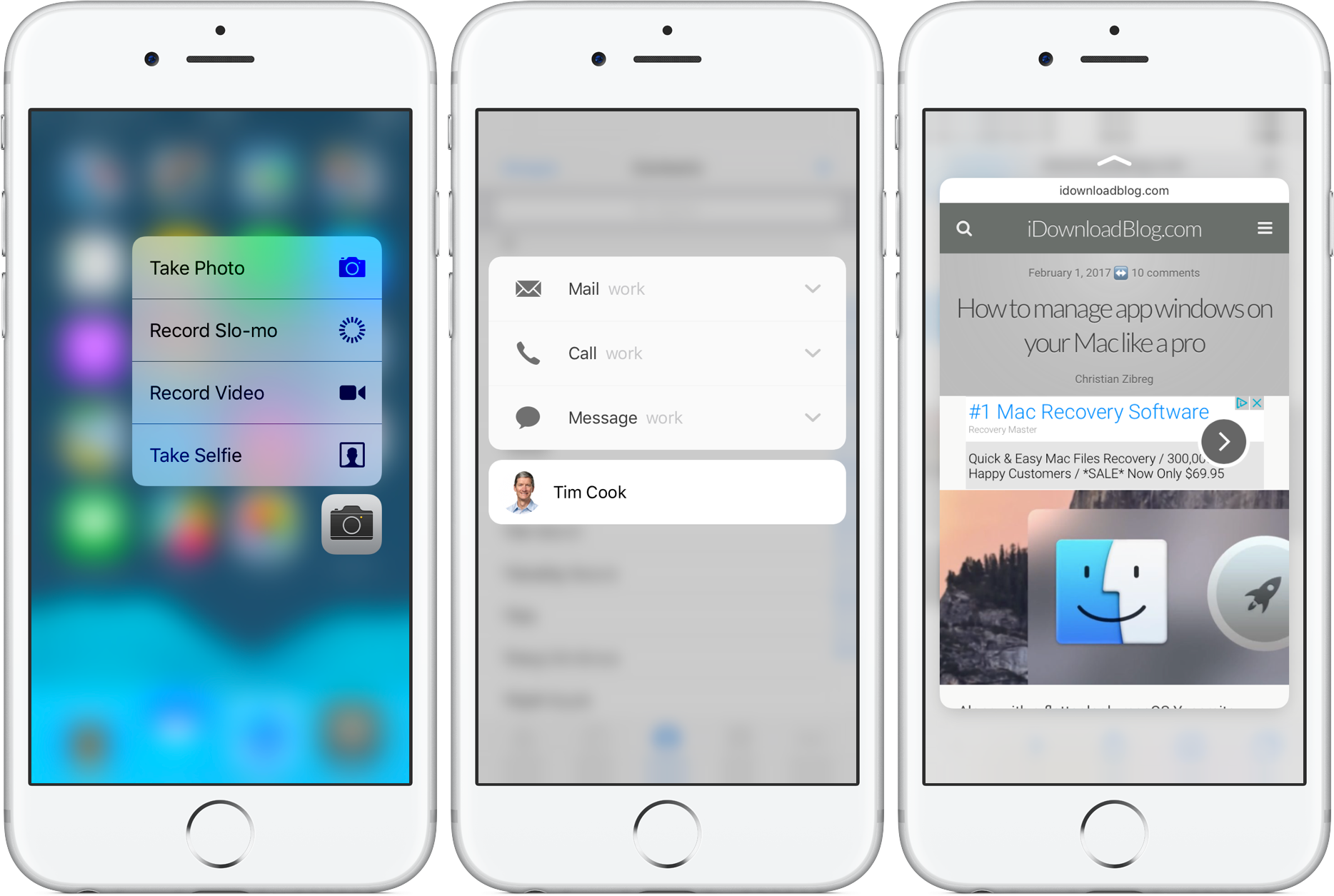
Using a grid of 96 sensors that read microscopic changes in the distance between the cover glass and the backlight, your iPhone is able to detect different degrees of pressure. This headline feature, called 3D Touch, is used to reveal content previews and contextual menus within apps and quick actions on app icons on the Home screen.

Do you feel like 3D Touch requires you to press the screen too hard? If so, iOS offers a handy slide to change the amount of pressure you need to activate the feature.

How to turn off and on 3D Touch on your iPhone

So you got your brand new iPhone and decided that 3D Touch is more of a nuisance than gets in your way than a time-saving feature you'd like to use on an everyday basis. Worry not, for iOS gives you an easy way to disable 3D Touch on a system-wide level with just a few taps.

3D Touch, of course, offers shortcuts to commonly used app-specific actions right from the Home screen and lets you preview content or jump straight into it within supported apps by applying varying degrees of pressure to the screen.

People with disabilities, those with limited motor skills and everyone who would rather do without these handy shortcuts for one reason or another can easily disable 3D Touch on your iPhone.

How to only transfer Activity and Health app data to a new iPhone

Transitioning to a new iPhone is made simple by iCloud backups, iTunes, and a few clicks or taps. Apple ensures it is easy to move from a fully loaded and setup device to a completely fresh iPhone with the same information, using their backup options. Most laypeople, almost always choose to restore new iPhones from their backups; however, more technically inclined concerned people tend to start with a fresh iPhone and do not restore from backup to prevent carrying over any unwanted information.

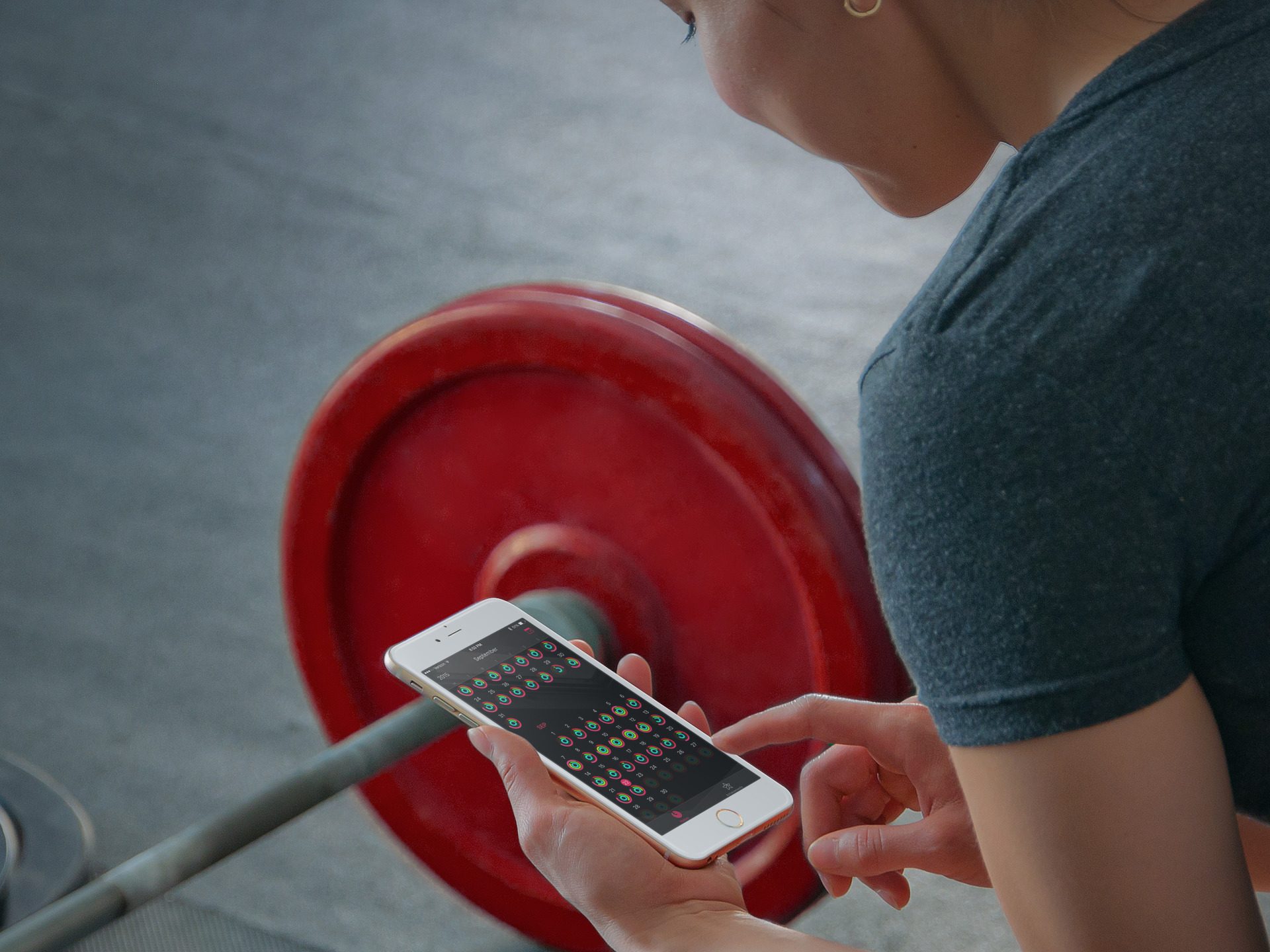
Earlier this week Christian highlighted two methods for upgrading to a new device and retaining your Activity and Health data. Method #1: use a third-party app to import your Health data, but it lacks Activity logs. Method #2: backing up your old device to iCloud or iTunes and restoring from backup, as I've described above.

But, what if you want both your Activity and Health data, but a fresh setup too? Step inside to learn how to install both, yet only, your previous device's Activity and Health data on your new iPhone. 
How to get your Likes back in Apple Music after upgrading your iPhone

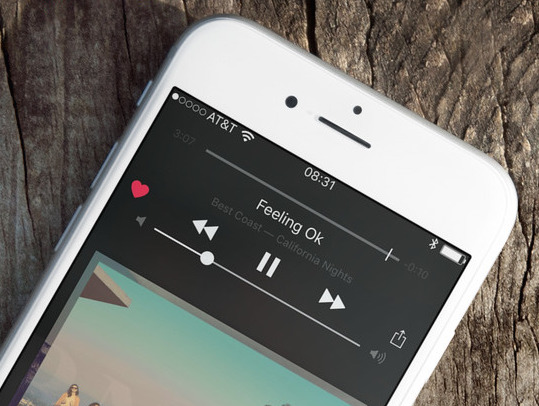
I woke up this morning to the sad realization that all my Apple Music Likes had disappeared. Hundreds of little red hearts that are supposed to make my Apple Music experience more tailored to my tastes were gone. I didn't really connect the dots right away as I assumed nothing had changed in my set up between my old iPhone 6 and my new iPhone 6s, but as it turns out, a simple tap of a button fixed everything.

How to silence Siri audio feedback when your iPhone is on silent

Starting with iOS 9, you are able to shut Siri up as easily as turning the mute switch to silent. Prior to iOS 9, Siri would not respond to the state of the ringer switch.

Indeed, how many times did you wish you could chat with Siri in the middle of the night but didn't out of fear her loud voice might wake up your significant other?

As it turns out, a quick trip to the Settings app and a couple of taps is all it takes to tell Siri to honor the state of your ringer switch.

How to update to watchOS 2

As of a few minutes ago, watchOS 2 is now available for download. If you own an Apple Watch, you can upgrade from watchOS 1 to watchOS 2 and enjoy many of the Apple Watch's new features. These features include native apps, third-party complications, and much, much more. In this post, we'll show you how to update your Apple Watch to the latest and greatest.

How to upload HD photos and videos on Facebook

One of the more annoying things about Facebook has got to be the diminished quality of photos and videos you upload to the service, be it via iOS's Facebook integration integration or through the official mobile app for the iPhone and iPad, a free download in the App Store.

For whatever reason, Facebook's mobile app defaults to low-resolution photo and video uploads, likely in an effort to minimize bandwidth usage in this digital age of capped cellular data.

Fortunately, there is an easy yet not immediately obvious way to configure Facebook for iPhone and iPad to record and upload videos and photos in glorious high-definition.