How to

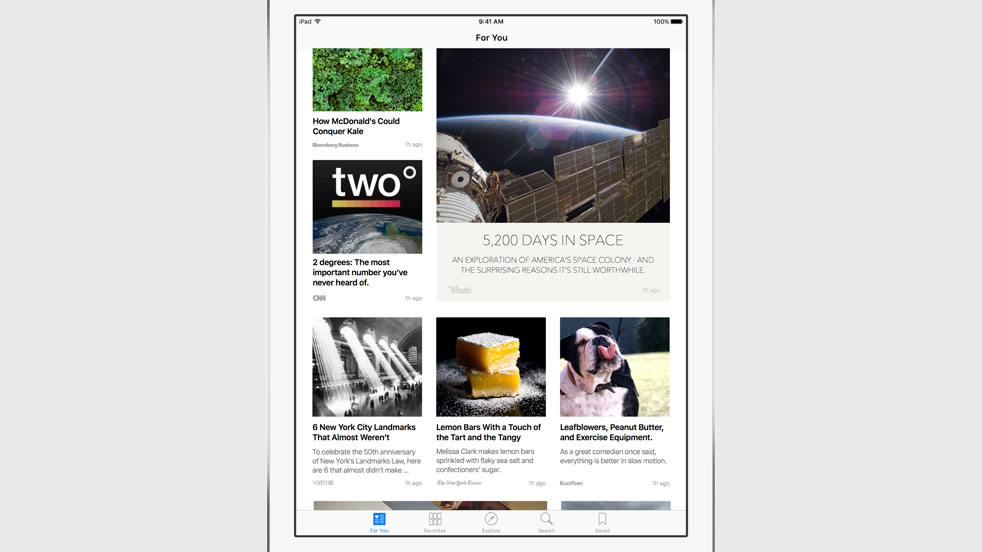
How to enable iOS 9 News app if you’re outside US

Among other things, iOS 9 adds four new non-removable apps to your Home screen, one of them called News and the other three being iCloud Drive, Find My iPhone and Find My Friends.

Unfortunately, folks living outside the United States are out of luck as News is US-only at launch.

Now, the forthcoming iOS 9.1 software update will officially bring News to the United Kingdom and perhaps some other markets. That being said, you can actually enable News regardless of where you live, and here's how.
How to migrate your data from Android to iOS

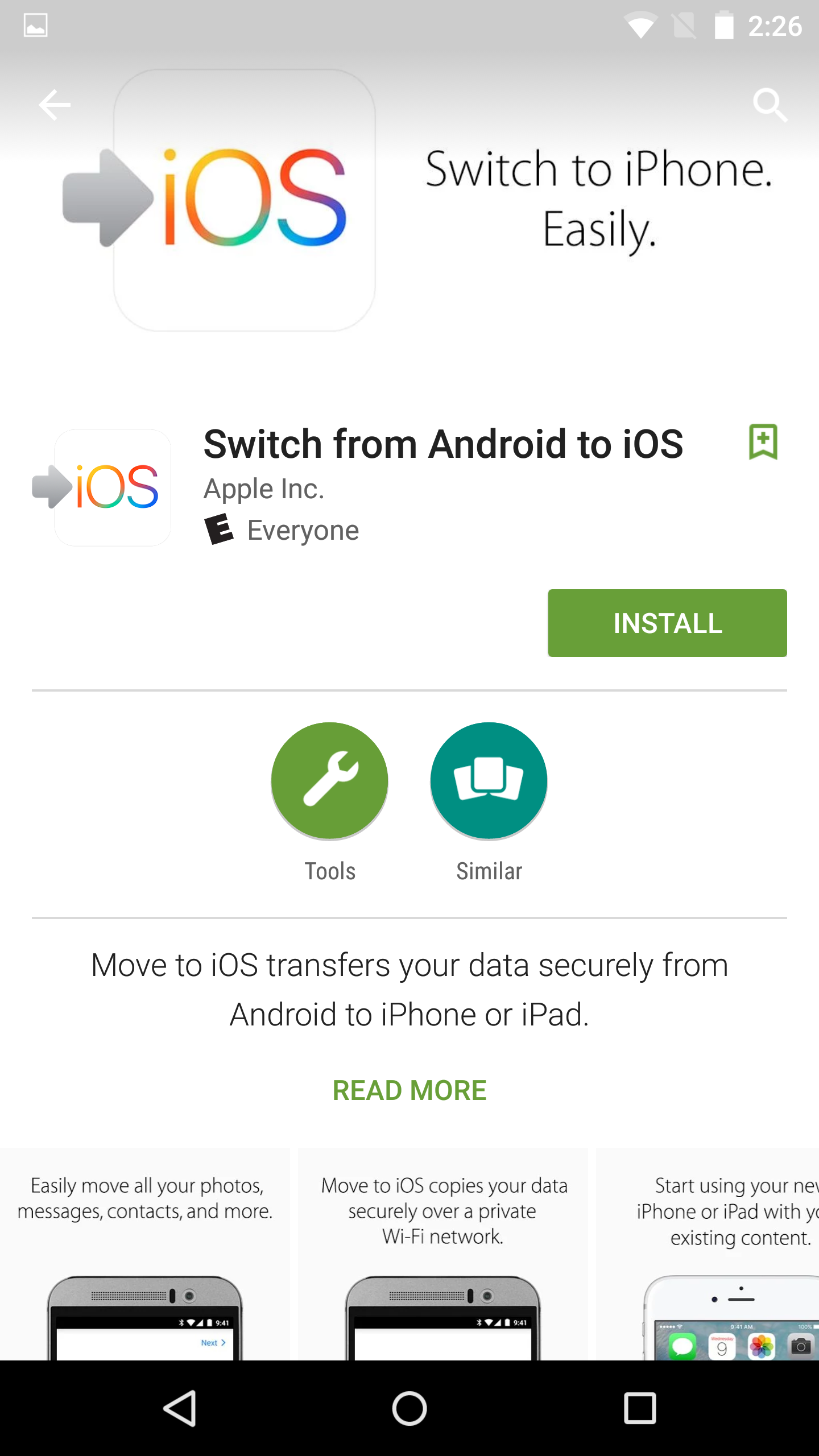
Apple just released its Move to iOS app for Android. This is an app that you can download from the Google Play store that will make it easier for Android users to migrate to iOS.

During the initial iOS 9 setup, users are given the option of how they want to proceed with setup, and migrating from Android is one of those options. If a user selects Move Data from Android, they will then be pointed to the Move to iOS app on their Android device for easy migration.

In this post, I'll walk you through the full migration process, which involves pairing the two devices together in order to transfer Android user data to your iOS device.

How to search within third-party apps using Spotlight on iOS 9

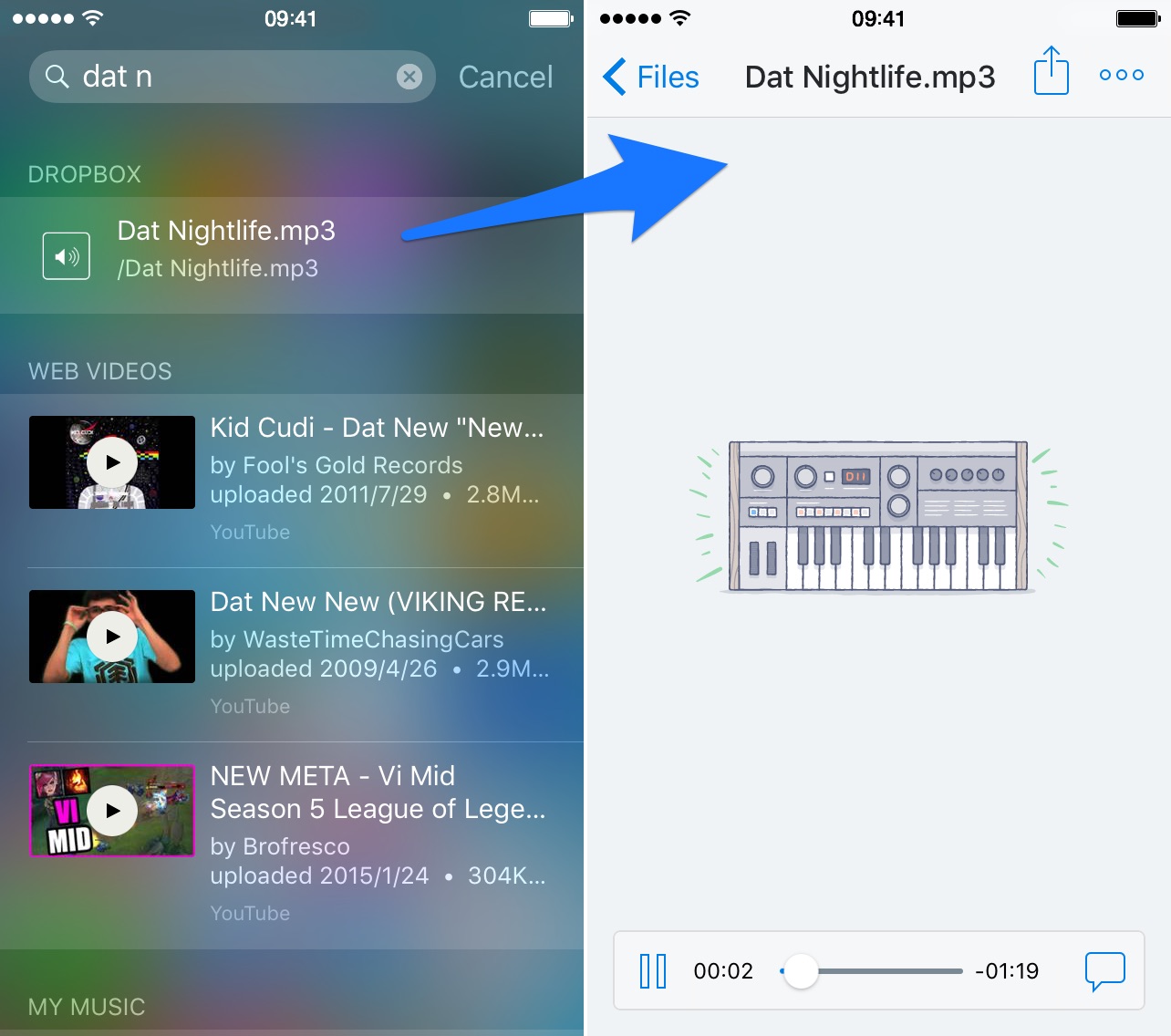
One of the biggest new features found in iOS 9 is the adoption of universal search. Universal search is a new feature that allows you to search for content within apps directly from Spotlight search.

On previous versions of iOS, searching was limited to the web and first party Apple apps pre-installed on iOS. For example, with older version of iOS you could search for contents within the Notes app, but couldn't do so for third-party note apps.

With iOS 9's new Spotlight search abilities, you can now search and discover content buried deep within the apps on your iPhone. It makes Spotlight feel truly useful and brand new.

How to start up your Mac from a bootable CD/DVD, USB thumb drive or external storage device

macOS can start up your Mac in a myriad of ways. We've already covered some of them in detail, such as using built-in Startup Manager to pick a disk to startup your Mac from and booting into Safe, Verbose and Target Disk modes.

In this article, we get to talk about starting your Mac up from external storage like optical media or an external USB-based hard drive or flash storage. Booting from an external storage allows you to start up your Mac in another version or copy of macOS, Additionally, it can help you troubleshoot certain issues, and more.

How to pre-order your iPhone 6s contract-free from Apple

If you're thinking about pre-ordering a new iPhone 6s or iPhone 6s Plus, purchasing the device outright is a viable option. I always buy my iPhones outright because I don't want to be tied to lengthy carrier contracts.

In the past, Apple wouldn't sell you the latest iPhones contract-free (at its full, non-subsidized price) unless at least a few months have passed following their introduction. As it turns out, you can now pre-order an iPhone 6s or iPhone 6s Plus contract-free, straight from Apple—here's how.

How to repair disk permissions on Mac

Some Mac hiccups and startup issues can be resolved by repairing disk permissions in macOS. Disk permissions allow your Mac to control what users have access to files and folders on your Mac.

Unfortunately, it's quite easy to unintentionally mess up disk permissions. In fact, the very act of installing and uninstalling apps on your Mac can over time result in broken permissions.

And when file permissions break, your apps might be allowed to alter each other's files or even modify read-only system files, which in turn can lead to various permission errors and erroneous behavior in macOS. It is therefore essential that disk permission in macOS are as they are supposed to be.

In this tutorial, I'm going to show you how to verify and fix disk permissions in macOS, which is typically a basic troubleshooting step to fix any software issues your Mac might be plagued with.

How to boot your Mac in Target Disk Mode

Our tutorial series dealing with the many ways you can start up your Mac continues with Target Disk Mode, a feature Apple conceived to allow your Mac to act as an external disk for another Mac.

It's not surprising that the vast majority of average Mac owners are totally oblivious to the existence of Target Disk Mode, and who could blame them? After all, Target Disk Mode isn't exactly front and center on macOS.

In this tutorial, you're going to be taught how to activate Target Disk Mode through the System Preferences application, or enter it directly at boot time with a simple keystroke. I'm also going to explain in layman's terms why, when and how Target Disk Mode should be used.