Learn how to switch your iPhone or iPad onscreen keyboard to an UPPERCASE design instead of the default lowercase letters printed on each key.
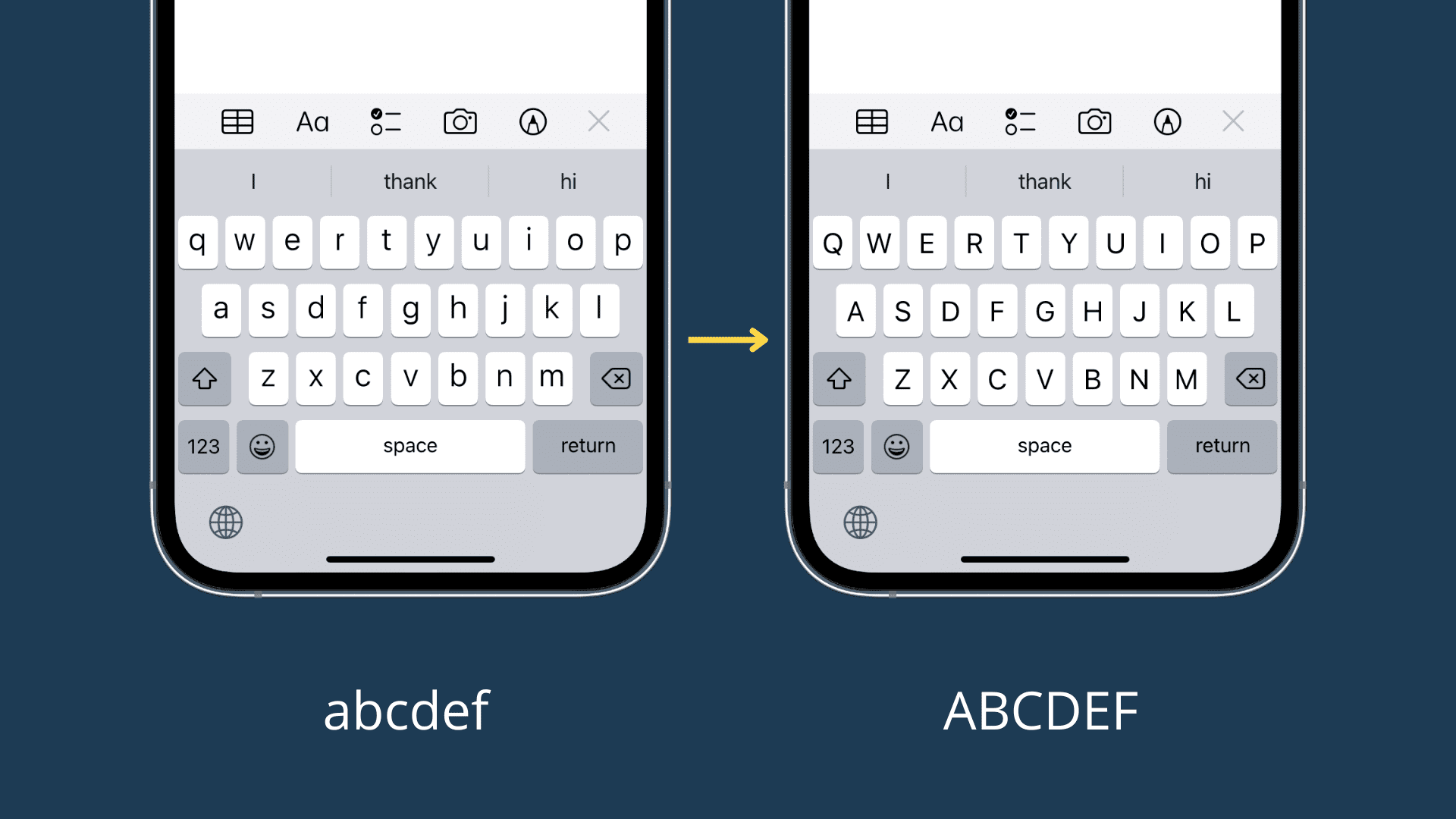
The onscreen keyboard on your iPhone and iPad uses lowercase key labels, but you can switch to an all-capital design in a few easy steps.
This setting doesn’t affect your actual typing. Instead, it only changes the style of key labels on the virtual keyboard.
Switch iPhone or iPad keyboard style to UPPERCASE labels
- Open the Settings app.
- Tap Accessibility.
- Select Keyboards & Typing.
- Turn off the Show Lowercase Keys switch.
- Open an app like Notes to check whether key labels are now printed in UPPERCASE instead of lowercase.
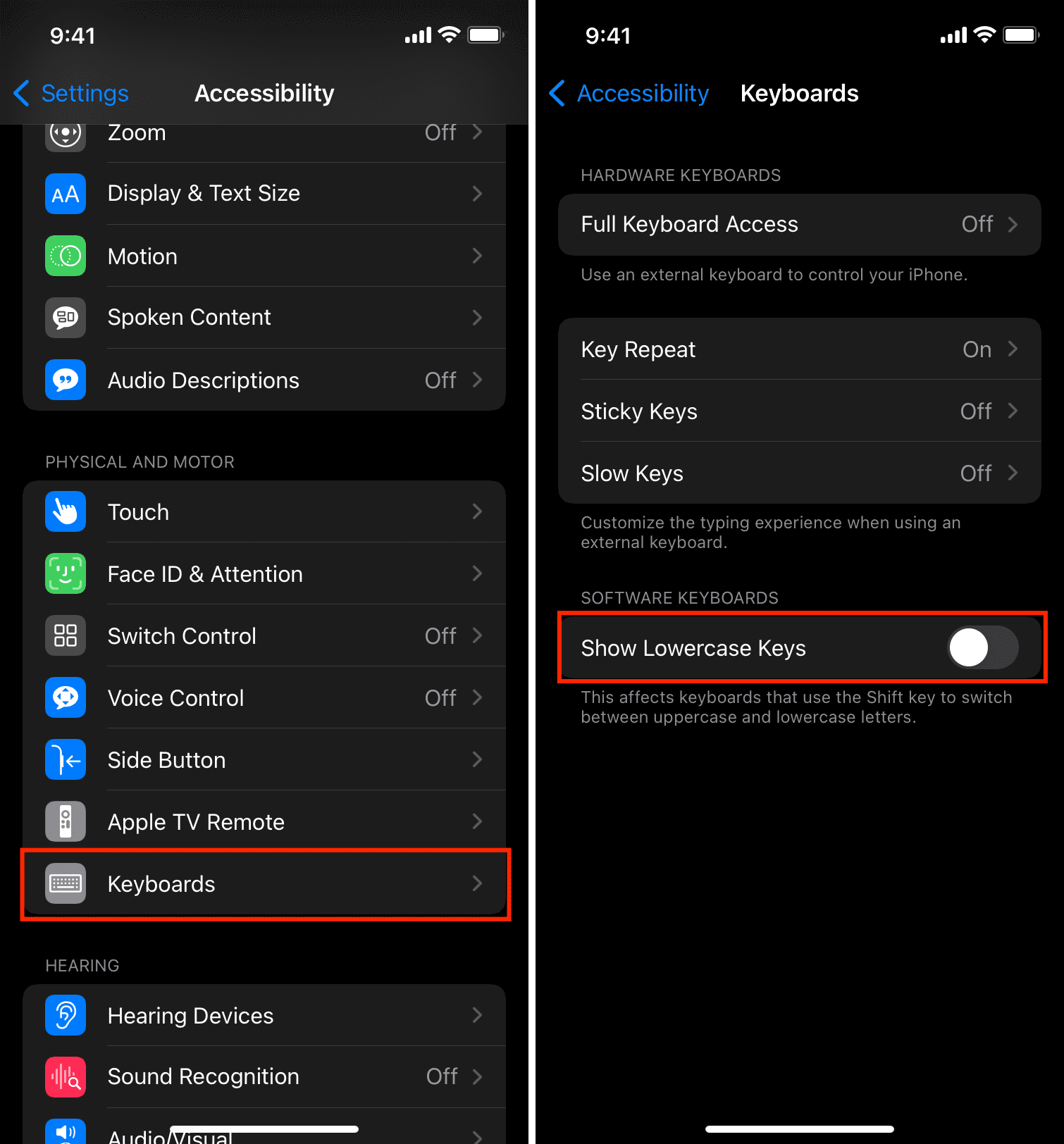
Apple warns that this setting “affects keyboards that use a Shift key to switch between uppercase and lowercase letters.” When it’s turned off, key letters will be UPPERCASE regardless of whether the Shift key is active. But when the ‘Show Lowercase Keys’ option is turned on, which is the default state, key labels will be lowercase until you tap the Shift key, which will switch the keyboard from UPPERCASE to lowercase labels.
I actually prefer the default setting because it makes it easier to distinguish between the states of iOS’s confusing Shift key. But if UPPERCASE keys work better for you, use those instead.
If you find the UPPERCASE keyboard distracting, you can always switch back to the lowercase design by turning off ‘Show Lowercase Keys’ in iOS accessibility settings.
More on typing: