In this tutorial, we’ll show you how to hide the number of Instagram likes and view counts for both your own posts and other people’s posts.
How to hide likes count on one or all Instagram posts
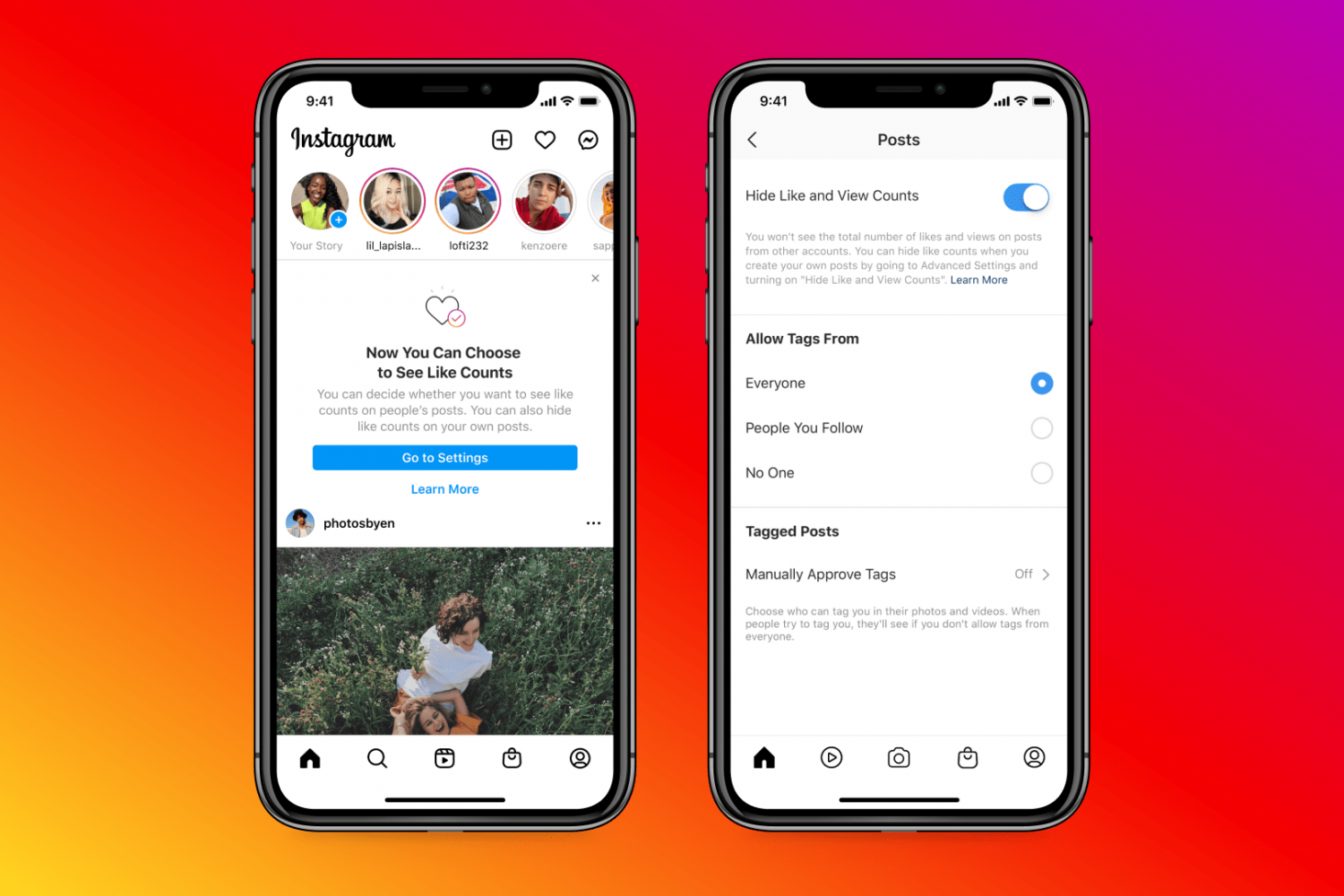
In this tutorial, we’ll show you how to hide the number of Instagram likes and view counts for both your own posts and other people’s posts.

In this step-by-step tutorial, we’ll take you through the simple process of downloading all the pictures and videos you have saved on Google Photos using the Google Takeout feature.

Learn how to monitor your child's communications via texts and iMessages on the iPhone or iPad to protect them from online threats and inappropriate content.

In this tutorial, we'll show you how to cancel this subscription from your iPhone, Mac, or Apple TV.

Like any other computer, your Raspberry Pi can fill up with unwanted items. You may have created a file that you no longer need or downloaded a file you no longer want.
If you’re ready to do a bit of cleaning on your Raspberry Pi, we’ll show you how to delete a file.
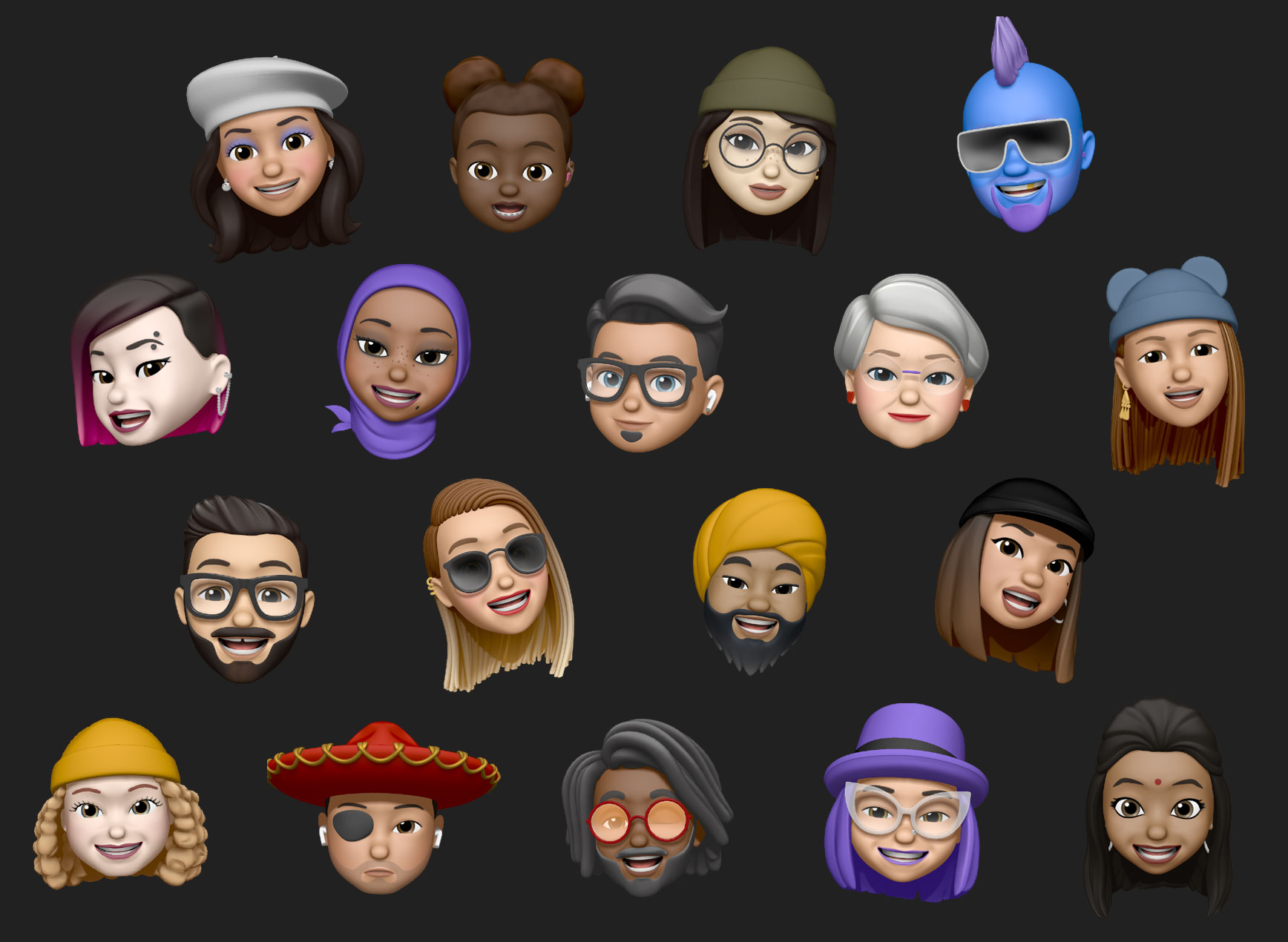
Don't have a person's picture to use as their contact photo? In this tutorial, we'll show you how to use a Memoji as the Contact Poster or Contact Photo on your iPhone.

Learn the difference between your Facebook display name and username and how to change them using the official app or website.
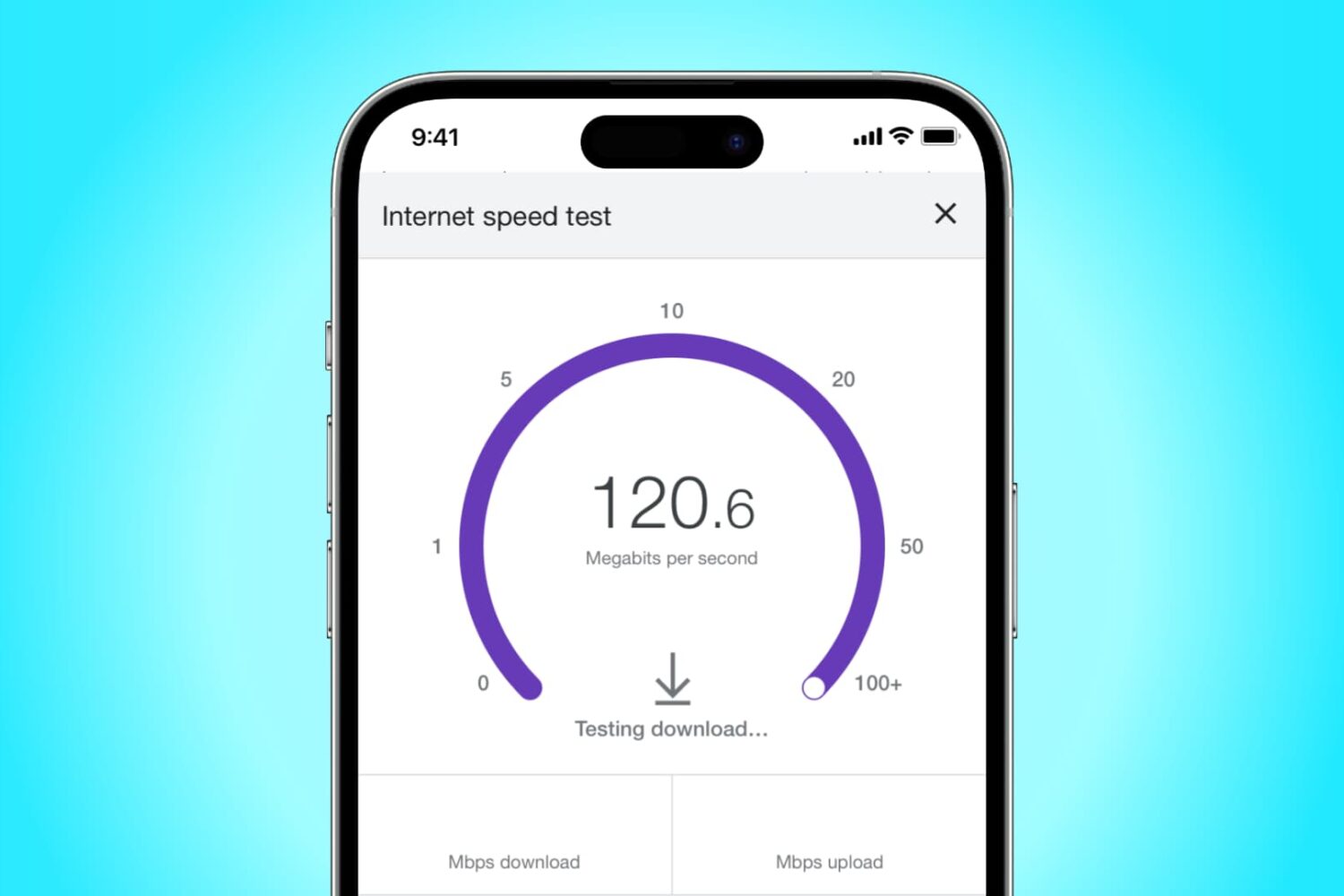
Learn how to speed up Wi-Fi on your iPhone or iPad with these 7 easy tips, and say goodbye to slow loading times and frustrating buffering!

TikTok is a popular video social networking service, which allows users to share short clips. Although it's been banned in some countries, millions of Americans still use the app. Several users have gained immense popularity and become influencers thanks to its reach. It is therefore important to have a good and easy to remember username on TikTok, specially if you've got a ton of followers.

Your dream desktop has landed! The new 24-inch iMac powered by the Apple M1 chip runs circles around the previous Intel-based 21.5-inch model, but that's hardly the only thing it's got going for it. Watch our handy video tips highlighting some of its best features.

In this tutorial, we’ll guide you through everything you need to know about your WhatsApp username and provide instructions on how to change it on both iPhone and Android devices.
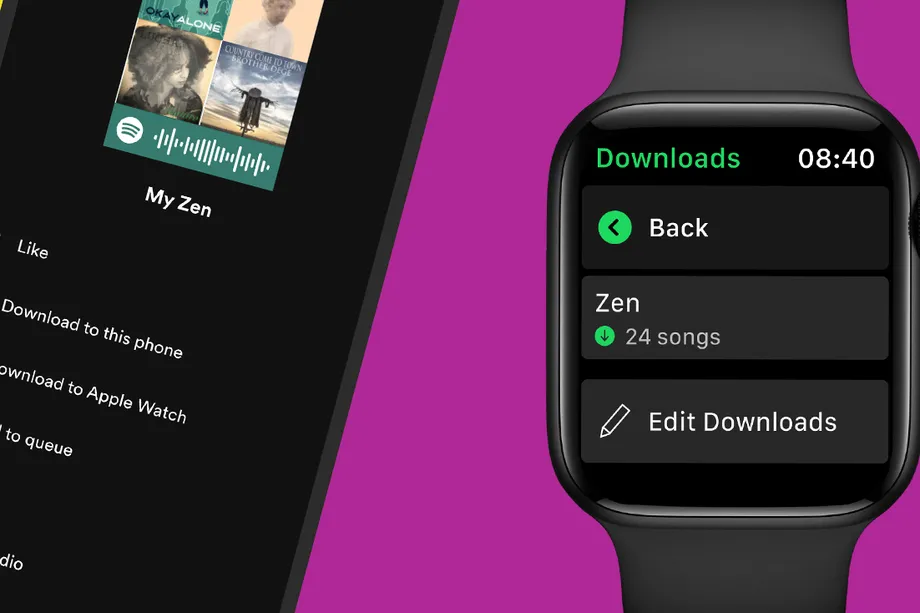
Learn how to download songs, playlists, and podcasts to the Spotify app on your Apple Watch so you can listen to them offline when your watch is not connected to your iPhone or the Internet.