Learn how to stop Apple’s Safari browser on your Mac from automatically opening files downloaded from the internet to mitigate potential security threats.
How to stop Safari from automatically opening downloaded files
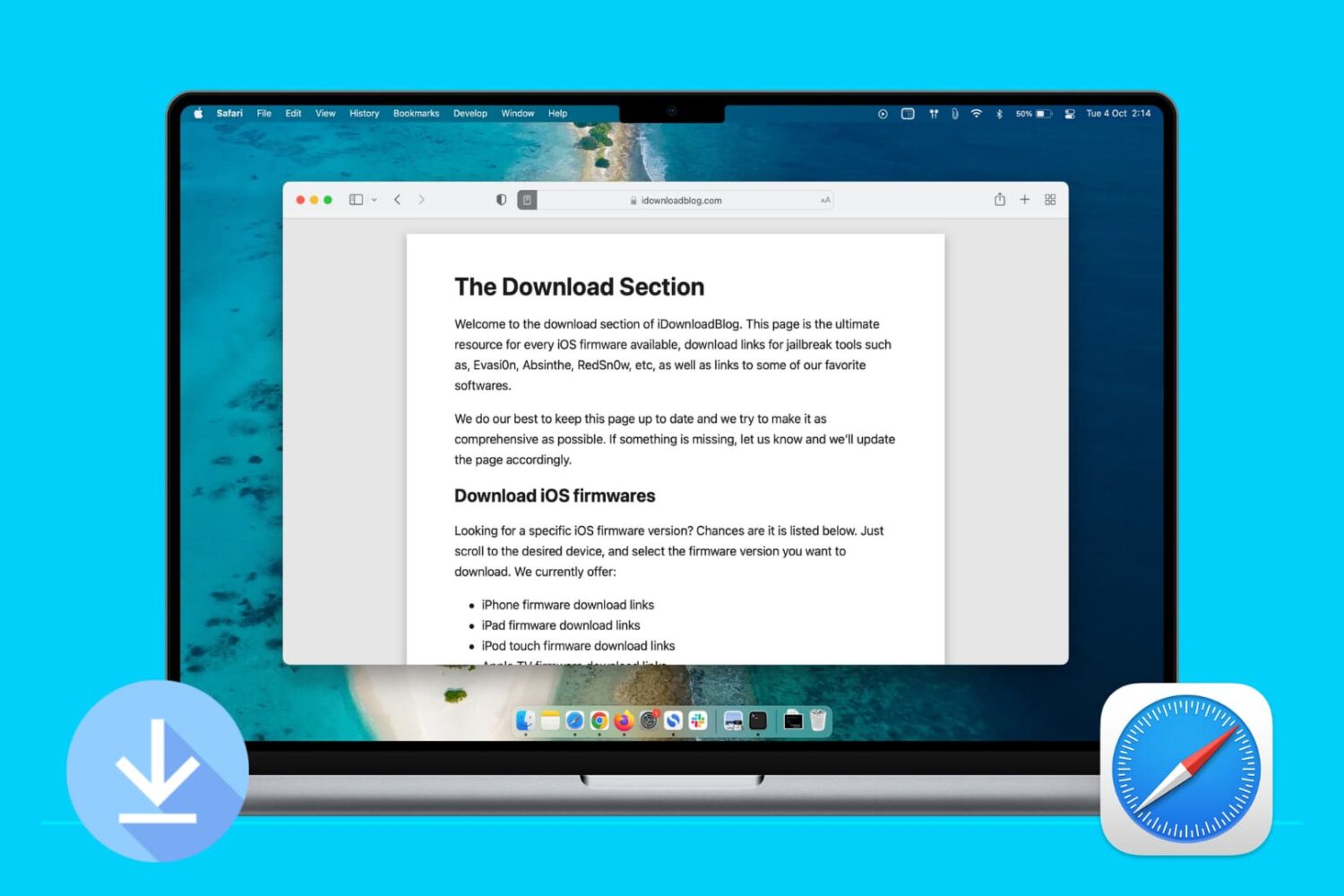
Learn how to stop Apple’s Safari browser on your Mac from automatically opening files downloaded from the internet to mitigate potential security threats.

Learn how to set Safari to automatically close open tabs after a day, week, or month on your iPhone, iPad, and Mac so that your web browser is not unnecessarily burdened with old, useless tabs.
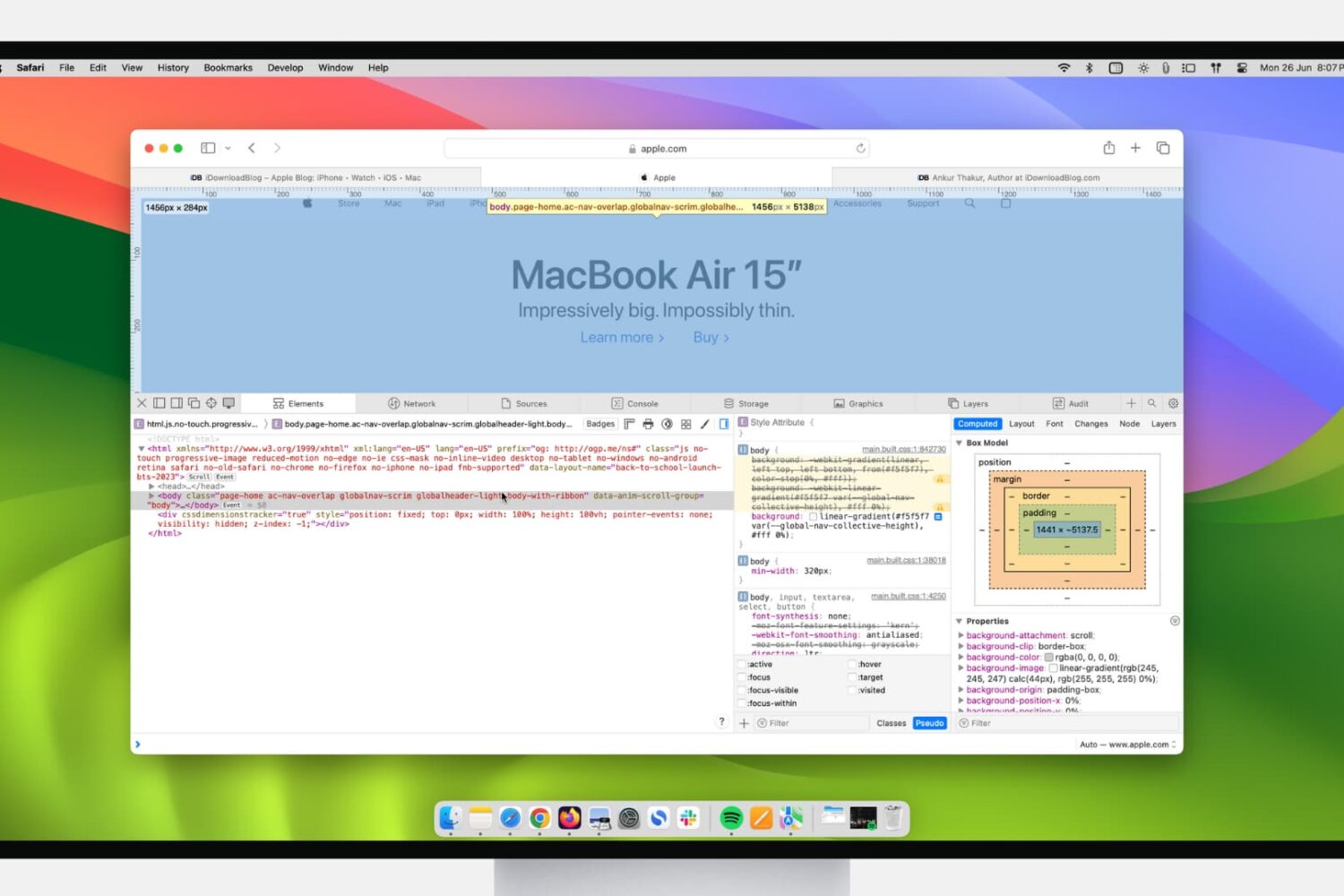
If you’re a web developer, then you likely already know about Safari’s Web Inspector. But if you’re just starting to use Safari for development or have just begun your Web Development career, this guide will show you the basics for getting started with the Safari Web Inspector on iOS and Mac.

Learn how to change the default Safari homepage to automatically open your favorite website when you click the Home button or open a new browser window or tab.

Learn how to add frequently accessed websites to your Safari favorites on an iPhone, iPad, and Mac so you can quickly revisit them with just a tap or click.
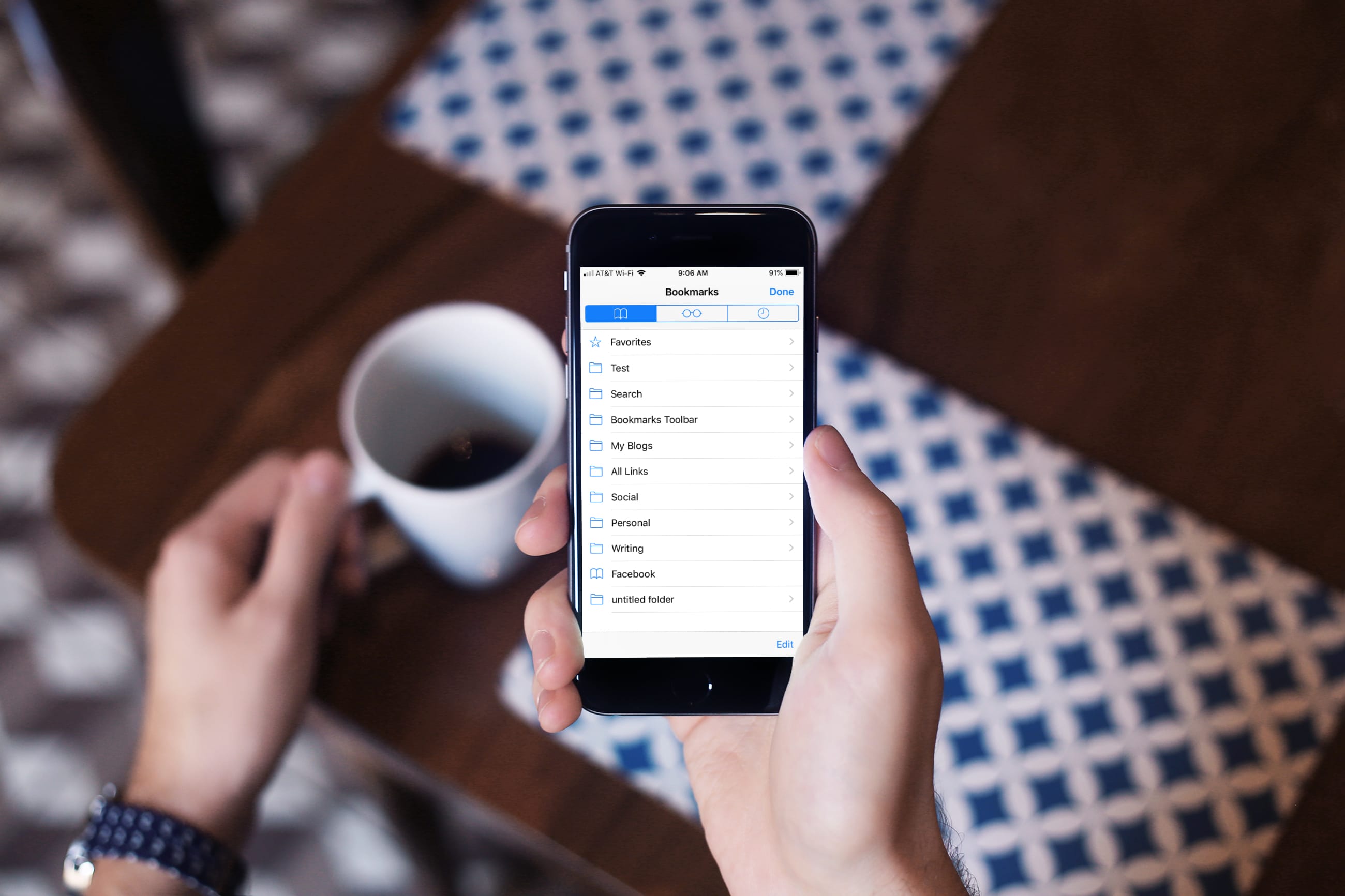
Learn how to turn off bookmark sync in Safari, Google Chrome, and Firefox on your iPhone and iPad if you’d like a different set of bookmarks on each device.
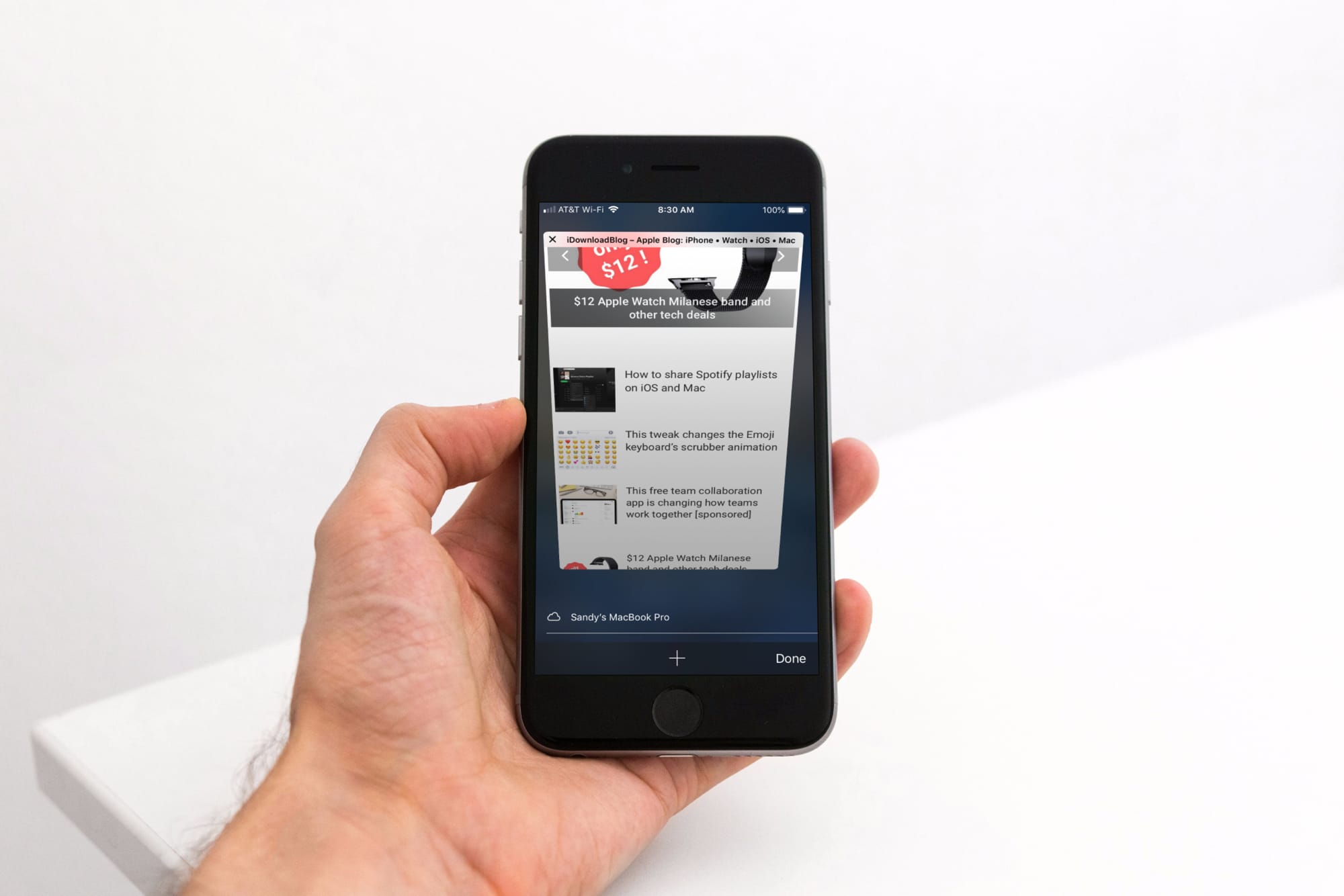
Learn how to enable unrestricted web browsing to retrieve the missing private tab button in Safari on your iPhone or iPad.
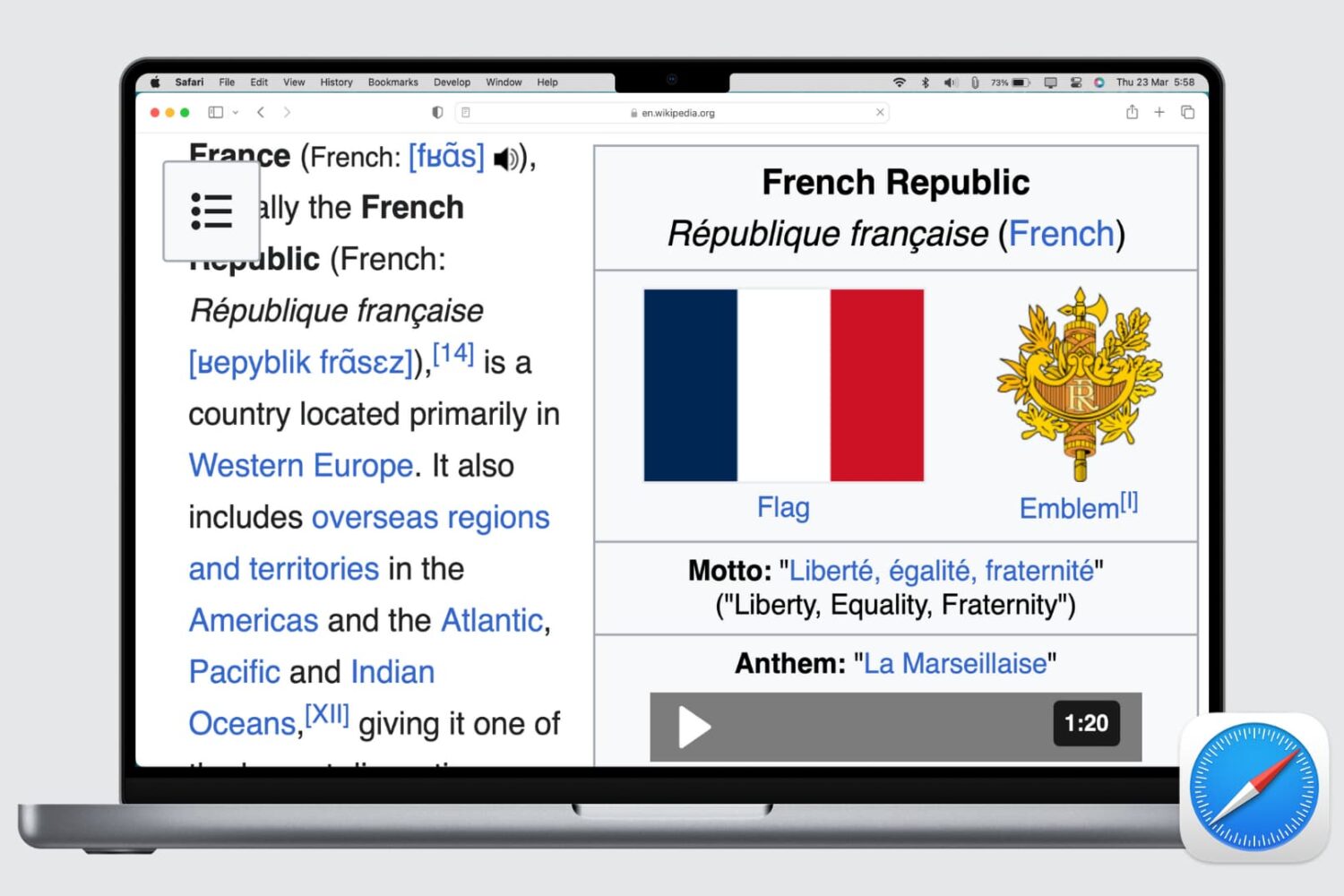
Whether the text of a webpage you’re visiting is too small to read or too big to handle, here’s how to use the Safari zoom feature on Mac to adjust it accordingly.
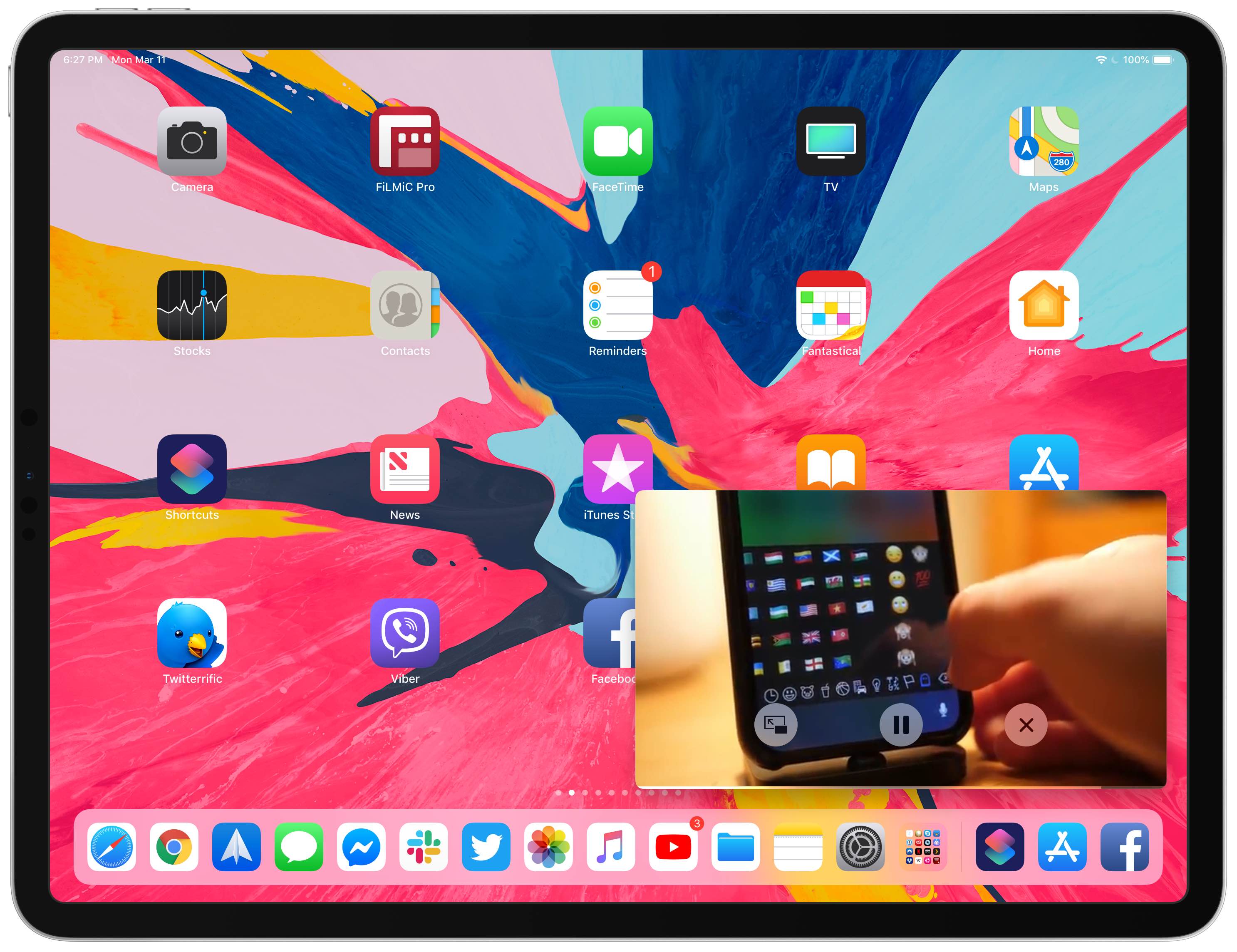
Your iPad supports Picture in Picture (PiP) videos in apps and webpages, but this handy mode isn't universally supported across all video-streaming websites. Crucially, PiP is unsupported by YouTube.com's iPad interface on Safari. But there's a shortcut for that, too—thanks to the power of iOS automation, you can enforce Picture in Picture on YouTube and other websites.

In this tutorial, we will share a hidden tip that lets you search for specific open tabs in Safari and close all matching options in one swoop.

Bookmarking your favorite websites in Safari on your iPhone, iPad, and/or Mac is handy for accessing the pages you need with a tap. But bookmarks can also quickly get out of control. So for the best experience, you can organize your bookmarks in folders, rearrange them, edit them, and of course, delete those you end up never using.
To help you get control of your saved pages, here's how to manage bookmarks in Safari on iOS and Mac.

Learn how to search through your Safari tabs on iPhone and iPad to quickly find the sites and pages you have opened without much manual scrolling.