Learn how to change the default Safari homepage to automatically open your favorite website when you click the Home button or open a new browser window or tab.
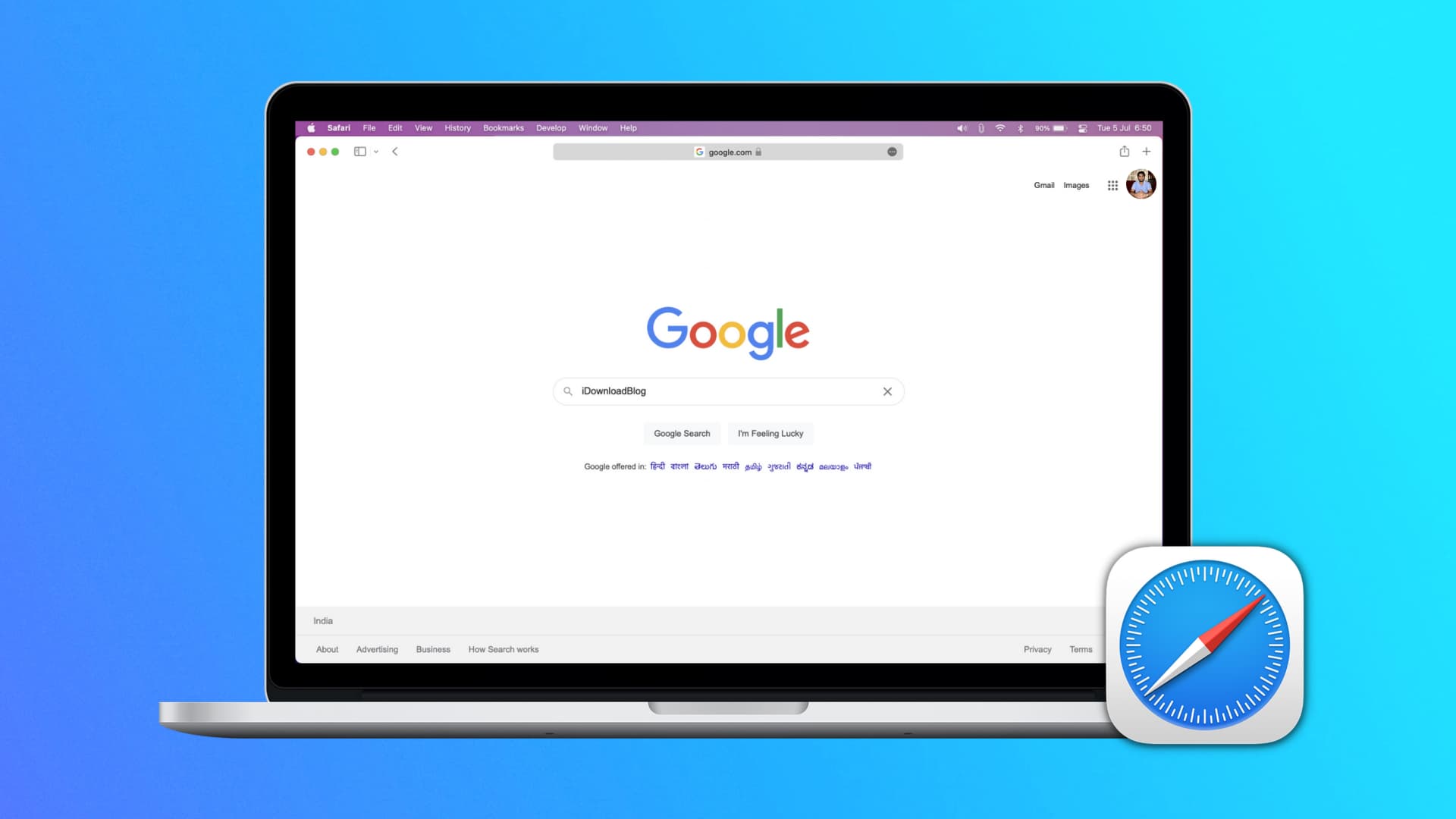
Safari’s Favorites section holds websites you’ve marked as favorites. Safari for Mac also opens the default homepage when you click the Home button. You can change it to any website you fancy, like a news site, a trusted weather service, or your favorite tech site like (shameless plug warning) iDownloadblog.com.
Customizing Safari’s default homepage is easy, and we show you how.
macOS
- Open Safari on your Mac.
- Click Safari > Settings from the top menu bar.
- Make sure you’re in the General tab, then enter a website URL in the box next to Homepage. If you’re already on that site, click Set Current Page to fill it in automatically.

Set Safari to open the default homepage for new windows and tabs
Whenever you click the Home button in Safari’s toolbar or choose the History > Home menu, you’ll land on that page.
To also set the default homepage to load automatically upon opening a new Safari tab or window, click the menu next to ‘New windows open with’ and ‘New tabs open with’ and make your choice.

Want to set an image as the default Safari homepage? Doing so can really liven up your web browsing on the Mac by showing your adorable pet, favorite vacation spot, or loving family whenever you open Safari.
iOS
Safari on iOS doesn’t have a default homepage, but you can use a workaround to make it open to your favorite website every time. All you need to do is create a website shortcut on your iPhone or iPad Home Screen.

To make the website open as a regular bookmark instead of a web app, be sure to turn off the switch ‘Open as Web App’ when adding it to the Home Screen. Web apps run without browser chrome, support offline storage, and integrate with system features such as the task switcher.

Also, check out: