Learn how to personalize the Apple Mail app on your Mac by customizing fonts and colors of your emails, inboxes, message lists, and more.
How to customize fonts and colors in the Mail app on Mac
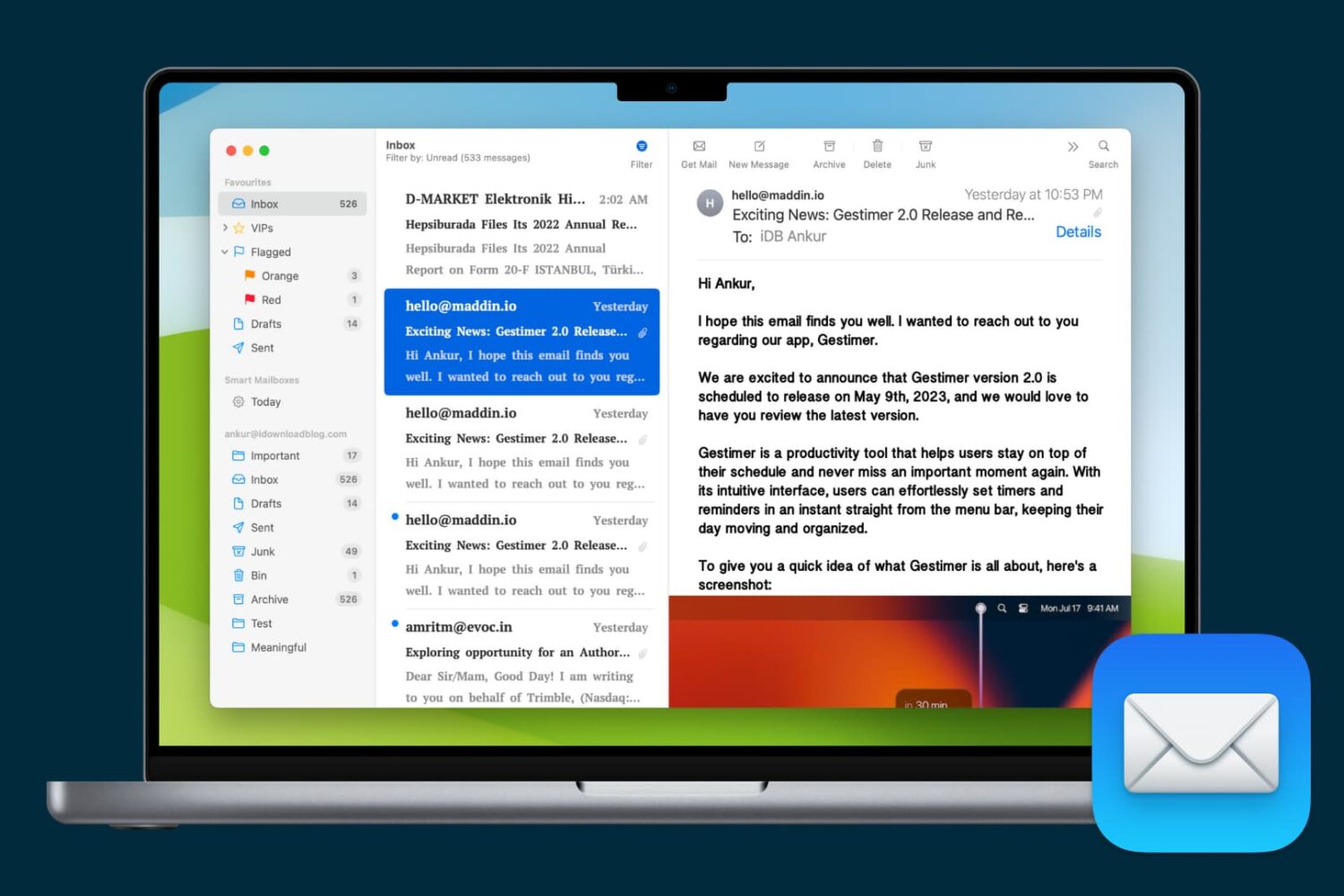
Learn how to personalize the Apple Mail app on your Mac by customizing fonts and colors of your emails, inboxes, message lists, and more.

Take advantage of your Mac’s built-in search feature to find things faster and easier than ever with these Spotlight search tips.

Learn how to share iCloud files and folders with one or more people, change their access permissions, and stop sharing when done from your iPhone, iPad, Mac, and web browser.
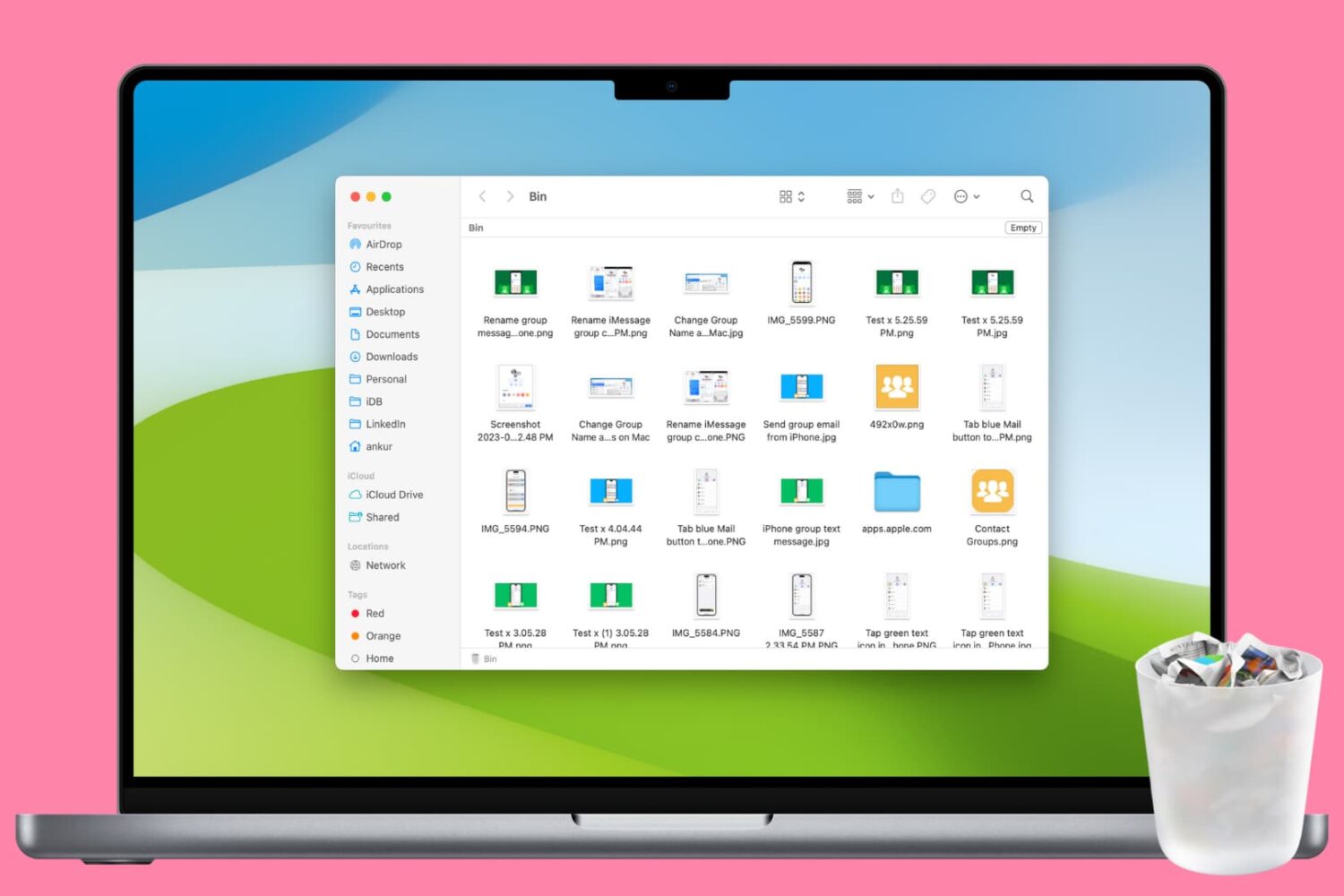
Clean up your Mac and regain valuable storage space by mastering these 10 ways to delete all or selected items from the Trash folder.
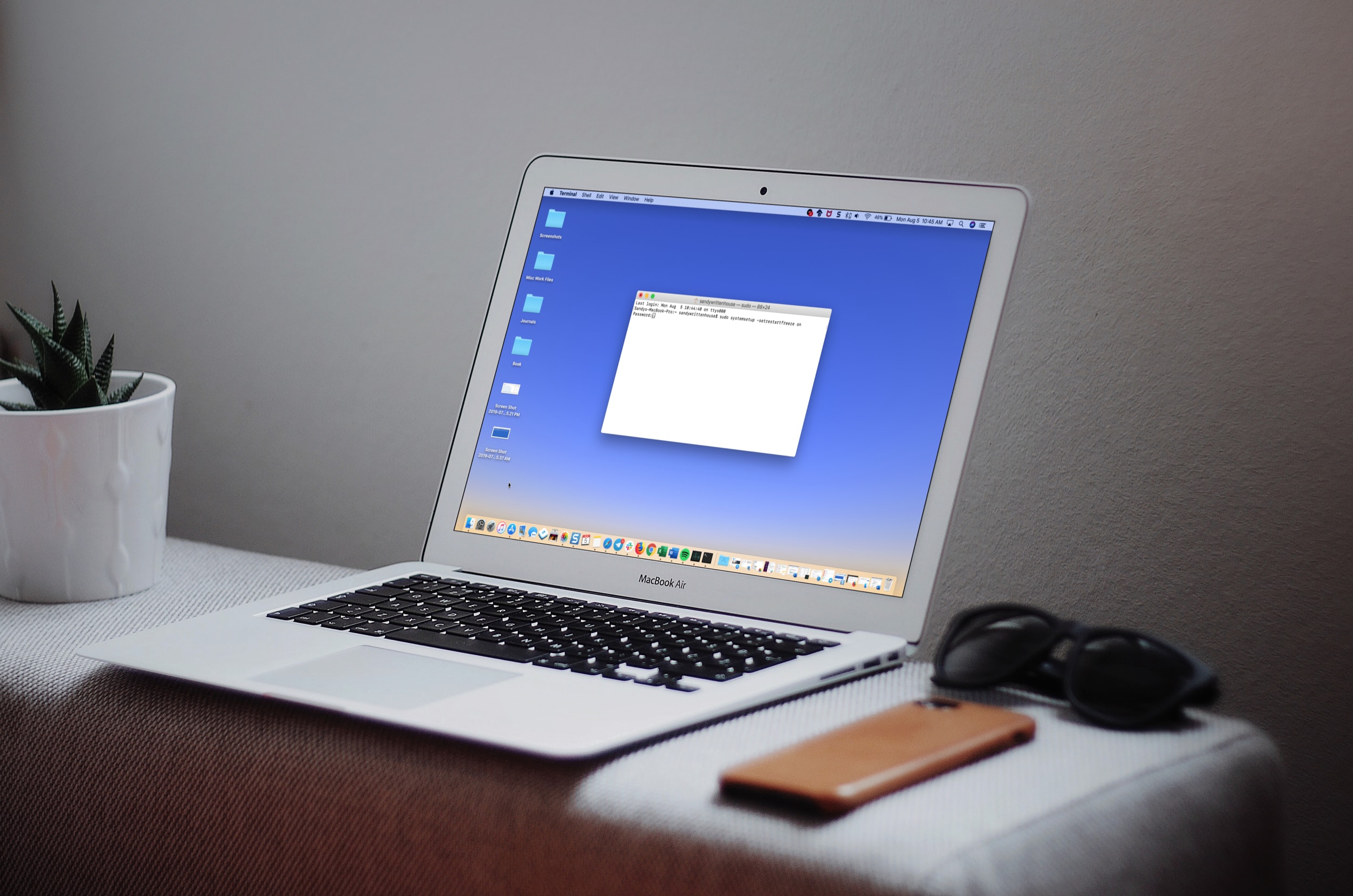
Learn how to make your Mac restart itself automatically after a system crash or power outage to minimize downtime and disruptions to your workflow.

In this simple guide, we walk you through 5 easy ways to change your Mac’s wallpaper, so you can breathe some new life into your computer’s aesthetics. Use your own photos or choose from Apple’s stock wallpaper collection.
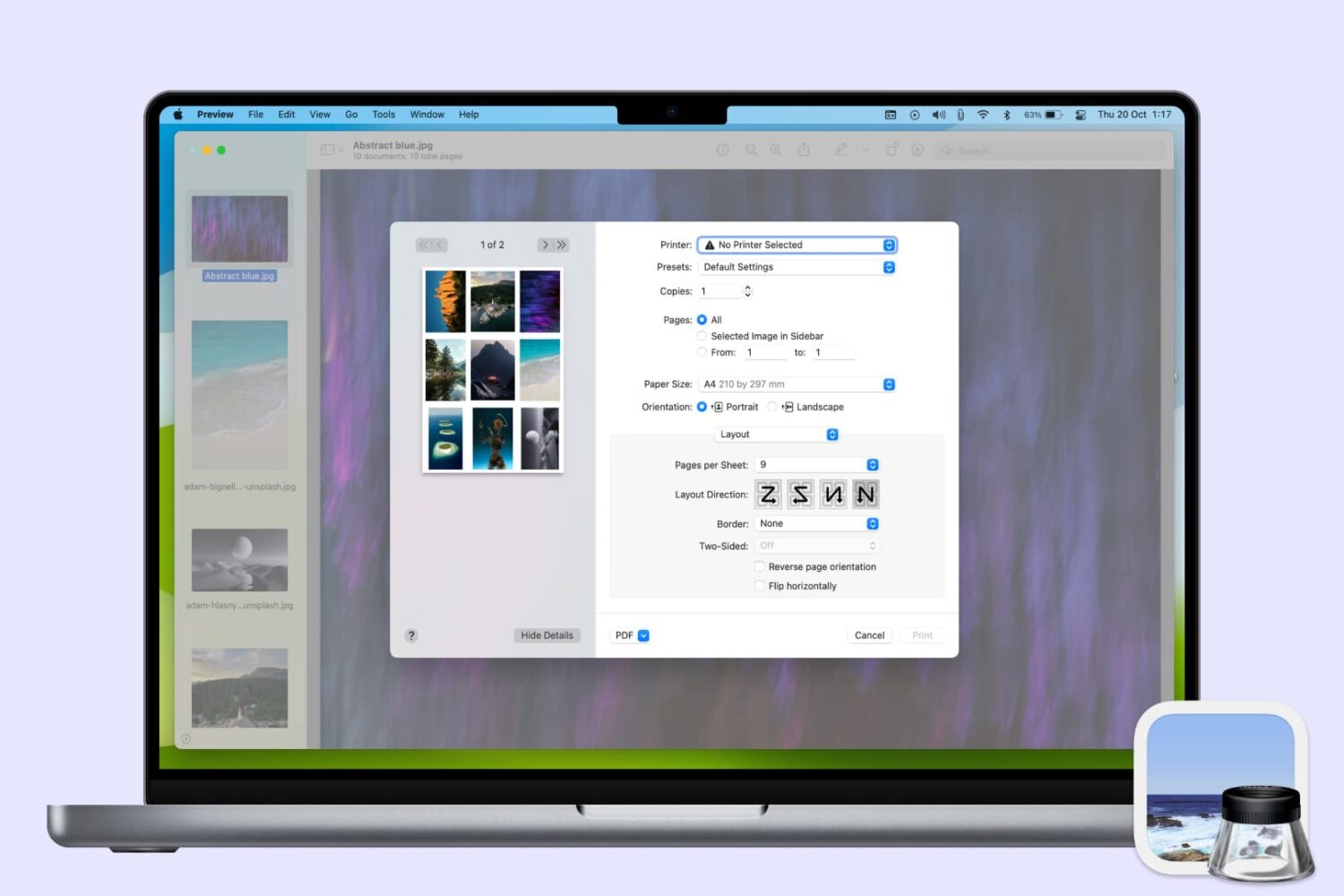
Learn how to use the Apple Preview app on Mac to print multiple photos on a single page, maximizing paper usage and minimizing waste.
Stop the frustration of files automatically saving to iCloud on your Mac by following this guide on disabling the default setting.
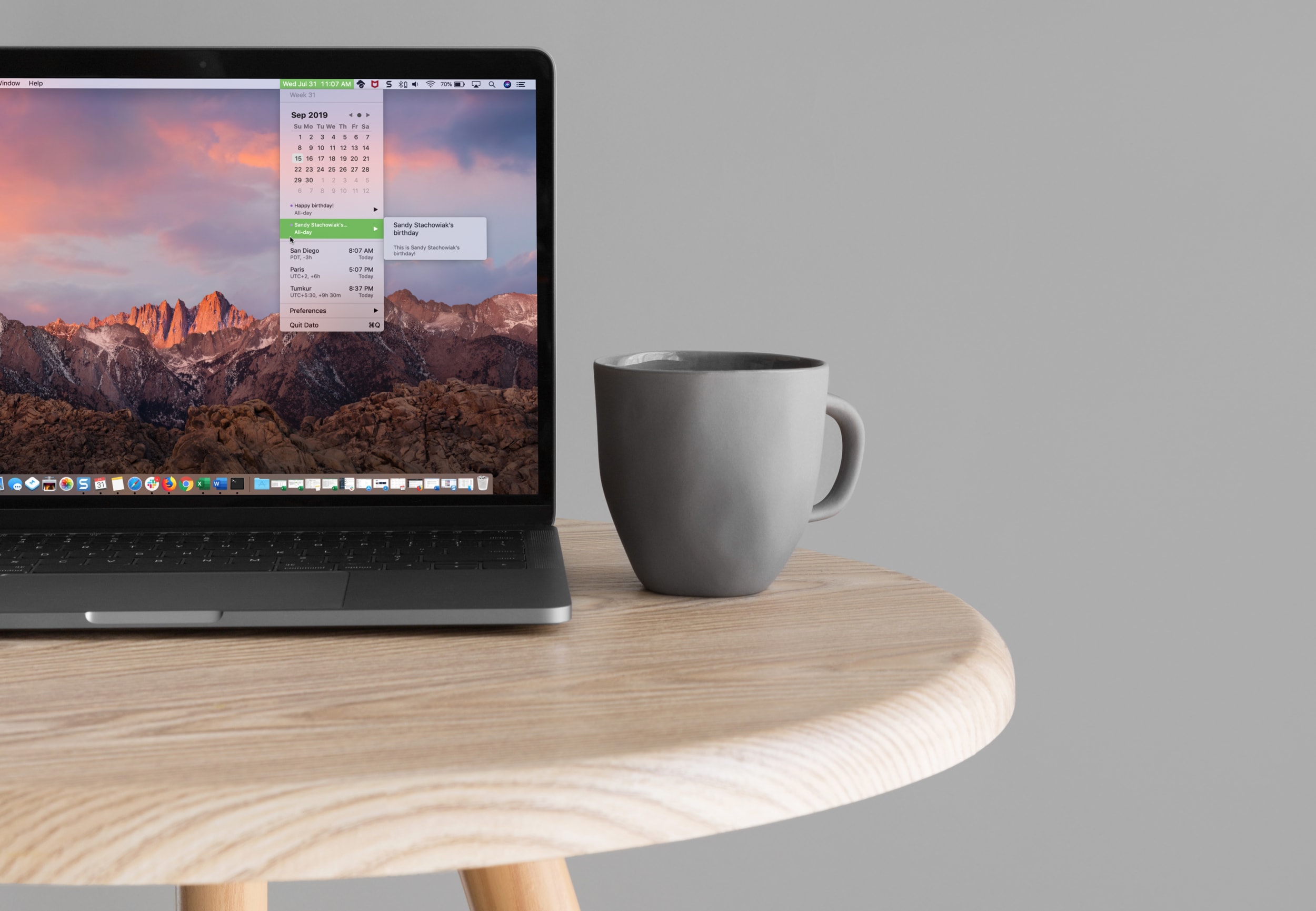
Learn how to easily add a calendar and multiple time zones to your Mac Menu Bar in order to improve your productivity and organization using the Dato app.

The People album in the Photos app is a pretty cool collection that’s assembled for you to quickly view pictures of the people in your life. So when someone new enters that you start snapping photos of, you might want them in that People album too. Unfortunately, they may not show up there as quickly as you might like.
Luckily there is a really easy way to add a new person to the People album in your Photos app or iCloud Photos library. Here’s how.
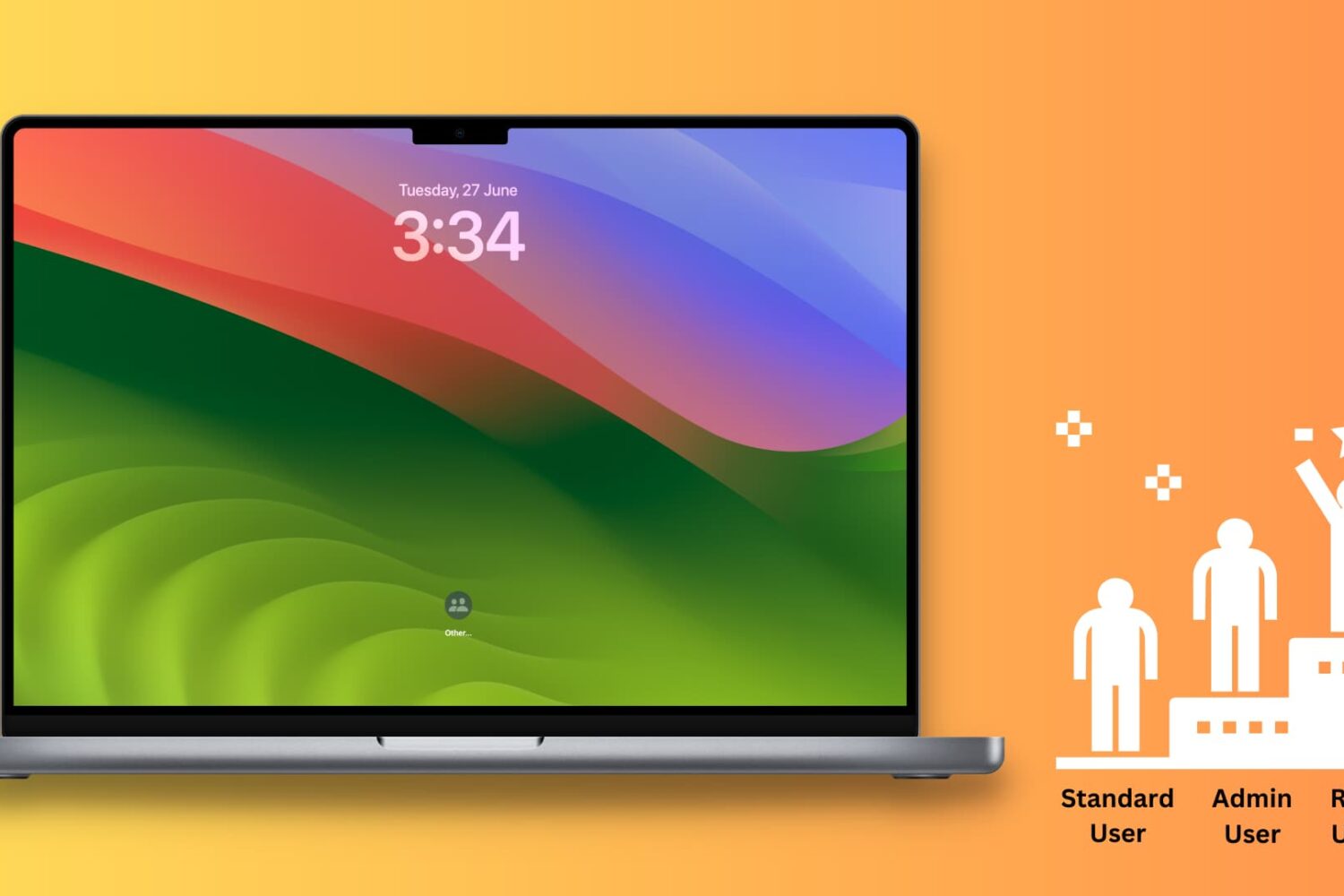
This tutorial shows you how to enable root user on your Mac, log in to it, use it, change its password, and finally disable it.
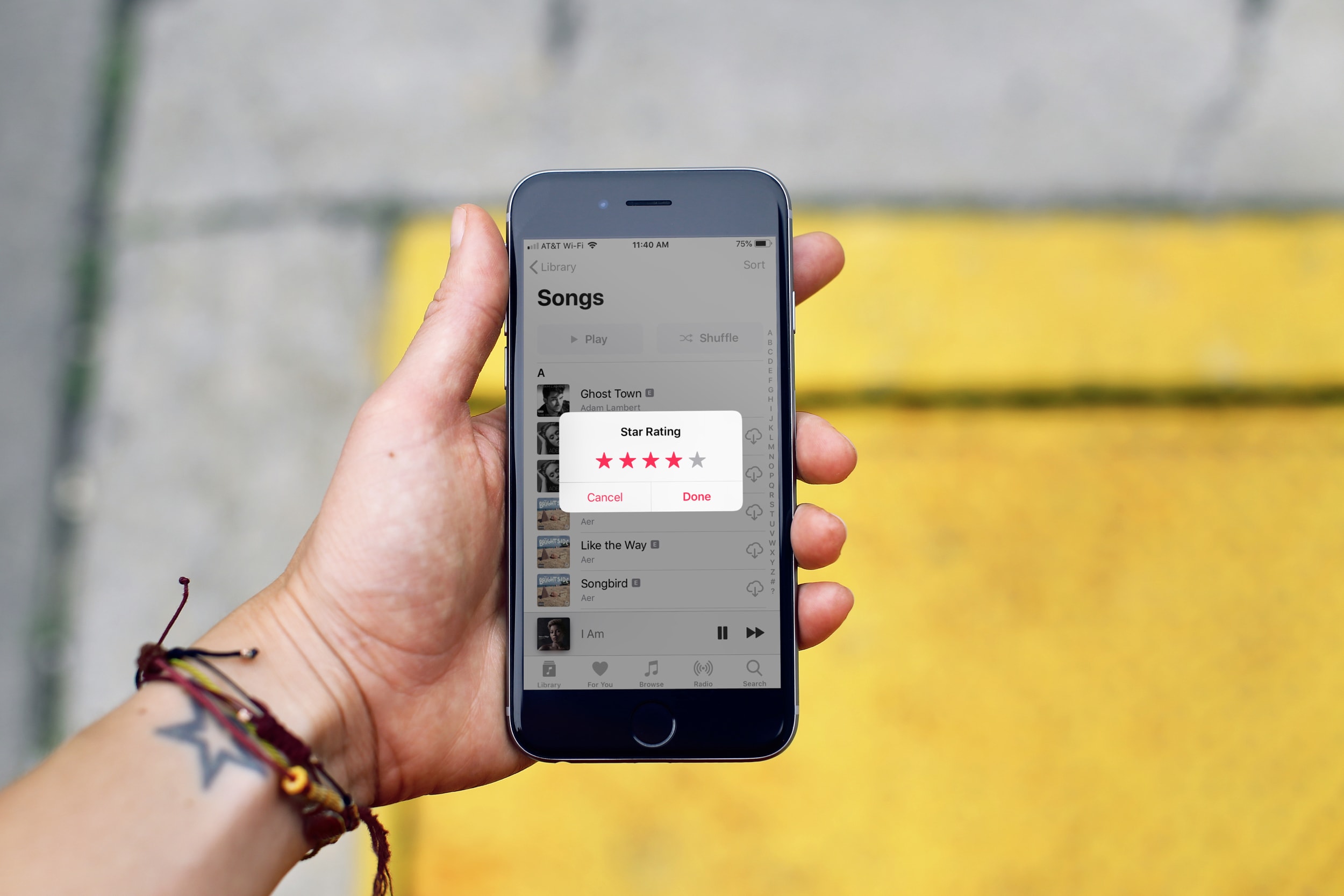
In this tutorial, we’ll show you how to rate songs in your iPhone, iPad, or Mac’s music library on a scale of one to five stars and then create smart playlists based on these rated songs.