Learn how to personalize the Apple Mail app on your Mac by customizing fonts and colors of your emails, inboxes, message lists, and more.
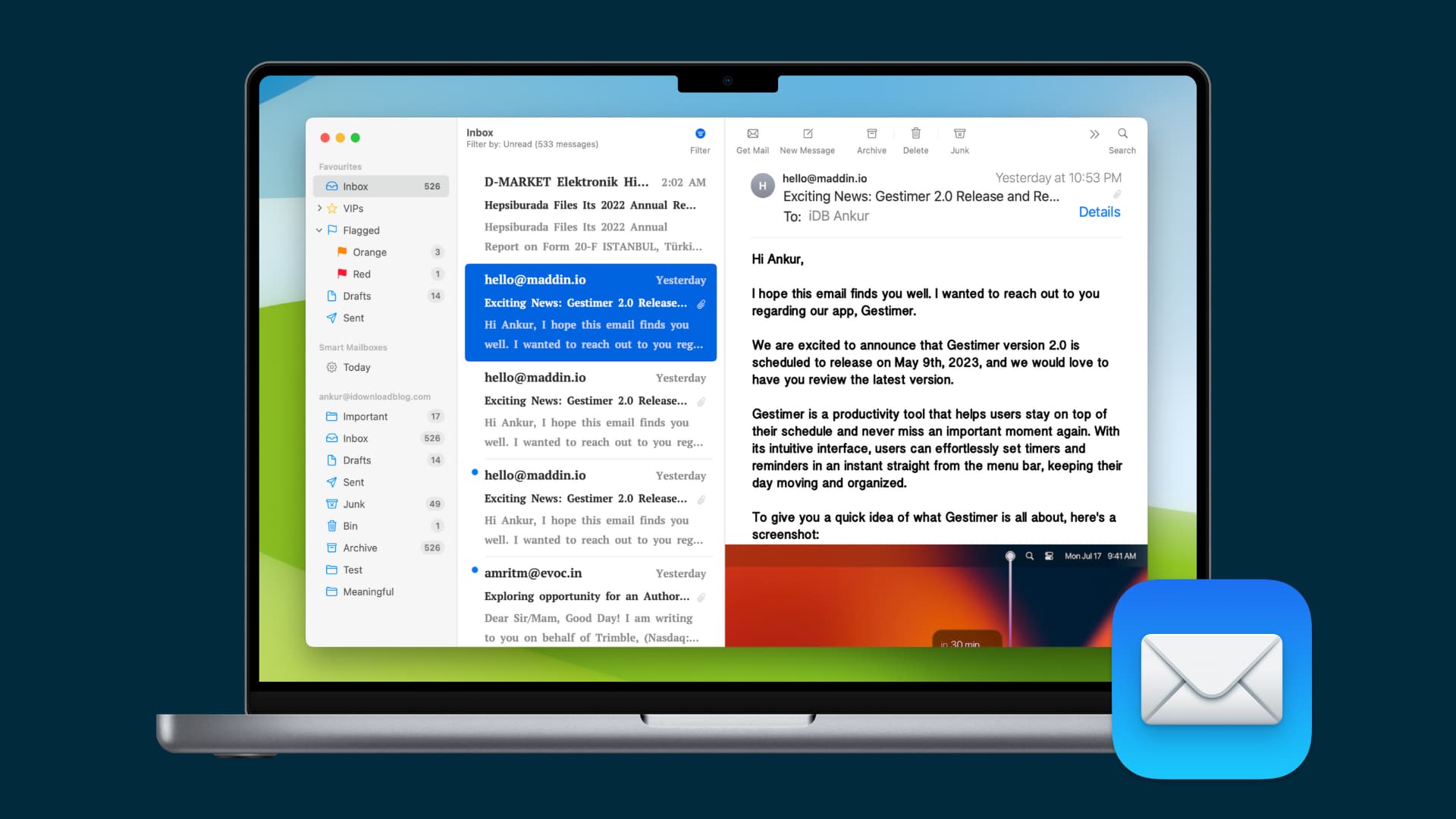
Apple’s Mail app is probably one of the most-used apps on your Mac. Although many third-party email clients provide features like themes and colored skins, you cannot change the appearance of the built-in Mail app much unless you just want Dark Mode.
But with a few clicks, you can actually change what fonts and colors are used not only for your emails but also in specific places such as the primary message list, quoted text for forwards and replies, and more.
Customize fonts and colors in Apple Mail for Mac
- Open the Mail app on your Mac.
- Click Mail > Settings or Mail > Preferences in the menu bar.
- Switch to the Fonts & Colors tab at the top.
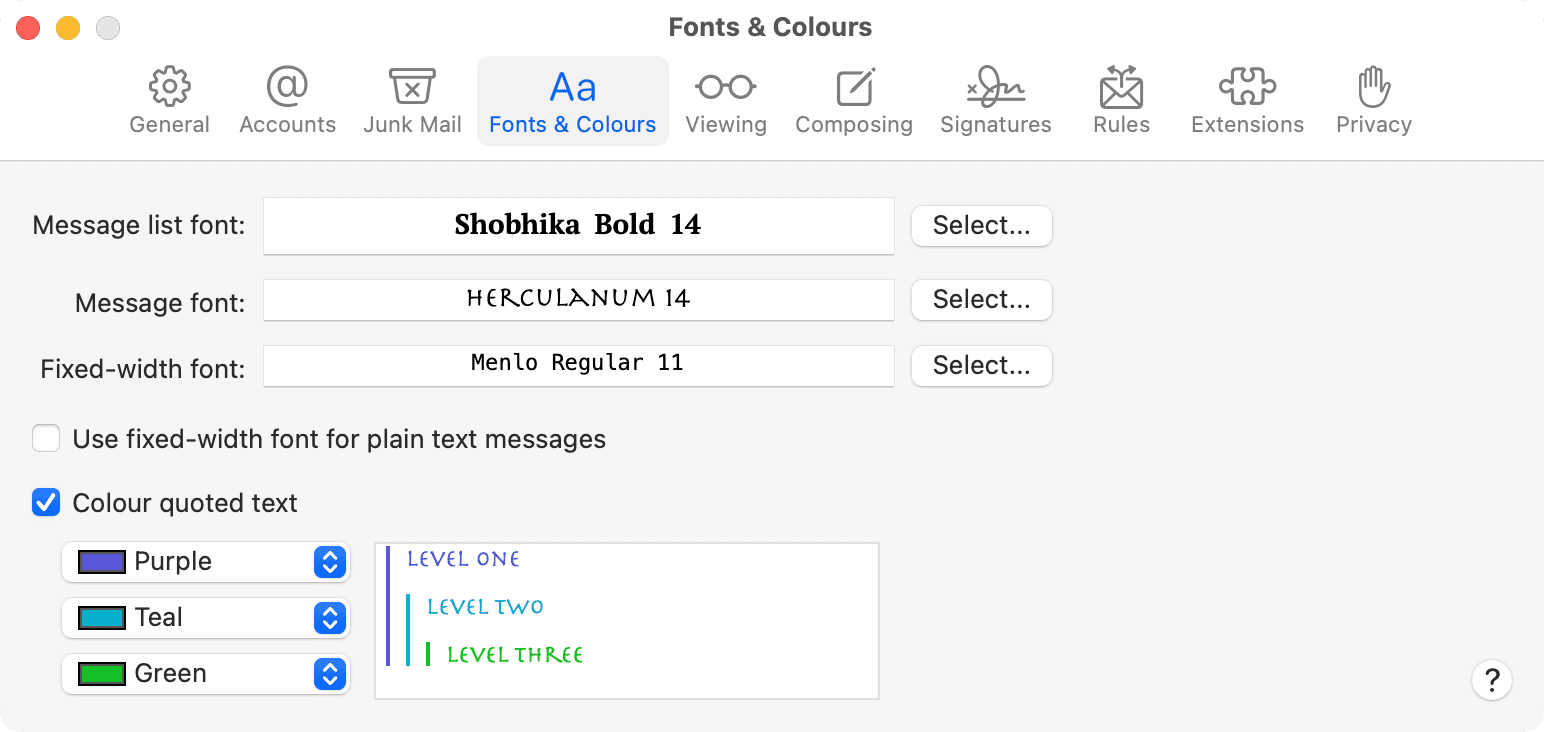
We’ve listed below all the options you can access here and how they work.
Message list font
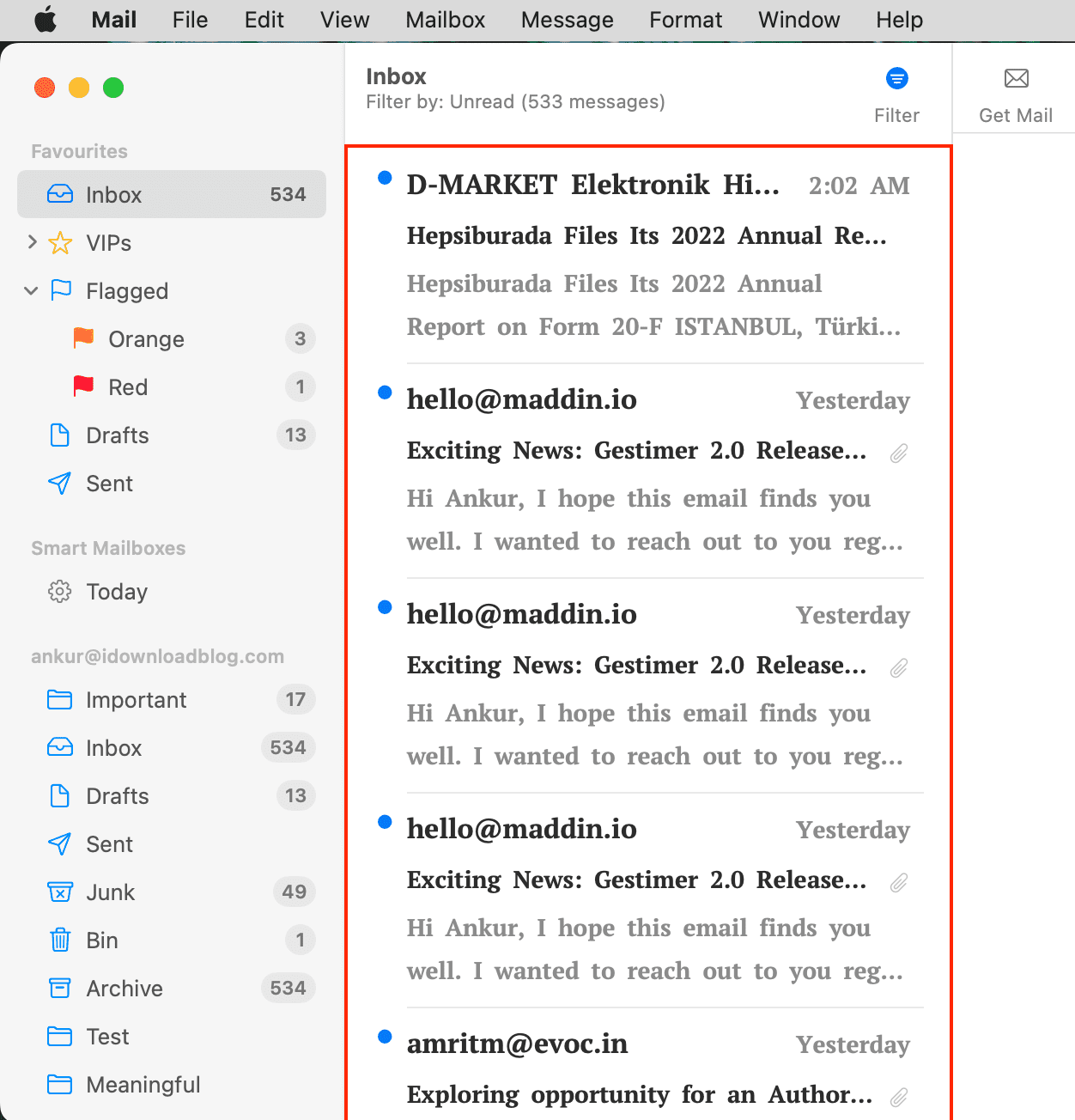
This is the typeface for your message list/inbox. Click Select and pick an option you like.
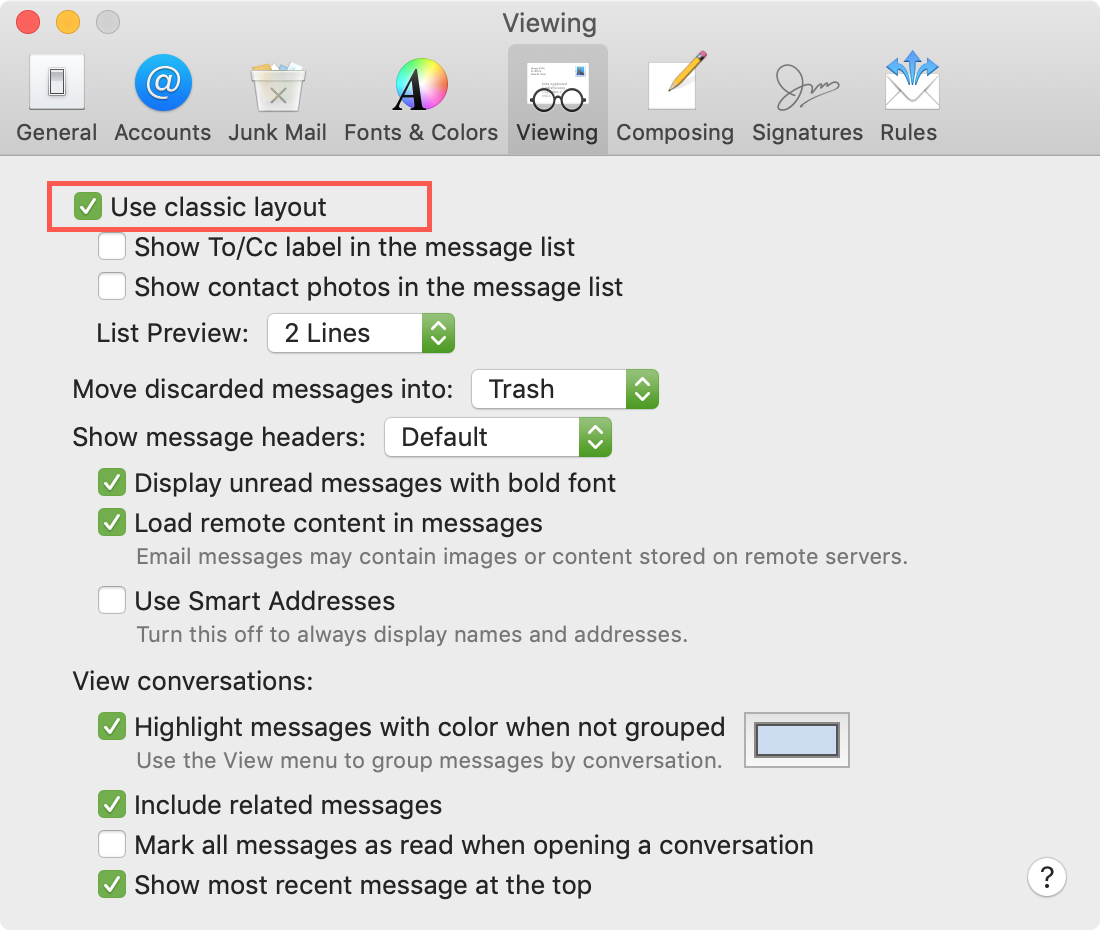
Note: On older macOS versions, the message list font can only be changed in the classic layout, which puts the message list on top (rather than the left) and message content on the bottom (rather than the right). To switch to this view in Mail on macOS 26, click the Viewing tab and tick the box at the top labeled “Use classic layout.”
Message font
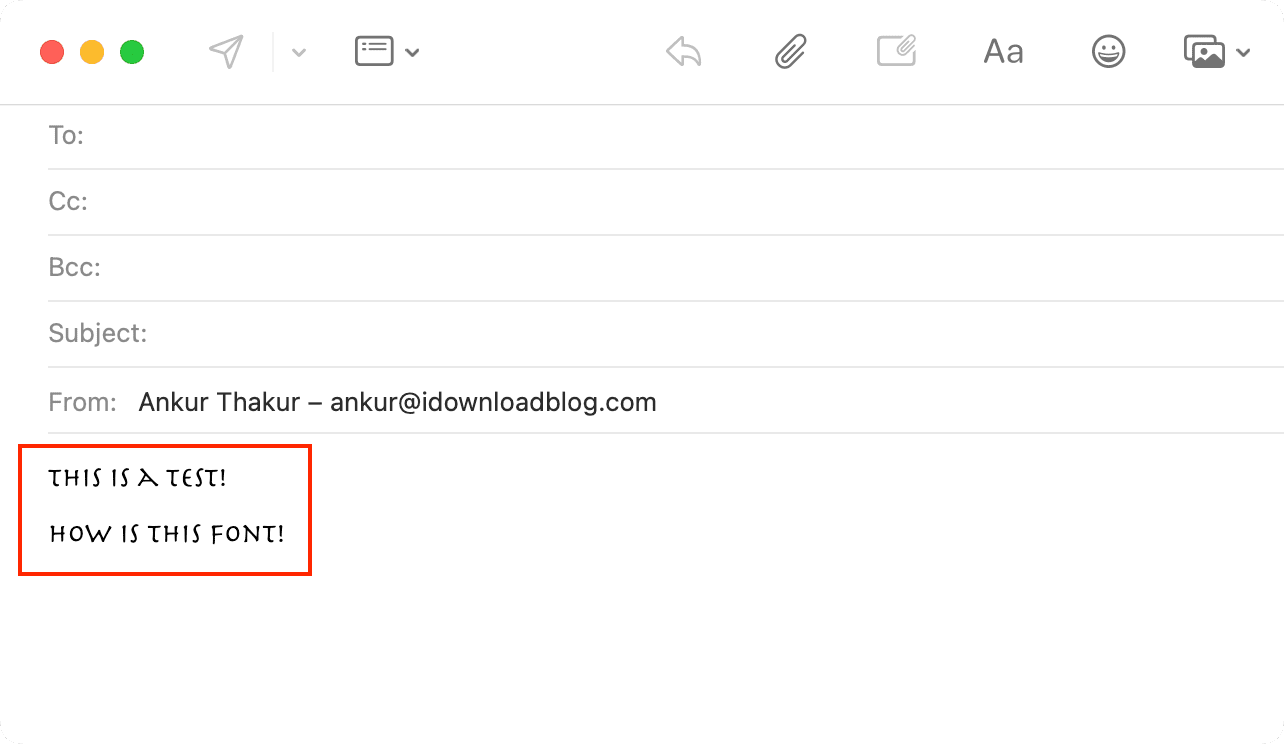
The font that applies to all your emails, new messages, replies, and forwards. This is a global setting that applies to all new emails you compose in the app. You can, however, still adjust the font style and size of a specific message in the compose window.
Fixed-width font
This is the fixed-width typeface that Mail uses to display plain text messages. Every character of this font has the same width by default (helpful for alignment) unless you untick the box for Use fixed-width font for plain text messages. To change it to your liking, click the Select button next to Fixed-width font. Then, in the pop-up window, start from the left and pick your Collection, Family, Typeface, and Size.
Color quoted text
When replying to or forwarding an email, part of the original message is quoted for clarity. You can have quoted text appear in any color for three levels of indentation by ticking the box labeled Color quoted text.
Colors
Click the menu next to Level One, Level Two, or Level Three to change the color of the indented lines of quoted text.

Unfortunately, the Mail app doesn’t support changing the wrapper color from the default gray, purple, and blue styles. But with these small changes, you can adjust some of the Mail app’s appearance on your Mac to make it yours.
Do more in Apple Mail: