In this simple guide, we’ll walk you through 5 easy ways to change your Mac’s wallpaper, so you can breathe some new life into your computer’s aesthetics. You can use your own photos or select from Apple’s stock wallpaper collection.
1. Set Mac’s wallpaper from Finder
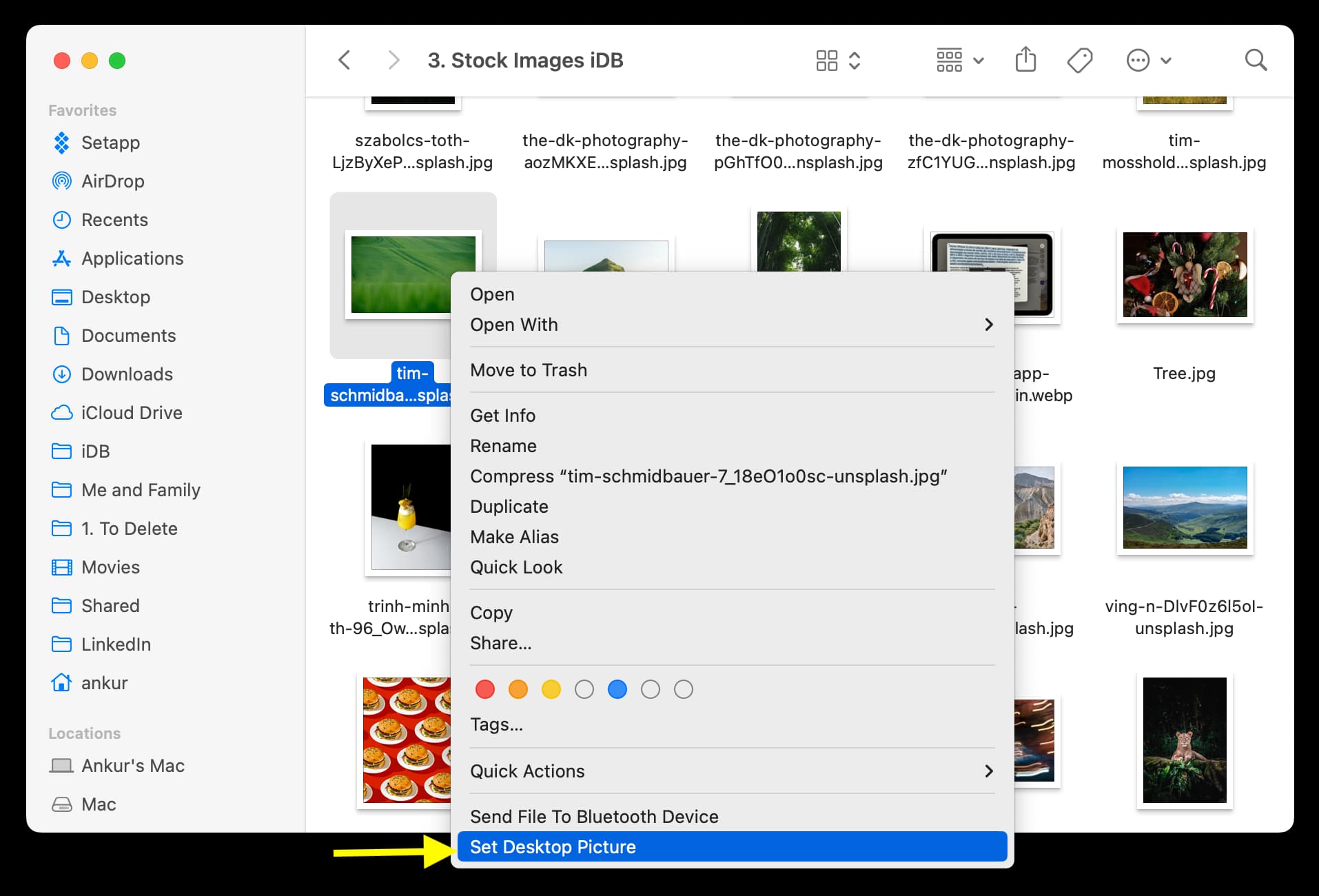
- Open a Finder folder, such as Downloads, Documents, Pictures, or Desktop, and locate the wallpaper file.
- Right-click or hold the Control key and click over the image file, and select Set Desktop Picture.
2. Use the Photos app to change Mac’s wallpaper
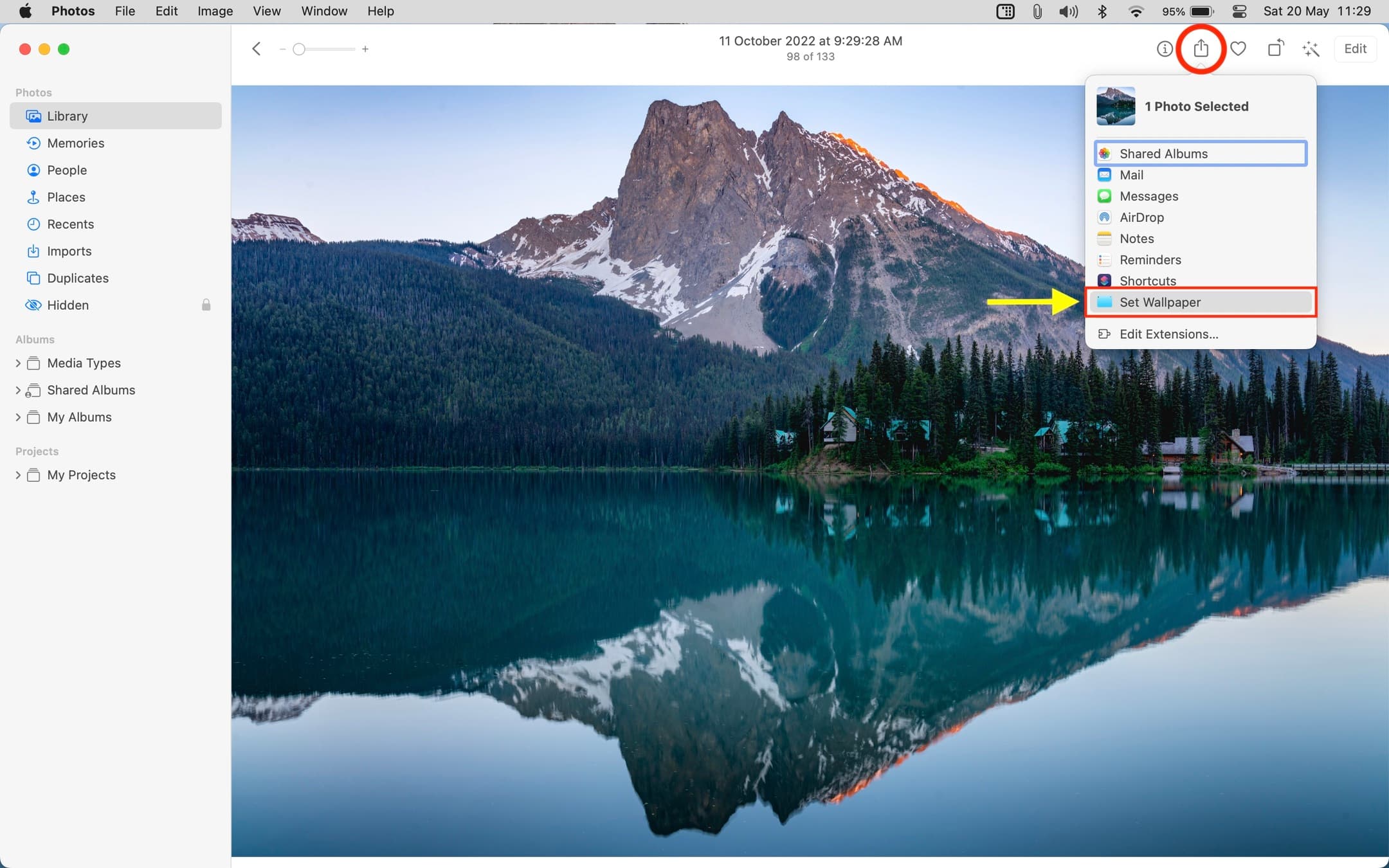
- Open the Photos app on your Mac and double-click an image to enlarge it.
- Click the share button from the top right and choose Set Wallpaper. Alternatively, from the top menu bar, click File > Share > Set Wallpaper.
3. Use drag and drop to set a wallpaper
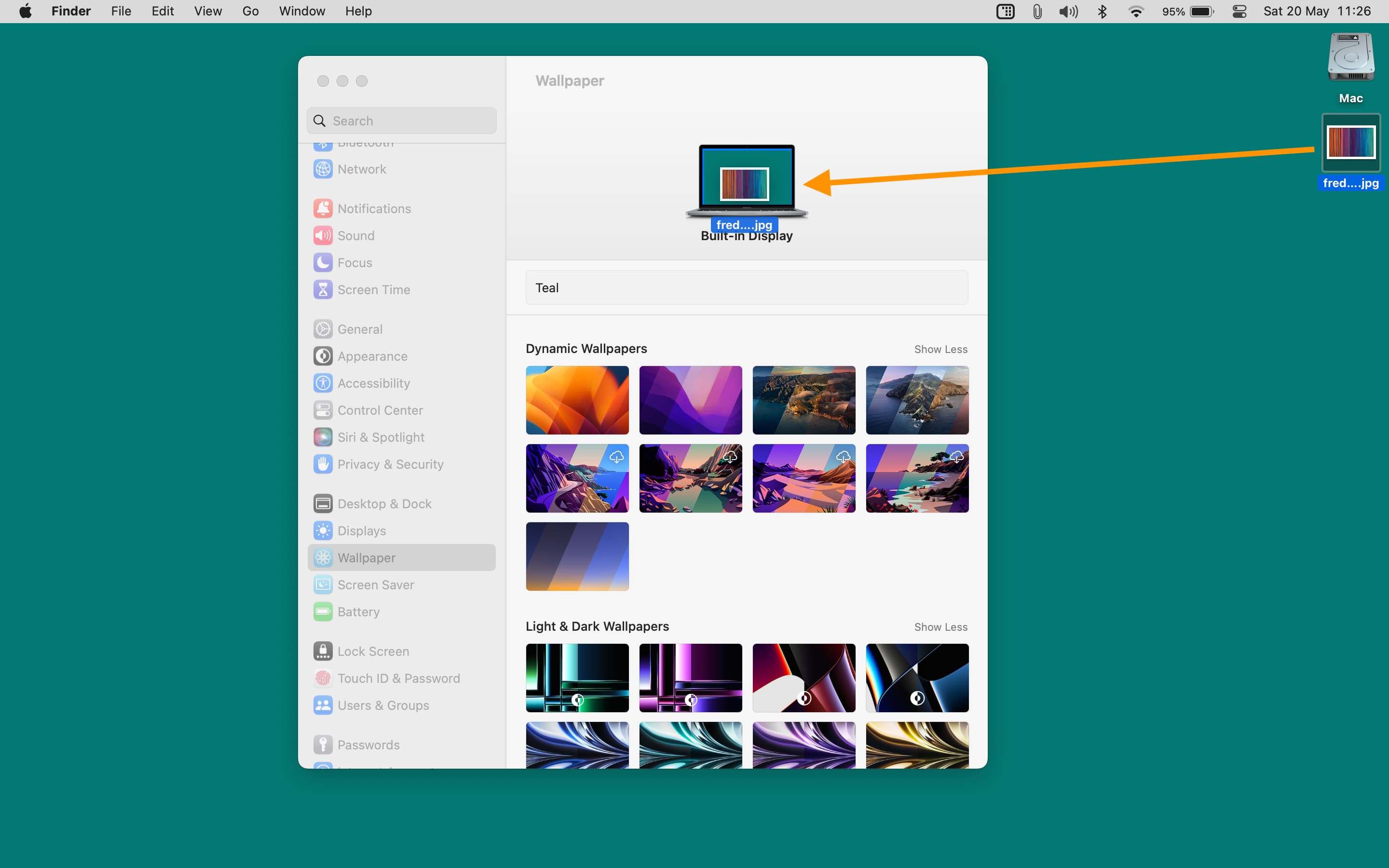
- Open System Settings on your Mac and select Wallpaper from the left sidebar.
- Drag an image from your desktop or a Finder folder and drop it over the current wallpaper thumbnail to set that picture as the new wallpaper.
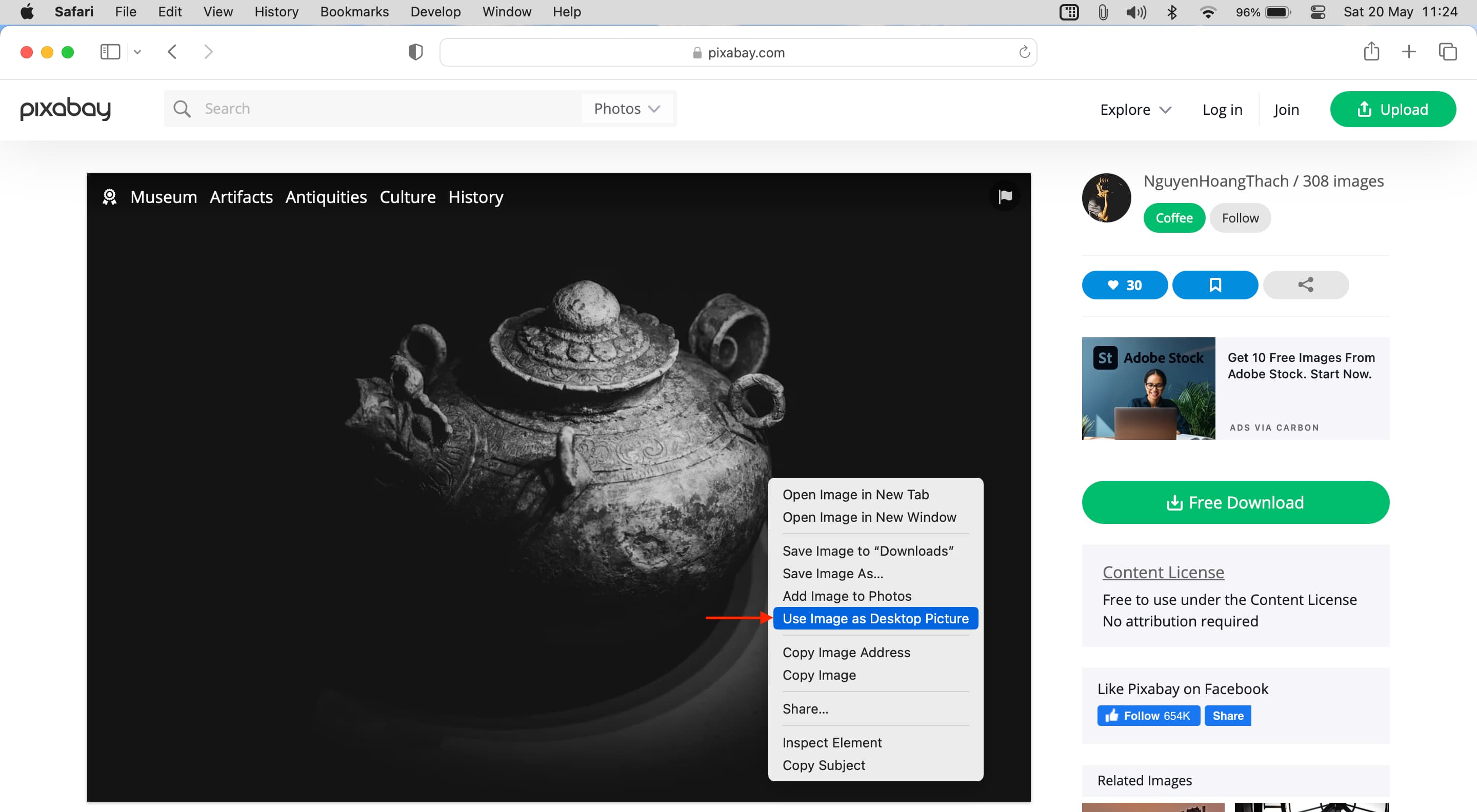
4. Set Mac’s wallpaper when in Safari
- Visit the web page that has the image you want to use as your Mac’s background.
- Right-click on the photo and select Use Image as Desktop Wallpaper.
5. Pick a wallpaper for your Mac from System Settings
- Go to System Settings and select Wallpaper. In addition to that, you can right-click on the desktop and choose Change Wallpaper.
- Use the Show All button next to a heading to see all wallpapers of its category and click the desired option to immediately set it as your Mac’s desktop background.

Dynamic Wallpapers: These images change their appearance throughout the day to match your location. Just make sure it says Automatic in the drop-down menu. If you select Light or Dark, then this wallpaper will not shift its color throughout the day.
- If your Mac’s Location Services is turned off, the Dynamic Wallpaper will change based on your computer’s time zone and Date & Time settings.
- You’ll see a download icon for some wallpapers. Select that wallpaper and it will start downloading. Further down the line, you can right-click on the downloaded wallpaper (without selecting it first, because that will set it as the current wallpaper) and choose Remove Download to free space on your Mac.
Landscape, Cityscape, Underwater, Earth, Shuffle Aerials, Pictures: You can use these stock options as wallpapers or screen saver.
Colors: Pick a solid color as your Mac desktop wallpaper. You can select one of the dots or hit the plus button (+) and pick from millions of colors.
Add Photo: Use this to set a picture from your Photos app or Finder as the wallpaper.
Is the desktop wallpaper blurry?
Any stock wallpaper you select in System Settings will always be crisp and of high quality. However, if you use a small, low-resolution, or low-quality picture as the desktop wallpaper, it will appear blurry or pixelated. Ensure your image is of high resolution, at a minimum of 1920 x 1080 pixels or higher.
Check out our Wallpapers section, where we’ve put together some awesome wallpaper collections covering a wide range of different categories.
Can’t set an image as your Mac’s wallpaper?
- Make sure the image you’re trying to set as the wallpaper is in JPEG, PNG, HEIC, PICT, or TIFF format.
- Wait a few seconds, as some older Macs may take a while for the new wallpaper to appear.
- Restart your Mac.
Do you use multiple Desktop Spaces?
If you use multiple Desktop Spaces, you’ll have to change the wallpaper of each Space separately. Simply go to that Space and follow the above methods to set a wallpaper. You can also turn on the “Show on all Spaces” button in Wallpaper settings to set a wallpaper on all Desktop Spaces.

On some older Macs, even after changing the wallpaper, it may not appear on the desktop unless you switch to another Space and then switch back to it.
More on Mac wallpaper: