How to

How to disable the camera on your Mac

Every Mac that Apple ships, sans the Mac mini, comes with an iSight camera embedded in the bezel at the top of the display. If my memory serves me correctly, Apple's computers were one of the first to really popularize the standardization of built-in cameras.

I'm probably not alone when I say that I rarely, if ever, use my MacBook Pro's iSight camera. In fact, it's become more of a worry to me when thinking about the potential hacking and privacy concerns. I'm far from a tin foil hat wearer, but I have to be honest and admit that the thought has crossed my mind before... you know, the one where hackers view my iSight camera unbeknown to me.

With all of that said, wouldn't it be nice if you could disable your Mac camera with a simple software tweak? Inside, I'll show you how to do just that.

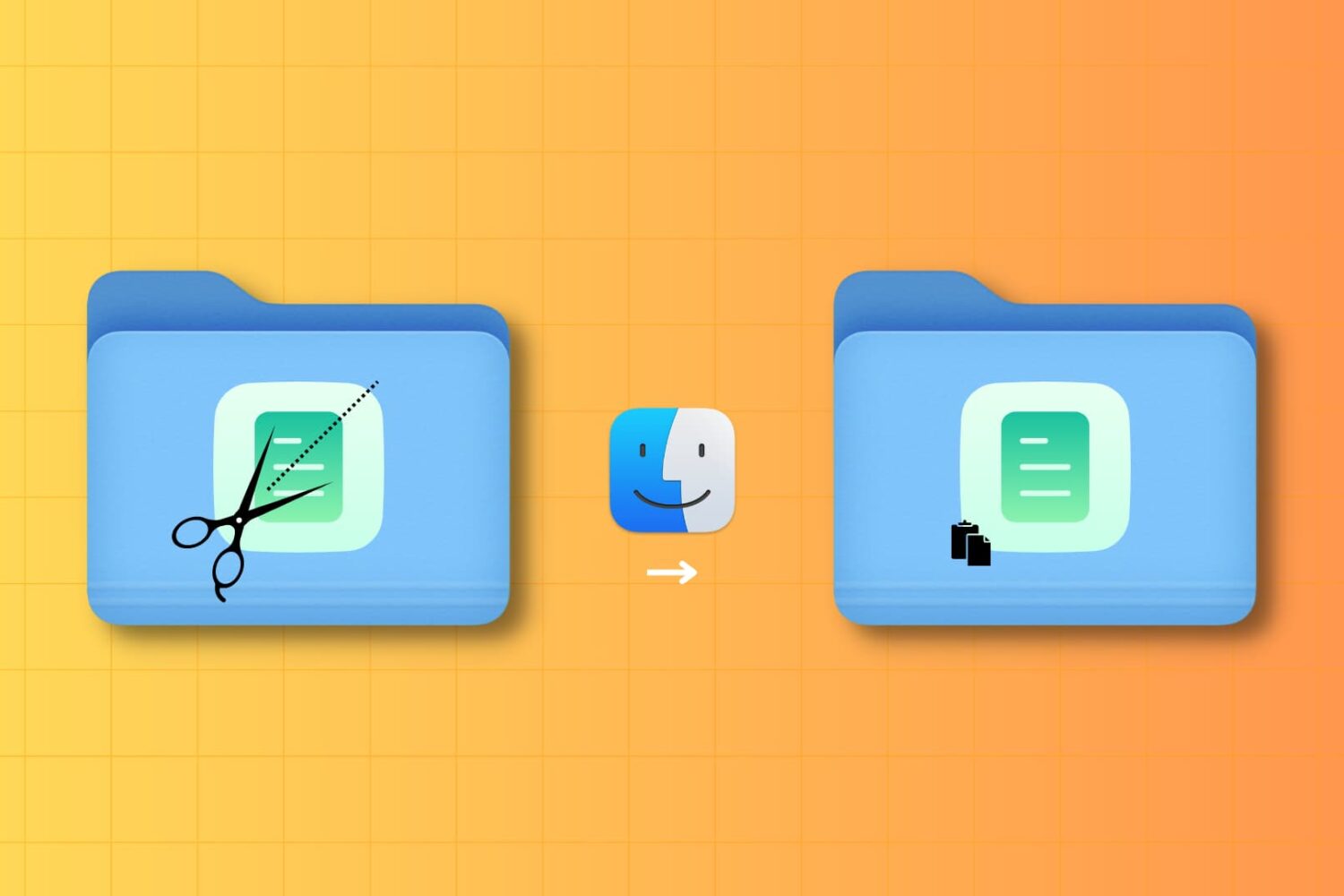
How to Cut and Paste files on Mac

Cut and Paste on Mac

It may not be obvious, but your Mac has the option to cut a file and paste it to a new location in Finder. In this tutorial, we’ll show you four different ways to use cut and paste files on a Mac.

How to reclaim ‘Other’ storage on your iOS device

If your iPhone or iPad is running out of space, manually removing unwanted photos, videos, songs, apps and stuff like Safari's Reading List is a good way of freeing up some store space. But more often than not, this isn't enough.

The devil, as they say, is in the detail — in this case, the mysterious ‘Other’ category that iTunes displays after connecting your iOS device to a computer.

‘Other’ storage is a section iOS uses to store temporary data, cache files inside apps and items retrieved through the iOS Background Refresh feature to make apps load faster. ‘Other’ storage balloons over time and can quickly add up to anywhere between a few hundred megabytes to a couple gigabytes of wasted on-device storage.

Aside from performing a clean install of iOS or restoring your device as new, there's no easy way of manually reclaiming your ‘Other’ storage. But thanks to a brilliant new Mac app in town, created by Nice Mohawk, anyone — even novice users — can free up storage space on their iPhone and iPad in minutes. Not only does the app let you reclaim your ‘Other’ storage, but also delete caches, back up your photos and videos, as well as remove large apps and music.

How to jailbreak iOS 8.1.2 using Mac OS X

It is now possible to jailbreak iOS 8.1.2 using a Mac, and this has been confirmed by iDownloadBlog. Up until this point, no Mac option existed for jailbreaking iOS 8.1.2, but that is no longer the case. A new tool entitled PP jailbreak for Mac has surfaced, allowing Mac users to enjoy what Windows users have been enjoying for some time now. Inside, we have a tutorial that shows how to jailbreak iOS 8.1.2 using OS X with the PP jailbreak for Mac.

How to enable text selection in Quick Look on Mac

Anyone who has used a Mac for more than a minuscule amount of time has more than likely come across Quick Look, the pop-up window that is invoked with a press of the space bar when a file or folder is highlighted on the desktop or in Finder. Quick Look's usefulness becomes evident when file names aren't descriptive enough by allowing users to view the contents of many different types of files without having to open them in a full-fledged application like Pages for documents or Preview for images.

By default Quick Look can only display a static view of a file that only grants users a peek at the contents without any real function. Imagine, however, being able to copy a document's text without having to open it in TextEdit or Pages. This is incredibly useful in a variety of situations, from dealing with templates to Word documents to code snippets, where having multiple applications and documents opened shouldn't be necessary for copying from one location and pasting to another. The good news is that this functionality is completely possible and perfectly easy to enable.

How to jailbreak iOS 8.1.1 or iOS 8.1.2 on Mac OS X using a virtual machine

As has been the norm as of late, OS X releases of the latest jailbreak tools have lagged behind their Windows counterparts. The TaiG jailbreak, which released to much surprise early this morning is no exception.

But what if you're an OS X only user who doesn't have access to a Windows machine? Are you left out in the cold waiting until TaiG decides to release an OS X version of its tool? Not necessarily.

Inside, I'll show you how easy it is to run a Windows virtual machine on OS X absolutely free of charge. Doing so will allow you to jailbreak iOS 8.1.2 even if you only have a Mac. Best of all, it's absolutely free to do so. Check out our video tutorial after the break for the full how-to.

Update: this post was originally created for iOS 8.1.1, but you can follow the same steps to jailbreak iOS 8.1.2 using the latest version of TaiG.

How to access Google’s Inbox service on Safari

A month ago, Google launched a new iPhone app called Inbox, a different take on email which uses Sparrow-like gestures to help you achieve Inbox Zero nirvana and surface the most relevant items that tend to get lost in an avalanche of unwanted emails users get bombarded with.

Available on iOS, Android and Chrome, Inbox leaves fans of Apple's Safari browser in the dark. It's fortunate that there's a quick workaround to that, let me show you how.

Inbox is available free in the App Store.

How to jailbreak iOS 8.1 with Pangu for Mac [video]

The Pangu Team released their Pangu utility for Mac earlier today, so Mac users who were waiting for compatibility with their operating system have no excuse to not jailbreak any longer.

In this post, we will show you how to use Pangu for Mac to jailbreak iOS 8.1. This post was created for an iPhone, but note that the steps are exactly identical, no matter what device you want to jailbreak (ie. an iPad or iPod touch). Likewise, any iOS 8 firmware version can be jailbroken using this tool, including iOS 8, and iOS 8.0.2.