Learn how to close all open Finder windows on your Mac in one fell swoop and save time instead of closing them one by one.
How to close all Finder windows at once on your Mac

Learn how to close all open Finder windows on your Mac in one fell swoop and save time instead of closing them one by one.

Have you ever wanted to change the menu bar icon for Notification Center on your Mac? As you can see from the screenshot above, I changed my icon to a moon icon. In this step-by-step video tutorial, I'll show you what it takes for you to do the same.

I have to admit that I'm not a huge user of Notification Center, and this applies to both iOS and the Mac. One of the reasons that I'm turned off by Notification Center is the disarray that I see when viewing it.
By default, Notification Center is set to sort manually, which means that you can go into its preferences, and sort each app by hand. That's fine and all, but it makes for a less than ideal experience when trying to find the most relevant notifications based on time of arrival.
For me, this results in a less than ideal experience when opening Notification Center. If you have a lot of apps enabled for Notifications, it can be overwhelming, because there's no real logical order to the way they're sorted. To remedy this issue, try this simple tip, and sort your notifications by time of arrival instead.

Earlier this week, I showed you how to mate Notification Center to a keyboard shortcut. But wouldn't it be cool if you could designate which View you'd like to see when invoking Notification Center from a keyboard shortcut? In this tutorial, I'll show you how to open directly to the Today View or the Notifications View using keyboard shortcuts.

It might seem fairly obvious, but it might be a good idea to assign a keyboard shortcut to Notification Center on the Mac. Perhaps you already have, or maybe you still haven't. I hadn't, at least not up until a few days ago when a reader suggested that I do so, and I honestly can't come up with a reason as to why I waited so long. I think it's because I just never thought about doing it.
Assigning Notification Center to a keyboard shortcut just makes sense. It especially makes sense if you use a keyboard and mouse combination on your Mac, instead of a trackpad. Granted, MacBook users might not be so easily convinced, because invoking Notification Center can be accomplished via an effortless two-finger swipe on the trackpad.
But if you're working on an iMac, or if you're using a traditional mouse and keyboard combination with your MacBook, as I am, then I definitely recommend that you follow this uber-simple tip.
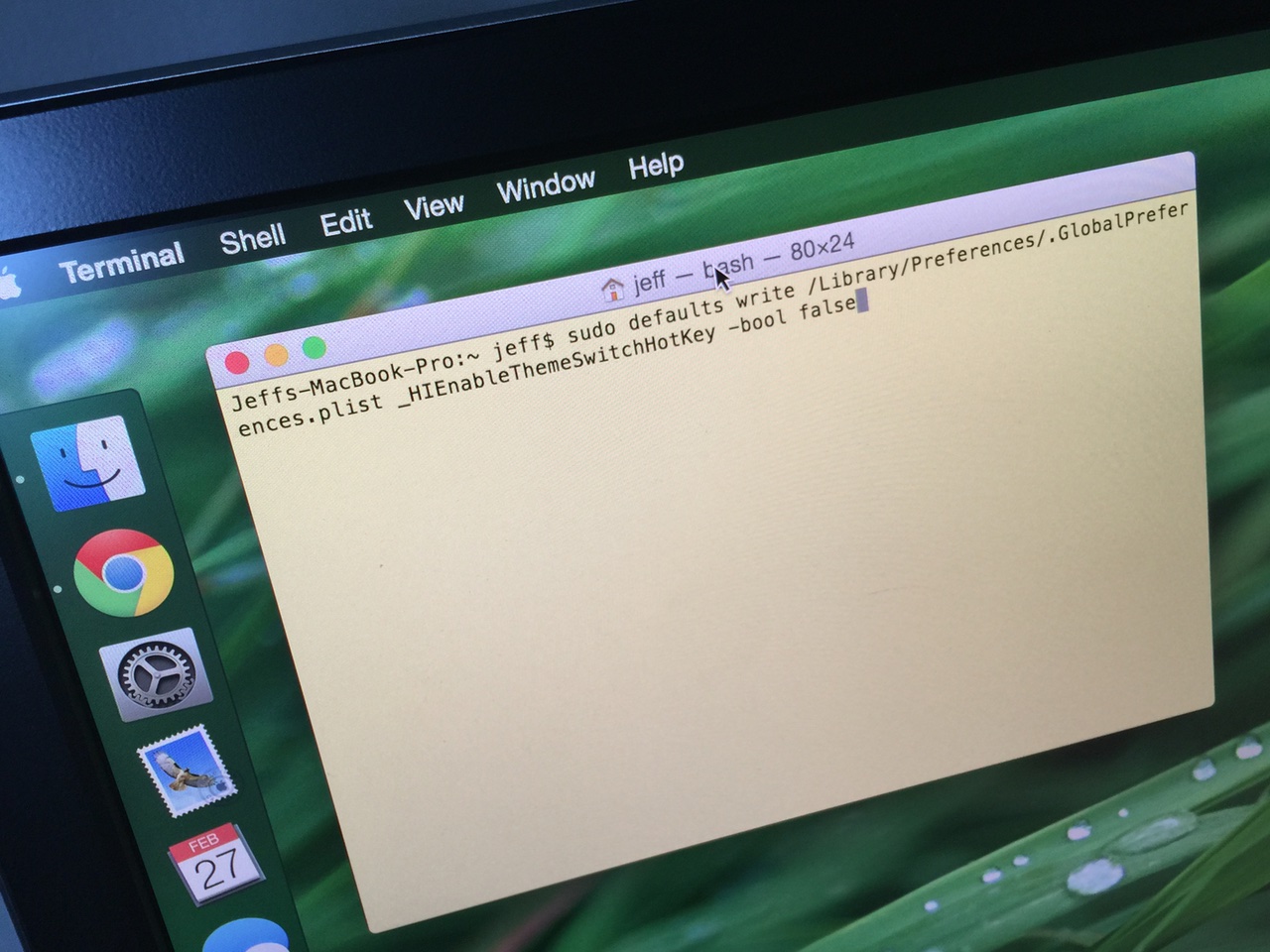
Dark mode is one of the more popular features of OS X Yosemite, because it allows you to add a dark tint to both the dock and the menu bar on Mac. The standard way to enable dark mode involves venturing to System Preferences, opening the General section, and clicking on the enable dark mode option. But wouldn't it be cool if you could toggle dark mode using a simple keyboard shortcut?
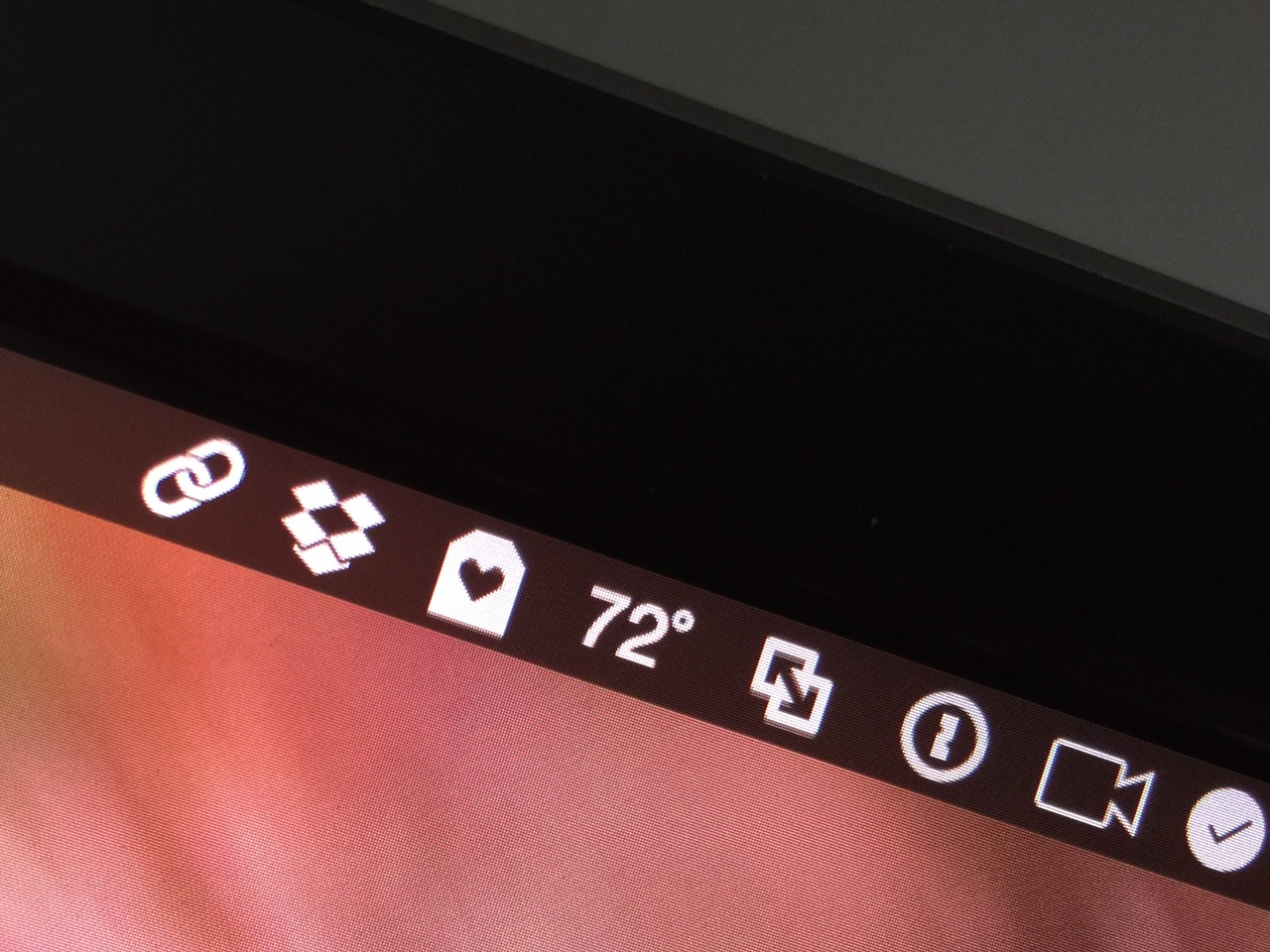
OS X Yosemite introduced a new dark mode option to change the tint color of both the menu bar and the dock in OS X. While I'm a big fan of dark mode, some of the third-party apps that I use have not been updated to play nice with dark mode. This results in menu bar icons that look weird with dark mode enabled, because they don't invert after toggling dark mode on.
If you're someone who always uses dark mode and never switches to regular mode, there is a way to force these menu bar icons to look better with dark mode enabled...
I like my browsers minimal. Safari for Mac admittedly boasts an aesthetically pleasing, clutter-free interface. But if there's one thing I've always hated about Apple's browsers, it's that status bar at the bottom of the Safari window.
Though it conveniently lets you know where a URL will take you, once turned on it annoyingly just sits there whether you actually need it or not. I prefer Google's approach better: Chrome's status bar discreetly shows only when hovering over a URL.
Wouldn't it be great if Safari had a similar only-on-hover status bar? That's what Minimal Status Bar, a new browser extension by San Francisco-based developer Visnu Pitiyanuvath, does for you.
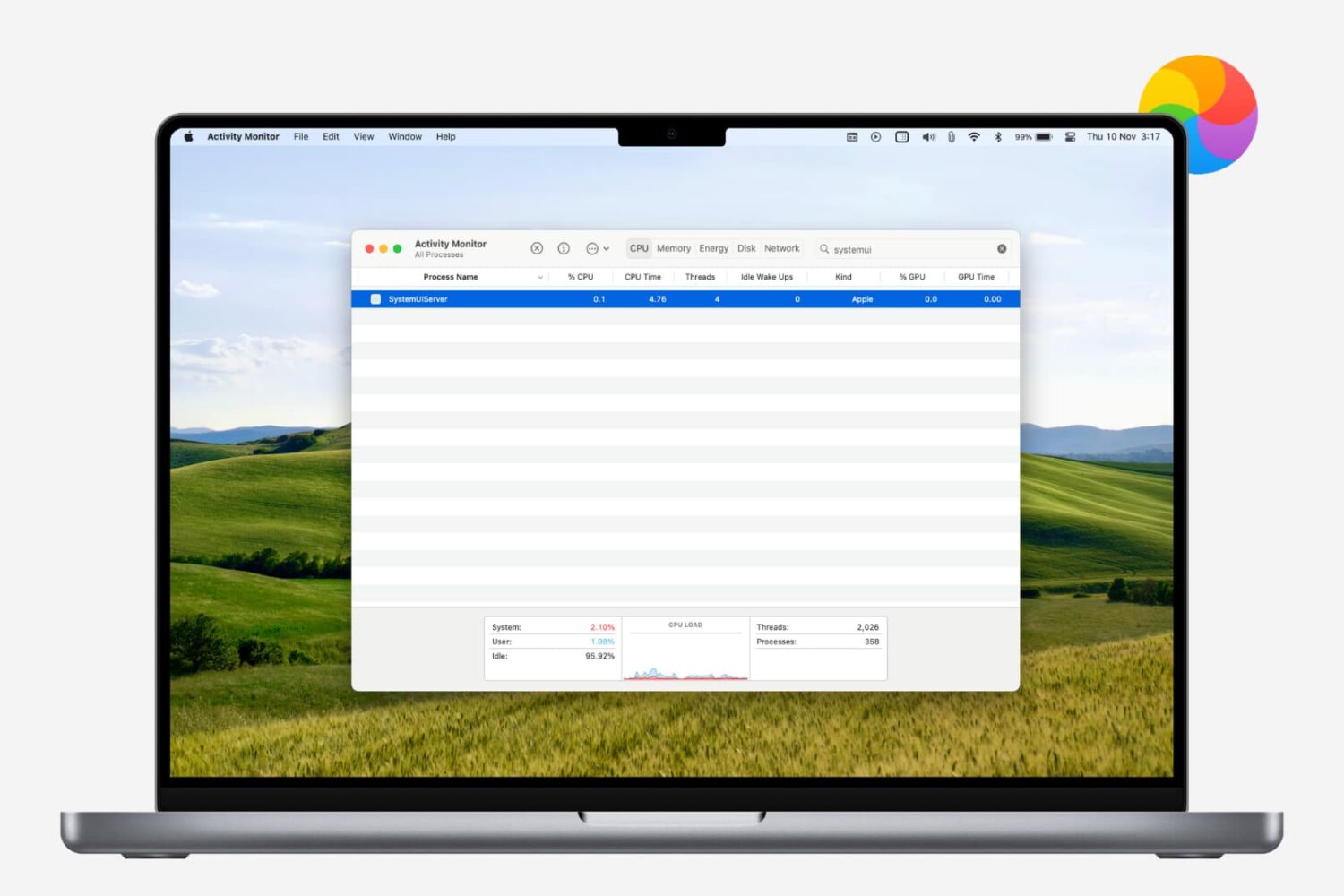
Learn how to restart the menu bar on your Mac if it's frozen, unresponsive, or malfunctioning, where clicking the icons doesn't trigger any actions.
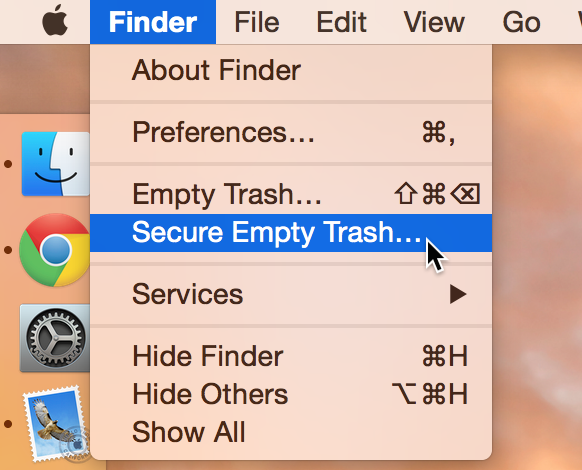
Did you know that there are actually two ways to empty the trash on your Mac? Perhaps you've seen both options before, but never gave it much thought. Just what is the deal with Empty Trash versus Secure Empty Trash? Which one should you use? By knowing what each empty trash command is capable of doing, you'll be able to make more informed future decisions with regard to handling your Mac's sanitation needs.

Learn how to change the default Finder folder on your Mac to streamline your workflow and enhance productivity.
Every Mac that Apple ships, sans the Mac mini, comes with an iSight camera embedded in the bezel at the top of the display. If my memory serves me correctly, Apple's computers were one of the first to really popularize the standardization of built-in cameras.
I'm probably not alone when I say that I rarely, if ever, use my MacBook Pro's iSight camera. In fact, it's become more of a worry to me when thinking about the potential hacking and privacy concerns. I'm far from a tin foil hat wearer, but I have to be honest and admit that the thought has crossed my mind before... you know, the one where hackers view my iSight camera unbeknown to me.
With all of that said, wouldn't it be nice if you could disable your Mac camera with a simple software tweak? Inside, I'll show you how to do just that.