Learn how to stop your Mac from requesting the login password or authenticate with Touch ID when you wake it from sleep or the screen saver begins.
How to stop macOS from asking for a password after waking your Mac

Learn how to stop your Mac from requesting the login password or authenticate with Touch ID when you wake it from sleep or the screen saver begins.

Many Mac users are unaware that copying a file or folder in the Finder, or moving it to another location, does not preserve the permissions and ownership data attached to it.
In most circumstances, that's not a problem as you’ll be moving stuff within your own user account. Hence, the default behavior of changing ownership/permissions is actually desirable for most users, in most cases.
But on occasion, you may need to override the default setting when, say, copying a file into another user’s folder, dropping a document into the Guest account and so forth. In these kinds of scenarios, preserving the original file’s ownership and permissions can save you headache down the road.
But worry not — the Mac's Finder includes a pair of hidden features, Paste Item Exactly and Duplicate Exactly, that get the job done. The following tips will teach you how to leverage them to ensure that the file’s ownership information and permission data has been kept intact after the copy/move operation.

OS X includes a nifty Dictation feature which allows you to control your Mac and apps with your voice. You can use “speakable items”, basically a set of spoken commands, to open apps, choose menu items, email contacts and convert whole spoken sentences to text, wherever you can type text.
This is much like iOS’s Dictation feature as both iOS and OS X use the same Nuance-powered technology that turns speech to text. iOS devices have limited computing power so the Dictation feature on the iPhone, iPod touch and iPad requires network connectivity in iOS 7 (iOS 8 supports streaming voice recognition and 22 new languages).
On the Mac, computing resources like CPU power, battery life and RAM are not of paramount importance as on mobile, Therefore, OS X Mavericks provides a new Enhanced Dictation feature which converts your words to text without utilizing Apple’s servers.
In other words, server-based Dictation lets you dictate without an active Internet connection. Because voice recognition processing runs locally on your Mac, text appears instantly as you speak. That is: continuos, streaming dictation with live feedback is made possible.
In this tutorial, I’m going to show you how to turn on Enhanced Dictation in OS X and take advantage of speech-to-text, even when you're off the grid...

Learn how to rename your Mac to distinguish it from other computers on your network, in system menus and elsewhere in macOS.
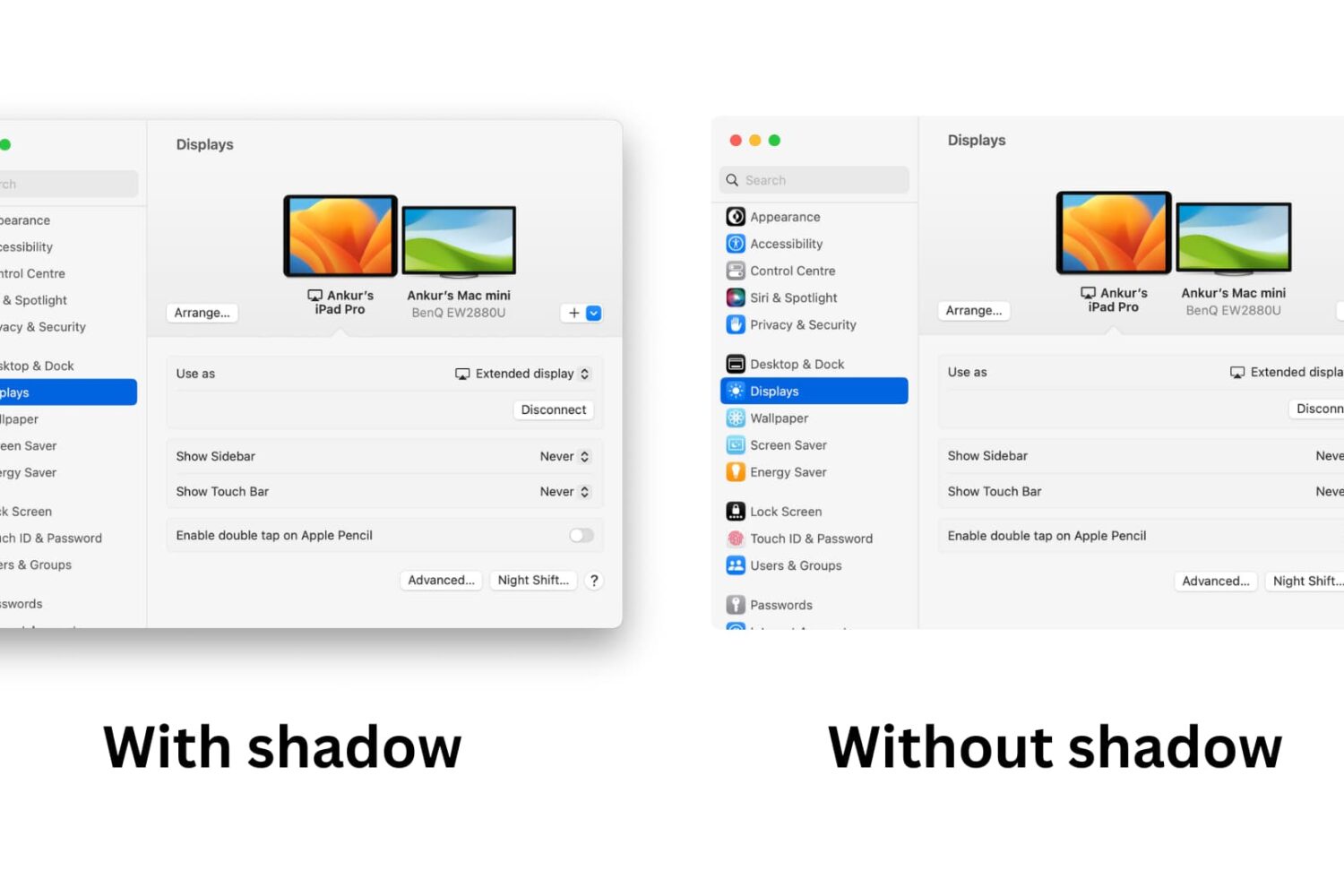
Learn how to take window screenshots on your Mac without the drop shadow effect which creates distracting extra space and white borders, resulting in a cleaner look.

Learn how to change the default Mac screenshot file format in macOS from PNG to JPG or similar to save storage space and avoid manual image conversion.
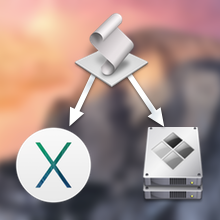
Following Apple's release of a public beta of OS X Yosemite, iDB reader Antony Verros sent us some code he wrote in AppleScript, which allows users to quickly restart a computer and automatically boot up in the installed OS of choice. For anyone who installed the OS X Yosemite beta on a separate partition, this is an easy solution for booting up into Yosemite or Mavericks without having to hold down the Option key on boot to select the desired partition. The script can even be tweaked to work with BootCamp.
While it's mostly a matter of time-saving convenience, this method can prove to be quite advantageous over time, particularly for users who find themselves frequently switching between OSs, whether it be a Yosemite beta, Mavericks, or Windows 7. Having an easily accessible application for booting into another OS while making a sandwich or refilling a cup of coffee, versus having to wait around to hold down Option, can be highly useful...

Apple today opened the floodgate by posting the public beta of its upcoming OS X 10.10 Yosemite software, which launches officially sometime this Fall, and already a bunch of people took to Twitter over an error message saying the redemption code has already been used.
Each copy of Yosemite beta requires a promotional code which must be redeemed in the Mac App Store to download the installer. Is there anything you can do about this error message?
Yes, there is - and a remedy couldn't be simpler. Read on...
Pangu for the Mac was just released today, and it brings with it the ability to jailbreak iOS 7.1.x untethered. The Windows version, which was released last week to much fanfare, has already allowed many people to enjoy the fruits of jailbreaking iOS.
I think it's safe to say that the Mac version has been highly anticipated since word of Pangu first hit the Internet. For those of you who remained patient, your patience has paid off. You can now jailbreak iOS 7.1 and iOS 7.1.1 using your Mac. Check our our full video walkthrough inside for all of the details.
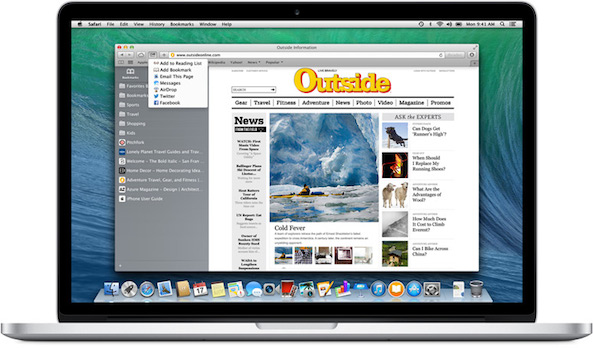
Learn how to sync Safari bookmarks between your iPhone, iPad and Mac for seamless access to your favorite websites wherever you browse.
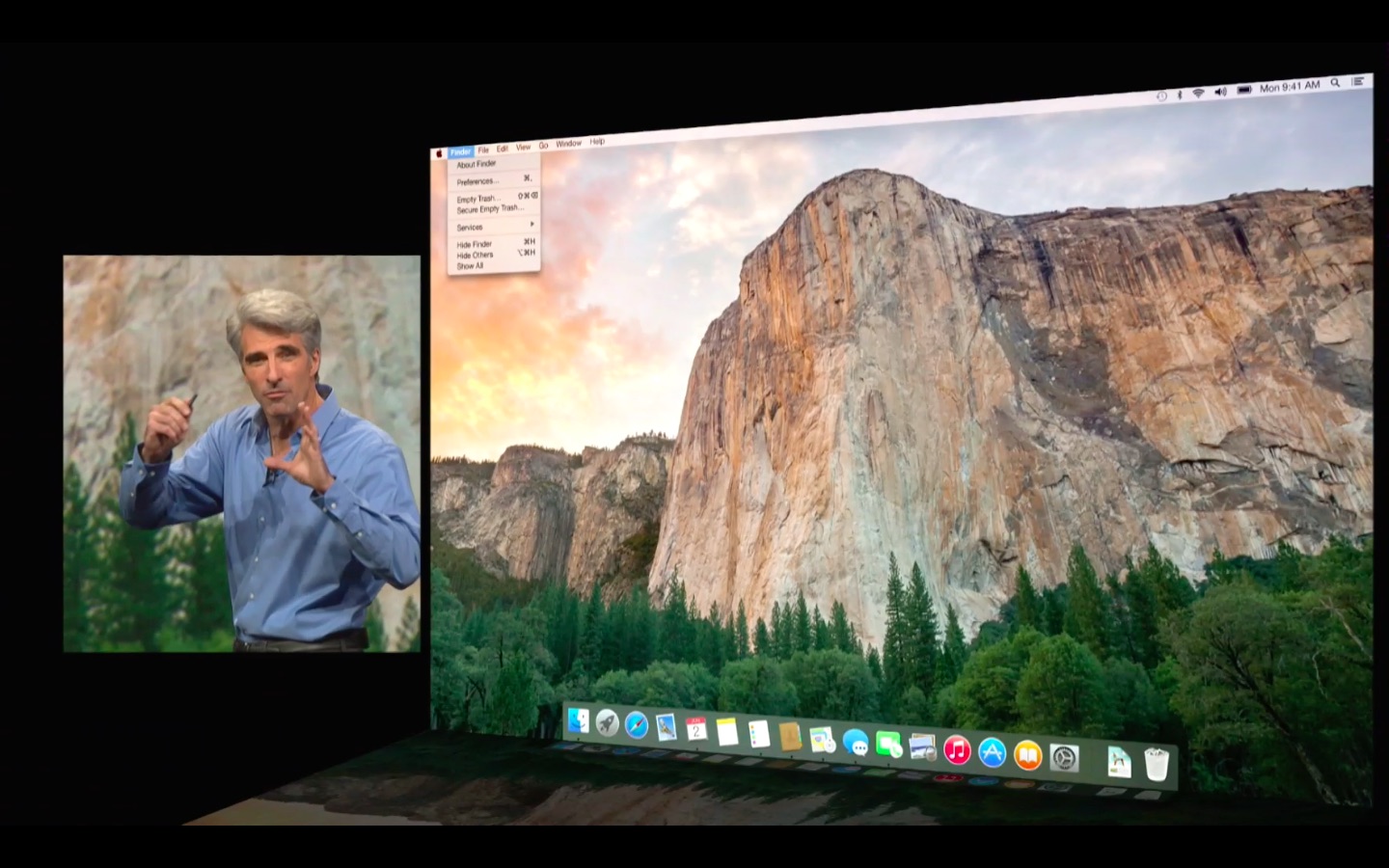
There were lots of oohs and aahs in response to Apple's software engineering chief Craig Federighi showing off a new dark UI mode in OS X Yosemite at WWDC two weeks ago. It basically alters the appearance of the menus, sliders, buttons, windows and other UI elements.
The gorgeously subdued look is inspired by the dark appearance of Apple's pro software such as Aperture and Final Cut Pro. In fact, I like it so much that I enthusiastically tweeted right after the keynote that I was very much looking forward to using it on a permanent basis come this Fall.
However, dark mode was notably absent from the first beta of OS X 10.10 and is nowhere to be found in the just-released Beta 2. For a good reason, too, as it's unfinished and very much work in progress so not really ready for prime time yet.
If you're a type of person who can't wait to see it in action, you can enable Yosemite's dark UI using just a simple Terminal command...
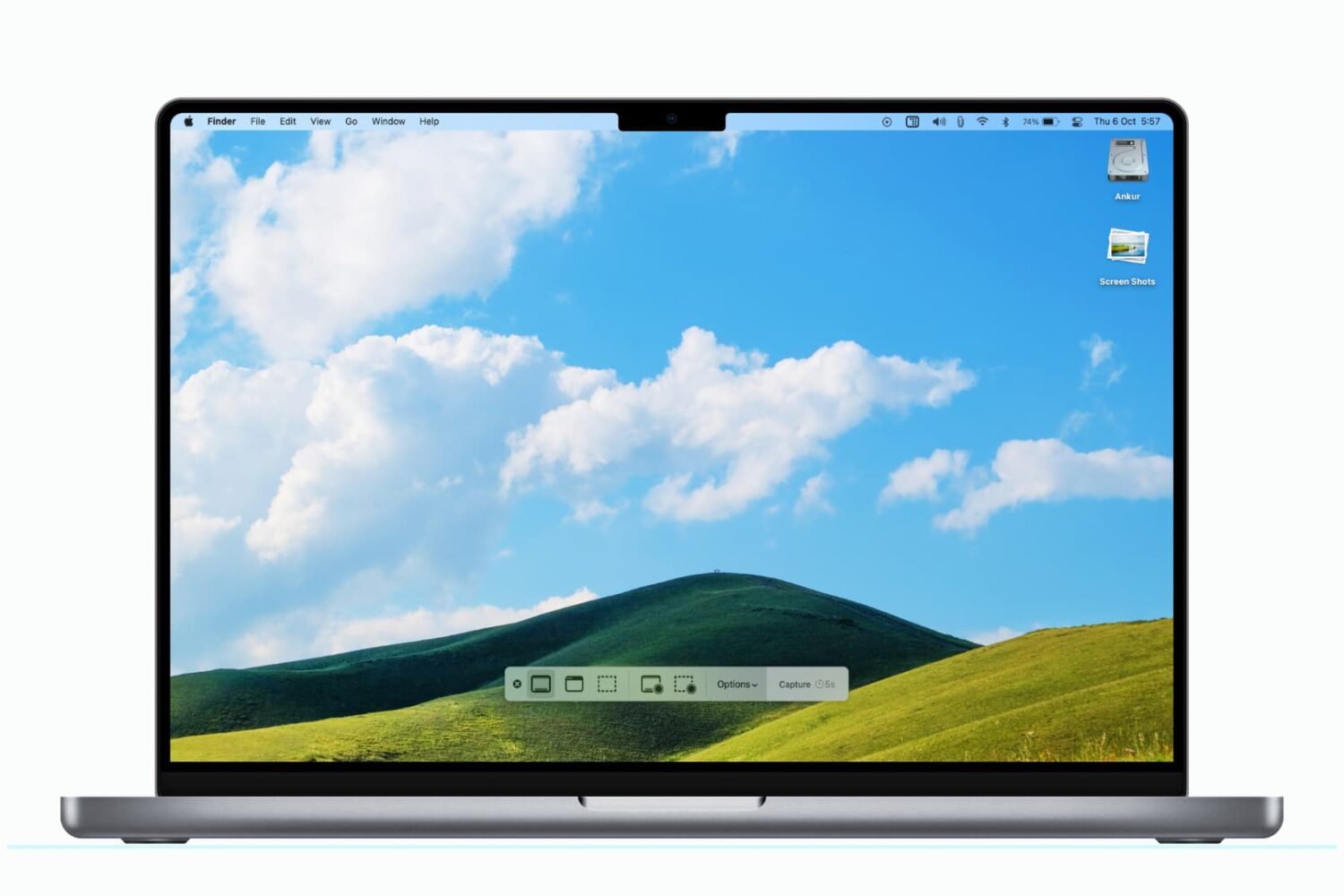
Learn how to change the default location where macOS saves your screenshots to any folder on your Mac instead of piling them up on the desktop.