Tutorial

Learn how to master your Apple devices with our comprehensive tutorials. From iPhone and iPad to Mac, Apple Watch, AirPods, and more, our expert guides will help you unlock the full potential of your Apple products. Discover new features, tips, and tricks each day to enhance your user experience.

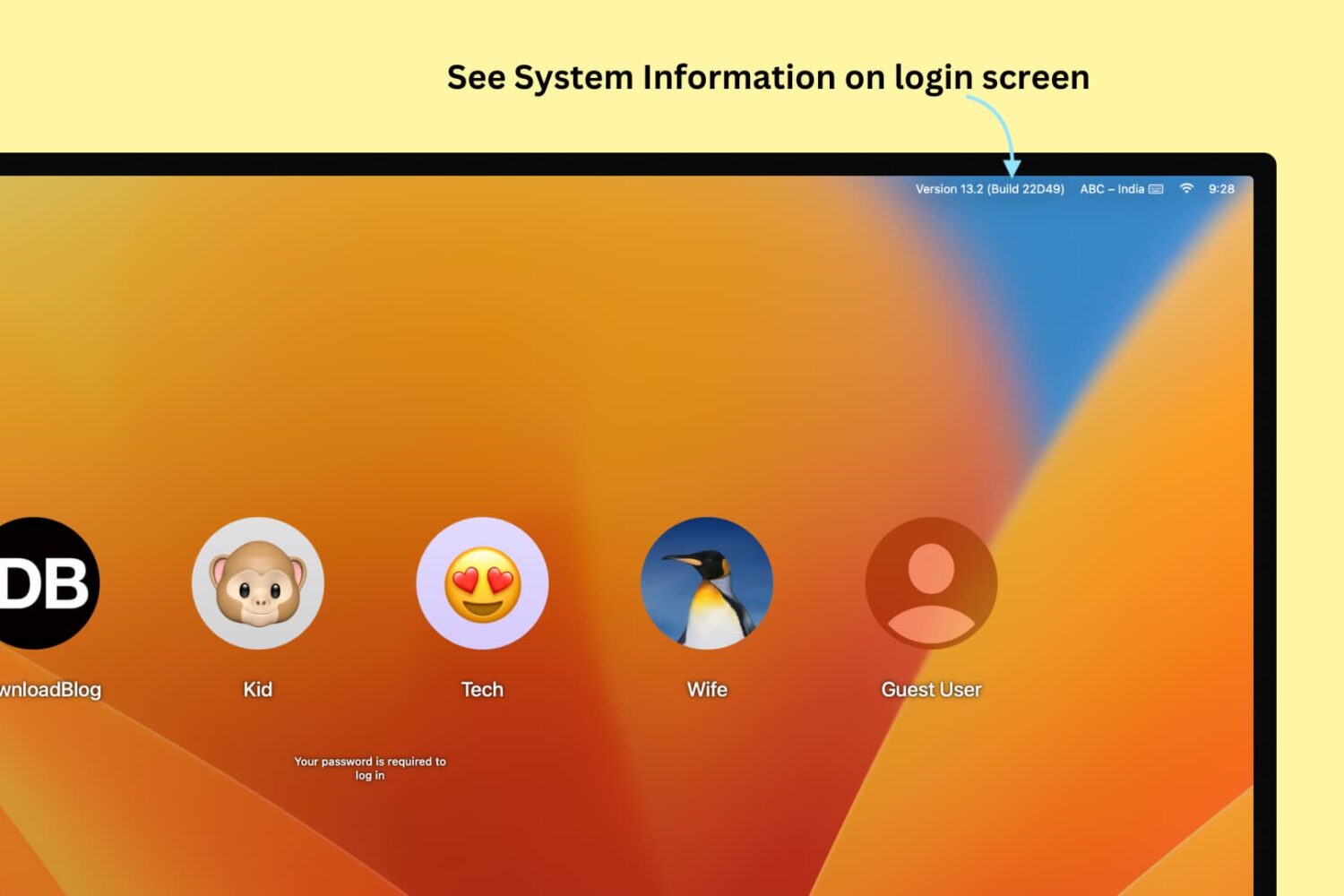
How to prevent partitions from mounting when you boot up, log in, or connect drives to your Mac

With the exception of partitions in unreadable formats and certain hidden partitions such as EFI and Recovery HD, the default behaviour of macOS is to mount all partitions of a drive on boot-up, login, or on connecting an external drive.

Whilst this behaviour is useful for the novice or for those connecting a single USB stick to copy some files, it can become unwieldy and even annoying if you have many multi-partitioned drives attached to your Mac.

For example, my desktop Hackintosh has three internal drives, each with at least two partitions, and one of these drives is not even needed when booted under macOS – it is for Windows 10 and Linux. Add to this a couple of external hard drives with partitions for storage, OS installers and Time Machine backups for other computers, and your desktop and Finder sidebar can begin to look a real mess. It also takes time for the drives to mount on every boot and unmount on sleep or shutdown.

This guide will detail how to ensure only the drives of your choosing mount automatically, leaving the rest unmounted within macOS.

Know the Calculator app in iOS 10

Apple’s Calculator app is one of those stock offerings largely flying under the radar for its soberness. It is somewhat overlooked, but then again can be a lifesaver at times. For those who need to crunch numbers on a more regular basis it is presumably nothing but an emergency fill-in, when for the rest of us it definitely more than cuts the mustard for everyday computations.

On the back of such a broad user base with varying skill sets, it goes without saying that there is a large discrepancy in expertise and knowledge about the calculator app itself.

The fact you can still elicit the occasional gasp from an unknowing iPhone user, just by rotating the interface to landscape mode says a lot about the relevance of calculator to many. Yes, it is mostly a plain calculator representation, but Apple did implement more knacks than first meet the eye. Novice or professional, if you are keen to boost your productivity in calculator, continue reading to find out if you are up to speed on the following tricks:

How to take screenshots of the MacBook Pro Touch Bar

If you take screenshots on your Mac, you may wonder if macOS supports screenshotting the Touch Bar. The default Shift (⇧)-Command (⌘)-3 keyboard shortcut captures a screenshot of everything shown on the display, sans the Touch Bar.

With macOS 10.12.2, Apple has implemented a brand new shortcut specifically designed for taking screenshots of the Touch Bar.

Here's what you need to know about capturing everything that's shown on the Touch Bar as an image file on your computer. You'll also learn how to save Touch Bar screenshots to the clipboard for pasting in other apps and how to add screenshot-taking shortcuts as buttons to the Touch Bar itself.

How to share Wallet passes

You volunteered to book event tickets on behalf of a group, and just when your finger is hovering over the eTicket delivery method, you notice you don't have everyone's digits to send the tickets out to their iPhones. Or you do, but a group member has no local number since they're visiting from overseas?

Fret not, because neither of those two scenarios is going to keep you from handing out the passes to your friends' devices. All you need to know for it to come off is a little trick that helps share them conveniently from your own Wallet app.