Learn how to have the Apple Podcasts app automatically download your favorite podcasts on your iPhone or iPad, so you’ve sufficient episodes to listen to, even when you have no or a patchy internet connection.
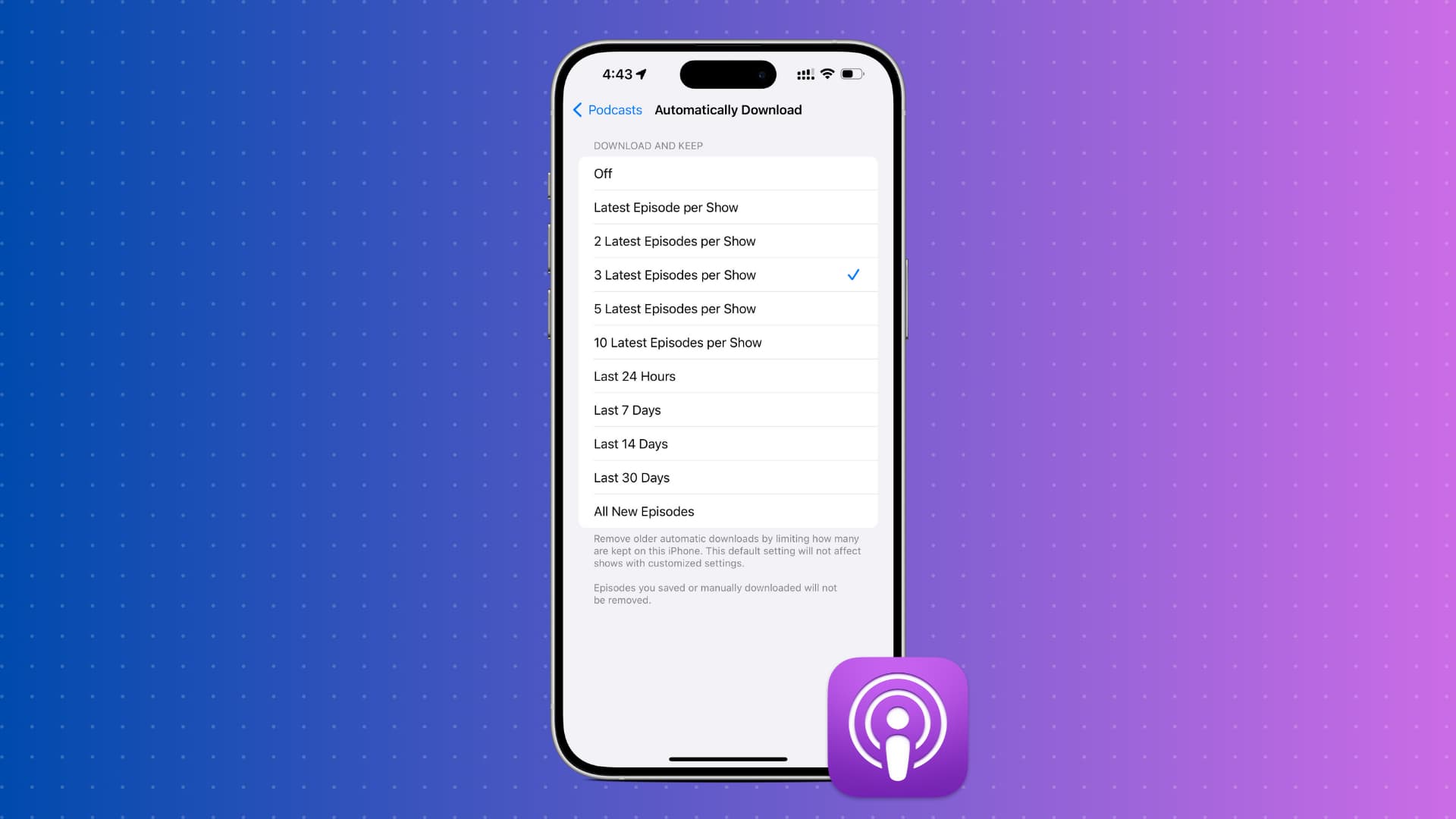
The Apple Podcasts app lets you set default download settings for all your followed shows or do it on a per-show basis. Thanks to it, you can fine-tune your download experience by selecting one of the various options, like downloading just the latest episode or the last ten episodes. Alternatively, you can also choose to download all new episodes or those released in the last 24 hours, week, or more.
For all your followed shows
This is handy if you want the latest episodes of all shows to automatically save to your device.
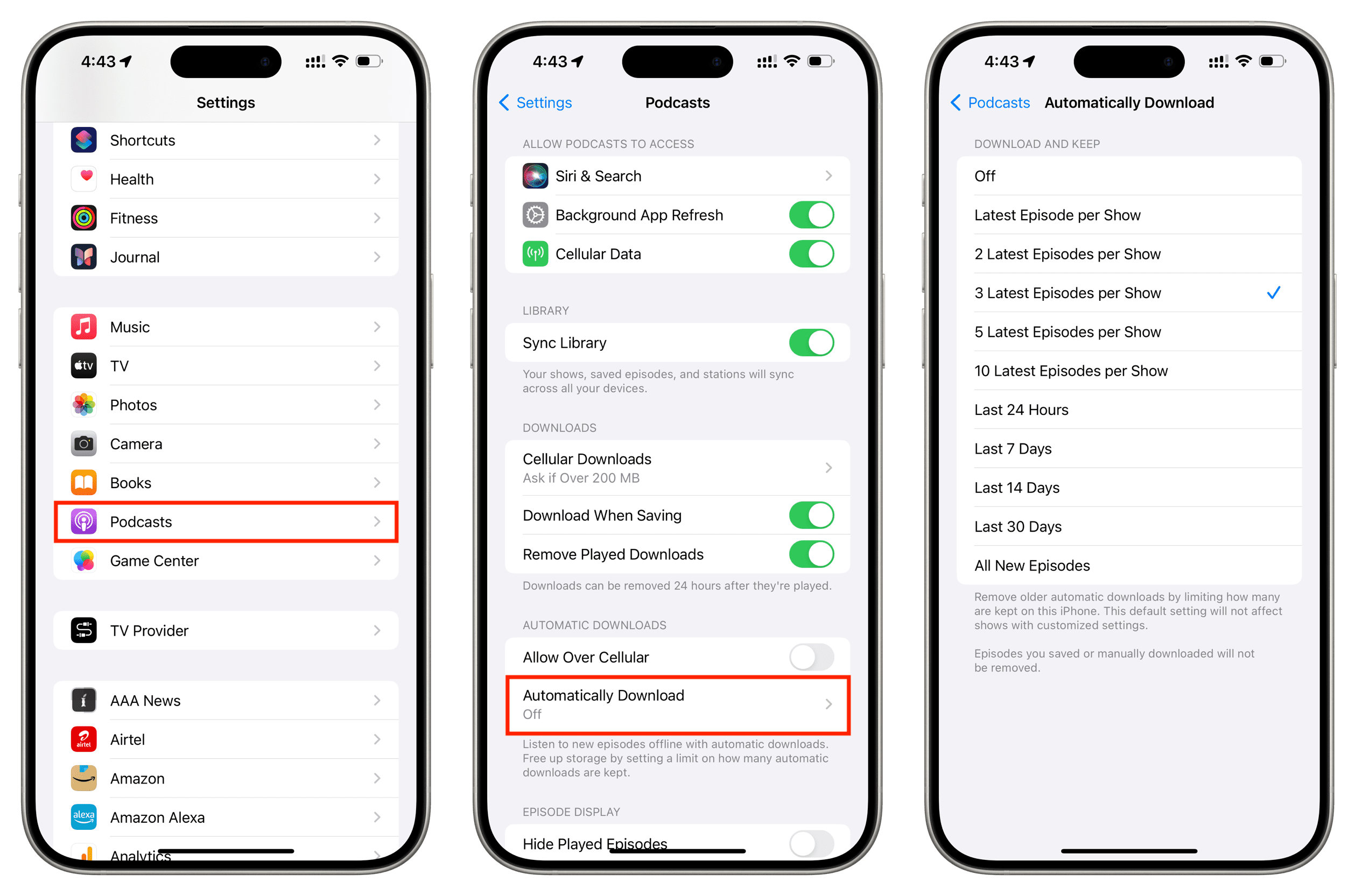
- Open iPhone or iPad Settings, tap Apps from the bottom, and then select Podcasts from the list of applications.
- Tap Automatically Download under the aptly named Automatic Downloads heading. Then, choose an option that suits your needs.
- After this, you can return to the previous screen and turn on Allow Over Cellular to download podcasts automatically using mobile data. This can be handy if you have unlimited or ample cellular data allowance, but often listen to podcasts where the cellular connection is patchy. Having the episodes downloaded beforehand ensures a smooth listening experience.
From selected shows
More often than not, you’ll not want all subscribed shows to clog up your device’s storage space. If your list of podcasts is ever expanding and you want to hand-pick the podcasts decent enough to be stored locally, here’s where you need to go.
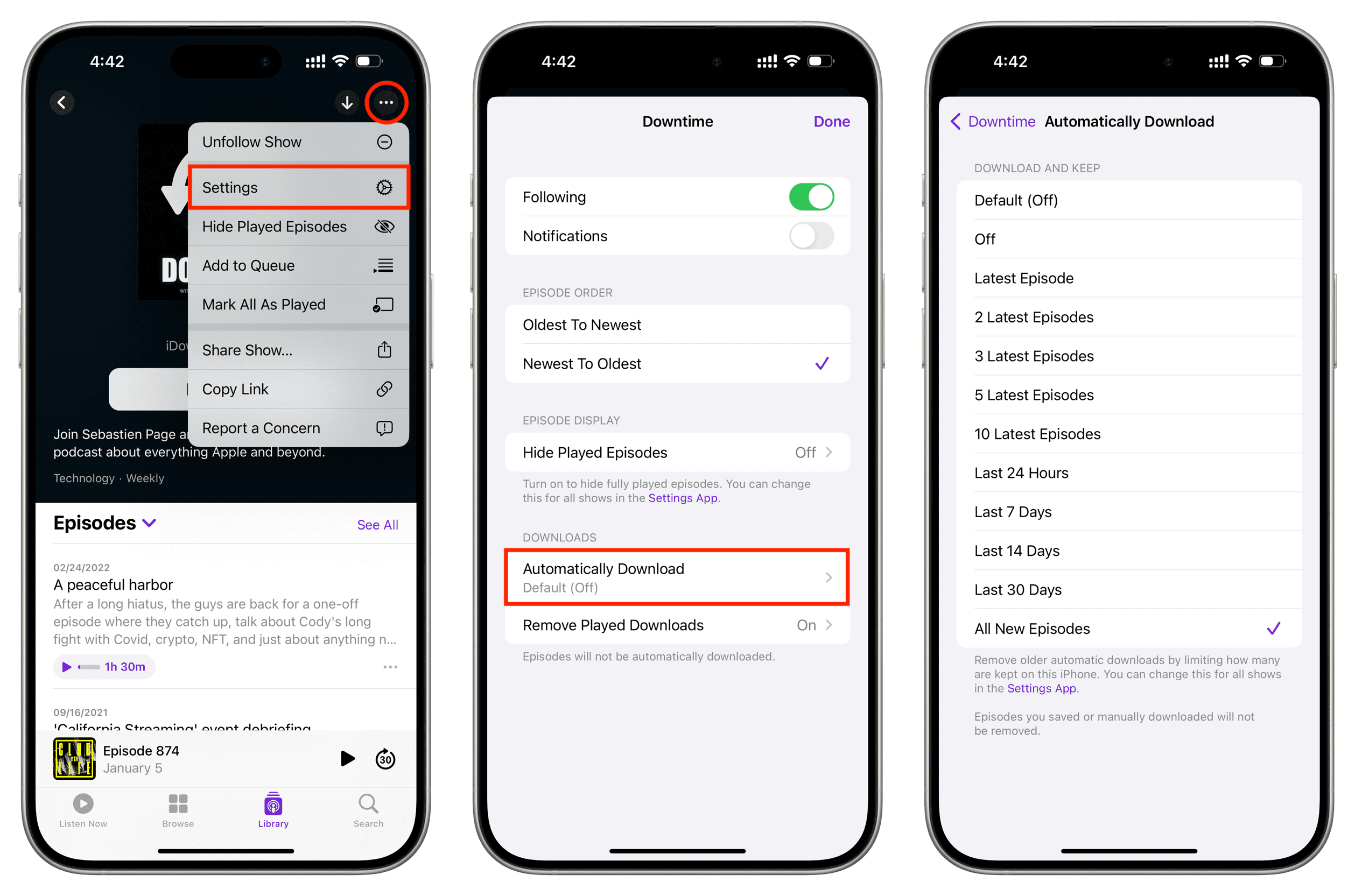
- Open the Podcasts app on your iPhone or iPad and tap Library > Shows to see all the podcast shows you’ve followed or subscribed to.
- Select the show you want to set up for automatic downloads for.
- Tap the three-dot menu icon in the top right, then tap Settings.
- Tap Automatically Download and select an option from the next screen.
- You can go to the previous screen and also make sure Remove Played Downloads is on so that episodes you’ve already listened to are auto-deleted and don’t keep occupying local space.
You’ve successfully set up your Podcasts app for automatic downloads. Now, the episodes are readily available.
Also, check out: