Find out how to manually clear the Dropbox app cache to fix app lag and free up local storage space on your iPhone or iPad.

If you’re a heavy Dropbox user who’s running out of storage space on your device, clearing the app’s cache should be the first order of business. The mobile app keeps a cache of files for efficiency and emergency purposes, aside from doubling as a staging area for downloading and uploading. Flushing the cache should help free up some storage space on your iOS device.
Secondly, if some of the files refuse to load in the app or if you notice significant lag and sluggishness, clearing the cache can help with that as well.
Just note that doing so is likely to cause files to load for longer; however, none of the offline items will be affected.
Clear caches in the Dropbox mobile app
- Open Dropbox on your iPhone or iPad and make sure you’re signed in.
- Tap the Account tab at the bottom.
- Tap the settings icon in the upper-right corner.
- Scroll to the bottom, then tap Clear Cache and confirm.
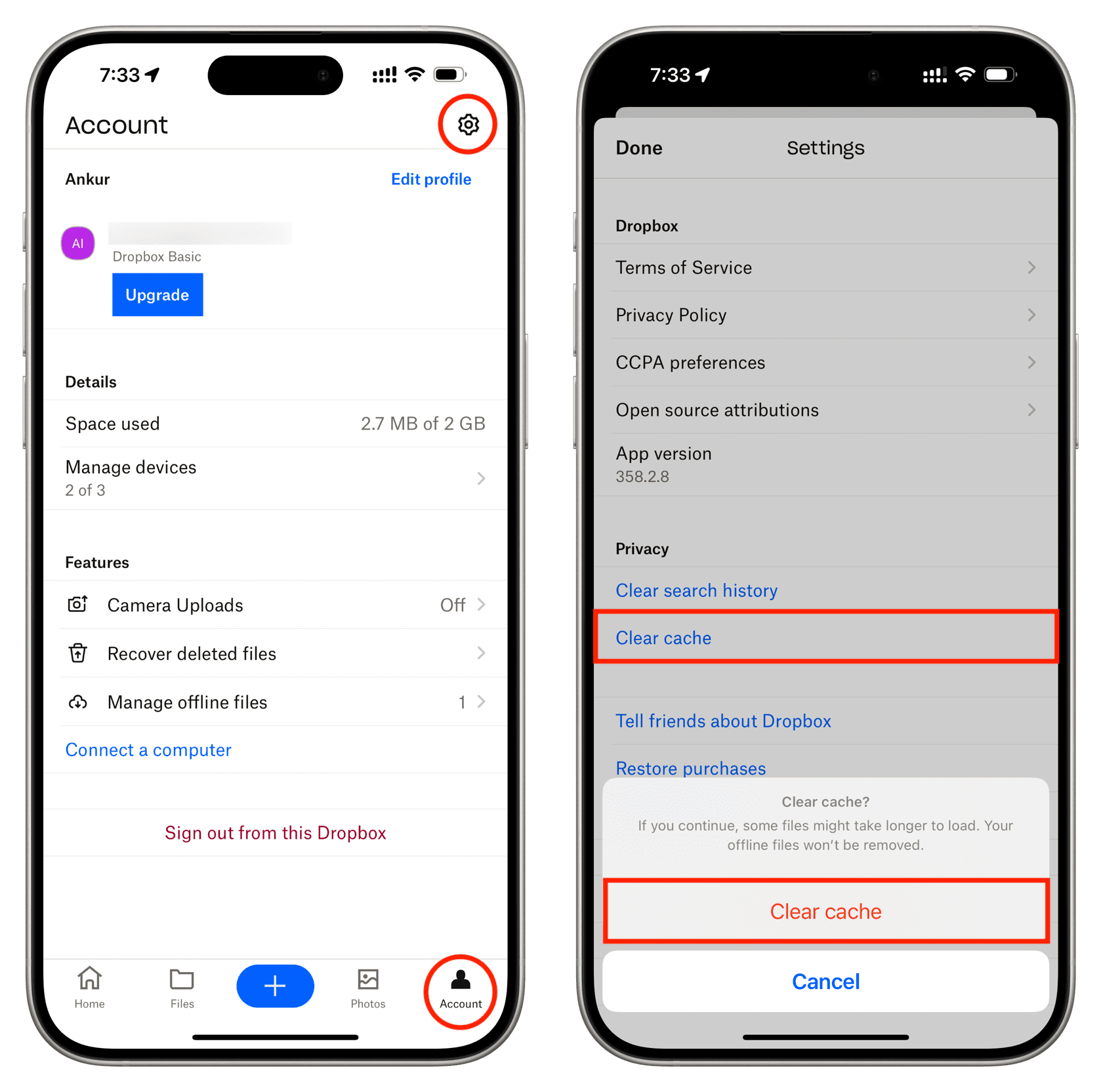
Know that the size of Dropbox’s cache accumulated on your device depends on how you use the app, how many files are stored offline, and a number of other factors.
Unfortunately, the Dropbox app doesn’t provide the option to set a limit on cache size, meaning it will use as much free storage space as iOS’s automatic storage management lets it. iOS does manage app caches, temporary files, and other cruft on your device, deleting items automatically, as needed, to free up space.
However, that feature lacks a user-facing interface that would let you adjust how it works or set a custom size for the Dropbox cache. This is why you’re advised to always use storage management features in your favorite apps.
On a desktop, the Dropbox cache is a hidden folder named “.dropbox.cache” and stored invisibly in your root Dropbox folder. The desktop helper app automatically clears its cache folder every three days, but you can safely delete it manually.
Check out next: