In this tutorial, we'll share a few different ways to save photos, videos, files, and other attachments you received in Messages to your iPhone, iPad, and Mac.
How to save files, photos, and attachments in Messages to iPhone, iPad, and Mac
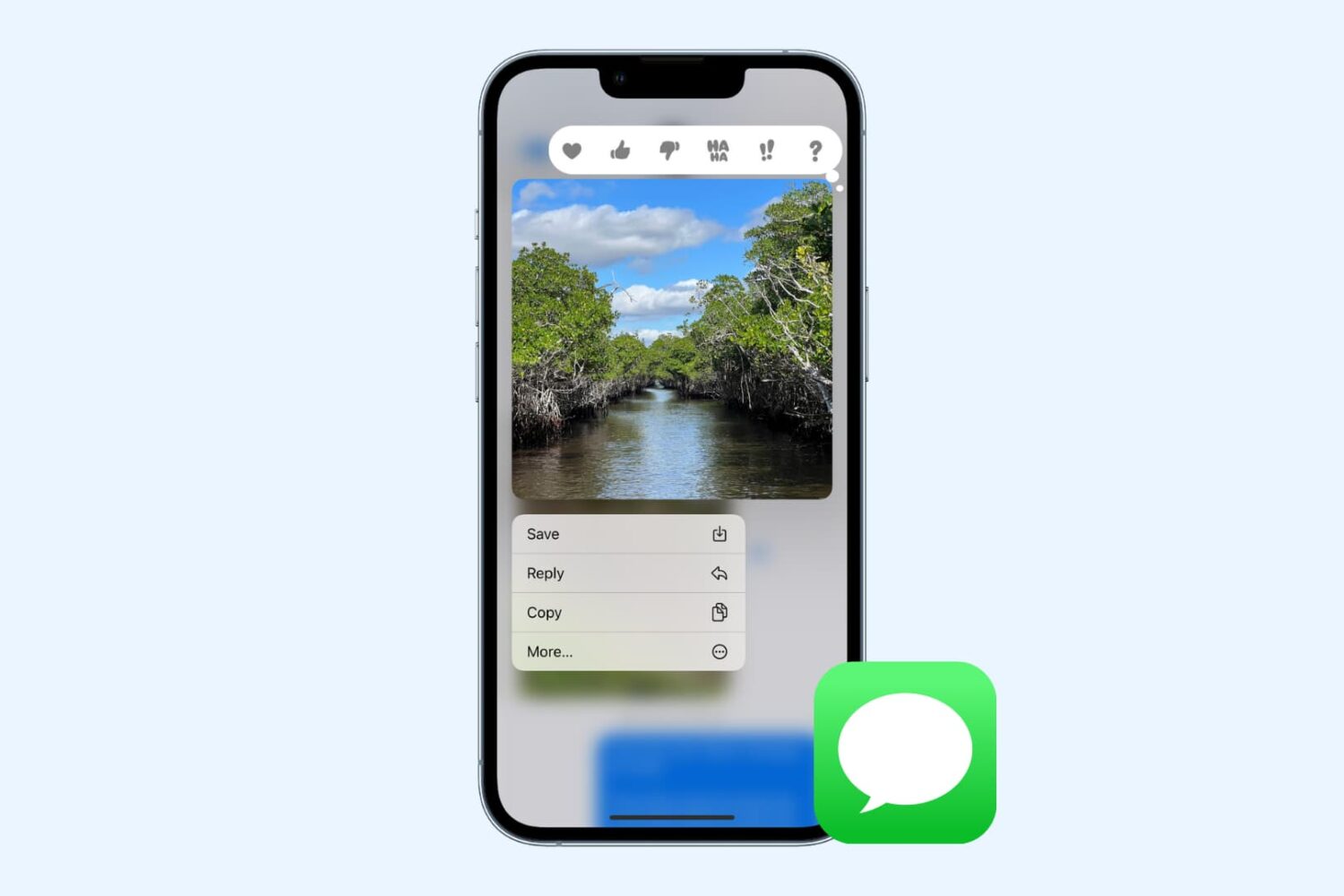
In this tutorial, we'll share a few different ways to save photos, videos, files, and other attachments you received in Messages to your iPhone, iPad, and Mac.
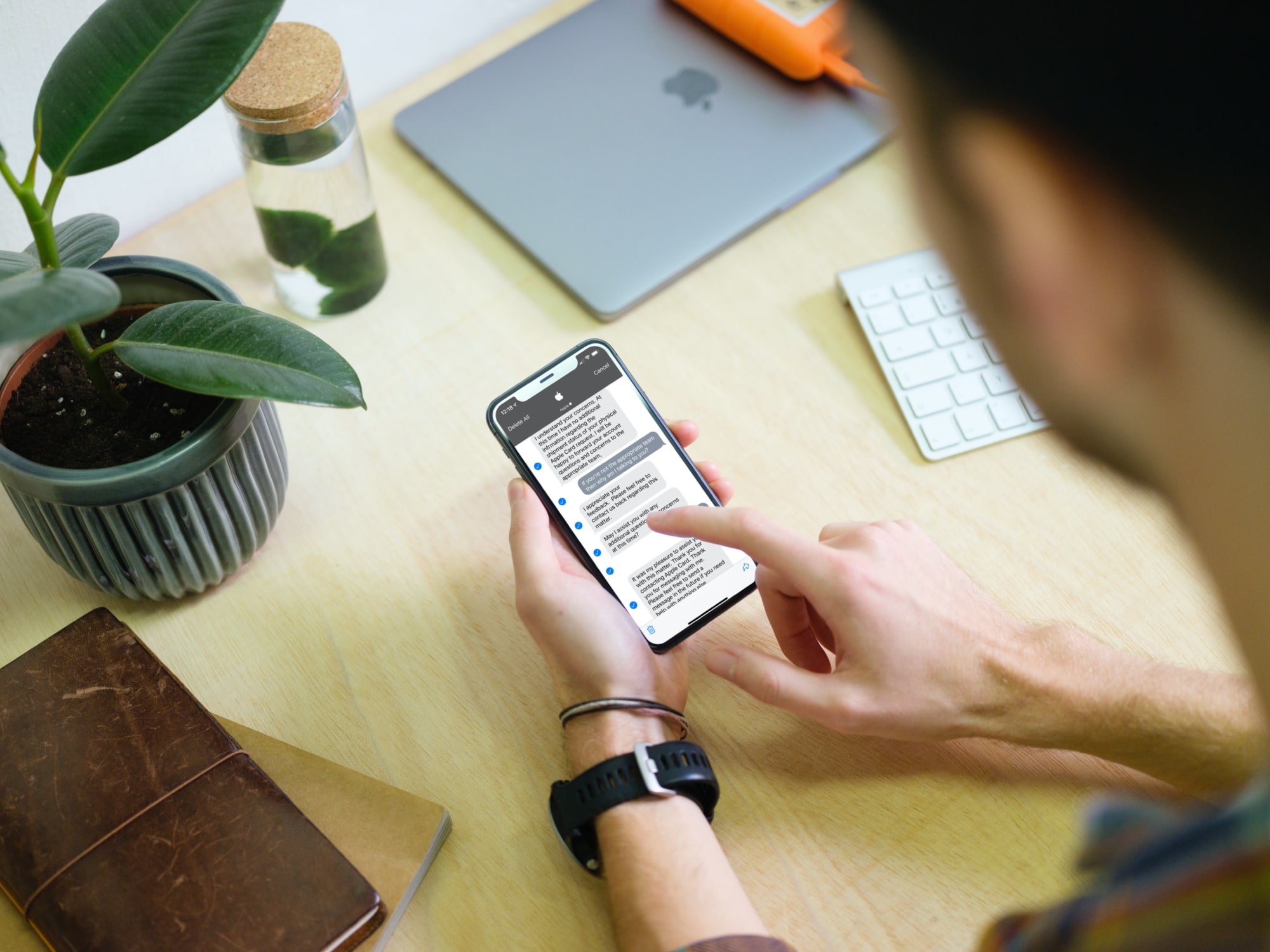
In this tutorial, we’ll show you various ways to export or save your conversation, which in turn can allow you to print it from your iPhone or computer.
A feature of the Messages app that I find absolutely indispensable is the ability to mute individual conversations that I don’t feel like responding to or receiving notifications from. This lets me continue receiving messages and responding to those I want while not being pestered by those that I’ve muted.
As great as this feature is, I’ve found that that missed messages from muted conversations still count against the Messages app’s notification badge count. This means that even if you’re trying to ignore someone in particular, the Messages still serves you with unwanted badge notifications for that specific conversation — and worse — bunches those missed notifications with others from the conversations you actually care about.
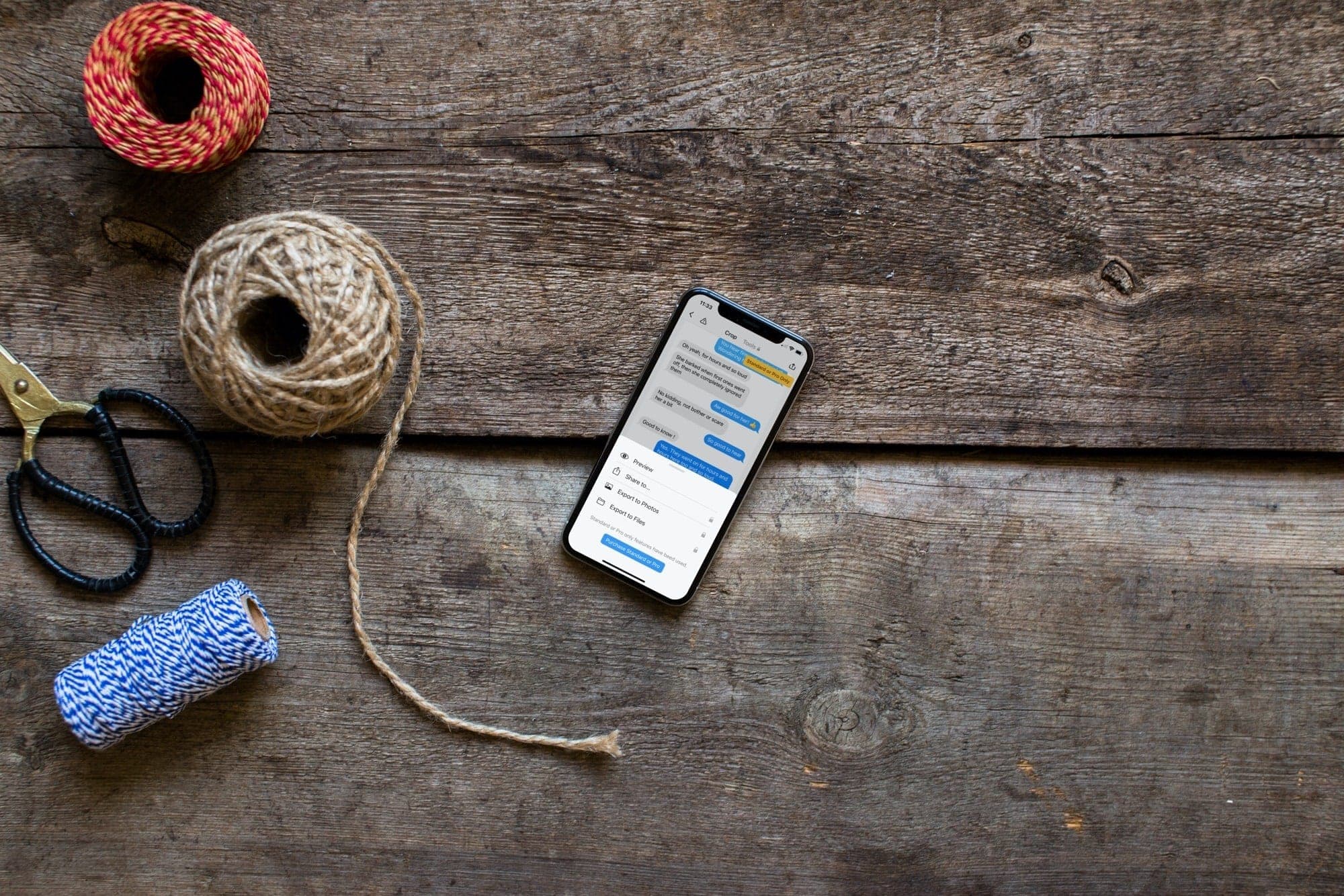
In this step-by-step tutorial, we’ll show you how to use the right tools to create a long screenshot of a whole text conversation on your iPhone or iPad.
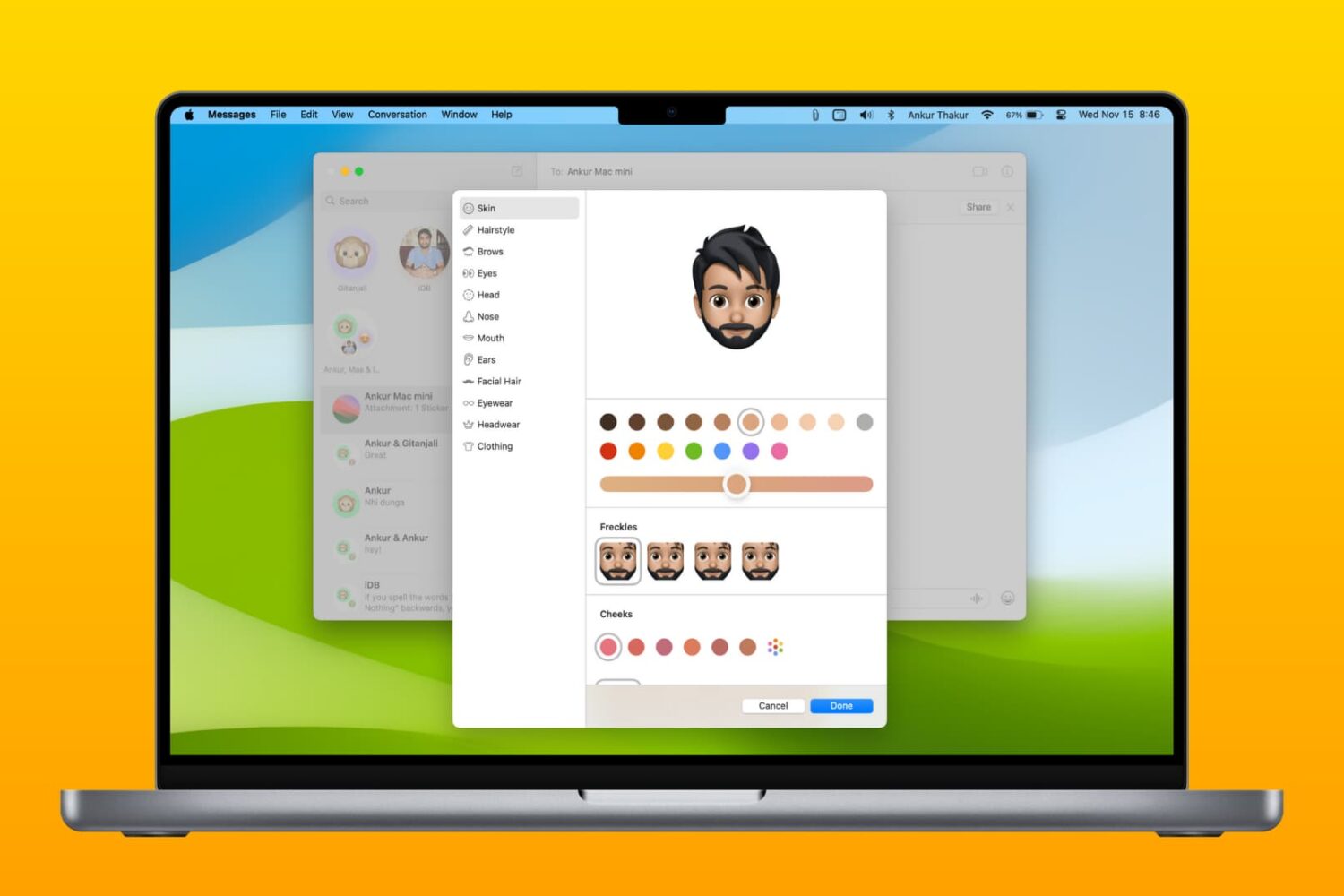
Learn how to create and edit Memojis in the Messages app on Mac so you're covered whether you want a brand new Memoji or update an existing one.

According to numerous posts on Apple's discussion forums, some of the people who have upgraded to the latest iPhones or iOS 14 are plagued with various issues with text messaging.
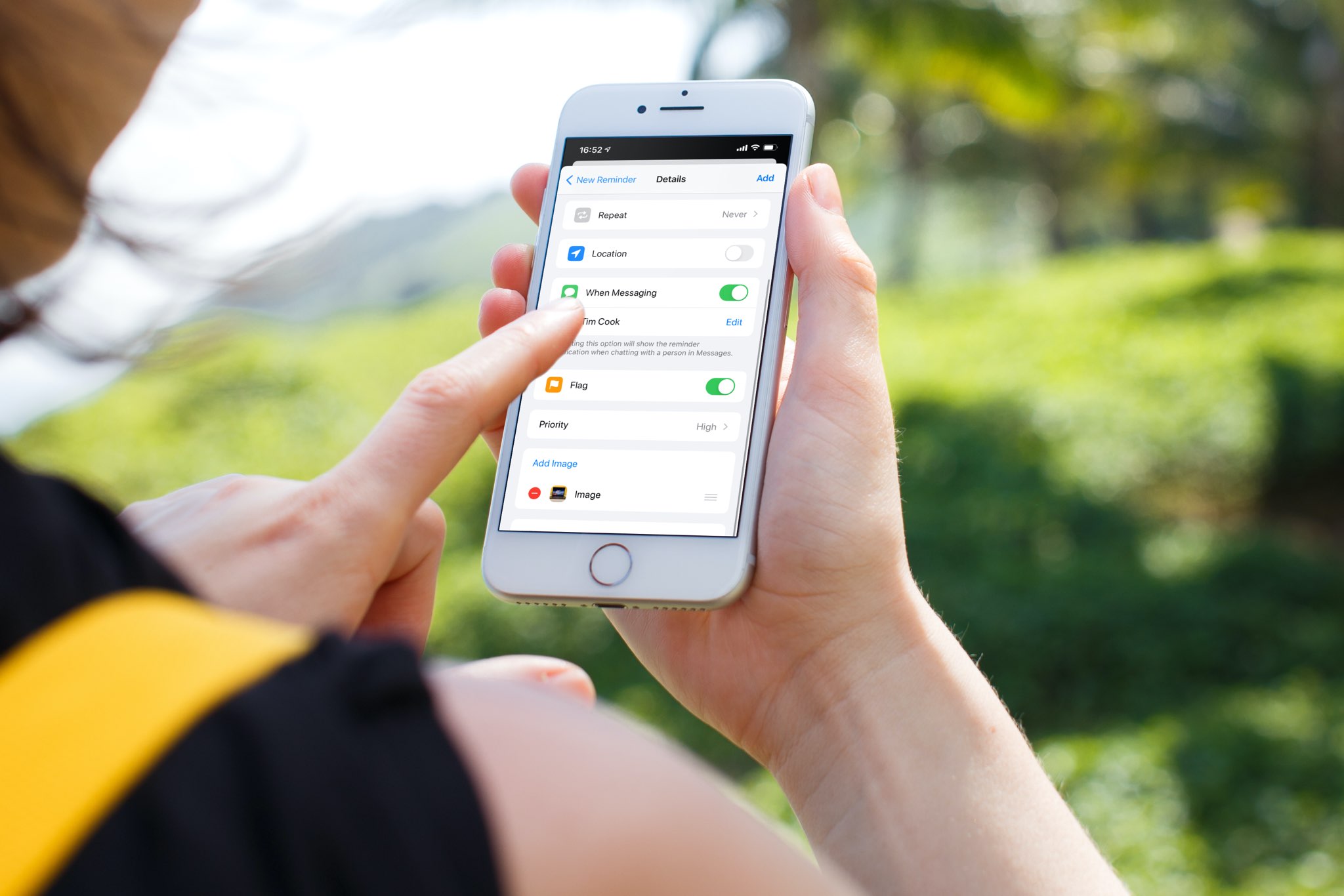
Learn how to use the Apple Reminders app on your iPhone, iPad, or Mac to get reminded about a task when you are messaging a particular person.
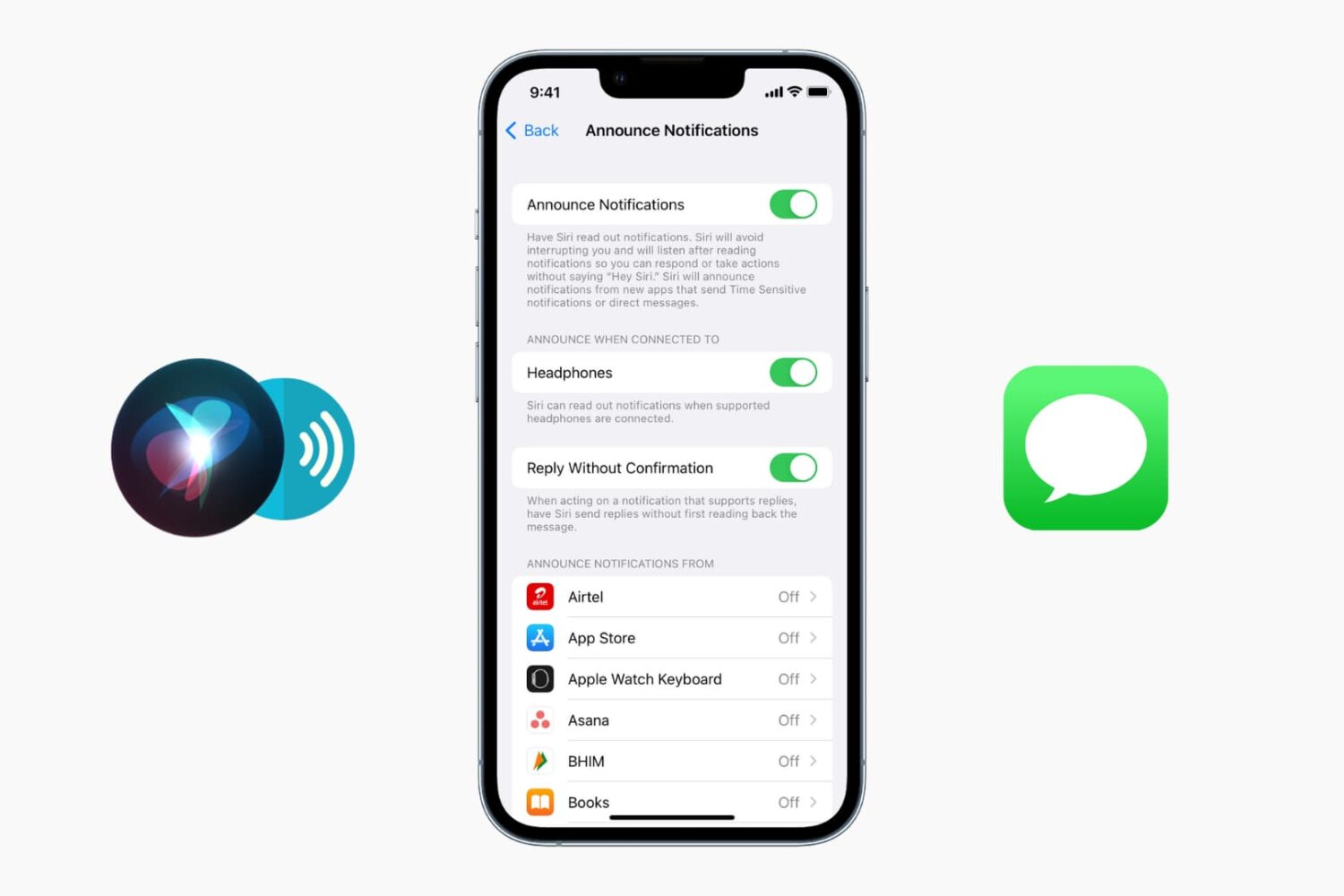
Learn how to stop Siri from announcing incoming messages and notifications when you’re using your AirPods so you can enjoy listening to songs or podcasts without interruptions.
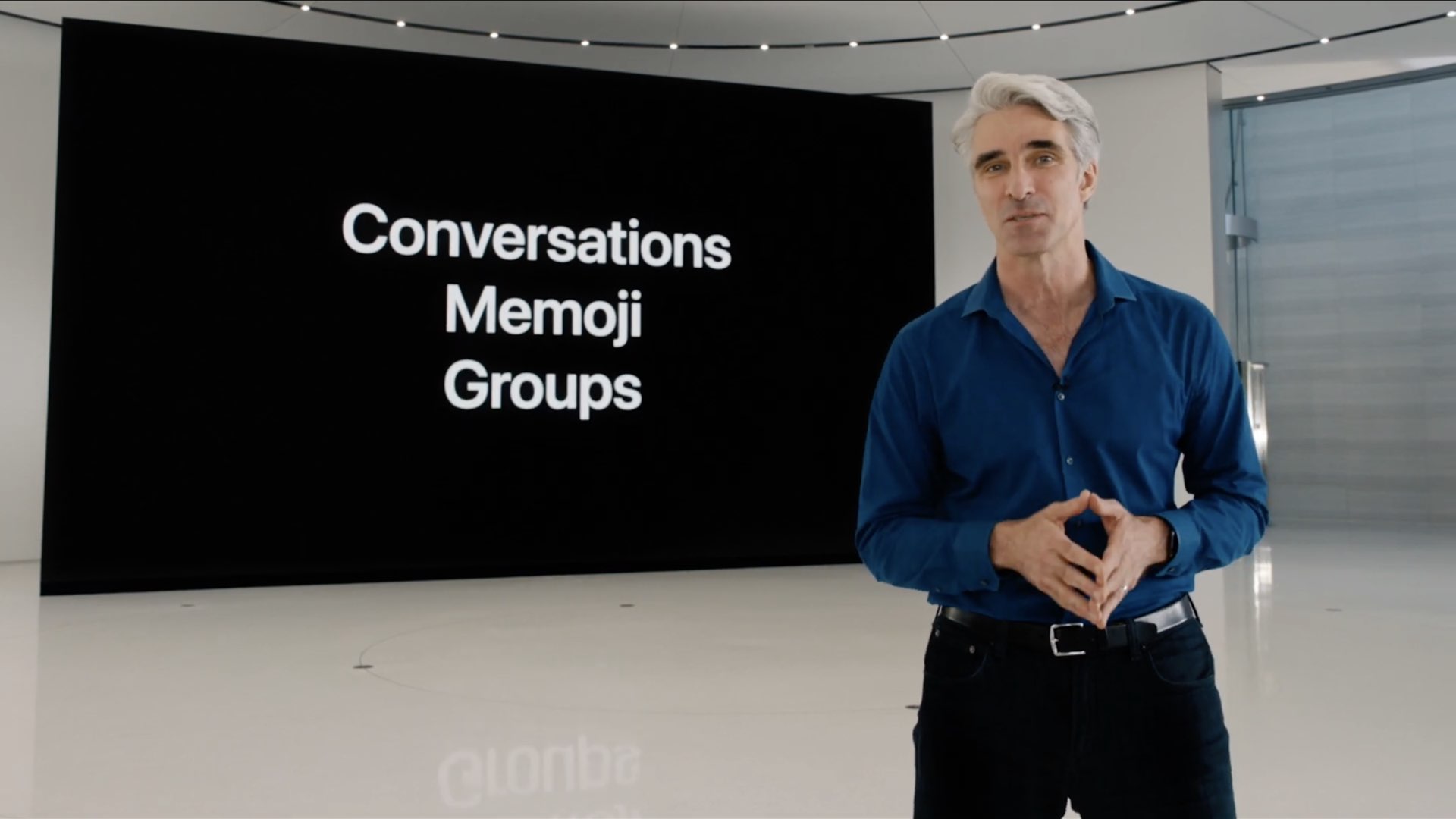
The Messages app in iOS 14 and iPadOS 14 brings more than a dozen new features and enhancements, allowing you to stay connected to your favorite conversations, keep track of group chats, bring specific items to someone's attention with Slack-like mentions and much more. Here is everything new and improved in Messages on the iPhone, iPad and iPod touch.
Earlier this year, during its virtual Worldwide Developers Conference, Apple showcased all the changes it made to iOS 14. Now, months later, the software is ready for the public as Apple today began rolling out the update to all users.
It was only a couple of months ago that we gave you the grand tour of a jailbreak tweak called iAutoReply by iOS developer MeBlackHat, which effectively allowed you to set up automatic replies for incoming texts to help you manage the bevy of messages you might receive when you’re unable to respond immediately.
It was only a matter of time before someone said, “but what about (insert third-party messaging service here),” and thus a new jailbreak tweak dubbed iWhatsApp was conceived.
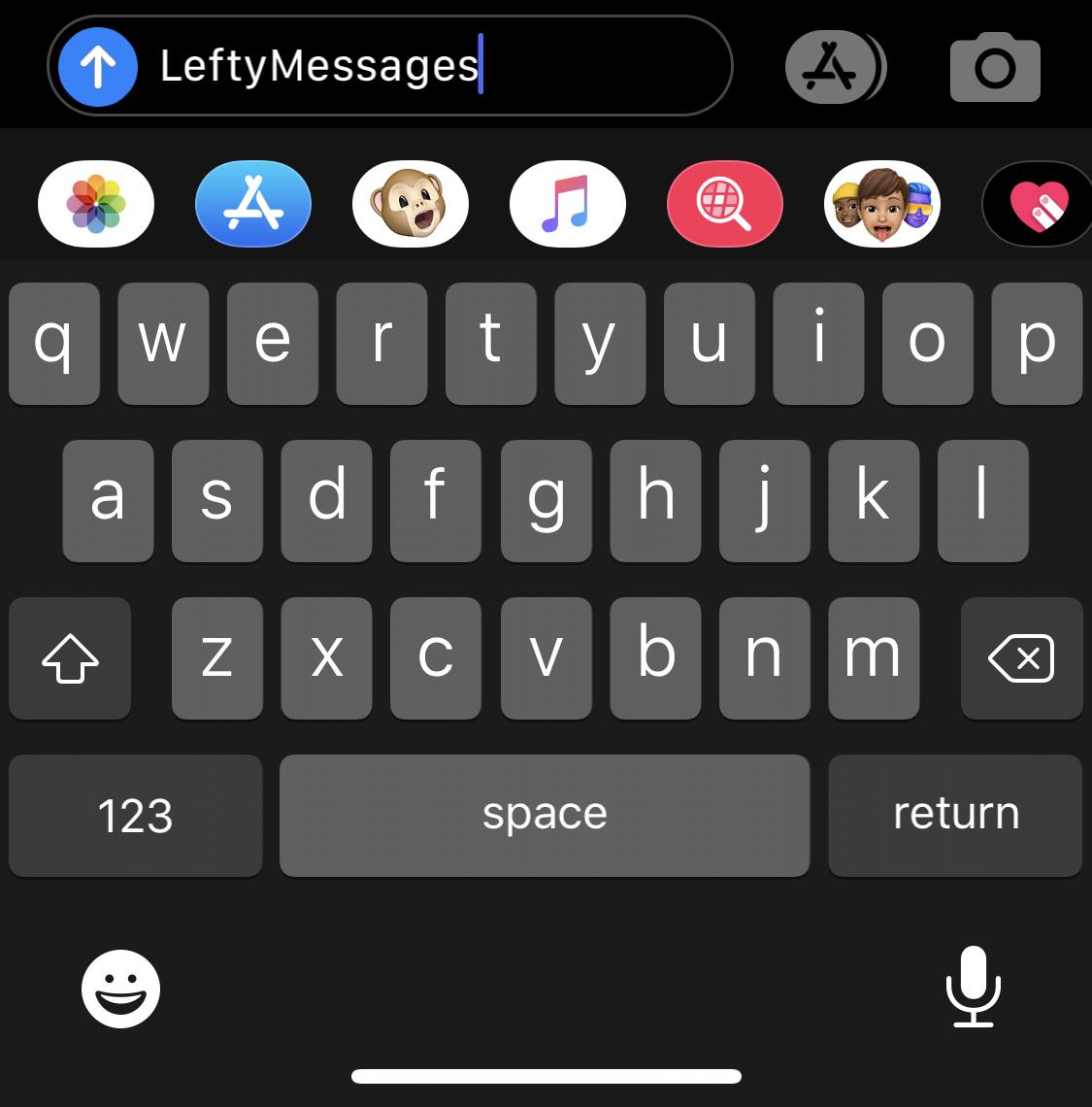
The iPhone’s Messages app is a particularly well-planned application with a simple user interface that most people have no trouble using, but if you’re of the sinistral variety (left-handed), then you might have a tendency to disagree with that sentiment. Fortunately, the jailbreak community is here to help.
LeftyMessages is a newly released and free jailbreak tweak by iOS developer Paperman369 that tries to make the Messages app easier for left-handed people to use with one hand by moving certain frequently used controls over to the left side of the display.