Mac Tip

How to halve your data usage on Chrome for Mac, iPhone and iPad

Google's Chrome browser includes a handy feature designed to decrease bandwidth usage by up to fifty percent for mobile users on very slow networks. Called Data Saver, it works by passing webpages you visit to Google servers that compress graphics and other web content.

You can even tell Data Saver to replace the originally requested image with a small placeholder graphic, if the original image is likely not a crucial element of the page.

Here's how you can reduce the amount of data that Chrome uses on your Mac, iPhone, iPod touch or iPad by enabling Data Saver mode to cut your bandwidth usage up to fifty percent, and even more.

How to encrypt Time Machine backups

In our second Time Machine tutorial, we're going to show you how to encrypt a Time Machine backup. Encrypting your backups is extremely easy and straightforward. All you need to do is select a single check box in order to enable encryption and enter a password. In this tutorial, we'll show you how to do it, and why you should consider encrypting your backups.

How to install beta software on a separate partition

Itching to run the latest macOS beta, but don't want to upgrade your primary Mac installation with a beta release? You'd be wise to carefully consider the prospects of running a beta release as a daily driver. That said, it is possible to run beta software on your primary machine without compromising your current installation.

By creating a small test partition on your primary drive, you can create a great landing space for the beta. Read and watch our walkthrough to see how easy it is.

How to set up Time Machine on Mac OS X

Time Machine is a Mac utility that allows you to automate hourly, daily, and weekly backups on an external drive that's connected directly to your Mac or via a local network. It's seen as the first line of defense against data loss, and features simple setup.

Setting up Time Machine, in its most basic configuration, is extremely easy. All you need to do is launch the Time Machine preferences, turn on Time Machine, select a Backup Disk, and you're pretty much set.

Of course, there's much more to Time Machine than just the initial setup, but in this first post in our Time Machine tutorial series for OS X, we'll cover some of the basic set up options.

How to remove unused language files from your Mac and free up disk space

There are approximately 150 different localized languages coded into OS X. Most people only use one language on their computer, maybe two. That leaves hundreds of megabytes of space being used up by languages you will never access in your operating system.

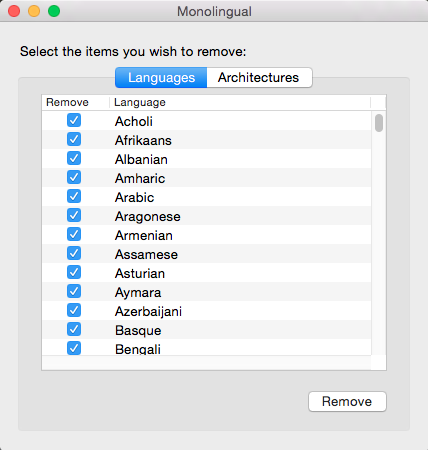
Monolingual is a utility that allows you to remove many of the more than 150 foreign languages from your Mac, freeing up disk space for more important files. We've got a tutorial that explains how to download and use Monolingual to delete unnecessary language files, plus a couple of very important tips to follow before completing the process.

How to automatically hide a Mac app when clicking elsewhere on the screen

Maintaining a clean workstation is perhaps one of the best ways to help with productivity and clear-thinking. Not only does this apply to one's desk or office, but for those of us who work with computers, it extends to the Dock, folders, and desktop. Keeping things clean and orderly in OS X is vital for getting things done efficiently, and this Mac tip helps do exactly that.

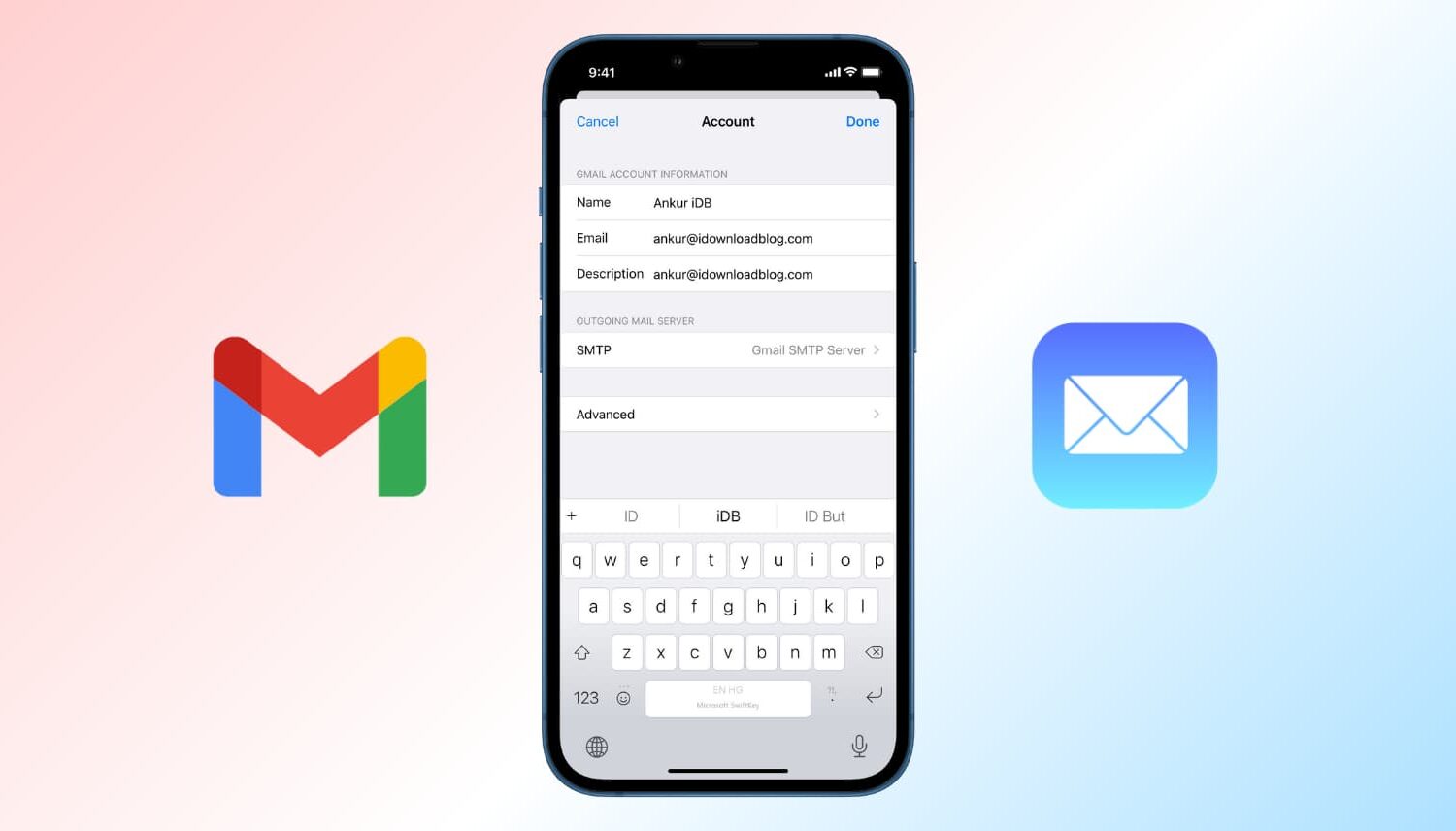
How to change your email display name

Change email display name on iPhone and Mac

When you send someone an email, it usually shows the name you set while creating the account. Suppose you made a typo while setting up your email, or used your nickname or a fake name, and now every email you send has this name you no longer like.

In this tutorial, we show you how to change the name that's displayed in the email you send to someone from your iPhone, iPad, Mac, and iCloud.

How to fix a “referencing media on the camera” error in Final Cut Pro X

Every now and then, you may run into an issue with Final Cut Pro X where a file doesn't successfully import. Due to this, the media that you're working with in your project is still referencing the location where the file originally was (i.e. SD Card, Camera HDD, etc.).

When this happens, and you try to share/export a project, you'll receive an error message that says "This item cannot be shared while it is still referencing media on the camera."

To fix this problem, you'll need to reimport your footage from the original source using the File menu. It's fairly straightforward, but it's not exactly obvious as to what you should do when you first encounter this issue. Inside, we'll show you the error message and the quick fix in our brief video tutorial.